

Membership CTA
A full-bleed member signup band rendered above the site footer on every page. Editorial copy lives on a Ghost page; the pricing column adapts automatically to whether paid plans are connected; delete the page to hide the band site-wide.
The Membership CTA is a full-bleed dark section that sits above the site footer on every page — homepage, posts, archives, tag pages, the bookmarks page. It carries editorial copy on the left and an adaptive price + signup form on the right. Designed to be the recurring conversion moment across the site, editable without touching template code.
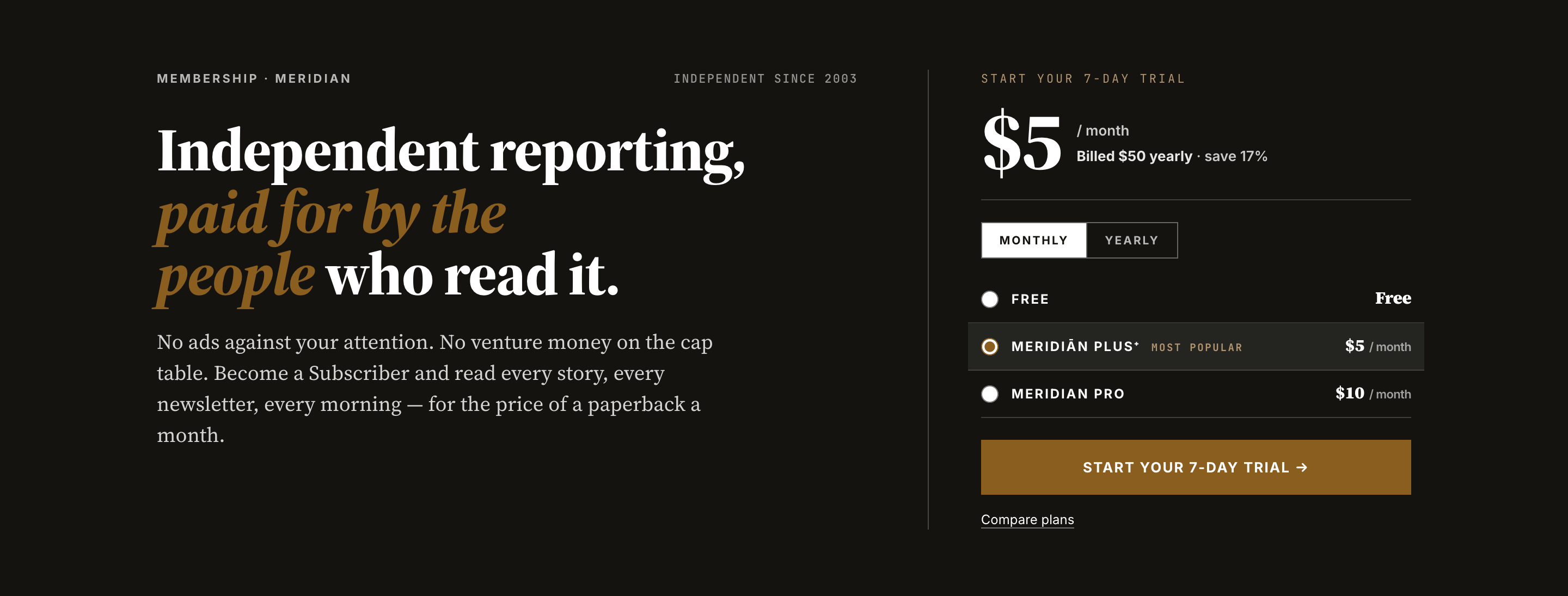
How the band is composed
The band has two columns:
- Left column — eyebrow stamp, optional issue line, headline (with one accent phrase wrapped in
<mark>), and body paragraphs. All sourced from a Ghost page with slugmembership-cta. - Right column — an adaptive price block plus the signup form. The price block switches automatically between a Paid-plan band (when paid plans are connected) and a Free-plan band (when they aren't). Both variants share the same left-column editorial copy and the same signup form.
You only ever author the left column. The right column fills itself from your Ghost membership setup. If you don't author the page, the band doesn't render at all — see Hiding the band below.
Editorial copy lives on a Ghost page
The four left-column slots are mapped one-to-one to fields on a Ghost page (not a post) with the slug membership-cta.
| Page field | Slot in the CTA | Notes |
|---|---|---|
custom_excerpt | Eyebrow stamp (top-left) | e.g. Membership · Meridian |
meta_description | Issue line (top-right of left column) | Optional — e.g. Independent since 2003 |
meta_title | Trial badge override (right column eyebrow) | Optional. When set, replaces the auto-derived trial badge. See Trial wording inside the Paid-plan tab below. |
html (body) | Headline + body | One <h2> followed by one or more <p> |
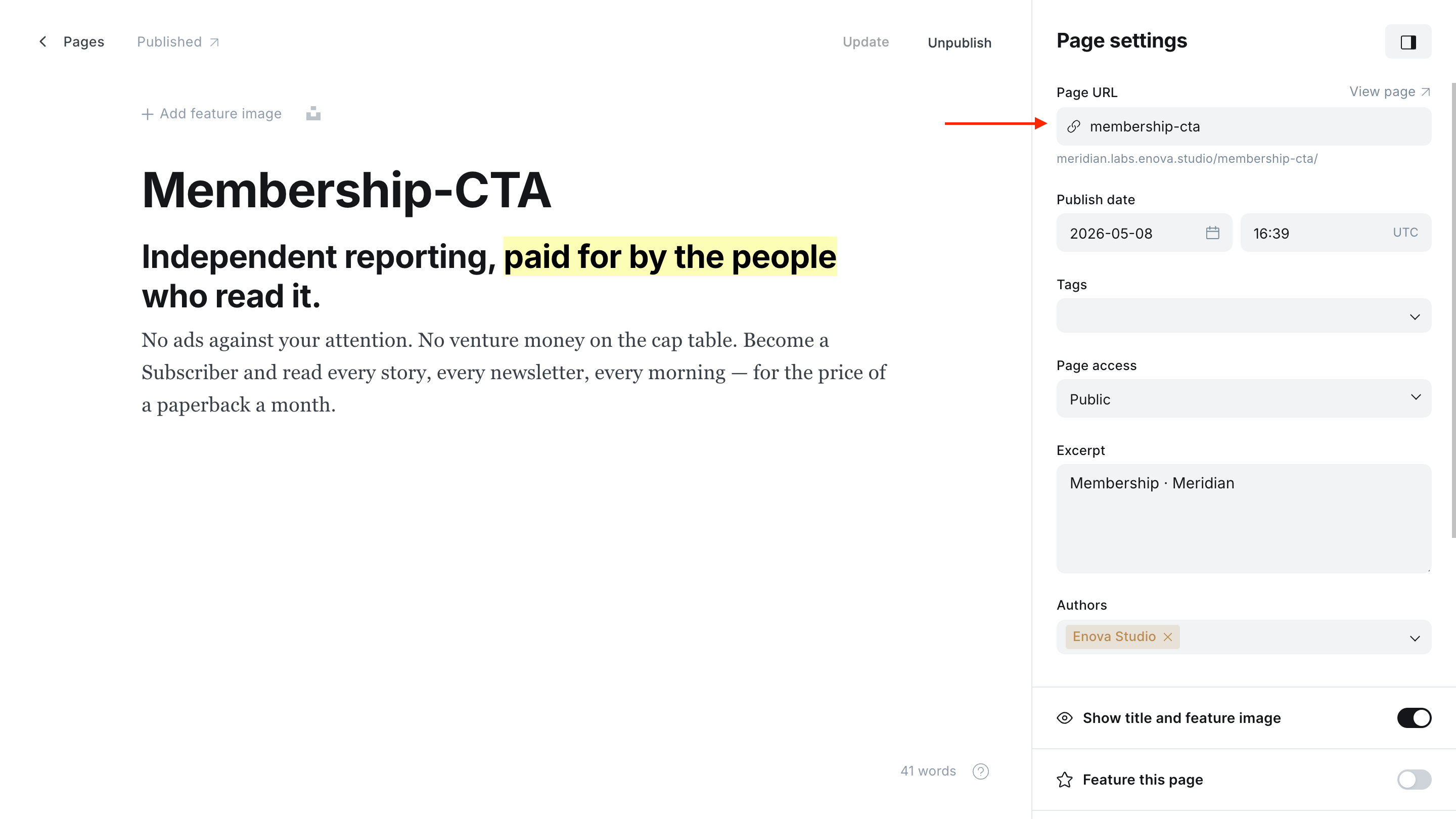
Membership CTA Page - Editor
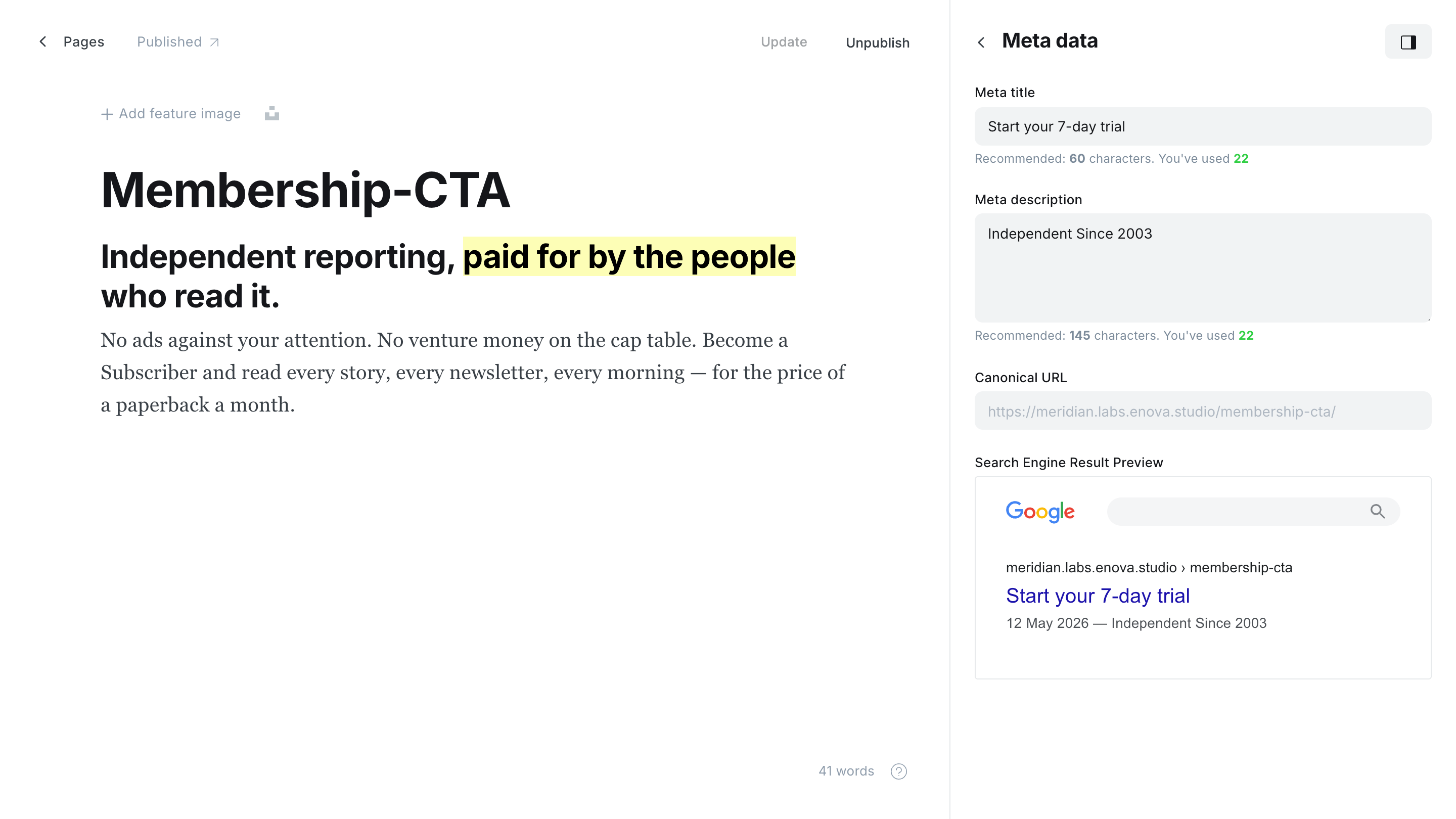
Membership CTA Page - Meta data
Create the page
In Ghost Admin, go to Pages → New page. Title it whatever you like — the title isn't rendered.
Set the slug to membership-cta
In Page settings, set the Page URL to membership-cta. The page does not need to be linked from your nav; it's a content source, not a destination.
Fill the meta fields
In Page settings:
- Excerpt (which becomes
custom_excerpt) → your eyebrow. - Meta description → your optional issue line.
- Meta title → your trial badge override. Leave it blank to let the band auto-derive the badge from your tier's trial length.
Author the body in the editor
Type the headline as a normal Heading 2 in the Ghost editor, then write the body paragraphs underneath. Use the highlight action on the few words you want as the accent phrase — see the next section for the shortcut.
Publish
Click Publish. The band will pick up your copy on the next page render across the site.
Highlighting a phrase in the headline
The accent phrase — the few words you want italicized and tinted with your accent colour inside the otherwise plain headline — is created with Ghost's native highlight action, which emits a <mark> tag.
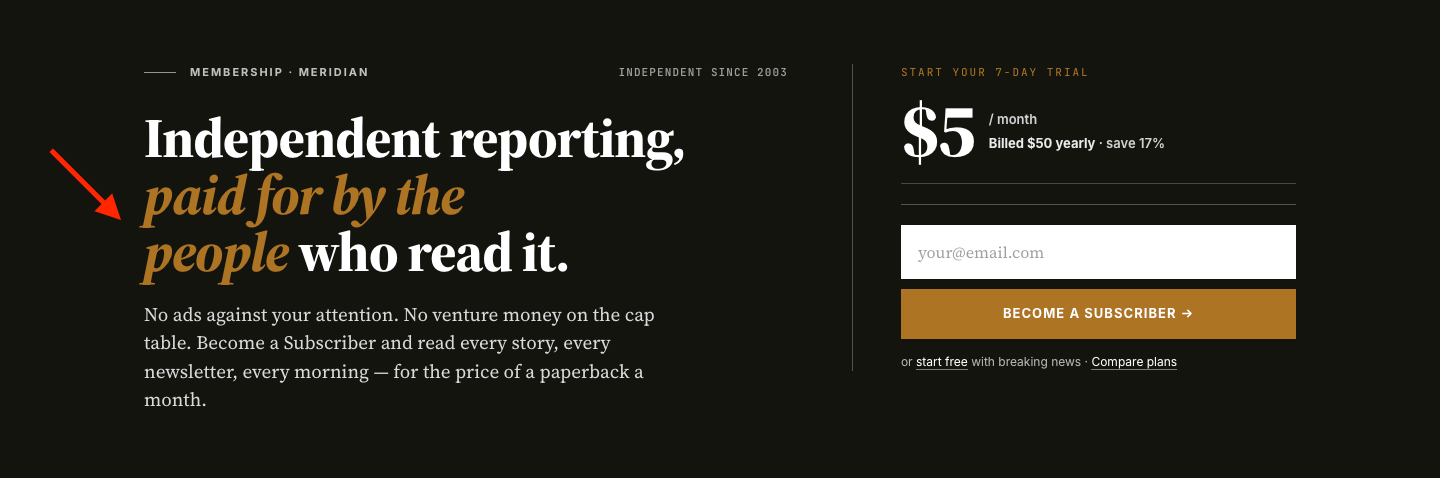
How to highlight in the Ghost editor
Type the headline as a normal Heading 2.
Select the words you want as the accent phrase.
Apply highlight:
| Platform | Shortcut |
|---|---|
| macOS | ⌘ + Option + H |
| Windows / Linux | Ctrl + Alt + H |
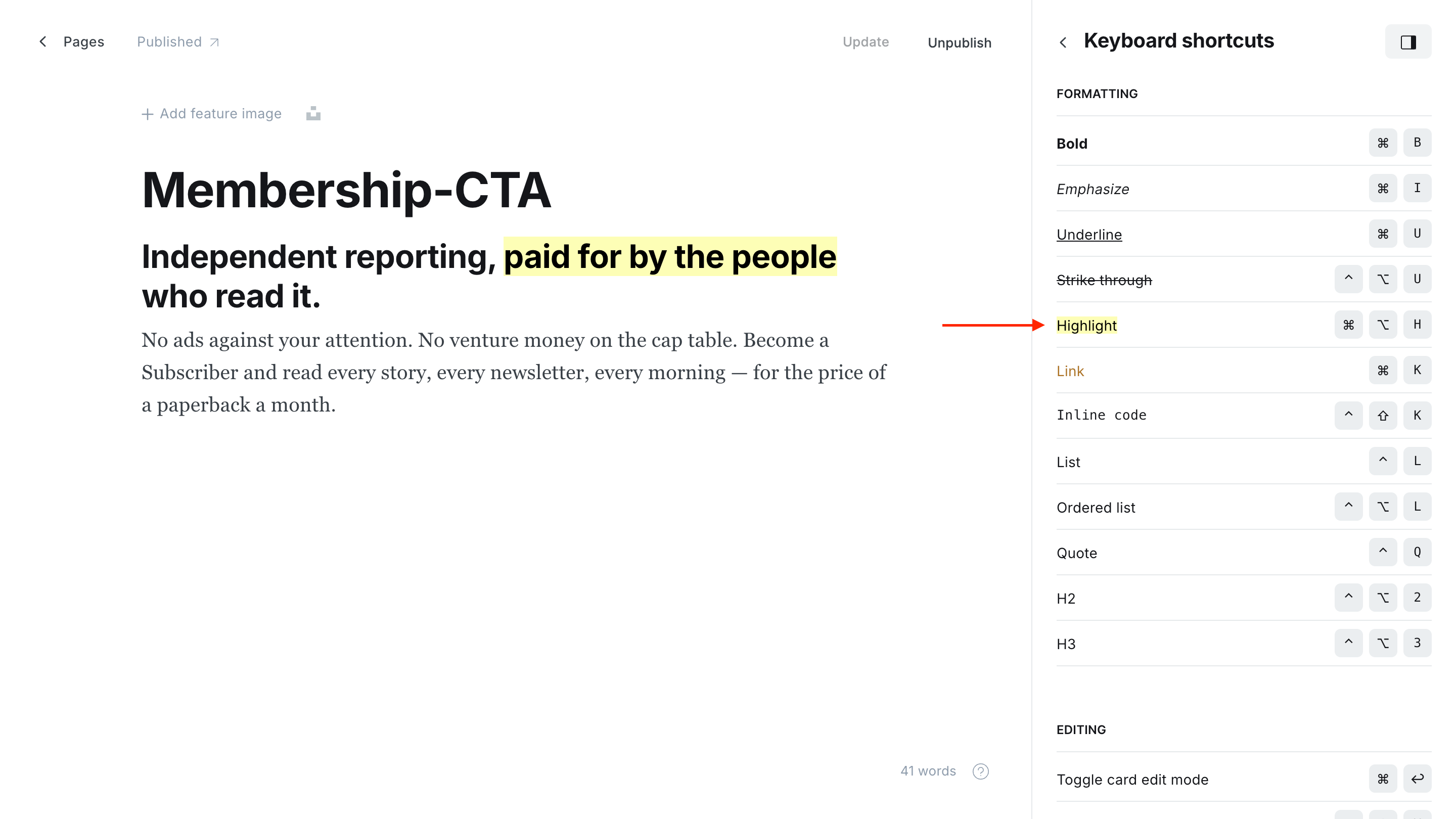
The selection gains Ghost's default yellow highlight in the editor; Meridian's CSS swaps that for italic + accent-colour text on the rendered page.
You can highlight multiple ranges in the same headline if needed, though one accent phrase usually reads better than two.
Highlight is also in the toolbar
The same action lives in the editor's floating text-format toolbar — select your phrase and click the highlighter icon. The keyboard shortcut is just faster once you know it.
Which variant your readers see
The right column has two automatic variants. Meridian picks one for you based on whether paid plans are purchasable on your site (memberships enabled and Stripe connected and at least one active public paid tier exists). You don't toggle this — it follows your Ghost settings.
When it appears
The Paid-plan band renders when paid plans are purchasable — memberships enabled, Stripe connected, at least one active public paid tier with a monthly price, and at least one price ticked under Available prices in Settings → Membership → Signup portal → Customize → Signup options.

What it shows
- A trial badge at the top of the column (see Trial wording below).
- The selected plan's price as the headline number. With a single public plan that's simply your paid tier; with more than one, the cheapest paid tier is pre-selected as the featured plan. Which price shows follows your Available prices: monthly, yearly, or, when you offer both, the one you chose as Default price at signup.
- When you offer both prices and the band shows the monthly one, the yearly equivalent (
Billed $X yearly) and a "save N%" line sit below it, computed client-side frommonthly_price × 12versusyearly_price. If the yearly price doesn't actually save money, the line self-removes — no awkward "save 0%". - With one public plan: the signup form (magic-link email + submit) and a fine-print line with a start free link and a Compare plans link.
- With more than one public plan: the compact plan picker described next, and the fine print keeps only Compare plans (the free plan is already a row in the picker).
You don't need to touch any theme setting for pricing. Open Settings → Membership → Tiers in Ghost Admin and the band reflects whatever you set up there.
Multiple plans: the compact picker
When your site has more than one public tier — say a free plan and two paid ones — the band grows into a compact plan picker, mirroring the membership page without leaving the band:
- A Monthly / Yearly switch (it only appears when both Monthly and Yearly are ticked under Available prices and at least one plan prices a year, and every price in the band flips with it).
- One slim row per plan — name, price for the chosen billing period, and a Most popular stamp on the cheapest paid plan. The rows are native radio buttons, so keyboard and screen-reader behaviour come from the browser, not custom code.
- The big price, the trial badge and the button follow the selected plan. Pick a paid plan and the button starts Stripe checkout for exactly that plan and billing period; pick the free plan and the band swaps in the magic-link email form.
- Signed-in free members see Change plan / My account instead of checkout buttons they can't use.
Plans appear in the same order as on the membership page. There's nothing to configure — hide a tier from Portal (Settings → Tiers) and it leaves the band too; with only one public tier remaining, the band returns to the classic single-offer layout above.
Trial wording
The trial badge text follows this precedence:
- If the
membership-ctapage's Meta title field is set, the badge shows that text verbatim — your custom phrase, exactly as typed. - Otherwise, if your cheapest paid tier has trial days configured, the badge shows the localised string with the day count substituted:
Start your {days}-day trial. The{days}placeholder is filled at render time from the tier'strial_daysvalue, so the wording updates the moment you change the tier in Ghost. The locale key is"Start your {days}-day trial"inlocales/en.json— translators substitute the placeholder, not the number. - Otherwise, the badge falls back to a neutral
Membershipeyebrow.
The Meta-title override is useful when your trial wording differs from a simple day count — for example, "Free for the first month" or a campaign-specific phrase. Leave it blank to let the badge stay in sync with your tier automatically.
In the multi-plan picker the badge follows the selected plan: each paid plan shows its own trial line (or the neutral Membership), and the free plan shows Free membership.
Meta title overrides every plan
The Meta-title text is shown verbatim for all paid plans. On a multi-plan site, "Start your 7-day trial" would also sit above a plan that has no trial — so on sites with several paid tiers, leave the Meta title blank and let each plan speak for itself.
When it appears
The Free-plan band renders whenever paid plans aren't purchasable on your site — Stripe isn't connected yet, you haven't created a public paid tier, your paid tier has no monthly price, or neither Monthly nor Yearly is ticked under Available prices in the Signup portal settings. It also covers the in-between state during site setup when memberships are on but Stripe configuration is still pending.
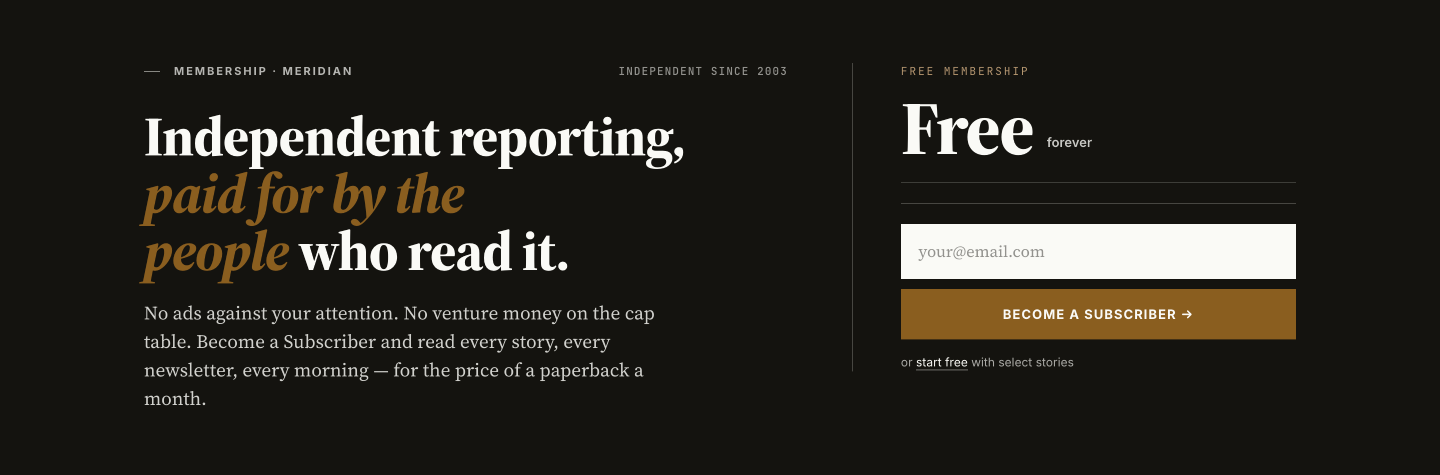
What it shows
- A
Free membershipeyebrow at the top of the column. - A large
Free / foreverprice block, mirroring the layout of the paid variant so the right column never feels collapsed. - The same signup form and the
start free with select storiesfine-print link. - The left column carries on exactly as authored — your headline, body, eyebrow, and accent phrase all render unchanged.
This replaces a pre-1.6.0 quirk
Before v1.6.0, the band would show the paid price column even before Stripe was configured, leaving a "$0 / month" or stale-looking price stamp at launch. The Free-plan band is the explicit, designed state for that period — and for sites that intentionally don't sell paid memberships.
The variant is decided server-side per render — there's no flash between states, and the signup form works the same way in both.
Hiding the band
The band hides itself entirely under any of these conditions:
- The
membership-ctapage is missing or unpublished — this is the admin-controlled opt-out. Delete the page (or set it back to draft) and the band disappears from every page on the site immediately. No theme setting required. - Memberships disabled — if you've turned off memberships site-wide (Ghost Admin → Settings → Membership → "Subscription access" set to Nobody), the band doesn't render.
- Viewer is a paid member — paying members never see the band. They've already converted.
In every case the footer flows together as if the band had never been authored.
Free members still see it
Free members and logged-out visitors both see the Membership CTA. Only paying members get the band suppressed, individually.
Deleting is the opt-out
There's no theme toggle for the Membership CTA. The Ghost page IS the toggle — delete or unpublish membership-cta to hide the band, re-publish to bring it back.
When to use this vs. the other member surfaces
Three member surfaces ship in Meridian:
- Membership CTA (this page) — full-bleed band above the footer on every page. Heavy, editorial, conversion-focused. One offer in view at a time — a compact plan picker when you sell several.
- Post-page member CTA — a signup invitation at the end of stories a logged-out reader can open in full. On members-only stories the paywall shows the prompt instead, so the two never stack. Copy is set via theme settings, not a Ghost page. See Site wide settings → Member CTA headline / body.
- Membership page — a page at
/join/listing every plan you sell, with prices, benefits, trials and checkout. This is the destination, not a prompt.
They're complementary. The footer band is the editorial-tone pitch readers see on every page they land on; the post-page CTA is the reader-just-finished-an-article moment; the membership page is where a reader who is ready compares the plans and picks one.
They hand off to each other
Once the membership page exists, this band's Compare plans link and every Subscribe / Become a member button on the site point at it instead of opening the Portal popup. The band also steps aside on the membership page itself, so a reader never sees two different prices stacked on one screen.
Membership Page
A subscription-rates page built from your native Ghost tiers — live prices, benefits, free trials and one-click Portal checkout, in two layouts, with no theme settings to fill in.
Home hero widgets
Put your own content cards in the homepage rail, under the newsletter box. Each widget is a Ghost page tagged