

Editorial conventions
Every Meridian internal tag in one place —
Meridian uses a small set of internal tags and Ghost's native Featured flag to change how posts render. None of these affect what readers see in tag archives — internal tags (those whose name starts with #) are Ghost-internal by convention and don't appear on public tag pages.
This page is the single reference for every Meridian-specific tag. If a feature page elsewhere in the docs mentions a #tag, the full behaviour is documented here.
Internal tags don't show up on public archives
Ghost treats tags whose name starts with # as internal — they exist for editorial workflow but are hidden from tag archive pages, the public tag list, and reader-facing post chrome. They still trigger theme behaviour, which is exactly what we want for these.
Article-level tags
These tags change how an individual article renders.
Drop cap
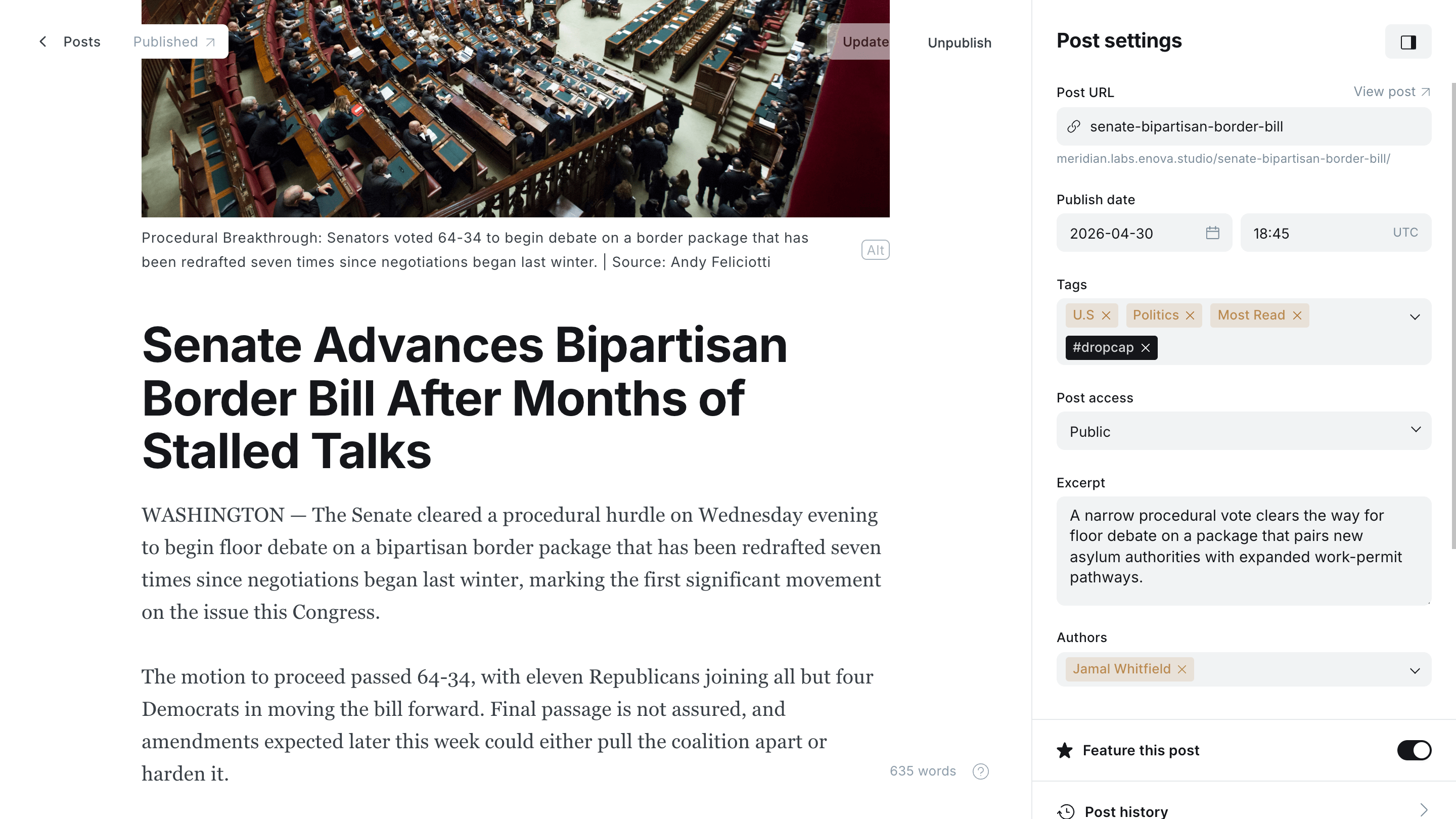
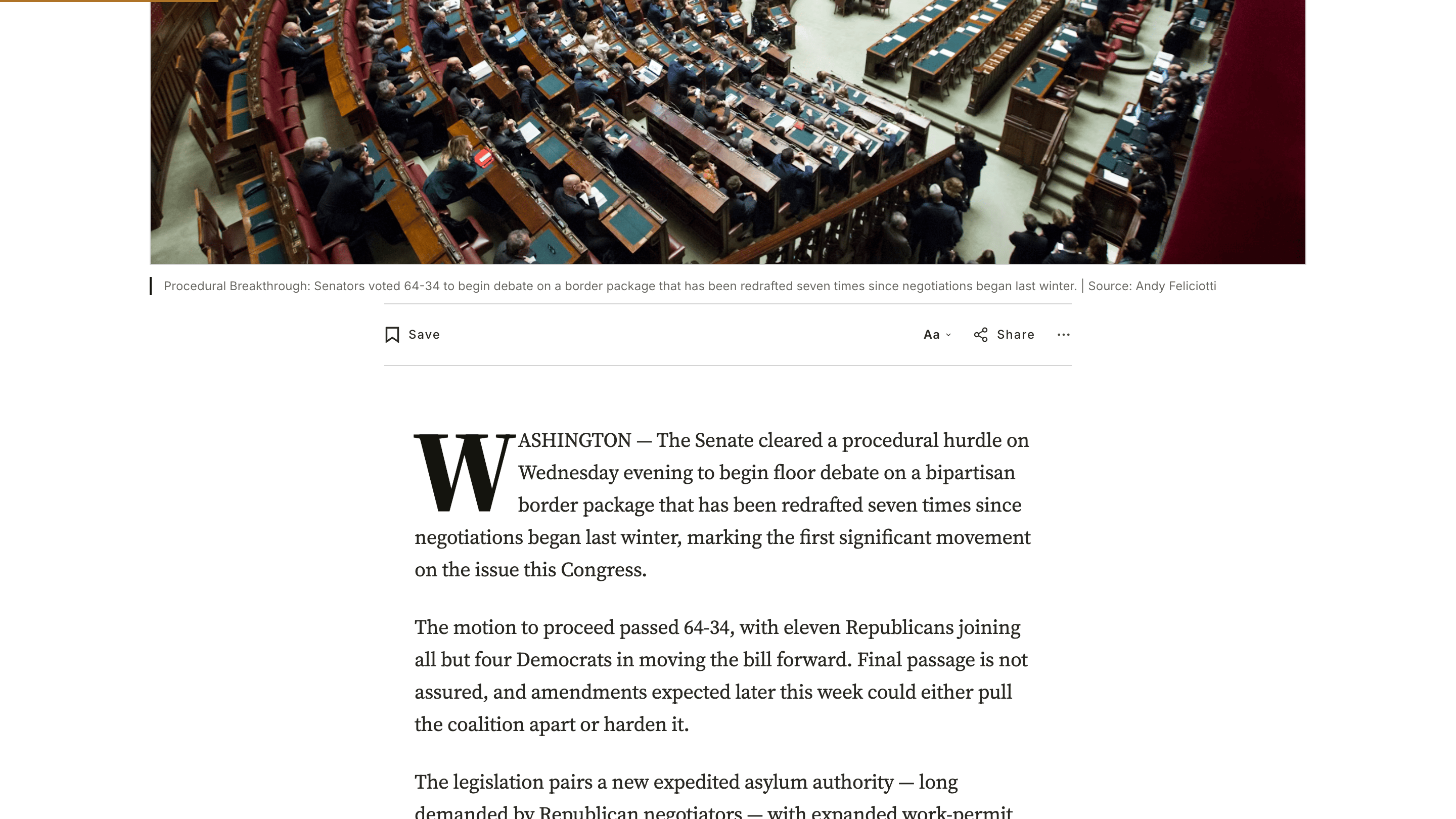
#dropcapPosts and pages tagged #dropcap get a drop cap on their first paragraph — an enlarged decorative first letter that spans three text lines on desktop and two on mobile (in browsers without initial-letter support, a floated cap at 4.9em desktop / 3.3em mobile). Content without the tag renders normally; there's no site-wide toggle.
Add the tag in the editor
What readers see
Video hero
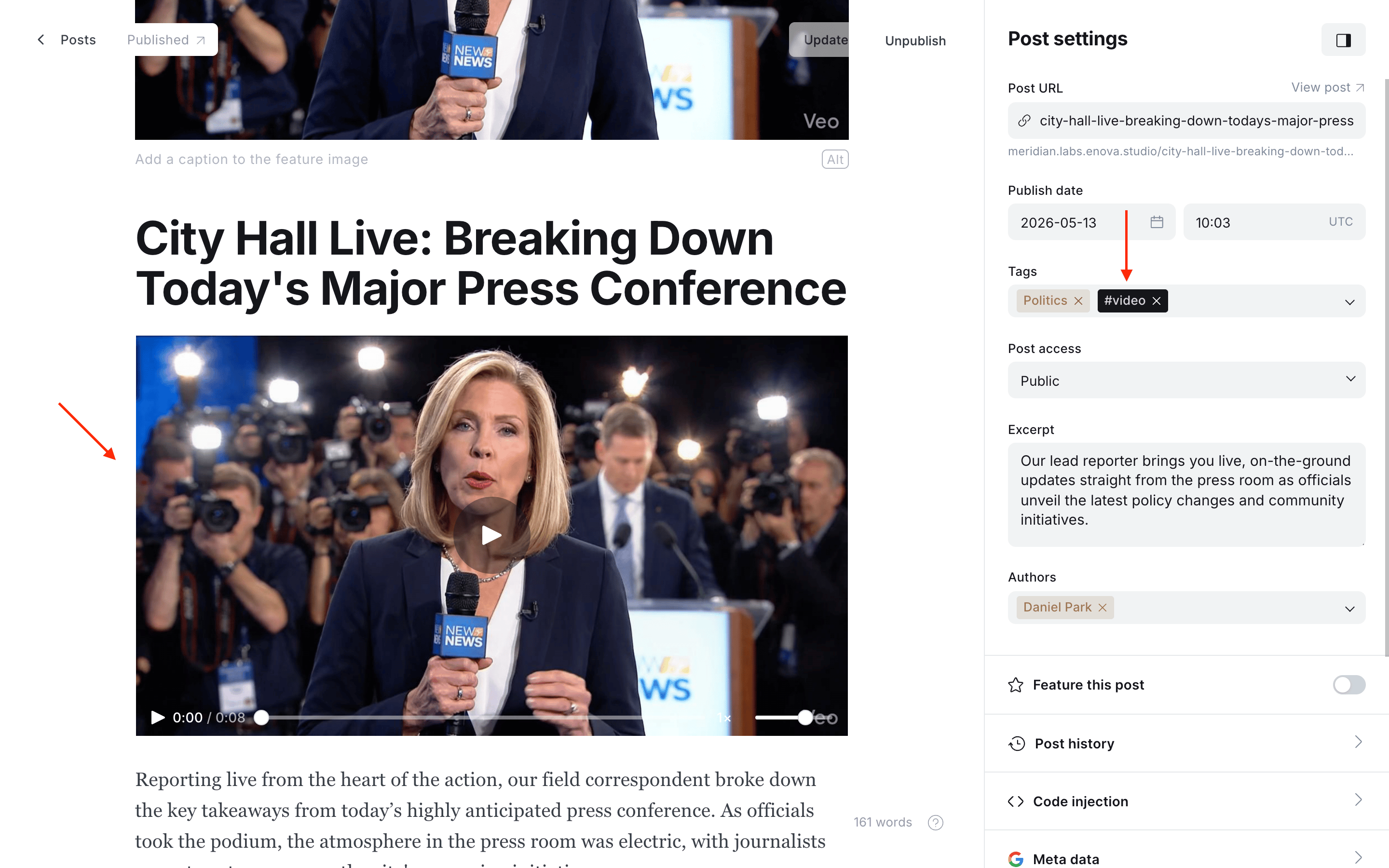
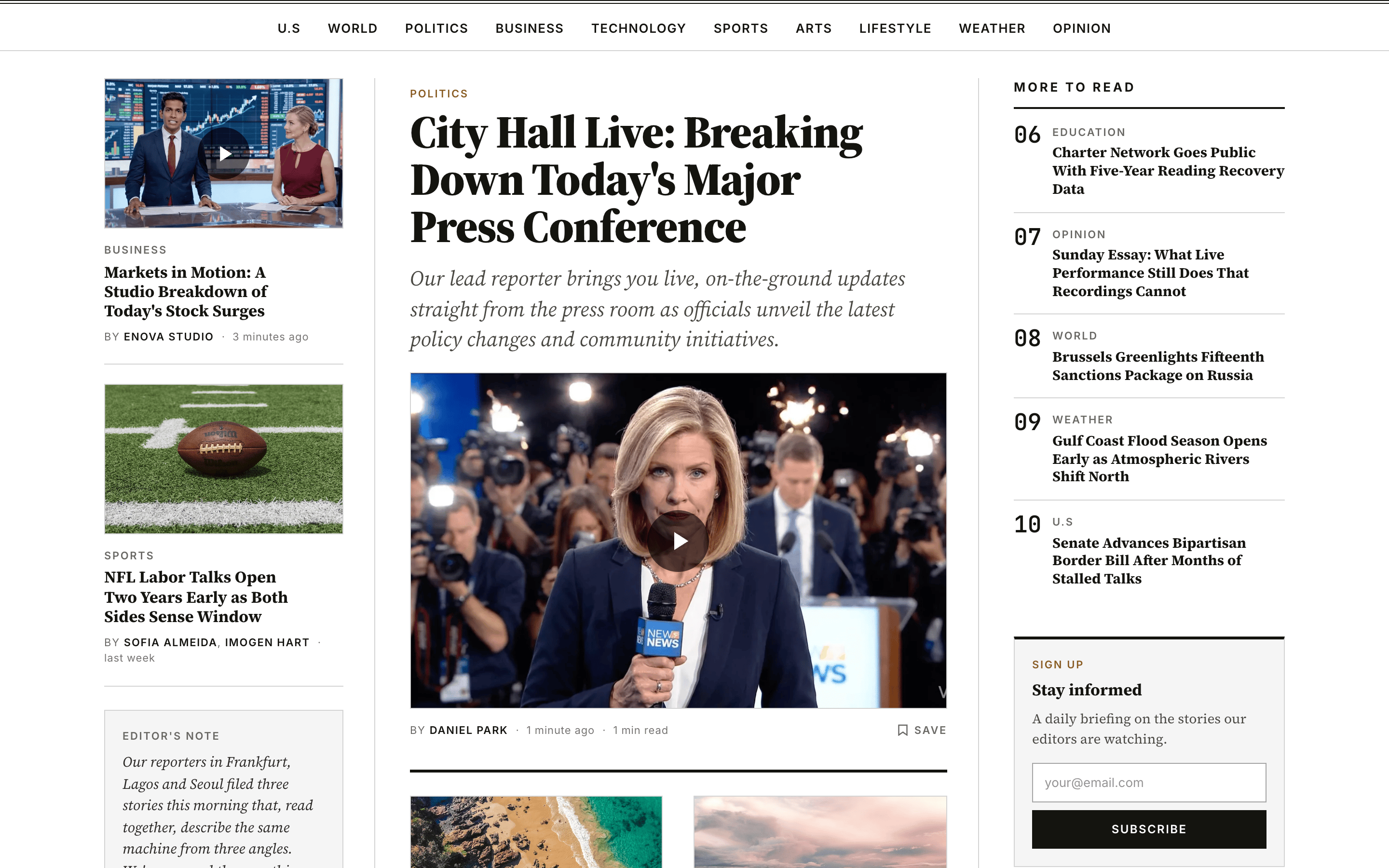
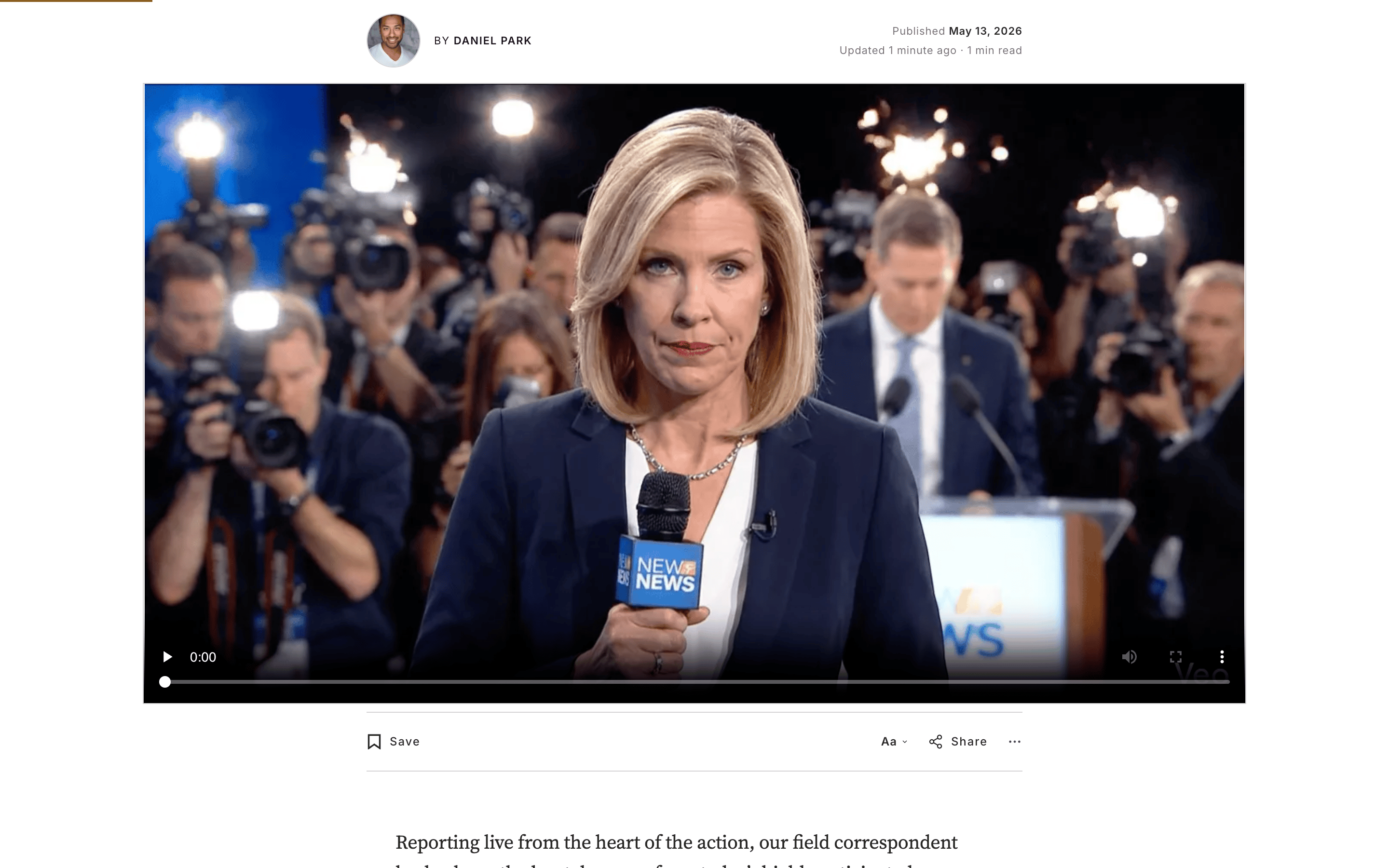
#videoTag a post with #video to turn it into a video post. Meridian hoists the first uploaded video card (Ghost video card), YouTube embed, or Vimeo embed found in the post body into the hero slot above the headline, replacing the feature image. Visitors see the feature image as a poster with a large play button overlay; clicking starts playback inline.
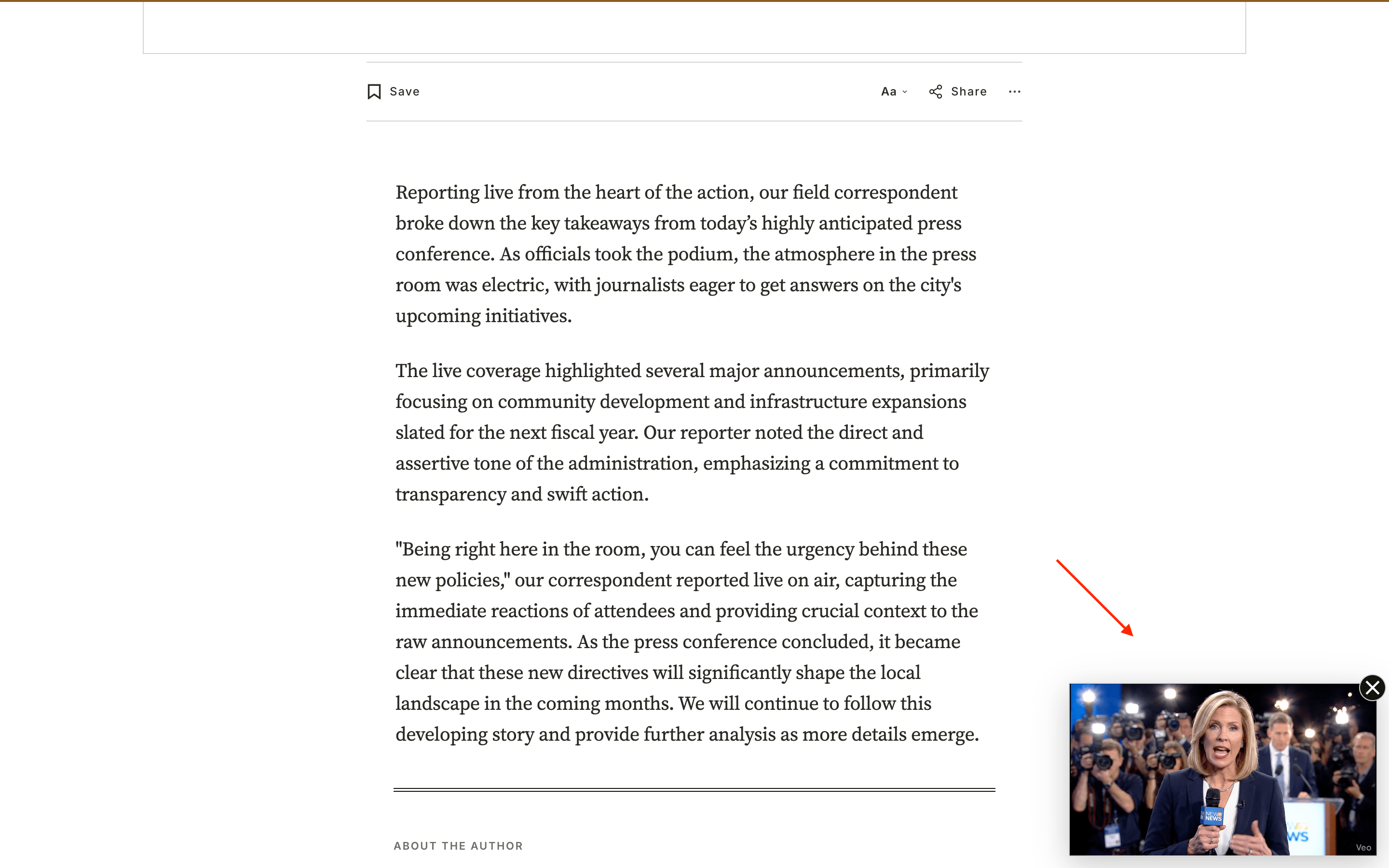
If the visitor scrolls past the playing video, a small dismissible mini-player docks in the corner so they can keep watching while they read — and, with the persistent player on (the default), it keeps playing as they move to other pages on your site. See Persistent video player for the full behaviour and settings.
Setup
Open a post in Ghost Admin.
Add an uploaded video card, a YouTube embed card, or a Vimeo embed card anywhere in the post body. The first one Meridian finds in document order wins.
Set a Feature image — it doubles as the poster on the post page and the thumbnail in feed cards.
Open Post settings and add the internal tag #video.
Update and preview.
Editor
Post Cards
Post Player
Post Mini Player
Supported sources
- Uploaded Ghost video (
.mp4,.webm,.ogg). - YouTube (
youtube.com,youtu.be,youtube-nocookie.com). - Vimeo (
vimeo.com,player.vimeo.com, including channel and group URLs).
Twitch, Wistia, Loom, and other providers keep their default responsive embed in the body. They don't hoist.
Vimeo thumbnails
For Vimeo videos, the feature image shows briefly as a placeholder, then Vimeo's official thumbnail replaces it once the Vimeo API responds. The feature image is still used for the post card and social-share previews. If you want the two to match, set the same image as both the post's feature image and the Vimeo video's thumbnail.
Fallback behaviour
If you tag a post #video but the body contains no uploaded video, YouTube embed, or Vimeo embed, Meridian falls back to the normal feature-image hero. There's no broken state and authors see a single console warning during preview.
Reduced motion
Visitors with prefers-reduced-motion: reduce see no slide-in animation on the mini-player and no hover transition on the play button. Playback always requires a click — the video never autoplays.
Feed cards get a play badge automatically
Every card variant that renders a feature image picks up a small ▶ overlay on the thumbnail when the post is tagged #video. Screen-reader users hear the post title followed by "Video". No extra setup required.
Table of contents
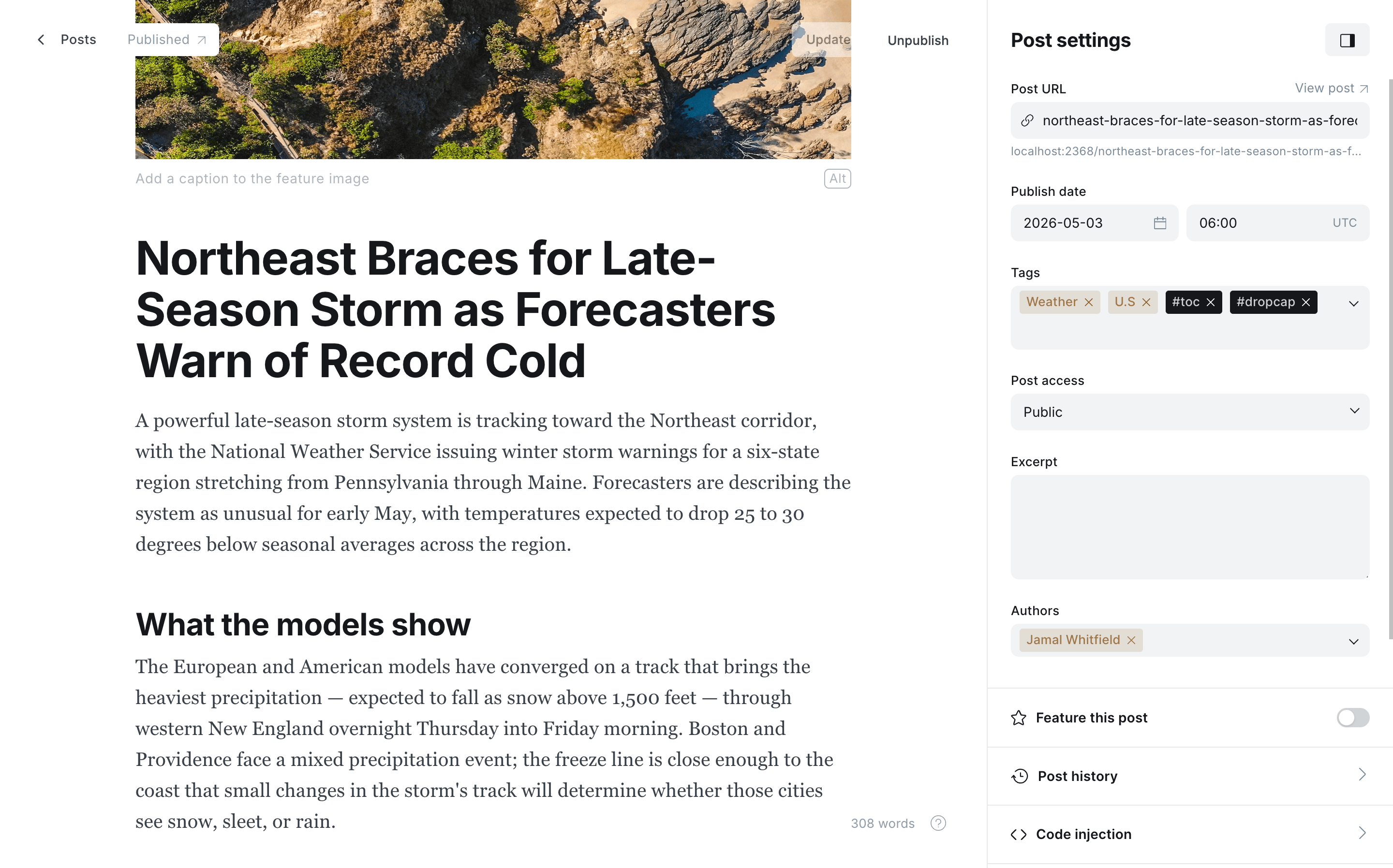
#tocTag a post with #toc to surface an "In this story" list above the article body — a newspaper-style insert that auto-builds itself from the post's section headings, so readers can scan the structure before diving in. Off by default; opt in per post.
Editor
Preview
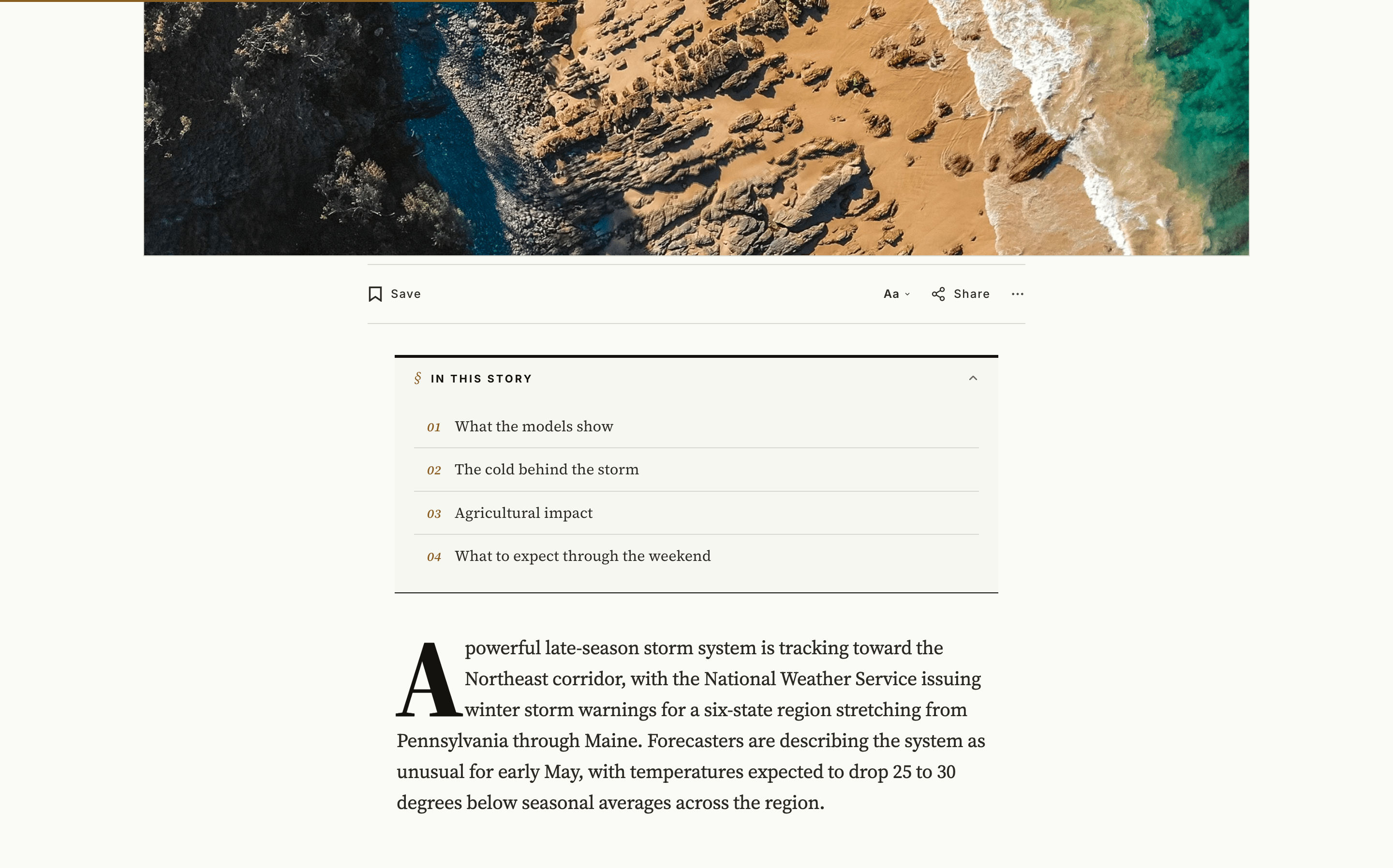
What ends up in the list
- The post's top-level
H2headings become the numbered entries. H3headings appear as indented sub-entries under the precedingH2.- Headings nested inside callouts, toggles, or other cards are skipped — only direct section headings count.
- If the post has fewer than two qualifying headings, the list silently hides itself: no empty insert, no broken state.
Reader behaviour
- On screens ≥ 1024 px the list starts open. On phones it starts collapsed so the headline still leads — readers tap the chevron to expand it.
- Tapping an entry smooth-scrolls to that heading, offset for the sticky article bar so the section title isn't hidden under the chrome.
- As the reader scrolls, the entry for the section currently in view highlights — a lightweight progress cue.
- Visitors with
prefers-reduced-motion: reduceget instant jumps instead of smooth scrolls. Print and the email newsletter never include the list.
Setup
Open a long-read post in Ghost Admin.
Add the internal tag #toc in Post settings → Tags.
Update and preview — the "In this story" insert appears above the article body.
Best for long-reads
Short posts read fine without a contents list. Reserve #toc for features, explainers, and investigations where readers benefit from seeing the structure up front.
Post Hero layouts
#hero-split-left
#hero-split-right
#hero-slideshow
By default a post opens with the centered headline above a wide 16:9 feature image. Three internal tags swap in a different opening for the genres that need it. Each is opt-in per post, and each falls back to the default centered hero if the post has no feature image — there's no broken state.
One hero per post
These tags are mutually exclusive, and #video always wins. If a post carries more than one, Meridian uses the first match in this order: #video, #hero-split-right, #hero-split-left, #hero-slideshow.
Split duo
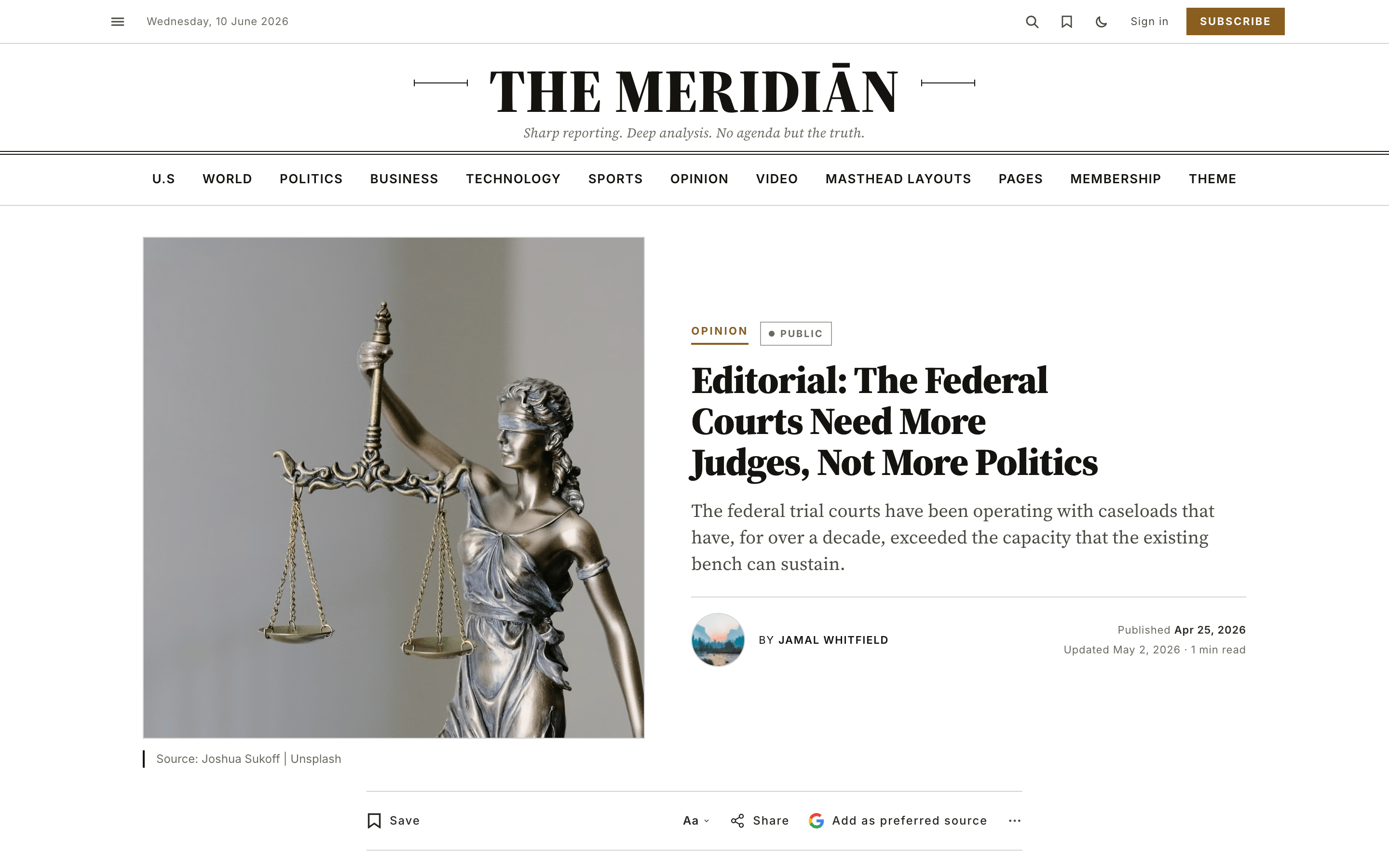
A magazine-style opening: the headline, dek, and byline sit beside a square feature image. Use it for profiles and single-subject features where one person or place is the story. #hero-split-right places the image on the right, #hero-split-left on the left. On phones both stack the same way — headline first, image below — so the reading order never changes.
Image right (#hero-split-right)
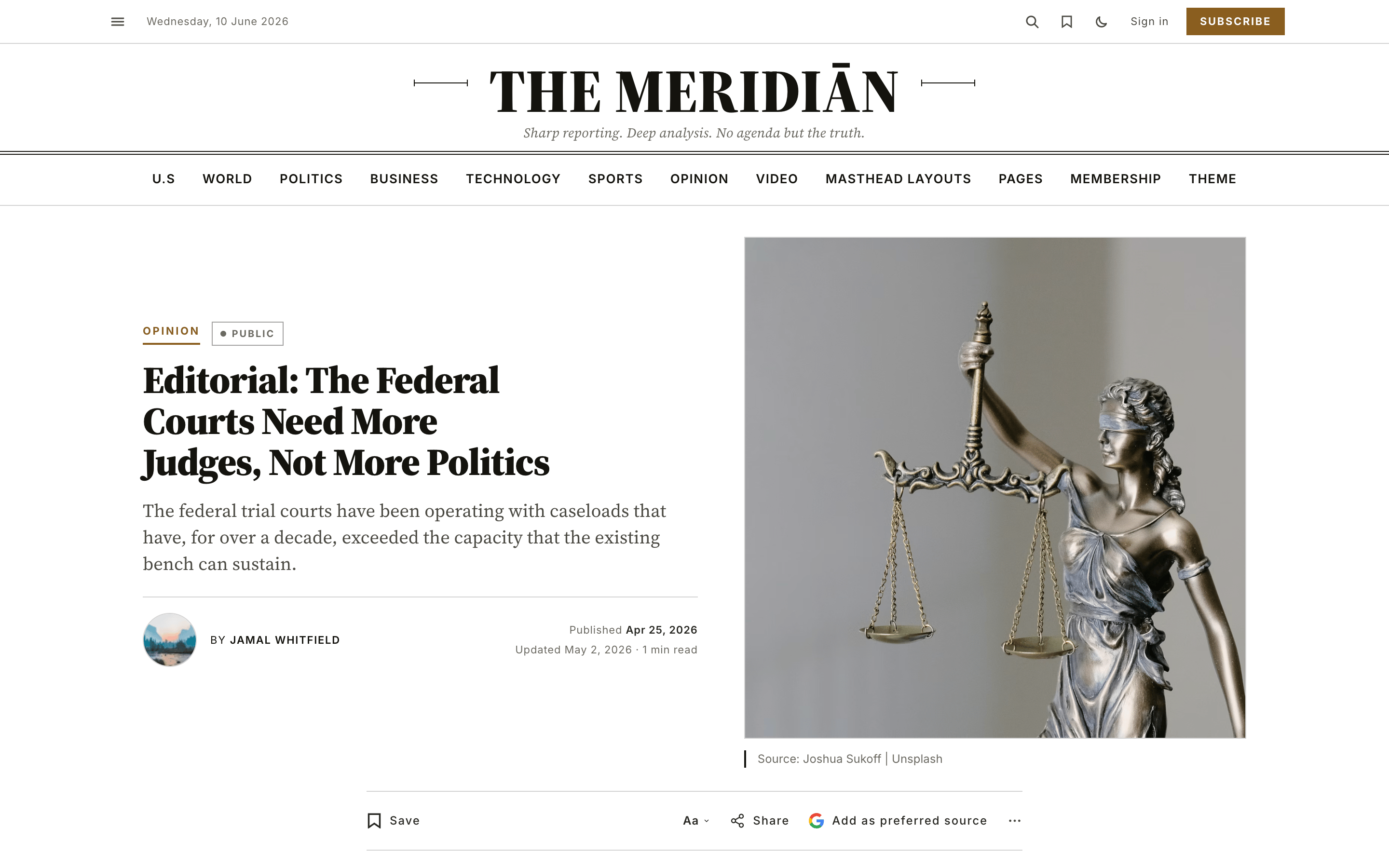
Image left (#hero-split-left)
Setup
Open a post in Ghost Admin and set a Feature image (it's cropped to a square, centred).
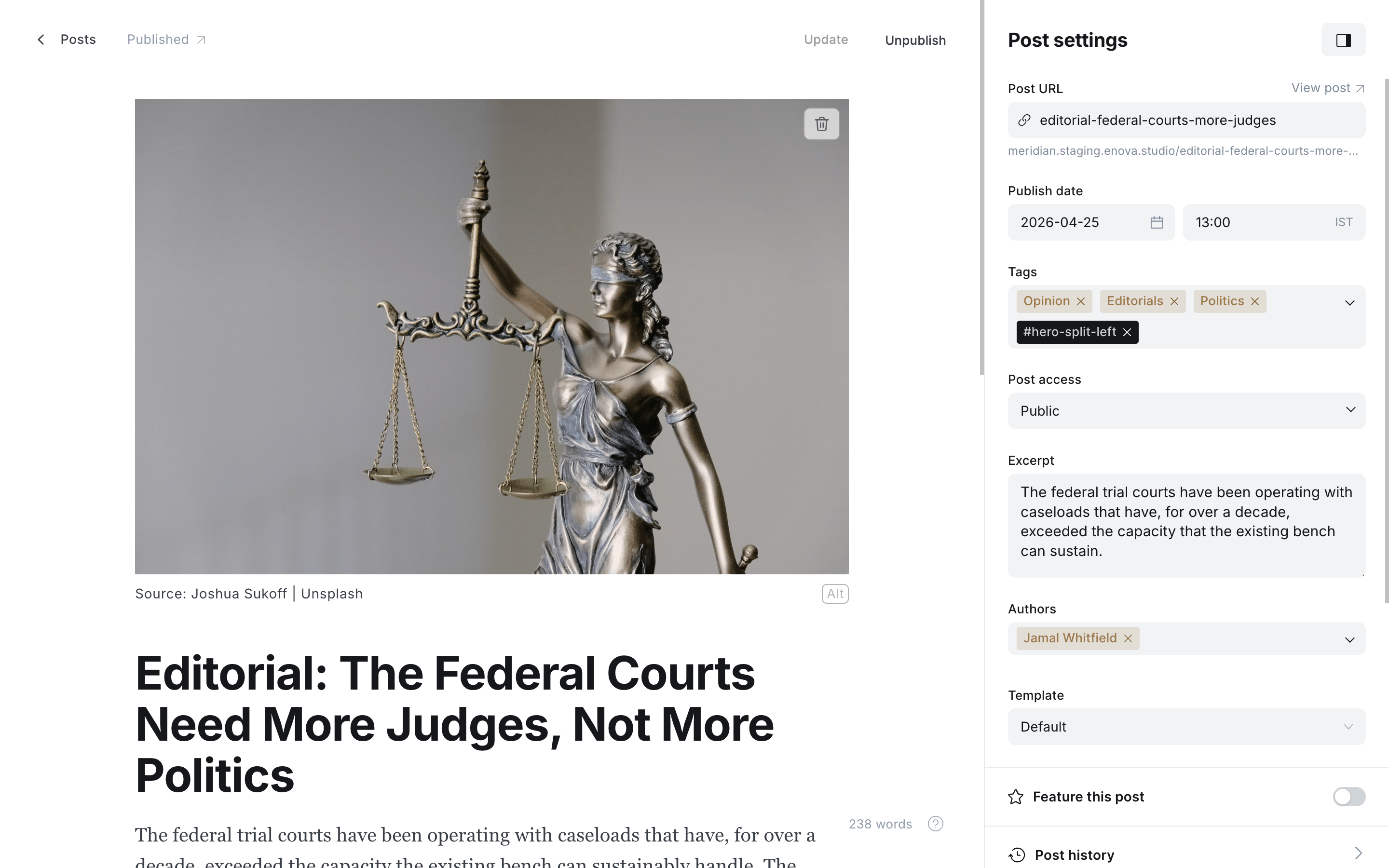
Add the internal tag #hero-split-left or #hero-split-right in Post settings → Tags.
Update and preview.
Prefer a different crop?
The image is cropped to a square by default. You can set your own shape (3:4, 4:5, 16:9…) for all split-hero posts with a one-line code injection — see Change the split-hero image shape.
Image right - Editor
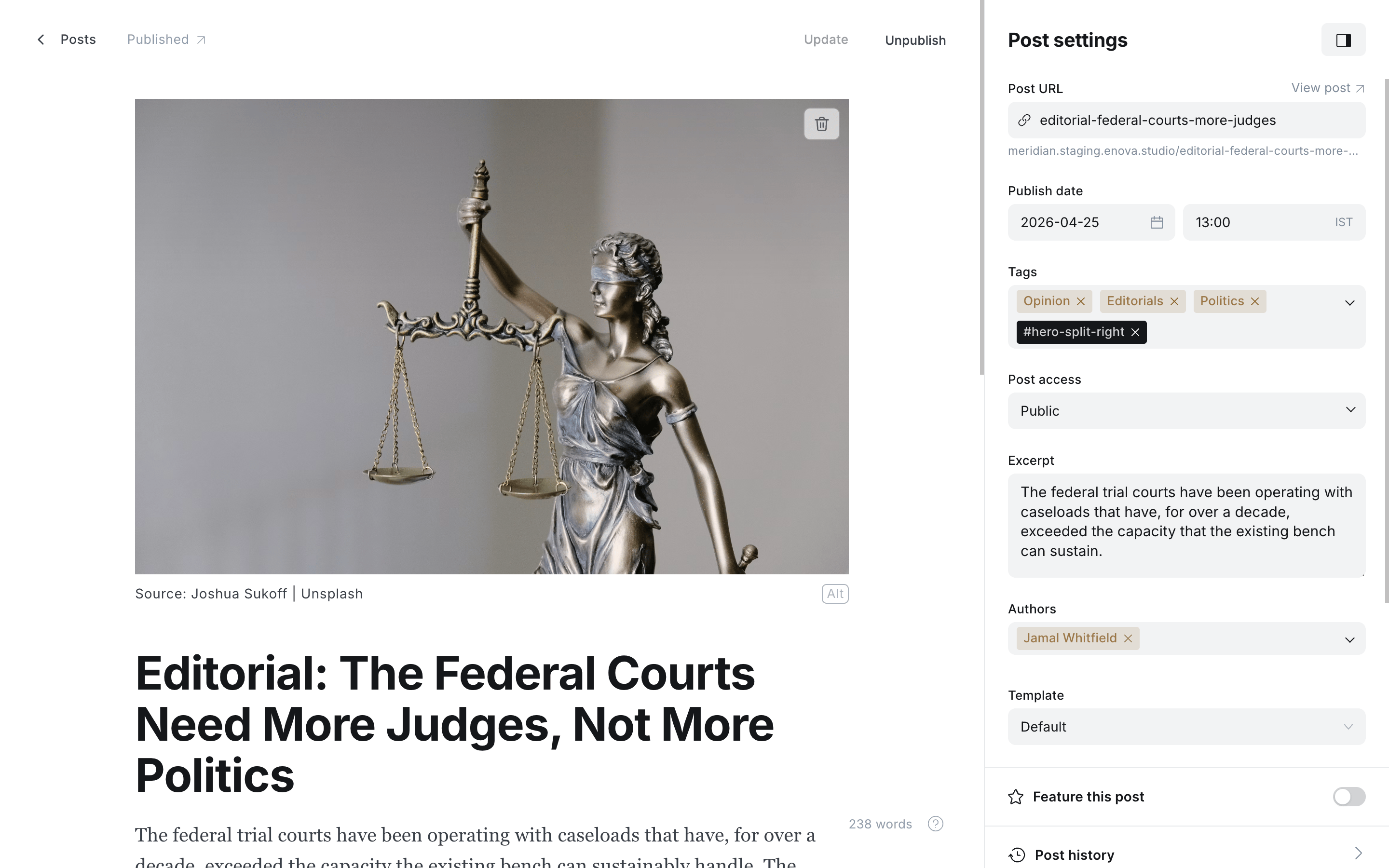
Image left - Editor
Slideshow carousel
A manual, photo-desk slideshow for visual stories where sequence matters — a developing event, a then-and-now reel, a step-by-step. The feature image is the first slide, followed by the images from the post's first gallery card. Readers move through it with the arrows, the dots, the keyboard (← / →), or a swipe; tapping a photo opens it full-screen in the lightbox. There is no autoplay — nothing moves until the reader asks it to.
Setup
Open a post in Ghost Admin and set a Feature image (it becomes slide one).
Add a gallery card in the post body and fill it with the slideshow images, in the order you want them shown.
Add the internal tag #hero-slideshow in Post settings → Tags.
Update and preview.
Editor
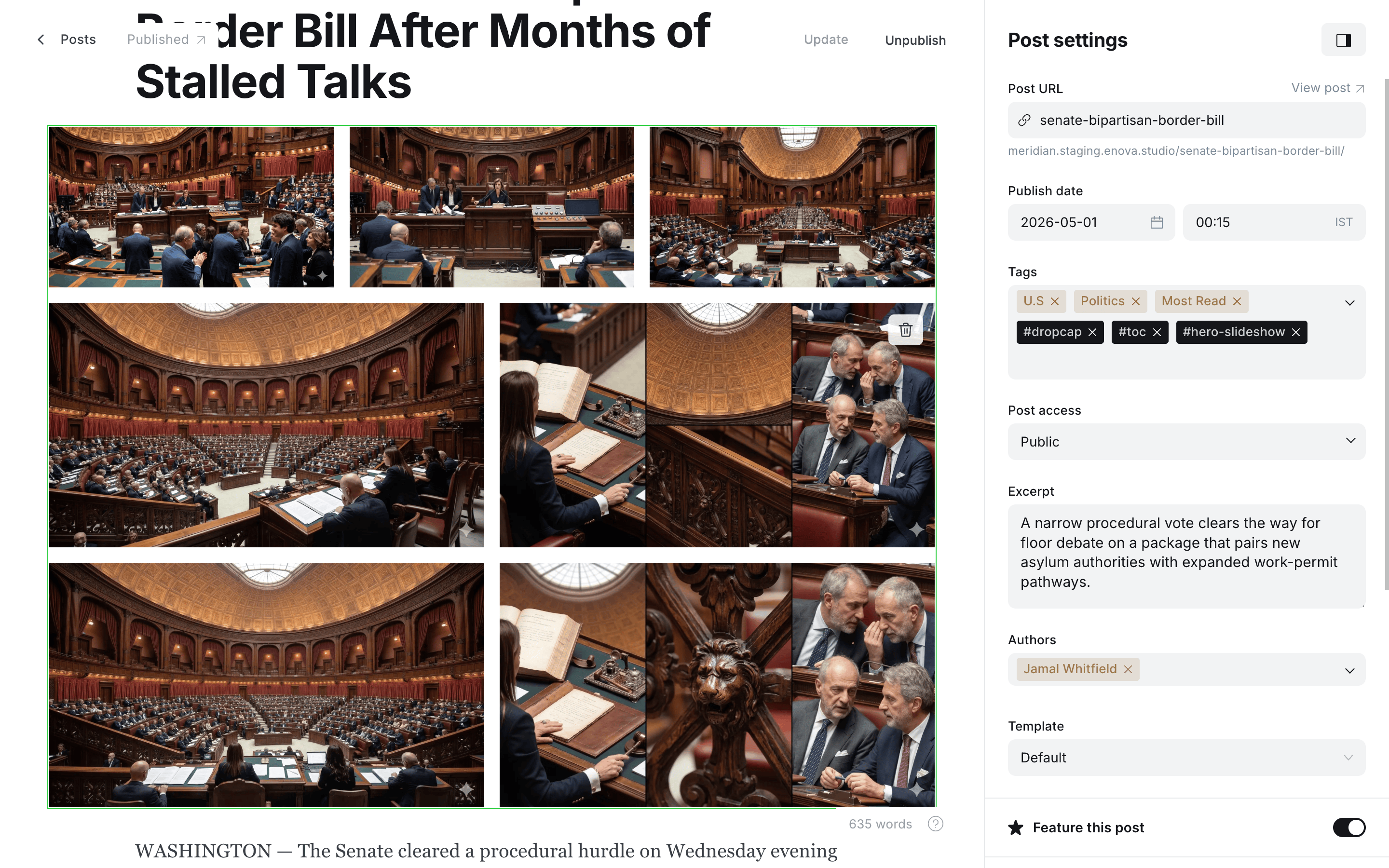
Slideshow hero
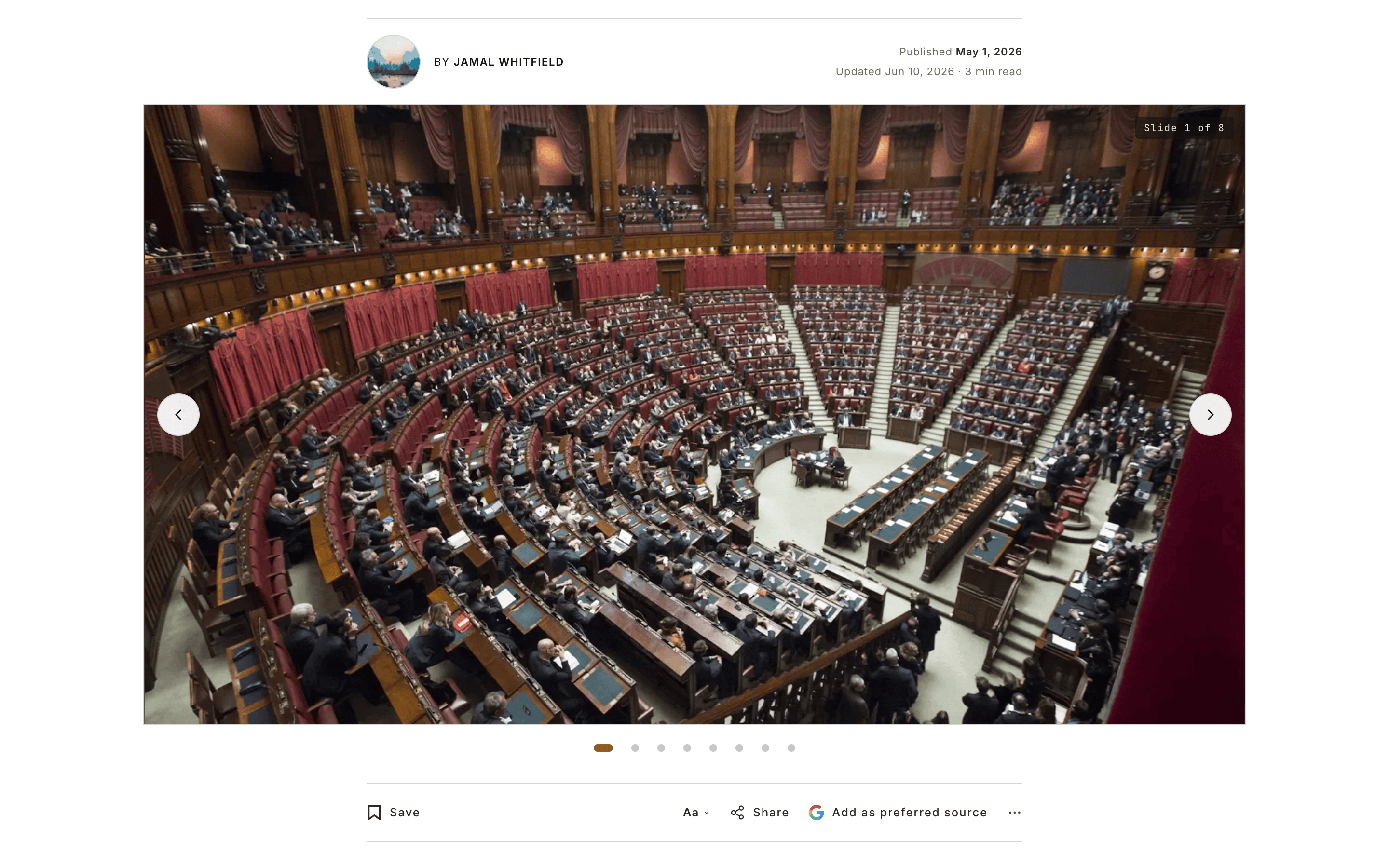
The gallery moves into the hero
Meridian lifts that first gallery card out of the article body and into the slideshow, so the same photos aren't shown twice. Any other galleries later in the post stay where they are. Each slide's caption is taken from the corresponding image's alt text, so fill those in for the best result. If the post has no gallery card, the hero simply shows the feature image on its own.
Any orientation works
Mix portrait, landscape, and square photos freely. Each slide is shown in full — never cropped to fit — with a soft blurred fill of the same photo behind it, so the frame stays a consistent shape no matter what you add.
Accessibility & reduced motion
The slideshow is a labelled carousel: arrows and dots are real buttons with clear labels, the current slide is announced to screen readers, and every control is keyboard-reachable. Visitors with prefers-reduced-motion: reduce get instant slide changes with no sliding animation. In print, only the first slide (the feature image) is shown.
Breaking news
#breakingTag any post #breaking and two things happen: its headline joins the breaking-news ticker at the very top of every page, and the post itself gets a Breaking badge on its hero and in every feed card (with the primary-tag eyebrow in your accent colour).
The ticker is a slim dark bar above the masthead — a pulsing dot, a Breaking label, and a horizontally scrolling marquee of the latest #breaking headlines, with a live clock (desktop) in your site's timezone. It's controlled by the Enable breaking ticker site-wide setting (on by default) and hides completely when no published post is tagged #breaking.
Reader behaviour
- Each headline links to its post. Up to 8 of the most recent
#breakingposts scroll, newest first. - The marquee pauses on hover, on keyboard focus, and via the play/pause button on the bar — so readers can stop it to click a headline.
- A pin button lets the reader stick the bar to the top of the page while they scroll, or leave it to scroll away with the content. The bar scrolls away by default; a reader who pins it has that choice remembered per device. (Want it stuck for everyone instead? See Make the ticker sticky by default below.)
- Visitors with
prefers-reduced-motion: reduceget no auto-scroll: the headlines become a manually scrollable strip and the pulsing dot is stilled. - The clock ticks live in your site's timezone (Settings → General) and is hidden on mobile to save space.
Setup
Open a post in Ghost Admin.
Add the internal tag #breaking in Post settings → Tags.
Update — the headline appears in the ticker on every page immediately.
Pull a story from the ticker
Remove the #breaking tag (or unpublish the post) and it drops out on the next page load. When the last #breaking post is untagged, the whole bar disappears.
Email-only posts stay off the web ticker
The ticker is built from your published web posts. An email-only newsletter post tagged #breaking won't appear — it has no web page to link to.
Make the ticker sticky by default
The ticker scrolls away with the page by default, and each reader can pin it from the bar. If you'd rather it stay stuck to the top for everyone unless a reader chooses otherwise, paste this into Settings → Code injection → Site Header and click Save:
<script>window.meridianTicker = { stickyDefault: true };</script>This flips the default only — a reader who unpins the bar still has that choice remembered on their own device. Remove the snippet to go back to the scroll-away default.
The on/off switch and its behaviour are also covered in Site wide settings → Enable breaking ticker.
Homepage section tags
Nine tags pick the layout for a homepage section row. Crucially, they go on a Ghost page (a "recipe page"), not on individual posts. The page's primary public tag is what selects the posts that fill the row — its layout is whichever #home-* tag you attach.
| Tag | Layout |
|---|---|
#home-feature-package | Cinematic hero with large feature image + supporting stack |
#home-feature-rail | Cinematic hero + uniform four-story image-right rail |
#home-briefing | Image-less morning bulletin / digest |
#home-briefing-carousel | Briefing thumb-row cards in a horizontal scroll-snap track |
#home-asymmetric-lead-list | Lead post + secondary list (Markets-style) |
#home-opinion-hedcut | Opinion columnists with portrait cards |
#home-tag-columns | N parallel columns, one per public tag on the page |
#home-standard-3-column-grid | Standard 3-column grid (carousel) |
#home-standard-4-column-grid | Denser 4-column grid (carousel, four across on desktop) |
A tenth tag, #home-ad, slots an advertisement row into the same band — same recipe-page mechanics, but the page body renders as an ad instead of a posts query. See Ads.
Row order on the homepage follows the recipe page's publish date, newest first. See Homepage sections for the page-creation walkthrough and Section layouts for the full anatomy of each layout.
One layout tag per recipe page
If a recipe page is tagged with two #home-* layouts, the first match in the precedence chain wins. Stick to one layout tag per recipe page.
Footer legal links
Meridian renders a small dot-separated row of legal / utility links under the footer's social icons — Privacy, Terms, Imprint, Cookie policy, anything you need to surface for compliance without cluttering primary navigation. The row is driven by Ghost pages tagged with the internal #footer-legal-link tag.
How it works
- Every Ghost page tagged
#footer-legal-linkbecomes one link in the row. - The page title is the link text; the page URL is the destination.
- Links render in publish-date order, newest first, separated by a
·dot character (text-ink-faint,aria-hidden="true"— pure visual rule, not announced by screen readers). - The row wraps to multiple lines on narrow viewports and self-removes when no
#footer-legal-linkpages exist.
Adding a legal link
Create the page. In Ghost Admin, go to Pages → New page. Title it after the link's label ("Privacy", "Terms of service", "Imprint").
Tag it #footer-legal-link. In Page settings → Tags, add #footer-legal-link. The leading # makes it internal — it won't appear in public tag archives.
Author the page body. Write the legal copy normally — this is the page readers land on when they click the footer link, so the body content matters here (unlike #home-* recipe pages where the body is unused).
Publish. Click Publish. The link appears in the footer immediately, with a · separator if there are sibling legal pages.
Reorder by republishing
Order follows page published_at date, newest first. To move "Privacy" ahead of "Terms", edit the Privacy page and republish so its date is more recent.
Hiding a link
To temporarily pull a link out of the footer, set the page to draft in Page settings → Publish status. The link disappears until you re-publish. Delete the page to remove it permanently.
The Featured flag
Ghost has a built-in Featured flag on every post (toggle in the Post Settings panel — not a tag). Meridian uses this flag to populate the Editor's Picks strip on the homepage.
- Up to 8 featured posts appear in the strip, newest-first.
- The strip silently disappears when no posts are featured.
See Editor's Picks for the full workflow.
Visibility & paywall
Meridian honours every Ghost visibility tier. The post hero always displays a "visibility chip" so readers know upfront whether they need to be logged in or paying — public stories included. (Feed cards behave differently: their small visibility badge is hidden on public posts, so feeds only flag the stories that are gated.)
| Ghost visibility | Hero chip text | Reader behaviour |
|---|---|---|
| Public | "Public" | Anyone can read the full story. Feed cards show no badge. |
| Free members | "Free members" | Anyone signed in (free or paid) can read. Logged-out visitors see a signup CTA. |
| Paid | "Paid" | Only paying members can read. Free members see an upgrade CTA. |
| Specific tiers | "Subscribers only" | Only members on the named tier(s) can read. |
The Member CTA at the end of an article invites logged-out readers to sign up — but only on stories they can open in full. On members-only stories the paywall already shows the signup-or-upgrade path, so the box stays hidden rather than doubling up; signed-in readers on accessible stories see nothing.
For the post-page CTA copy: see Site wide settings.
For the homepage Membership CTA band: see Membership CTA.