

Site wide
Settings under Theme → Site wide in Ghost Admin — color mode, paper tone, editorial typography, dark-mode logo, the post-page member CTA copy, and ad slots.
This page covers the Site wide group inside Meridian's theme customizer in Ghost Admin. Settings here cover the core visual identity of every page on your site and the post-page member CTA copy.
To get here: Settings → Design & branding → Customize → Theme → Site wide.
Color scheme
Enforce a specific color mode site-wide or let your visitors choose.
Locking the mode hides the toggle
Selecting Light or Dark enforces the chosen mode globally and removes the theme toggle from the reader controls in the header. Visitors won't be able to switch. Leave on System if you want readers to choose.
Background palette
Pick the paper tone for your entire site. Each preset pairs a light-mode and dark-mode value so the choice survives every color-scheme combination — body-text contrast on every pair clears WCAG AAA.
Newsprint (Default)
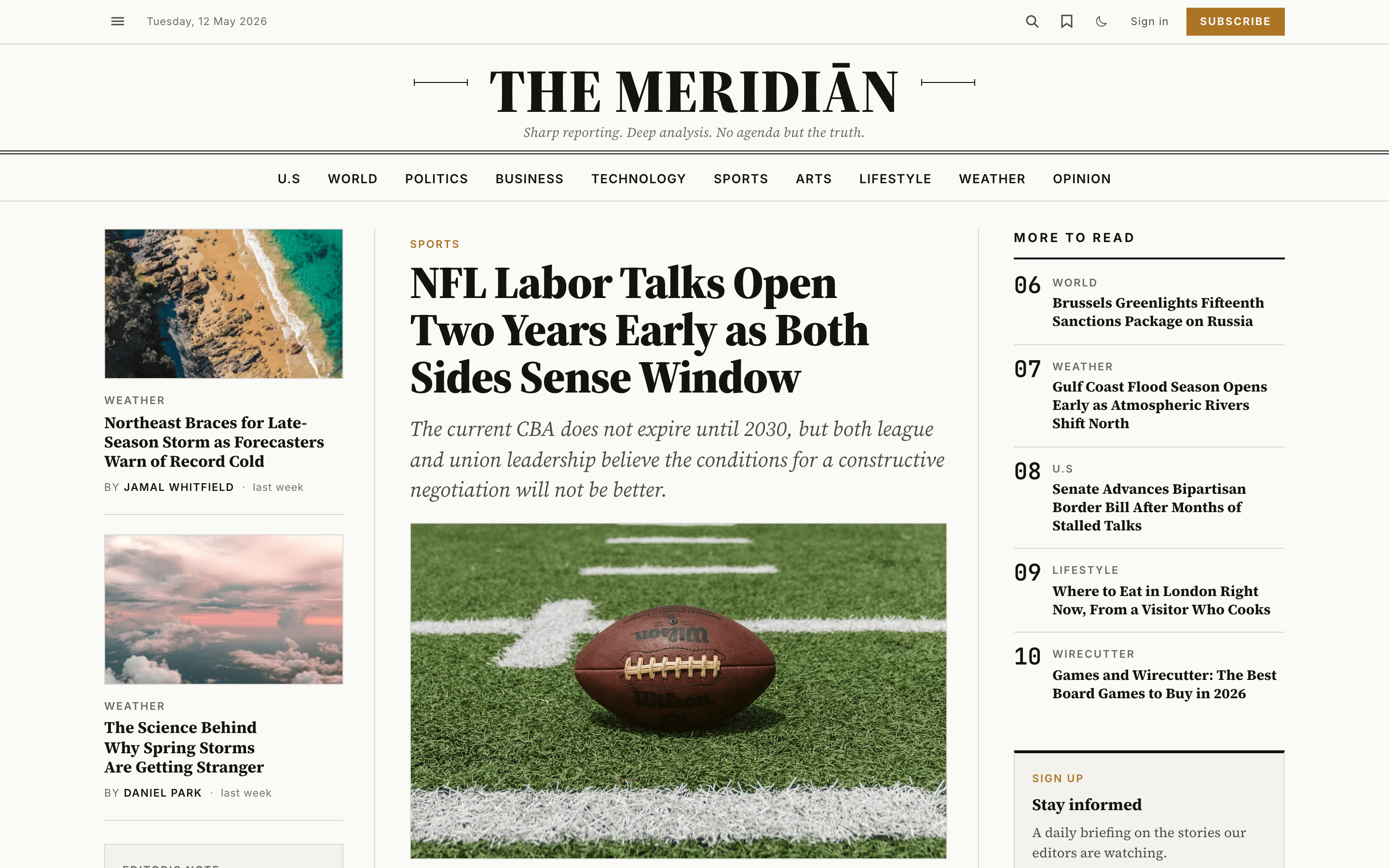
Warm off-white paper with classic ink tones. The default — looks like a printed broadsheet.
Mist
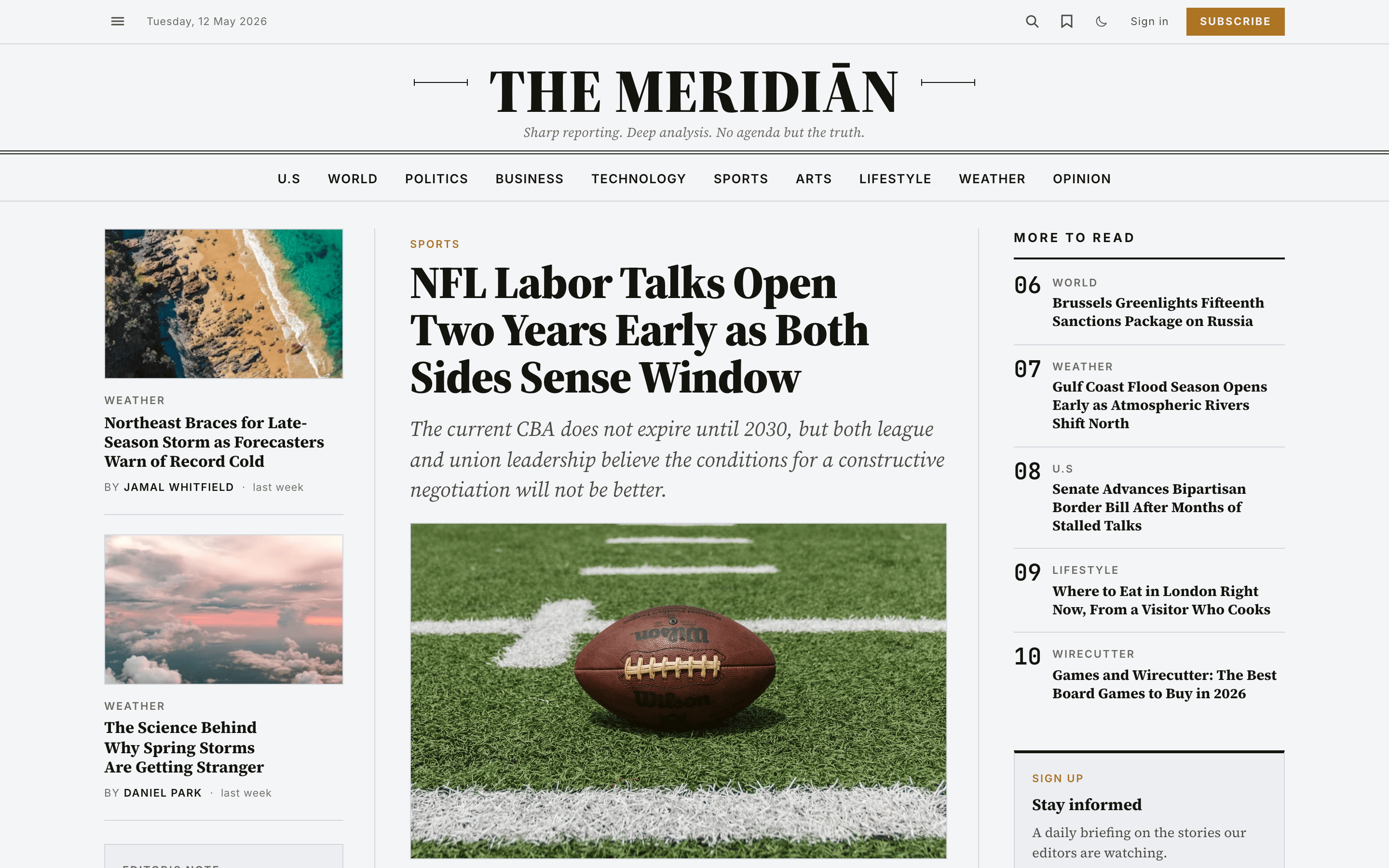
Cool, minimal, modern. A subtle blue-grey paper for clean tech and design publications.
Stone
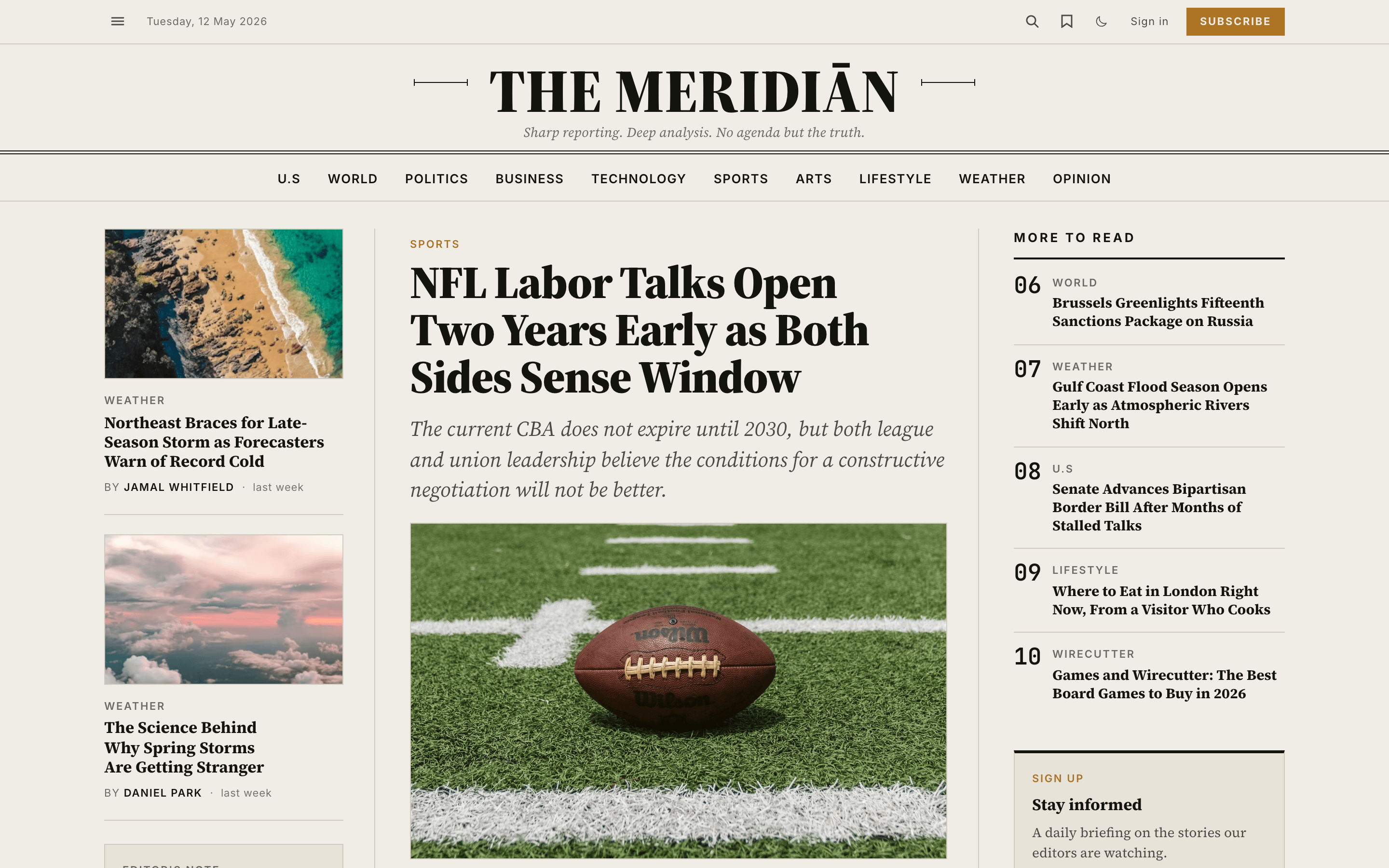
Warm muted gray, magazine-feel. Sits between Newsprint and Press.
Press
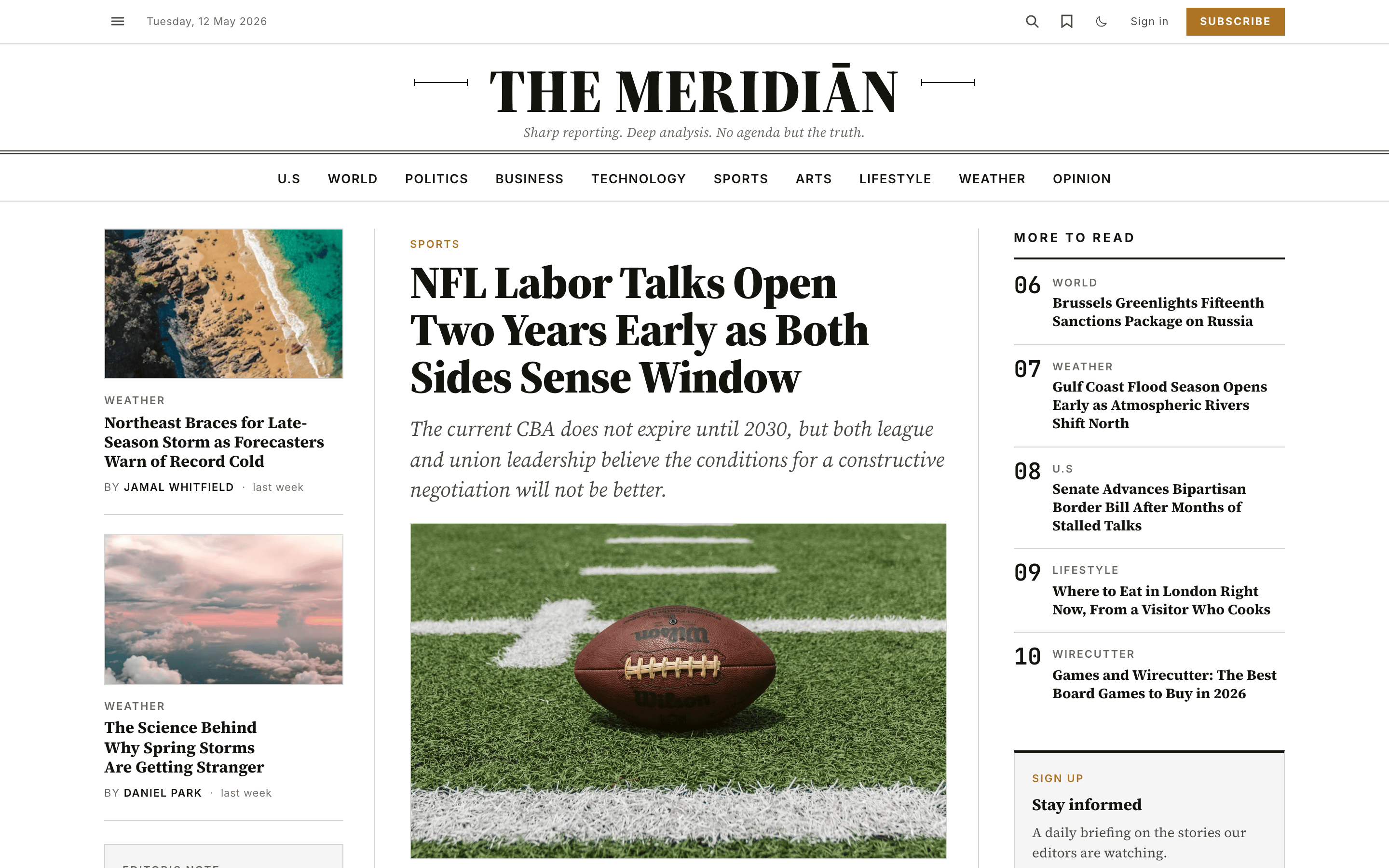
Pure black-and-white, brutalist / print-zine. The highest-contrast option.
Mono
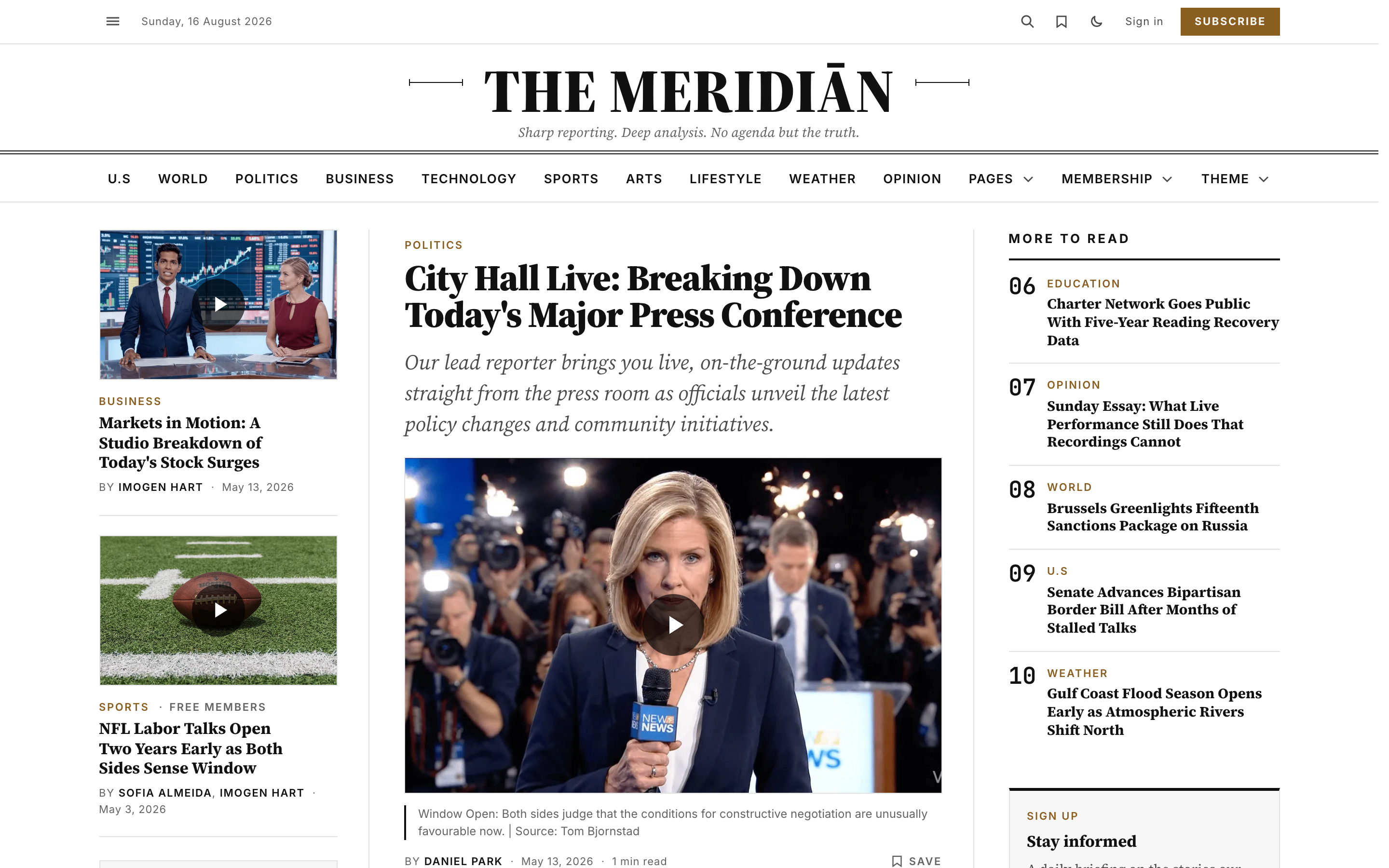
Fully neutral grayscale: white paper, true black ink, neutral gray metadata. The broadsheet-news look of the Washington Post or the Journal. Pair it with a near-black accent color for a completely monochrome site, or keep a red accent for a classic news-wire feel.
What each preset changes
Newsprint, Mist, Stone and Press swap only the paper and rule tokens; ink (body text) stays constant so contrast is preserved on every paper × scheme combination. Mono goes one step further and also retones the ink to a neutral grayscale, removing the warm cast the other presets share. The accent color is never touched by any preset.
Accent colour lives in Brand
Meridian uses Ghost's native accent colour for every accent element across the site. Set it under Settings → Design & branding → Brand → Accent color. See Brand.
Header layout
Choose how the masthead at the top of every page is arranged.
Both layouts use the same navigation
Editorial and Compact render the same primary navigation menu from your Ghost Navigation settings — Compact just measures available width and tucks any overflow links into a More dropdown. There's no separate menu to maintain. See Navigation for the menu workflow itself.
Go to Settings → Design & branding in Ghost Admin and click Customize.
Expand the Theme → Site wide group on the left.
Pick Editorial or Compact under Header layout. The choice applies site-wide; it isn't per-page.
Click Save to apply.
Single author mode
For single-voice publications — sites where one person writes everything — the repeated "By [author]" byline on every story card adds noise without adding information. Turn this on to hide that byline on all post cards across the homepage, archives, tag and author pages, and recommendation lists. Off by default, so existing sites are unchanged.
The author is not hidden everywhere: the byline still appears at the top of each article, and the author bio box still renders at the end of posts — so individual stories keep full attribution. Turn the setting off again and every card byline returns instantly — no content changes needed.
Go to Settings → Design & branding in Ghost Admin and click Customize.
Expand the Theme → Site wide group on the left.
Switch Single author mode on or off.
Click Save to apply.
Cards only — articles keep their byline
This setting only affects the compact bylines on story cards (the previews in feeds and grids). The byline on the article page and the author bio box are untouched, so readers can always see who wrote any given piece.
Font heading & Font body
Meridian ships 11 editorial typefaces picked specifically for long-form reading — 9 self-hosted variable fonts, plus Charter (self-hosted as 4 static weights) and a zero-payload System Serif stack. Font heading controls every <h1> / <h2> / <h3> and the masthead wordmark; Font body controls article body text, captions, and UI labels.
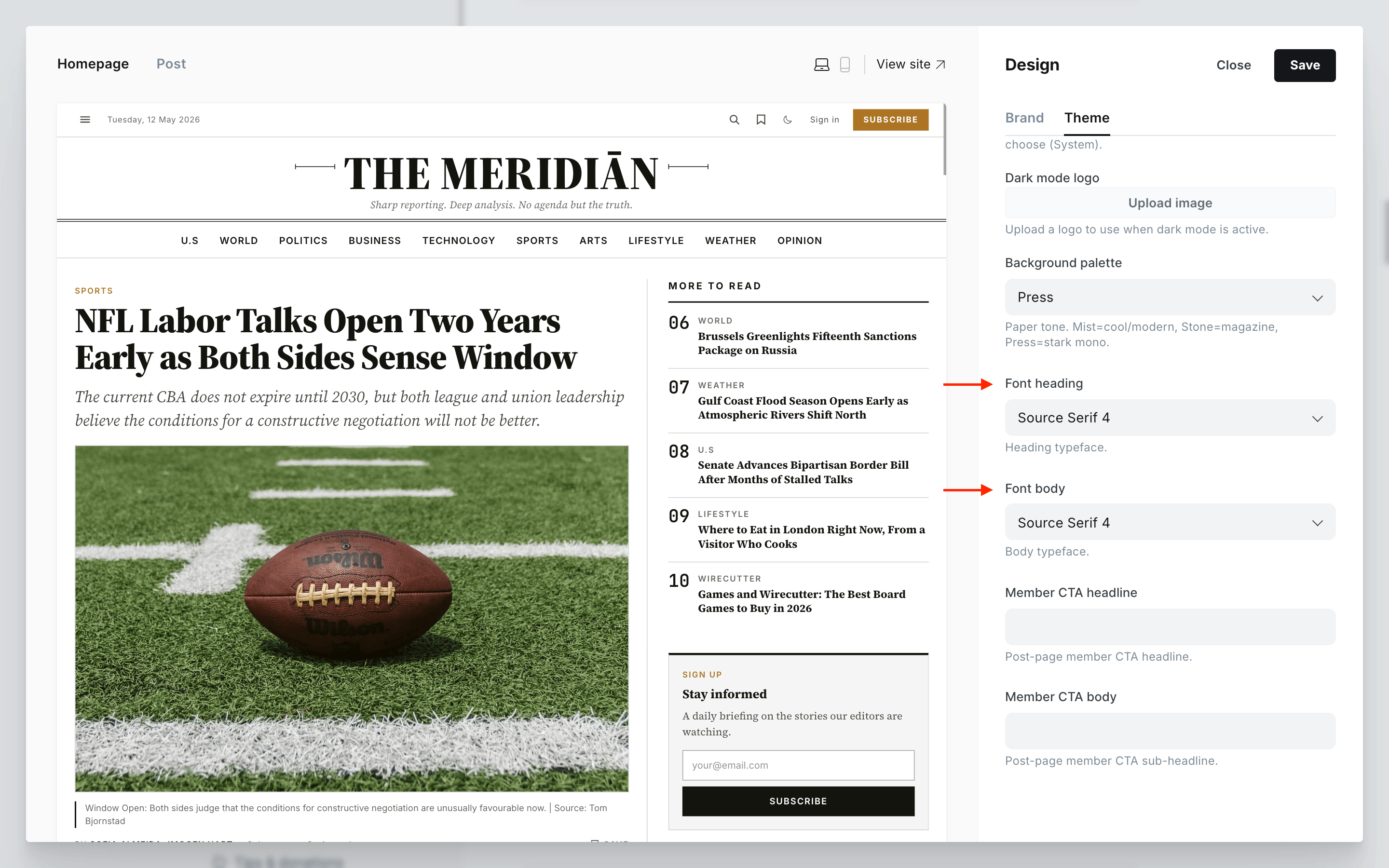
Precedence
Ghost's custom font picker in Design & branding wins when set. When it's empty (the default), Meridian's Font heading and Font body theme settings apply. The two-tier system lets you ship the curated default and still allow a per-site override.
Conditional preload
Only the fonts you actually pick are preloaded. If you pick the same family for both heading and body, the duplicate preload is skipped automatically.
Dark mode logo
If your primary Publication logo has dark text or graphics, it can be hard to see when dark mode is active. Upload an alternative logo for dark mode here.
Go to Settings → Design & branding in Ghost Admin and click Customize.
Expand the Theme → Site wide group on the left.
Under Dark mode logo, click the upload area and select your image. Ideally the same dimensions as your primary logo.
Click Save to apply.
Automatic fallback
If you leave Dark mode logo empty, Meridian renders your light logo with a CSS invert filter in dark mode. That works fine for monochrome wordmarks but produces unexpected colours on multicoloured logos — upload a proper dark-mode variant in that case.
Member CTA headline
The big headline at the top of the member call-to-action shown to logged-out visitors at the end of every article.
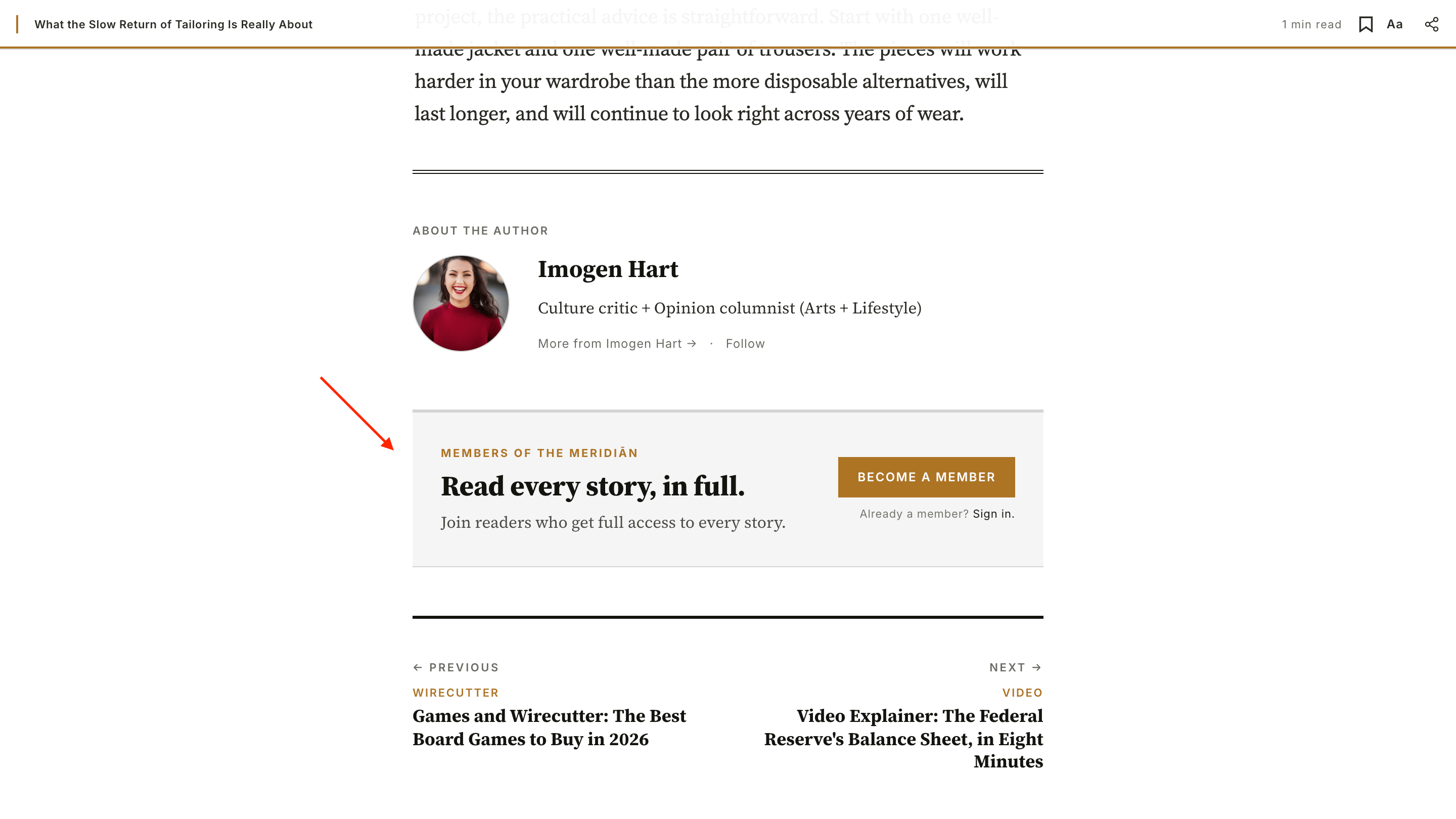
- Default:
Read every story, in full. - Suggested patterns: "Reporting that pays for itself.", "Independent journalism, for the price of a paperback a month.", "Become a Subscriber and read everything."
Go to Settings → Design & branding in Ghost Admin and click Customize.
Expand the Theme → Site wide group on the left.
Type your custom headline into the Member CTA headline text field. Leave it empty to use the default.
Click Save to apply.
Member CTA body
The sub-headline below the member CTA headline, explaining what membership includes.
- Default:
Join readers who get full access to every story. - Suggested patterns: Describe the specific benefits of your tiers — what readers actually get when they sign up.
Go to Settings → Design & branding in Ghost Admin and click Customize.
Expand the Theme → Site wide group on the left.
Type your custom sub-headline into the Member CTA body text field. Leave it empty to use the default.
Click Save to apply.
Where this CTA shows
Logged-out visitors see the signup CTA with this headline + body at the end of stories they can open in full. On members-only stories the paywall shows the prompt instead, so this box stays hidden — the two never stack. Signed-in readers don't see this box.
The homepage Membership CTA is separate
These two settings only affect the post-page member CTA (the box at the end of an article). The full-bleed Membership CTA band on the homepage sources its copy from a Ghost page with slug membership-cta instead, so editors can write rich HTML there with a <mark> accent phrase. See Membership CTA.
Enable breaking ticker
A slim breaking-news bar across the very top of every page — a pulsing dot, a Breaking label, and a horizontally scrolling marquee of your latest breaking headlines, with a live clock on the right (desktop only). On by default. It sources its headlines from posts tagged #breaking and hides itself entirely whenever no published post carries that tag, so there's nothing to switch off if you don't use it.
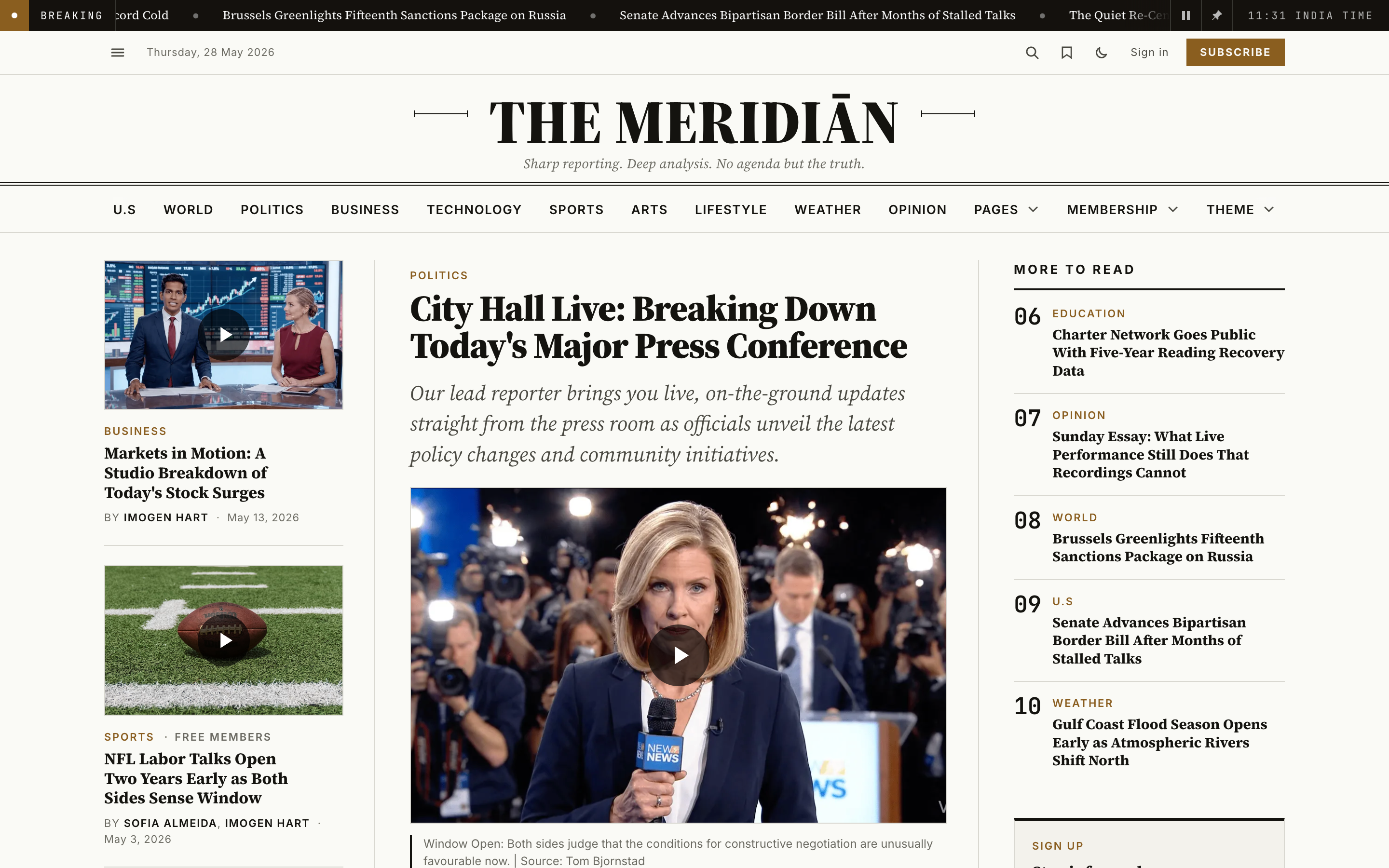
The bar shows up to the 8 most recent posts tagged #breaking, newest first. Each headline links to its post; the marquee pauses on hover, on keyboard focus, and via the play/pause button on the bar; and it honours prefers-reduced-motion (no auto-scroll — the headlines become a manually scrollable strip). The clock reads in your site's timezone (Settings → General) and updates every 30 seconds.
A pin button on the bar lets readers stick the ticker to the top of the screen as they scroll, or leave it to scroll away with the page. The bar scrolls away by default, and a reader who pins it has that choice remembered on their device. To make it stuck for everyone by default, see Editorial conventions → Breaking news.
To populate it, tag posts with the internal #breaking tag — full workflow in Editorial conventions → Breaking news.
Go to Settings → Design & branding in Ghost Admin and click Customize.
Expand the Theme → Site wide group on the left.
Switch Enable breaking ticker on or off.
Click Save to apply.
Nothing tagged, nothing shown
The ticker appears only when at least one published post is tagged #breaking. Left on with no tagged posts, it renders nothing — so most sites can leave it on and reach for #breaking only when a story breaks.
Enable ads
Master switch for Meridian's ad slots. Off by default — until you turn it on, no ad markup renders anywhere and no ad scripts load. Turning it on reveals two more settings: AdSense publisher ID and Ad consent mode.
Ad creatives are placed by creating Ghost pages with reserved slugs (ad-header, ad-home-top, ad-feed, ad-in-article, ad-post-footer, ad-mobile-anchor) and #home-ad-tagged pages for the homepage feed. The full walkthrough — placements, static banners vs. ad code, and privacy/consent — lives in Ads.
Paid members never see ads
Every slot is hidden from paying members, and the ad-network script isn't even loaded for them. Logged-out visitors and free members see ads; paid subscribers get a clean, ad-free read.
AdSense publisher ID
Your Google AdSense publisher ID, in the form ca-pub-XXXXXXXXXXXXXXXX. When set, Meridian loads the AdSense script once in the page head (which also enables AdSense Auto ads). Leave it blank if you serve a different network or prefer to add the loader yourself via Settings → Code injection.
This field appears only when Enable ads is on.
Static banners need no publisher ID
A plain image banner (an <img> wrapped in a link) sets no cookies and needs no script — leave this blank for image-only ads. The publisher ID is only for AdSense ad units / Auto ads.
Ad consent mode
Emits a Google Consent Mode v2 "deny-by-default" baseline for visitors in the EEA, UK and Switzerland before any ad or analytics script runs, so no advertising cookies are set until a consent platform grants permission. On by default.
This field appears only when Enable ads is on.
Turn this off if your CMP already manages Consent Mode
Most Google-certified consent platforms (including Google's own Privacy & messaging) set their own Consent Mode defaults. If yours does, switch this off to avoid emitting the baseline twice. Full guidance, including the EU certified-CMP requirement and US opt-out / Global Privacy Control rules, is in Ads → Privacy & compliance.
Enable preferred source
Adds a "Prefer on Google" button that lets readers set your publication as a preferred source in Google Search — so your stories are more likely to appear in their Top Stories. Off by default.
When on, the button appears on every article (next to Share) and in your site footer, alongside your social links. It deep-links to Google's source-preferences tool, pre-filled with your site's domain (read automatically from your Ghost site URL — no setup).
Only helps if your site is on Google
Preferred Sources is a Google Search feature in supported regions. The button works on any site, but it only does something if your publication shows up in Google's source-preferences tool. Not there yet? Leave this off.
Enable persistent player
Keeps a started video playing in a corner mini-player as readers move between pages, so they never lose their place when they follow a link. On by default. Turn it off to use the classic per-page player, where a video stops when the reader leaves the post.
Until a reader presses play, navigation is unchanged — this only affects readers who are actively watching a video. See Persistent video player for the full behaviour.
Go to Settings → Design & branding in Ghost Admin and click Customize.
Expand the Theme → Site wide group on the left.
Switch Enable persistent player on or off.
Click Save to apply.
Mini player position
Which corner the mini-player docks in while a video keeps playing during navigation — Bottom right (default) or Bottom left.
This option appears only when Enable persistent player is on.
Go to Settings → Design & branding in Ghost Admin and click Customize.
Expand the Theme → Site wide group on the left.
Pick Bottom left or Bottom right under Mini player position.
Click Save to apply.
Mind the Portal button
Ghost's membership/Portal button sits in the bottom-right corner. While a video is docked there, the mini-player covers it until the reader closes the mini-player. If your site shows the Portal button and you'd rather keep it clear, switch to Bottom left.