

Post
Settings under Theme → Post in Ghost Admin, covering the post-page member CTA copy and the persistent video player.
This page covers the Post group inside Meridian's theme customizer in Ghost Admin. Settings here only change how an article page behaves.
To get here: Settings → Design & branding → Customize → Theme → Post.
Moved here in 1.11
These four settings lived under Site wide before Meridian 1.11. They were regrouped, not reset: whatever you had saved carried over unchanged.
See also Editorial conventions for the #dropcap, #toc, #video and hero-layout tags that change how an article renders, and for #breaking, which only feeds the breaking ticker.
Member CTA headline
The big headline at the top of the member call-to-action box at the end of an article. Logged-out visitors see it on articles they can read in full (see Where this CTA shows below).
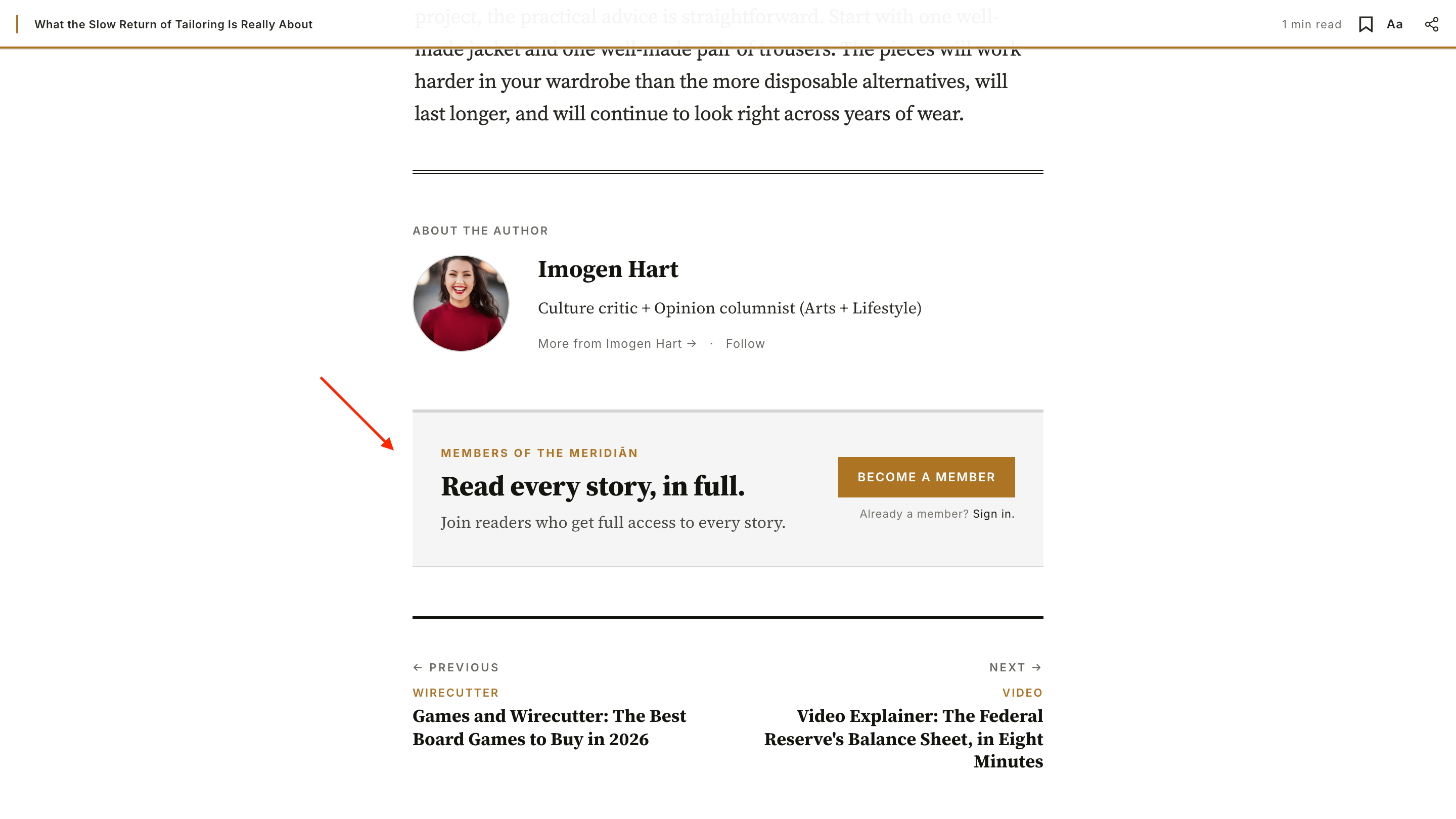
- Default:
Read every story, in full. - Suggested patterns: "Reporting that pays for itself.", "Independent journalism, for the price of a paperback a month.", "Become a Subscriber and read everything."
Go to Settings → Design & branding in Ghost Admin and click Customize.
Expand the Theme → Post group on the left.
Type your custom headline into the Member CTA headline text field. Leave it empty to use the default.
Click Save to apply.
Member CTA body
The sub-headline below the member CTA headline, explaining what membership includes.
- Default:
Join readers who get full access to every story. - Suggested patterns: Describe the specific benefits of your tiers: what readers actually get when they sign up.
Go to Settings → Design & branding in Ghost Admin and click Customize.
Expand the Theme → Post group on the left.
Type your custom sub-headline into the Member CTA body text field. Leave it empty to use the default.
Click Save to apply.
Where this CTA shows
Logged-out visitors see the signup CTA with this headline + body at the end of stories they can open in full. If you publish a page with the slug newsletter-cta, its newsletter signup takes this spot instead and this box doesn't show. On stories the visitor can't open in full, the paywall shows the prompt instead, so the two never stack. Signed-in readers don't see this box.
The Membership CTA band is separate
These two settings only affect the post-page member CTA (the box at the end of an article). The full-bleed Membership CTA band above the footer sources its copy from a Ghost page with slug membership-cta instead, so editors can write rich HTML there with a <mark> accent phrase. See Membership CTA.
Enable persistent player
Keeps a started video playing in a corner mini-player as readers move between pages, so they never lose their place when they follow a link. On by default. Turn it off to use the classic per-page player, where a video stops when the reader leaves the post.
Until a reader presses play, navigation is unchanged. This only affects readers who are actively watching a video. See Persistent video player for the full behaviour.
Go to Settings → Design & branding in Ghost Admin and click Customize.
Expand the Theme → Post group on the left.
Switch Enable persistent player on or off.
Click Save to apply.
Mini player position
Which corner the mini-player docks in while a video keeps playing during navigation: Bottom right (default) or Bottom left.
This option appears only when Enable persistent player is on.
Go to Settings → Design & branding in Ghost Admin and click Customize.
Expand the Theme → Post group on the left.
Pick Bottom left or Bottom right under Mini player position.
Click Save to apply.
Mind the Portal button
Ghost's membership/Portal button sits in the bottom-right corner. While a video is docked there, the mini-player covers it until the reader closes the mini-player. If your site shows the Portal button and you'd rather keep it clear, switch to Bottom left.