

Ads
Fill Meridian's six ad slots plus the homepage in-feed from Ghost pages — image banners or AdSense code. Off by default and hidden from paid members.
Meridian has six fixed ad slots, plus a repeatable homepage in-feed. You fill a slot by creating a Ghost page and putting your ad in the page body — the theme finds that page and renders it into the matching spot. One page holds either a static image banner or ad-network code (Google AdSense, Google Ad Manager, or any other network), so the same simple step covers both.
Ads are off by default, never shown to paying members, and a slot you don't fill simply doesn't appear — so turning ads on never leaves blank gaps or breaks your layout.
The whole system in one sentence
Flip one switch (Enable ads), then create one page per spot you want to fill. No page, no ad in that spot.
Quick start
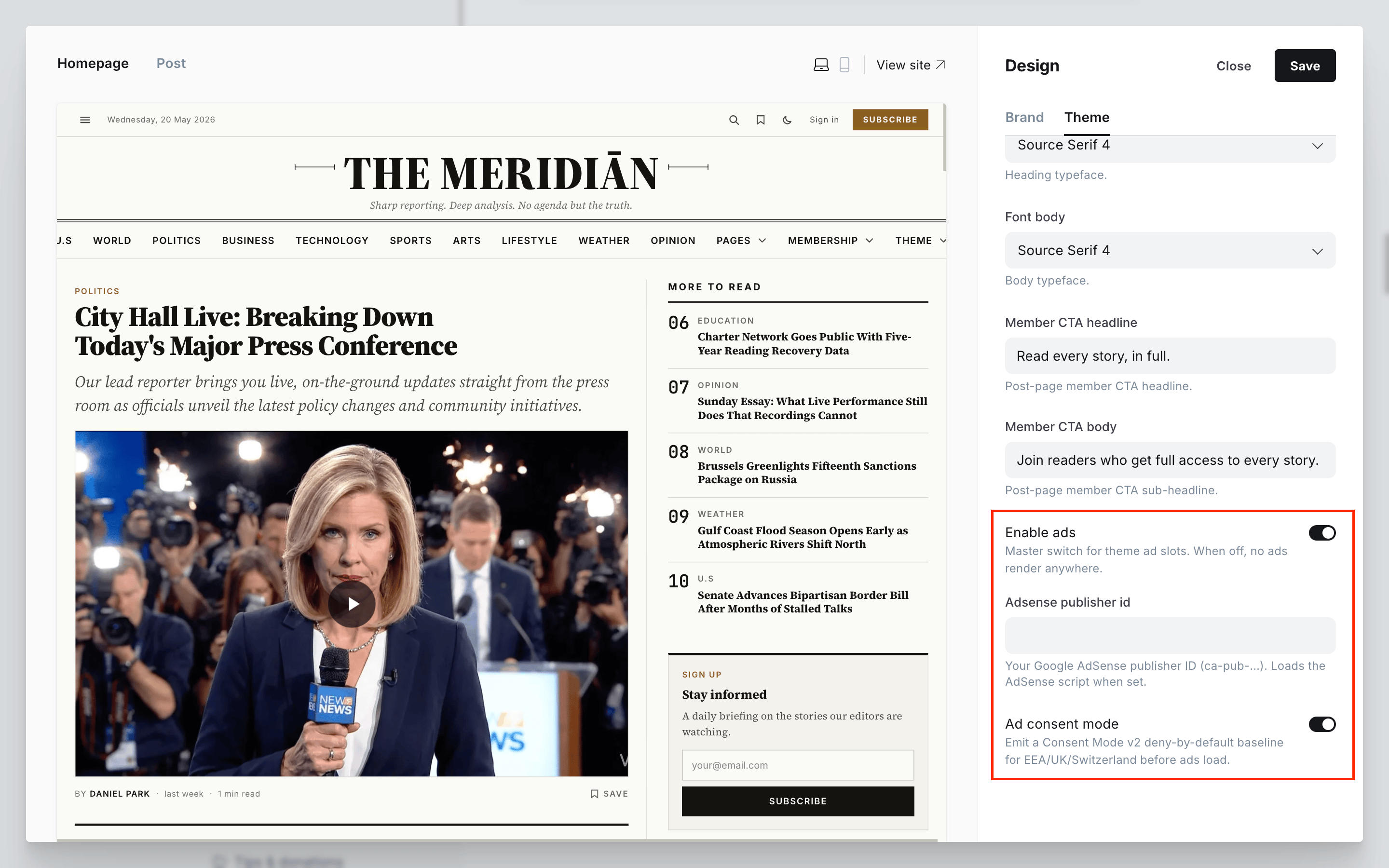
Turn ads on
Go to Settings → Design & branding → Customize → Theme → Site wide and switch Enable ads on. Save.
Create a page
In Ghost Admin, open Pages → New page. Give it a title for your own reference (it is never shown), for example "Ad — Post footer".
Point it at a slot
In Page settings, set the Page URL to the slot's slug (for example ad-post-footer). That slug is how the theme knows where the ad goes. One slot, the homepage in-feed, uses a tag instead — see below.
Add your ad and publish
Put an image banner or your ad-network code in the page body, then Publish. The ad appears on the next page load.
That is the whole flow. Repeat for each spot you want to fill. The rest of this page is reference: where each slot is, what size to use, and how to handle desktop vs. mobile creatives, AdSense, and privacy law.
Where ads can go
Header leaderboard
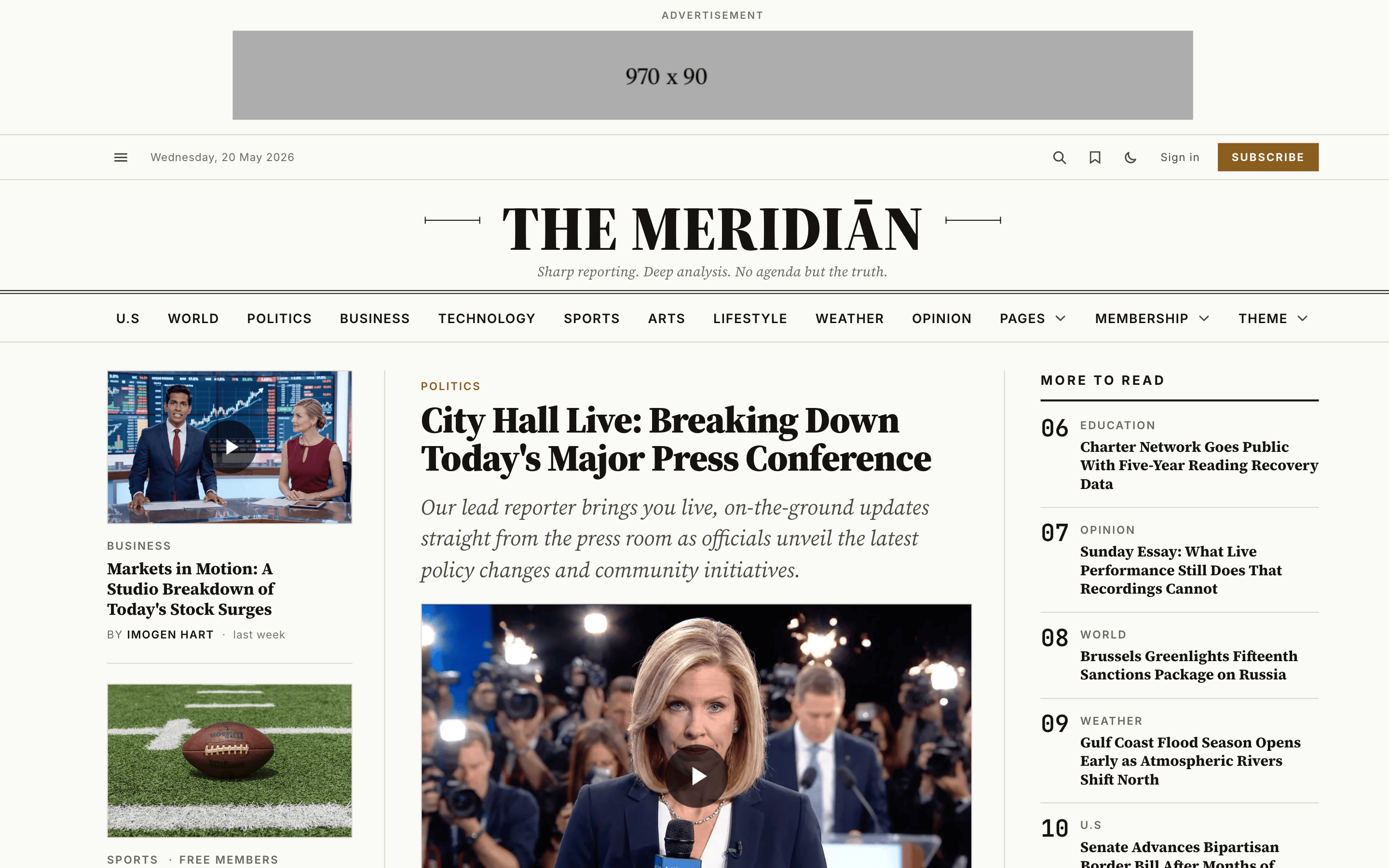
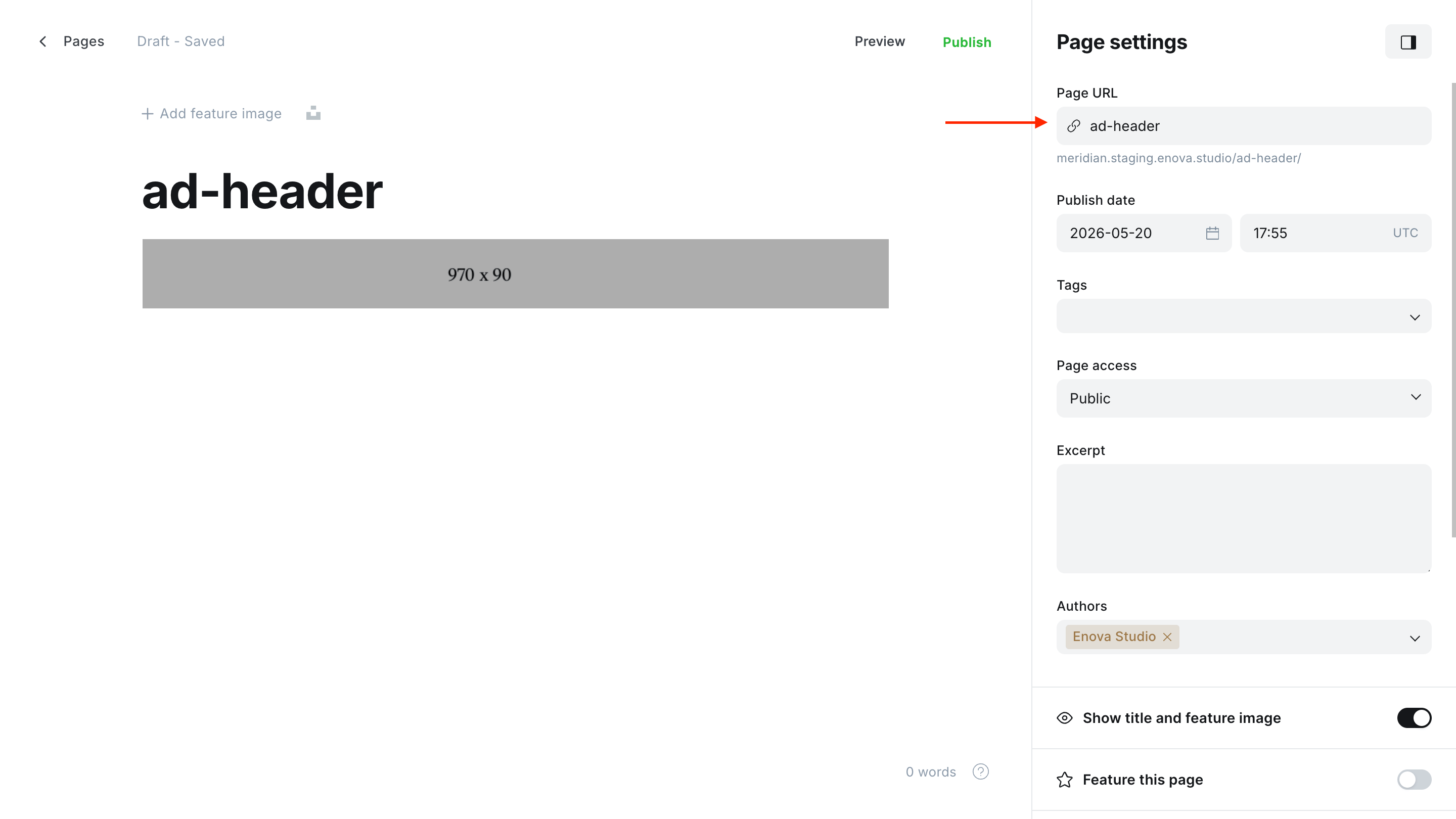
A full-width banner at the very top of the site, on every page. Slug ad-header.
Home top
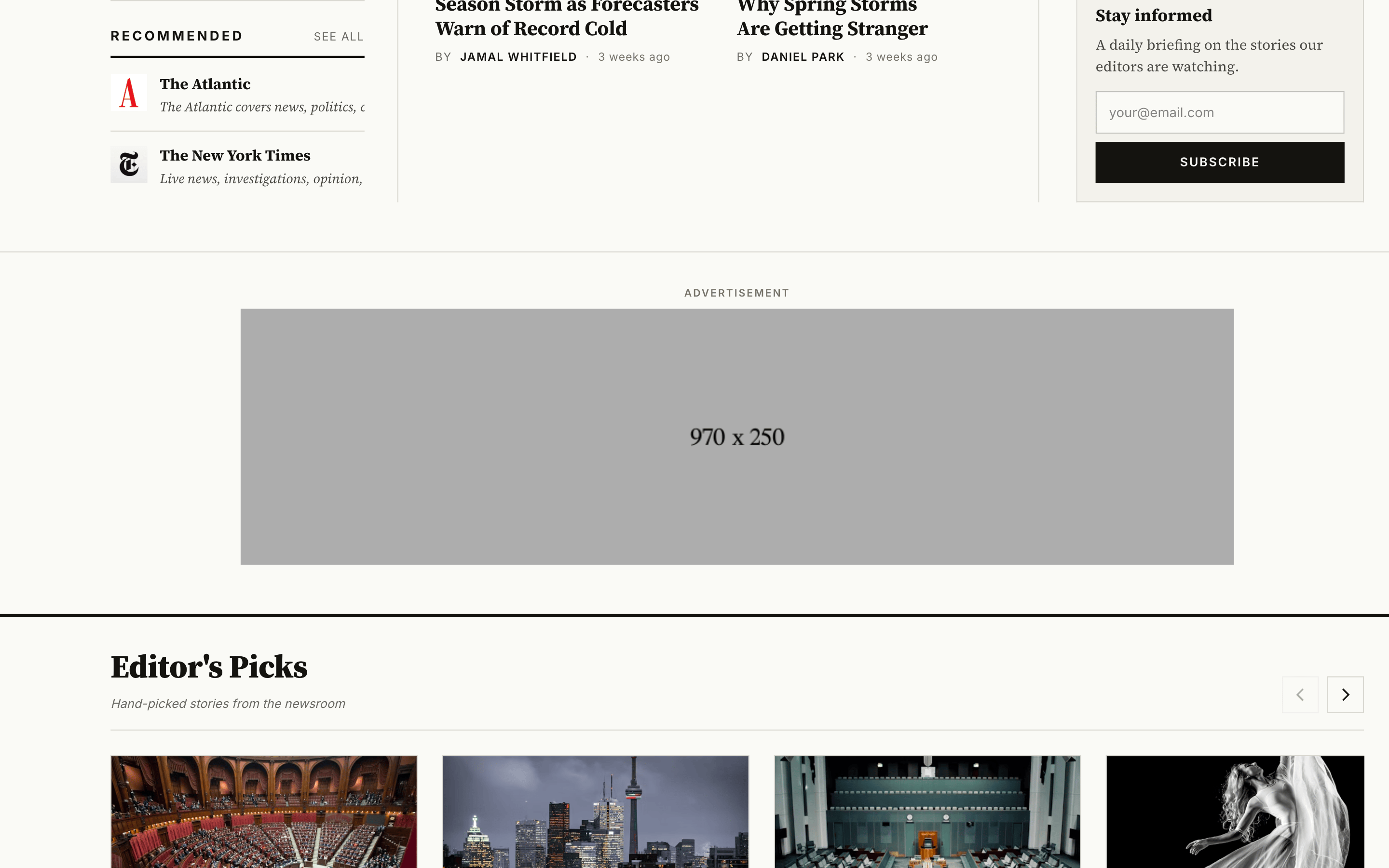
Below the lead stories on the homepage, above Editor's Picks. Slug ad-home-top.
Homepage in-feed
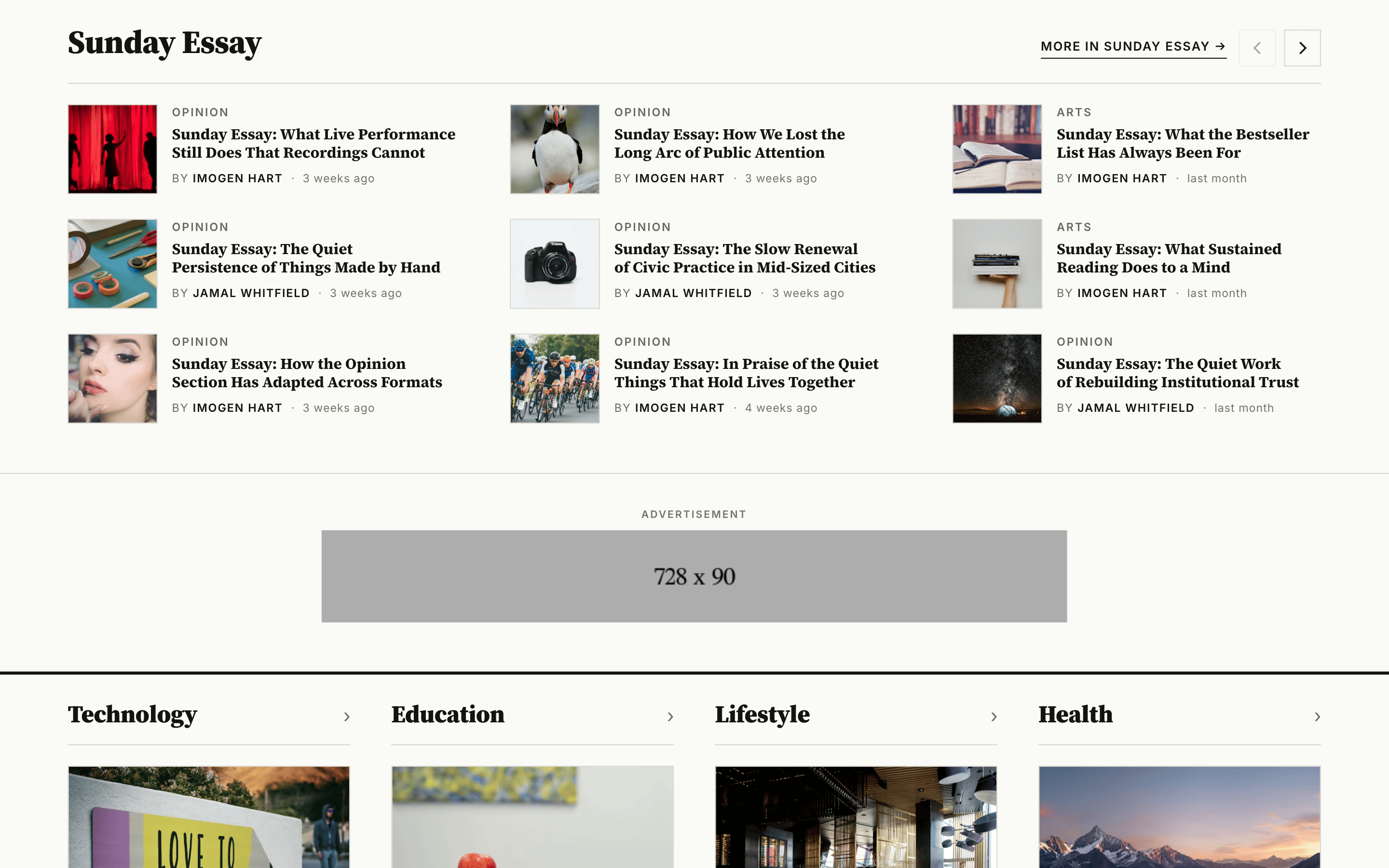
Between homepage sections, and you can place several in any order. Tag #home-ad.
Archive in-feed
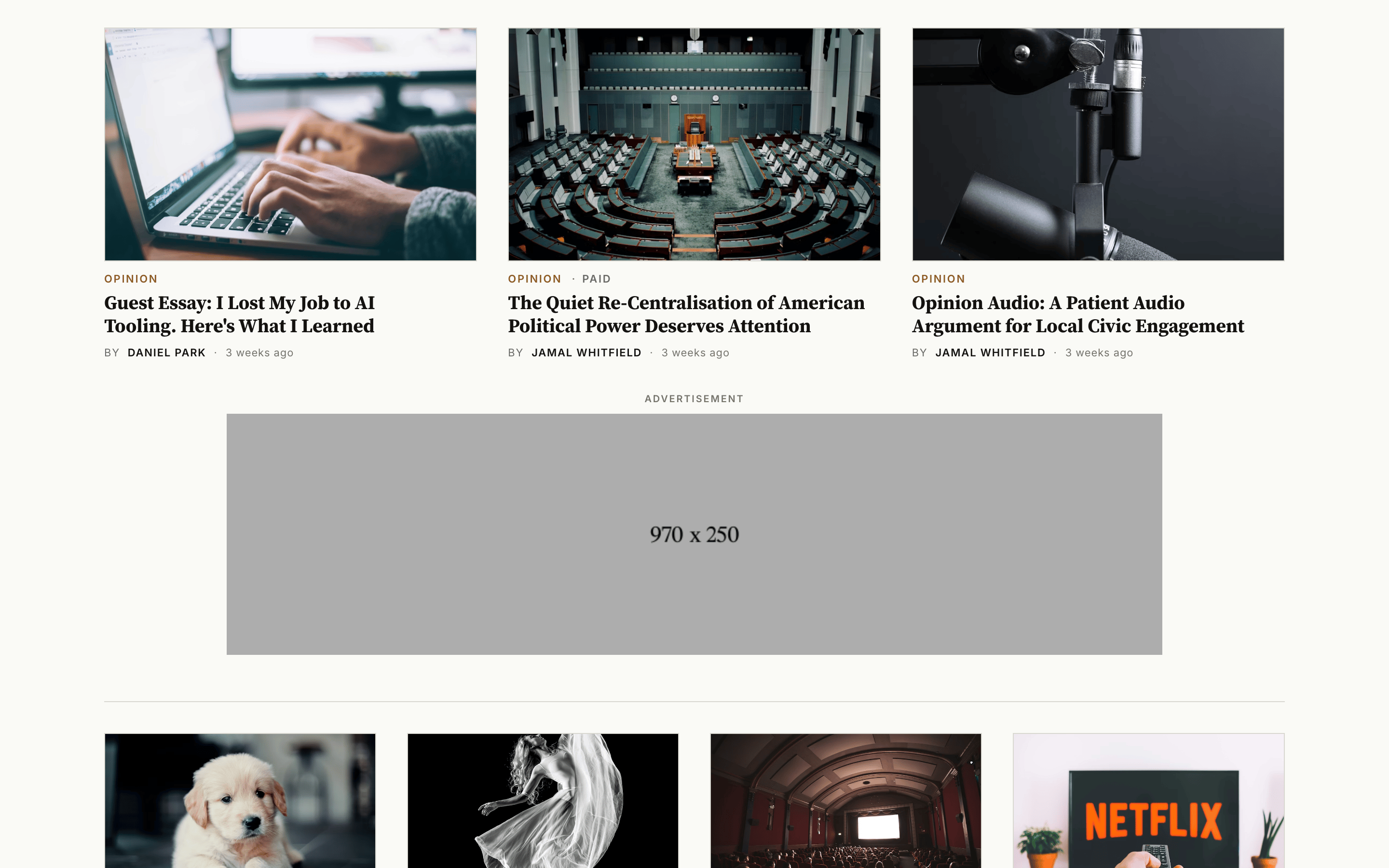
Between rows on section, tag and author pages. Slug ad-feed.
In-article (lead)
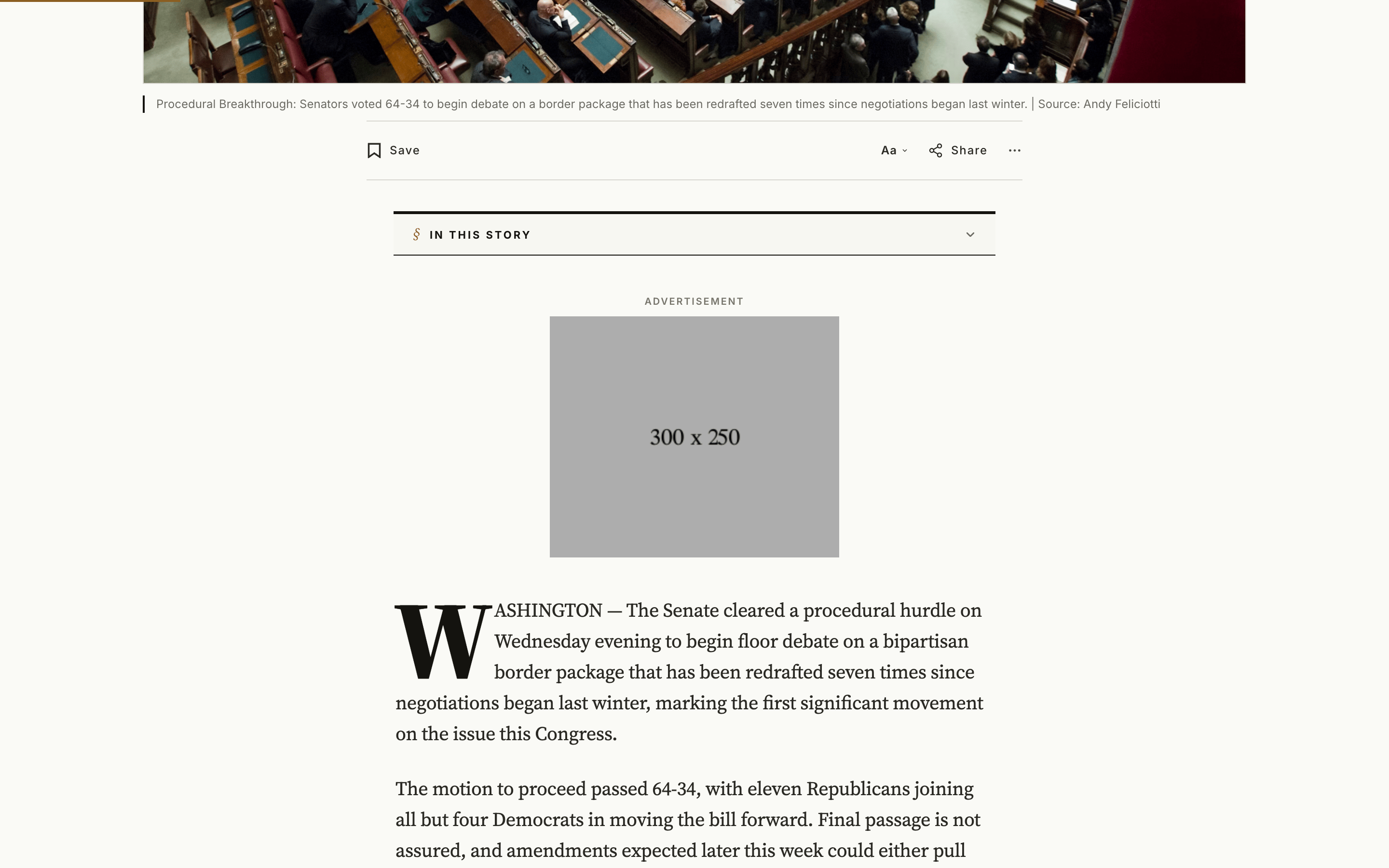
At the top of a post, above the story, and hidden from readers who can't open the article. Slug ad-in-article.
Post footer
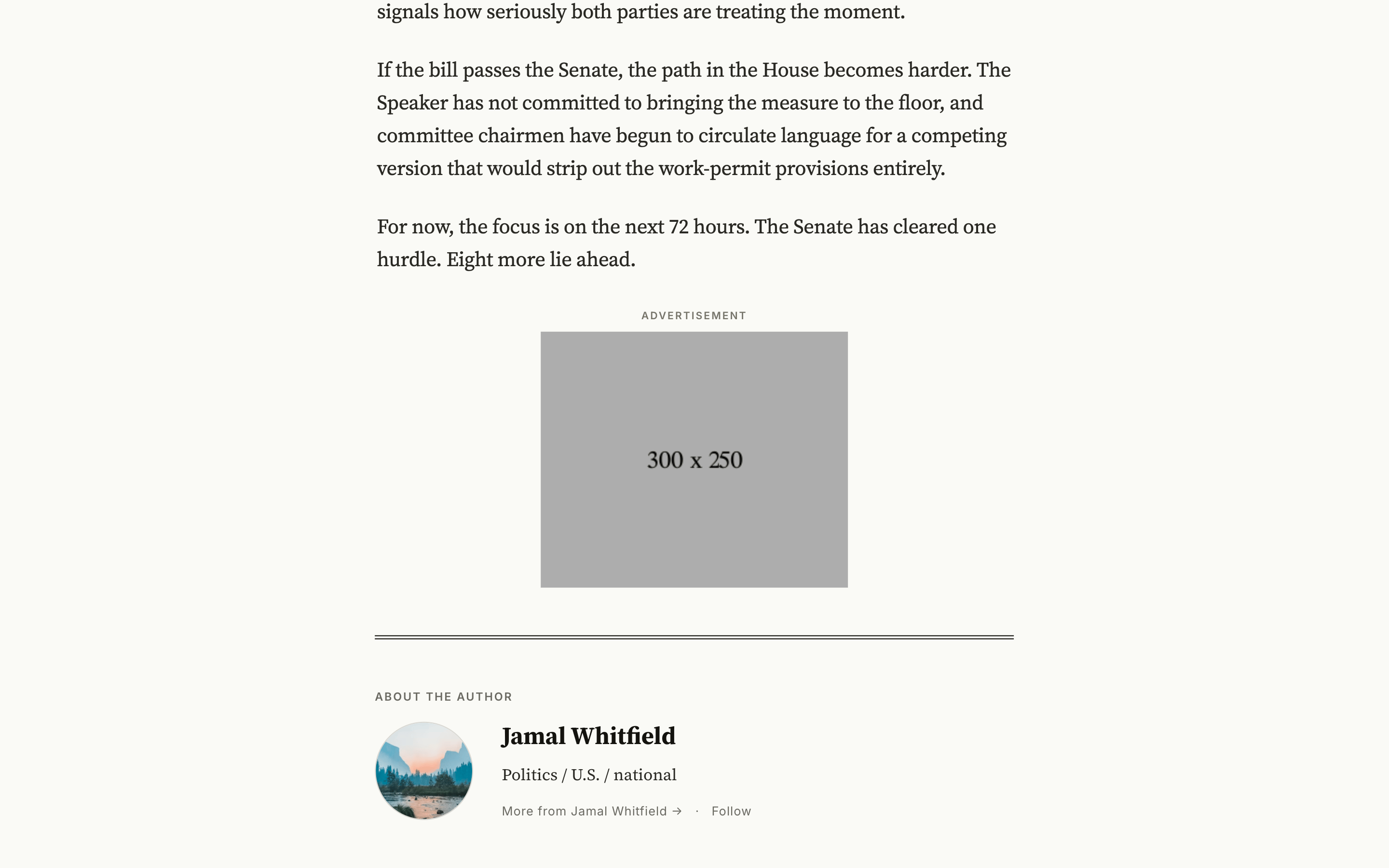
At the end of a post, before the author card. Slug ad-post-footer.
Mobile anchor
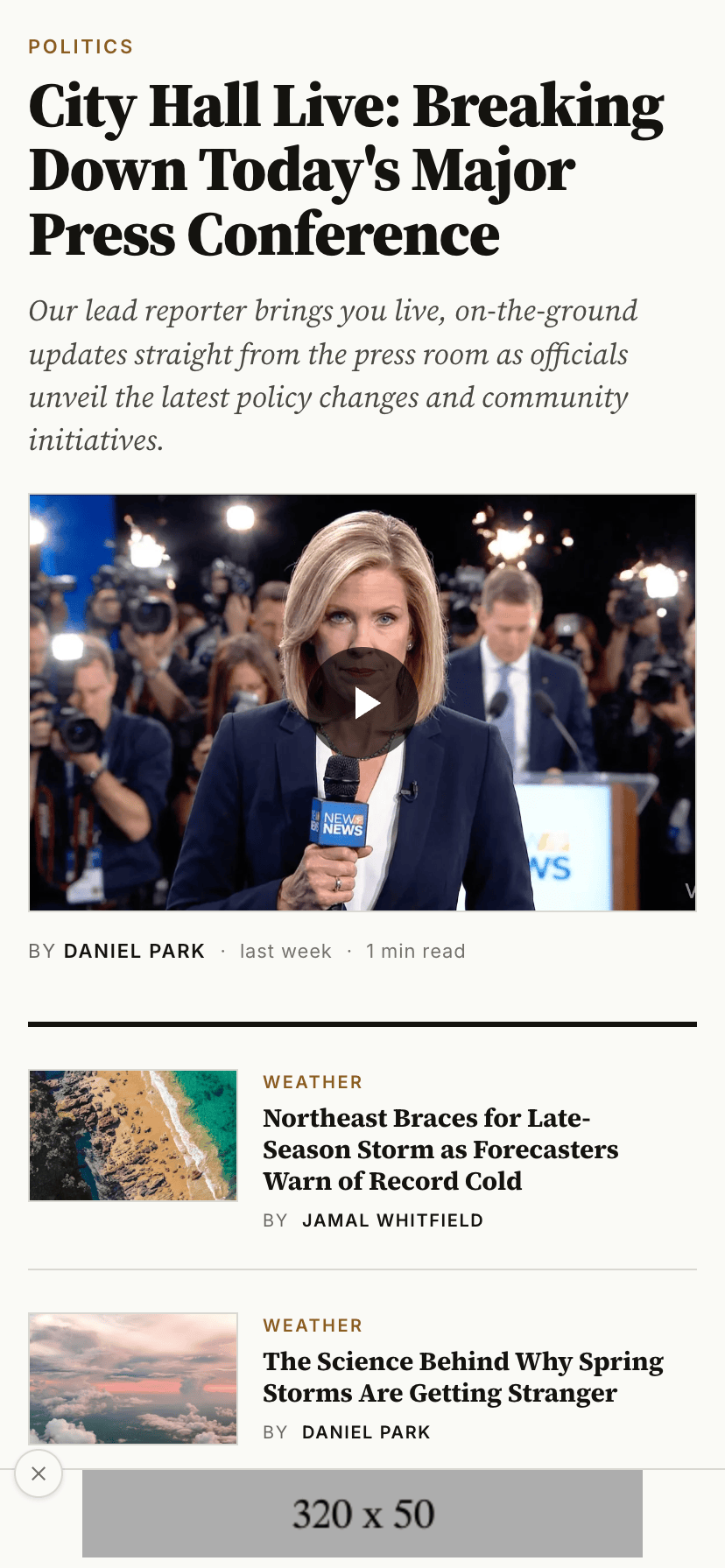
A small sticky banner pinned to the bottom on phones, with a close button. Slug ad-mobile-anchor.
Slug vs. tag — the one thing to get right
Six slots are matched by the page's URL slug (ad-header, ad-home-top, ad-feed, ad-in-article, ad-post-footer, ad-mobile-anchor) — one page each, with that exact slug. The homepage in-feed slot is the exception: it is matched by the internal tag #home-ad, so you can create several and order them. Set a slug in Page settings → Page URL; set a tag in Page settings → Tags.
Size reference
One table for every slot. Sizes are pixels (width × height), all standard IAB units. Each slot offers the full width of its largest listed size, so a correctly sized ad renders at true 1:1 and is never scaled down.
| Slot | Create with | Where it appears | Desktop size | Mobile size |
|---|---|---|---|---|
| Header leaderboard | slug ad-header | Strip at the very top, site-wide | 970×90 or 728×90 | 320×100 or 320×50 |
| Home top | slug ad-home-top | Below the hero, above Editor's Picks | 970×250 or 728×90 | 300×250 or 320×100 |
| Homepage in-feed | tag #home-ad | Between homepage sections | 970×250 or 728×90 | 300×250 or 320×100 |
| Archive in-feed | slug ad-feed | Between rows on section / tag / author pages | 970×250 or 728×90 | 300×250 or 320×100 |
| In-article (lead) | slug ad-in-article | Top of a post, above the story | 300×250 or 336×280 | 300×250 |
| Post footer | slug ad-post-footer | End of a post, before the author card | 300×250 or 336×280 | 300×250 |
| Mobile anchor | slug ad-mobile-anchor | Sticky bottom bar, phones only | (hidden) | 320×50 or 320×100 |
Set up a slot
The steps below are the same for every slug-based slot (ad-header, ad-home-top, ad-feed, ad-in-article, ad-post-footer, ad-mobile-anchor). The homepage in-feed slot uses a tag instead — see its note further down.
Create the page
Pages → New page. The title is not displayed — name it for yourself (e.g. "Ad — Header").
Set the slug
In Page settings, set the Page URL to the slot's slug. Don't link it from your navigation.
Add the creative and publish
Put your banner or ad code in the body (next section), then Publish.
The page is the on/off switch for that slot
Set the page to draft or delete it to remove just that slot. Leave the body empty and nothing renders. No template editing, ever.
Choose your creative
A slot's page body holds either kind of ad. Pick a tab.
Best for house ads, sponsorships, and direct deals. A plain image sets no cookies, needs no consent, and never triggers a privacy banner.
In the page body, add an Image card and upload your banner.
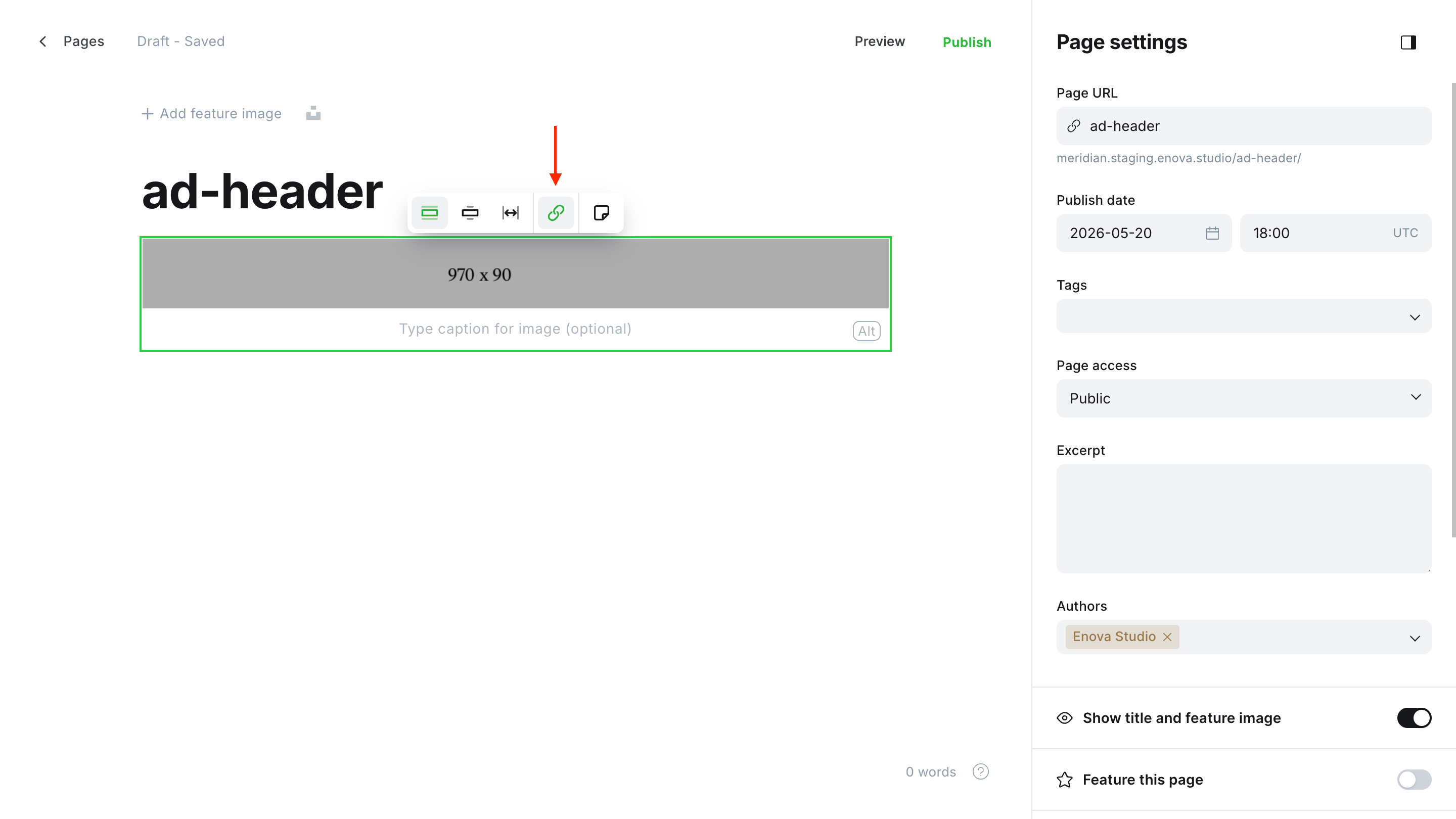
Select the image, click the link button, and point it at the advertiser's URL.
Ghost serves responsive sizes automatically, and the slot clamps the image to its container so it never overflows on phones. Export at 2× for sharpness on retina screens (a 970×90 slot wants a 1940×180 image) and keep the file light (WebP or an optimized PNG/JPG).
Links open in a new tab automatically
No setup needed: Meridian opens every banner link in a new tab and tags it rel="noopener sponsored" — it keeps readers on your site, and correctly marks the link as a paid ad for search engines. (Ghost's link tool can't set this itself, so the theme handles it.)
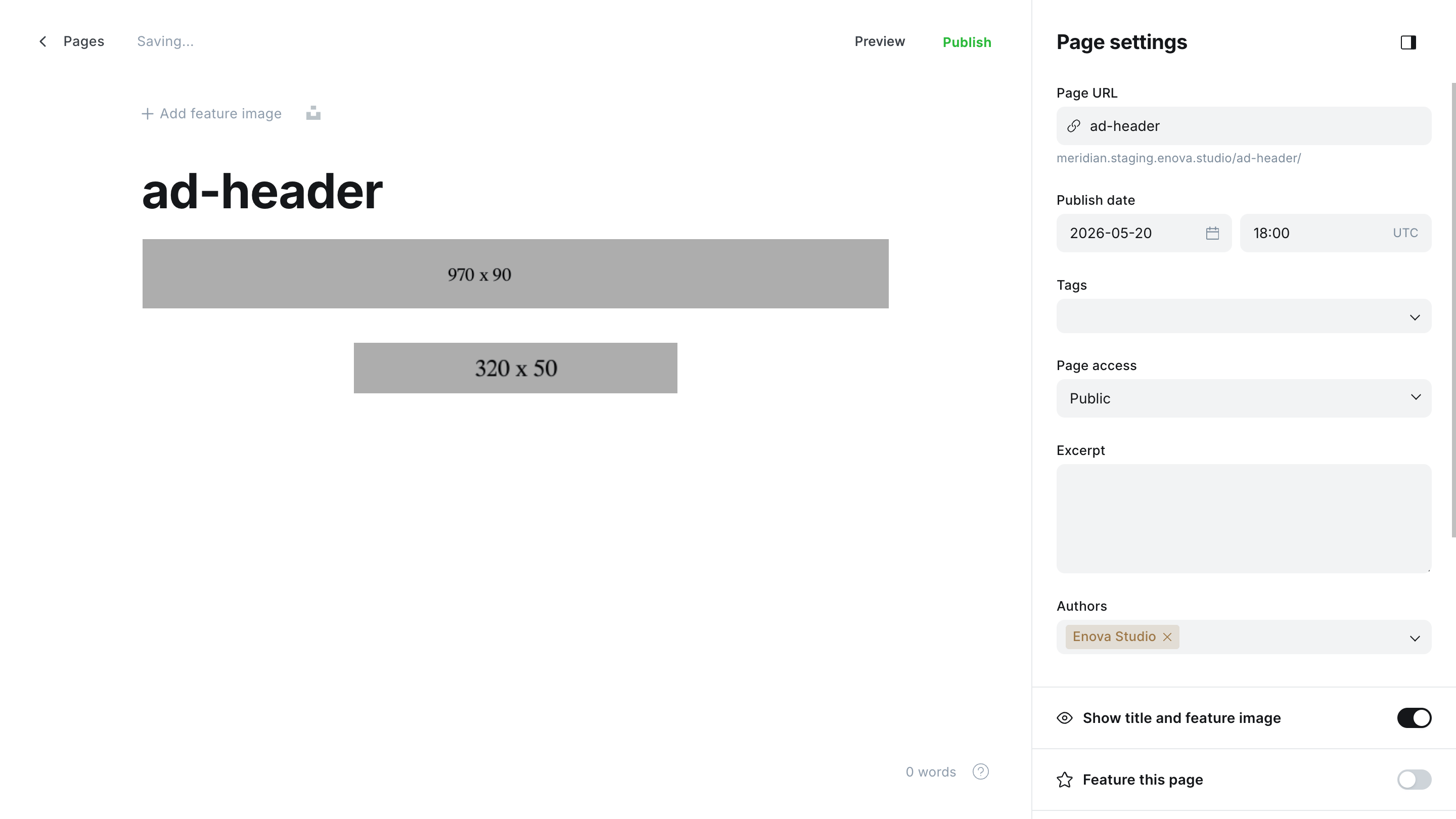
A single wide banner shrinks to a tiny strip on phones. To serve a purpose-built mobile creative instead, add two Image cards in the same page:
Add your desktop banner as the first Image card (e.g. 970×90) and link it.
Add your mobile banner as the second Image card (e.g. 320×50 or 300×250) and link it.
Publish.
The theme shows the desktop banner on screens 768px and wider, and the mobile banner below that. Add only one image and it is used at every size.
Order matters
Desktop image first, mobile image second — that order is how the theme tells them apart. Works in every slot, including the homepage #home-ad sections.
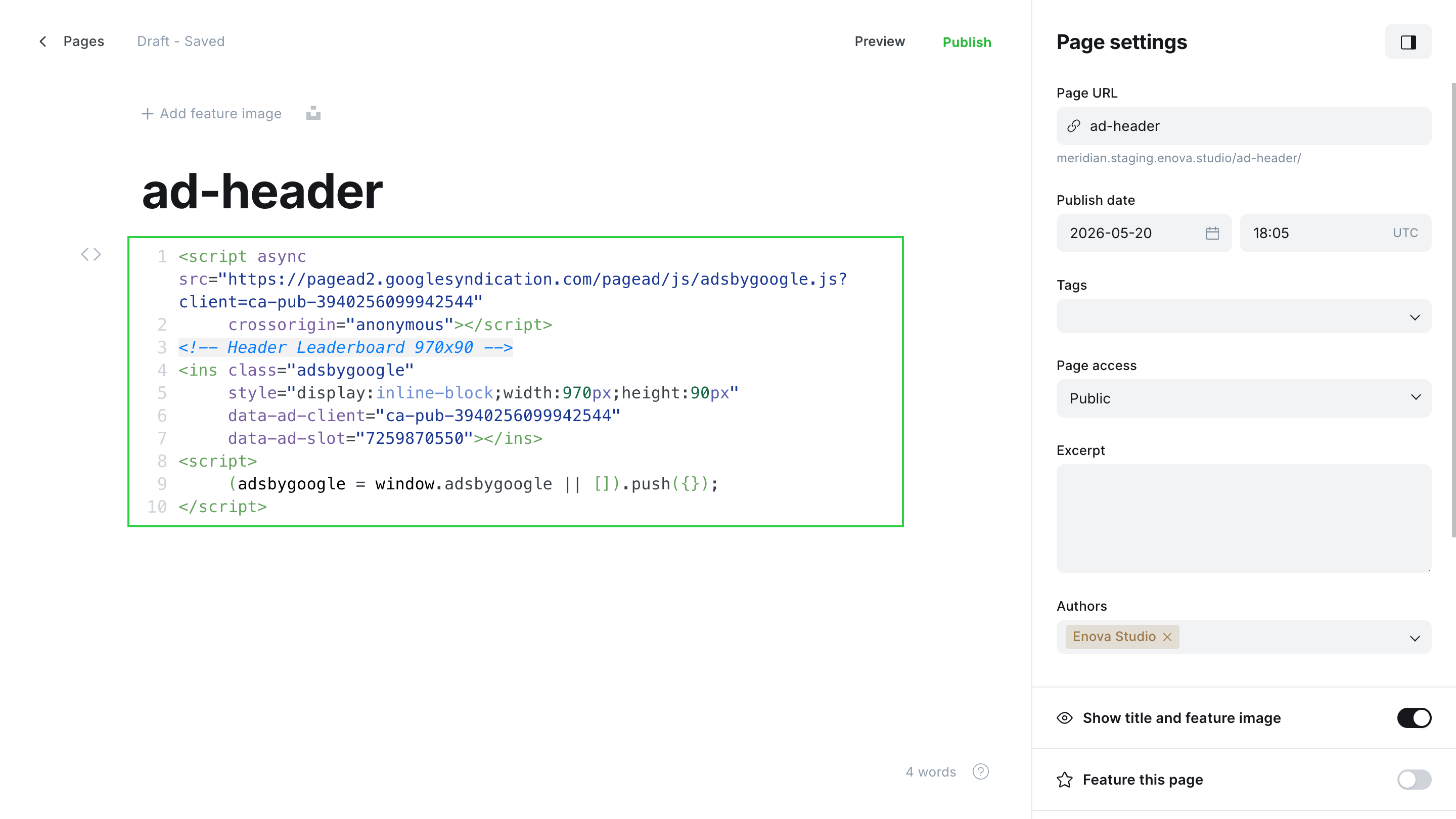
In the page body, add an HTML card.
Paste your ad unit code (for AdSense, the <ins class="adsbygoogle">…</ins> snippet from your dashboard).
Use responsive ad units
For AdSense, prefer a Responsive unit (data-ad-format="auto", data-full-width-responsive="true") so it adapts to phones, tablets and desktop automatically and always serves a standard size.
Slot-specific notes
Most slots follow the steps above. These few behave a little differently.
Google AdSense
Add your publisher ID
In Site wide, set AdSense publisher ID to your ca-pub-XXXXXXXXXXXXXXXX. Meridian then loads the AdSense script once, so you can use Auto ads and manual units.
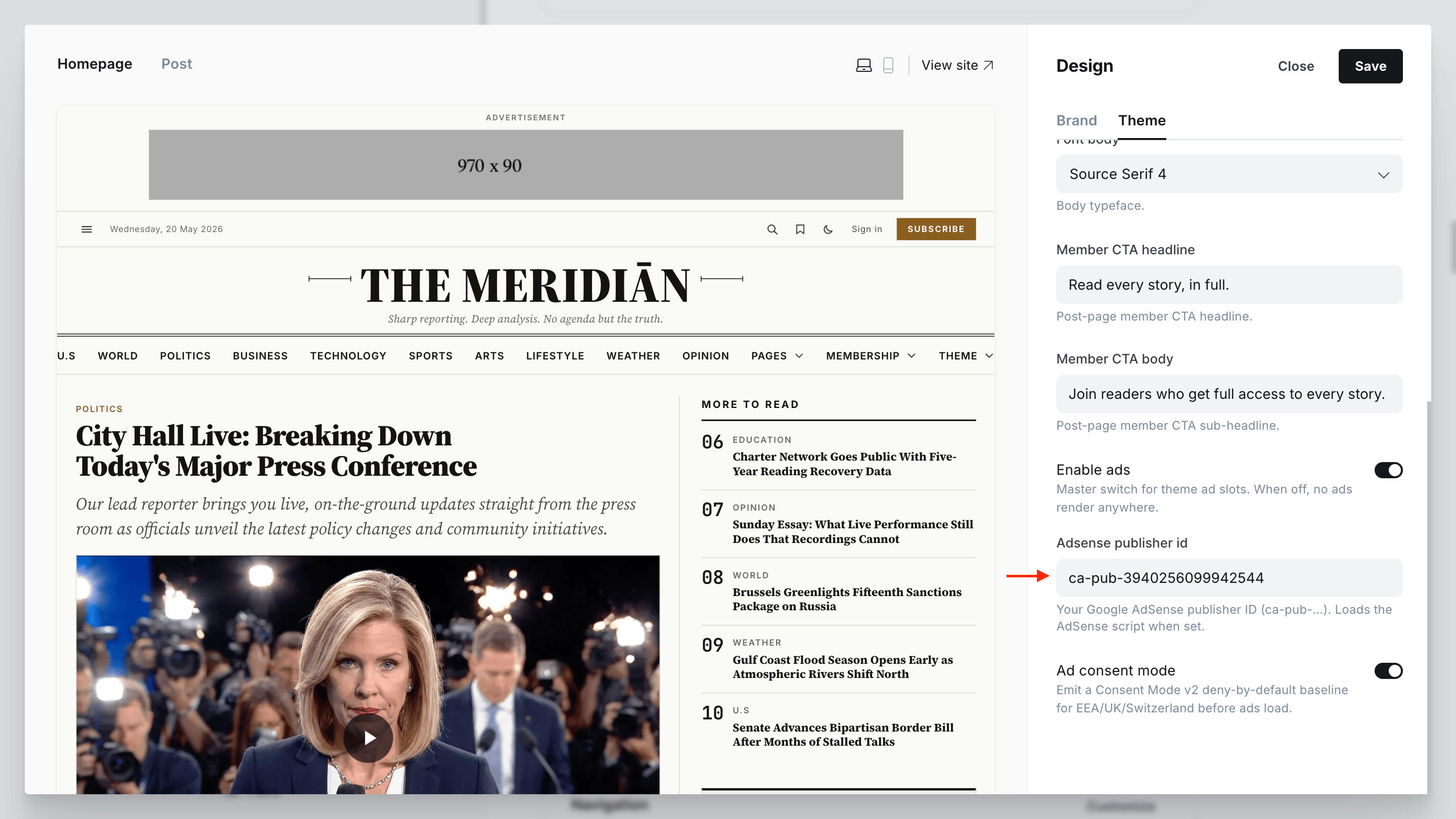
Place manual units
Paste each ad unit's code into the slot pages above.
Prefer to manage the loader yourself? Leave the publisher ID blank and add your script via Settings → Code injection — Meridian respects whatever you put there.
Auto ads anchor vs. the theme's mobile anchor
AdSense Auto ads can place its own anchor/overlay ad at the bottom of the screen. If you also fill the theme's mobile anchor slot, phones get two stacked sticky bars. Use one or the other: either skip the ad-mobile-anchor page, or turn off the Anchor format in your AdSense Auto ads settings.
ads.txt
For programmatic / AdSense verification you will likely need an ads.txt file at your domain root (e.g. https://yoursite.com/ads.txt). This lives at the server / Ghost level, not in the theme: on Ghost(Pro) and most hosts you add it through your platform; self-hosters can place ads.txt in the theme's root folder and re-upload. It is publisher-specific, so Meridian doesn't ship one.
Privacy & compliance
You (the site owner) are the data controller. Meridian provides consent-ready plumbing; you choose and configure a consent solution. This is configuration guidance, not legal advice.
Static image banners are exempt
A plain image banner sets no cookies and does no tracking, so it needs no consent and triggers no banner. The notes below apply only to ad-network code.
Mobile & layout
Every slot is responsive: fluid, centered, capped to its surrounding content width, with reserved height so the page doesn't jump as an ad loads. Oversized creatives are clamped so they never cause sideways scrolling. The mobile anchor pads the page bottom so it never hides your footer. Ads are labelled "Advertisement" (translated automatically on non-English sites).
For paying members and when ads are off, no slot markup renders at all — your layout is byte-for-byte what it is today, with no empty boxes or stray dividers.
Turning ads off
- One slot: unpublish or delete that slot's page.
- Everything: switch Enable ads off in Site wide. All slots stop rendering and no ad scripts load.
Glossary
Newsletter signup
An end-of-article newsletter signup card in an editorial "sign-off" style. Editorial copy lives on a Ghost page; when published it replaces the membership prompt for logged-out readers, and the prompt returns if you remove it.
Publication Language
Meridian ships in 14 languages. Set your publication language in Ghost Admin and the theme's interface adapts automatically — no code or manual translation needed.