

Editor's note
Add an Editor's note panel to Meridian's homepage aside from a Ghost page with slug editors-note — body, byline, and a translated eyebrow. Optional.
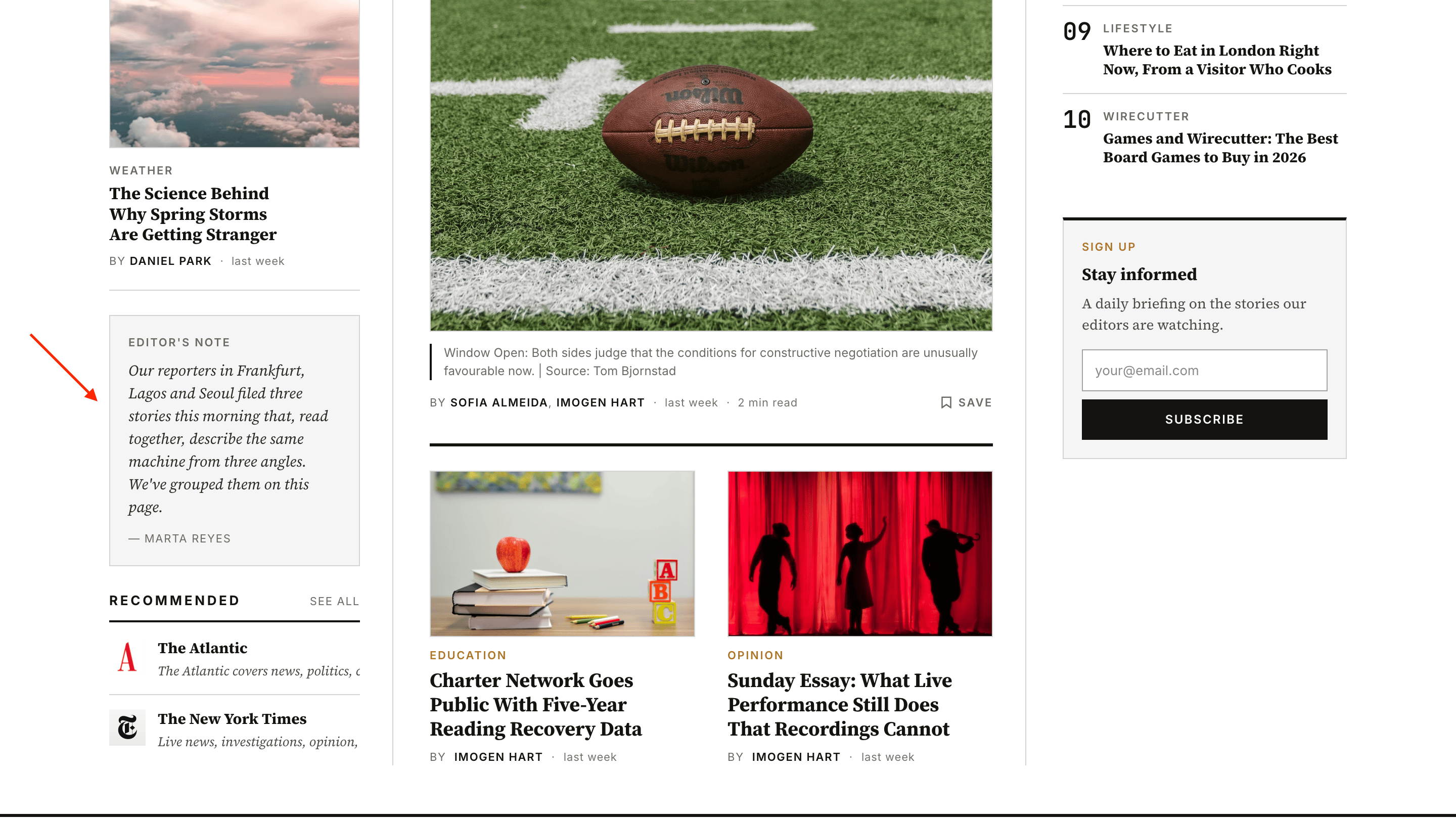
The Editor's note is a small italic panel that appears in the homepage's secondary aside — the left column on XL screens, near the top on mobile. It's where the masthead's voice goes: a one-paragraph welcome, a publishing-week note, a correction, or a brief editorial. Sourced from a single Ghost page so editors can update it without touching template code.
How it's composed
The panel has three parts, all sourced from a Ghost page with slug editors-note:
| Page field | Slot in the panel | Notes |
|---|---|---|
html (body) | Italic body paragraph(s) | Author normal paragraphs in the editor; everything inside the body renders inline. |
authors | Byline footer (— Author Name) | Set the primary author of the page to the editor whose voice this is. Multiple authors render comma-separated. |
| (literal) | "Editor's note" eyebrow | Translated via {{t}}; not authored on the page. |
Treat the page as a content source, not a destination — it doesn't need to be linked from your navigation. (Like any published Ghost page it still has its own URL, /editors-note/, where it renders as an ordinary page if someone opens it directly.)
Setting it up
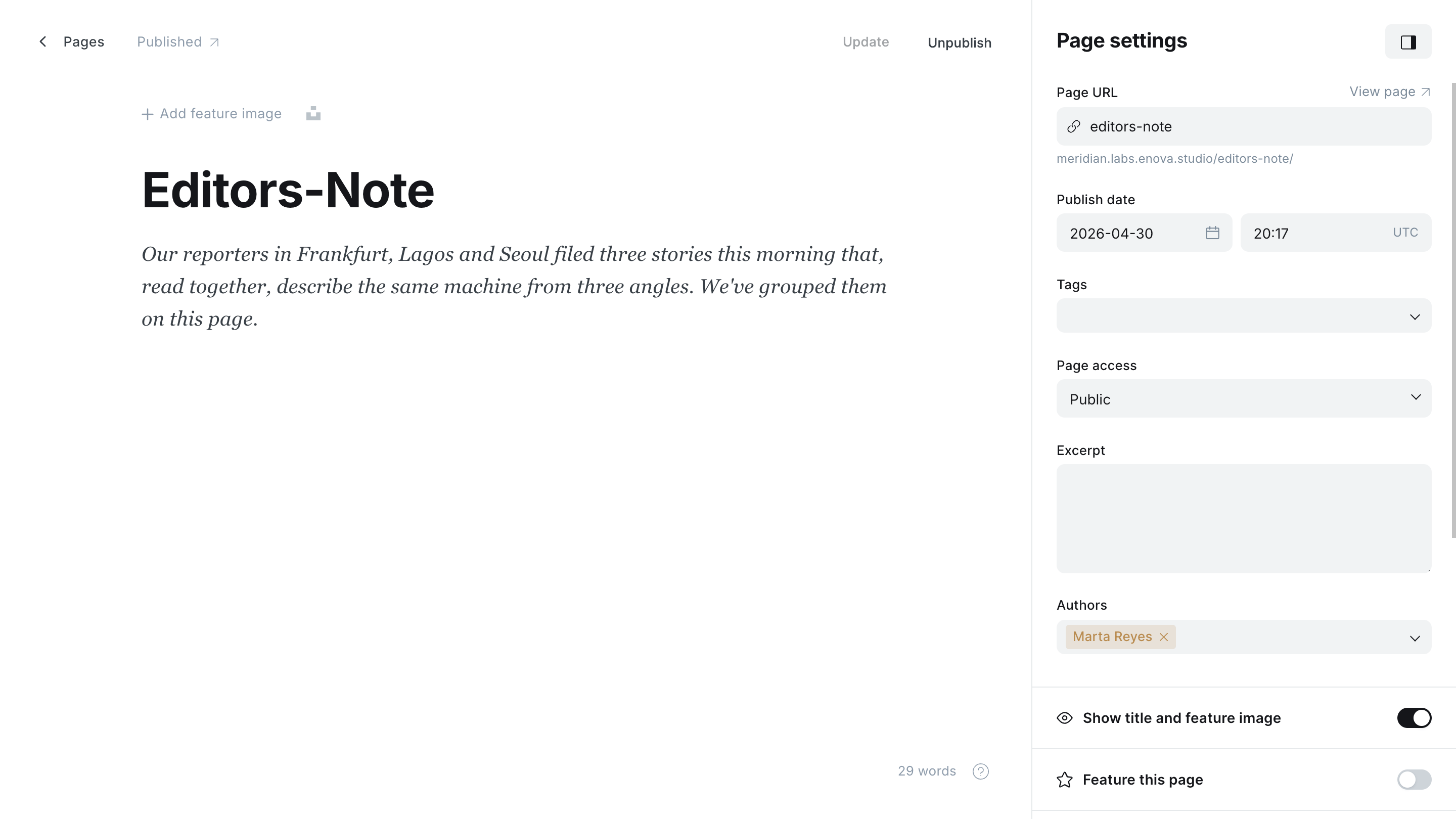
Create the page. In Ghost Admin, go to Pages → New page. Title it whatever you like — the title isn't displayed.
Set the slug to editors-note. In Page settings, set the Page URL to editors-note. The page does not need to be linked from your nav.
Set the primary author. The page's primary author appears as the byline under the body. To pick who's signing the note, open Page settings → Authors and set the first author to the editor.
Author the body. Type your note in the editor body — one short paragraph reads best, but multiple paragraphs work. Italics are applied site-wide for this panel, so don't manually italicize the whole body in the editor.
Publish. Click Publish. The panel will appear on the homepage on the next render.
Hiding the panel
The panel renders only when the editors-note page exists and is published. To hide it:
- Set the page to draft — the panel disappears until you re-publish.
- Delete the page — the panel goes away permanently.
There's no theme setting toggle. The Ghost page is the toggle.
What's not in the panel
The Editor's note panel is intentionally small and one-paragraph-shaped. If you find yourself wanting:
- Headlines, images, or cards → use a regular homepage section row via the
#home-*tags. See Homepage sections. - A site-wide conversion CTA → use the Membership CTA band above the footer.
- A long-form letter from the editor → publish it as a normal post under a tag like
Editor's letter, and link to it from the Editor's note panel.
Editor's Picks
Curate Meridian's Editor's Picks strip on the homepage with Ghost's native Featured flag — up to 8 posts, newest first, no tags or settings needed.
Archive intro
Customize the header on Meridian's paginated archive pages (/page/2/ onward) from a Ghost page with slug archive-intro. Optional, with built-in fallback copy.