

Homepage newsletter box
Write your own wording for the newsletter box in the homepage rail. It lives on a Ghost page; without one, the box keeps the theme's wording.
The homepage newsletter box is the compact signup in the homepage's right-hand rail, under the "More to read" list and above any home hero widgets. Out of the box it reads Sign up, Stay informed and A daily briefing on the stories our editors are watching., with a Subscribe button, all translated into your site's language.
You can replace that wording with your own, from a Ghost page. The box itself always shows while memberships are on; the page only changes what it says.
The theme's wording
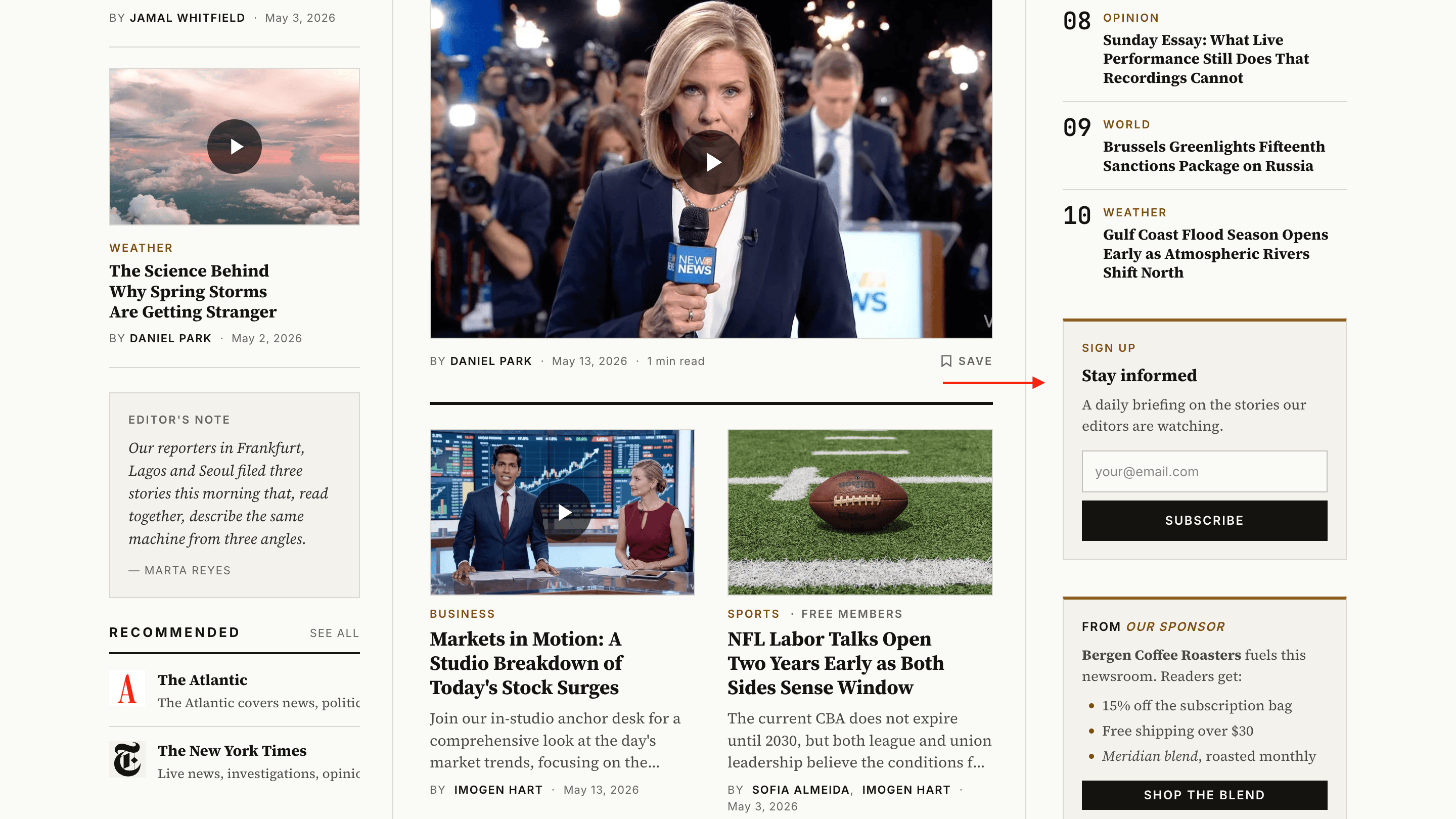
Your wording, from the page
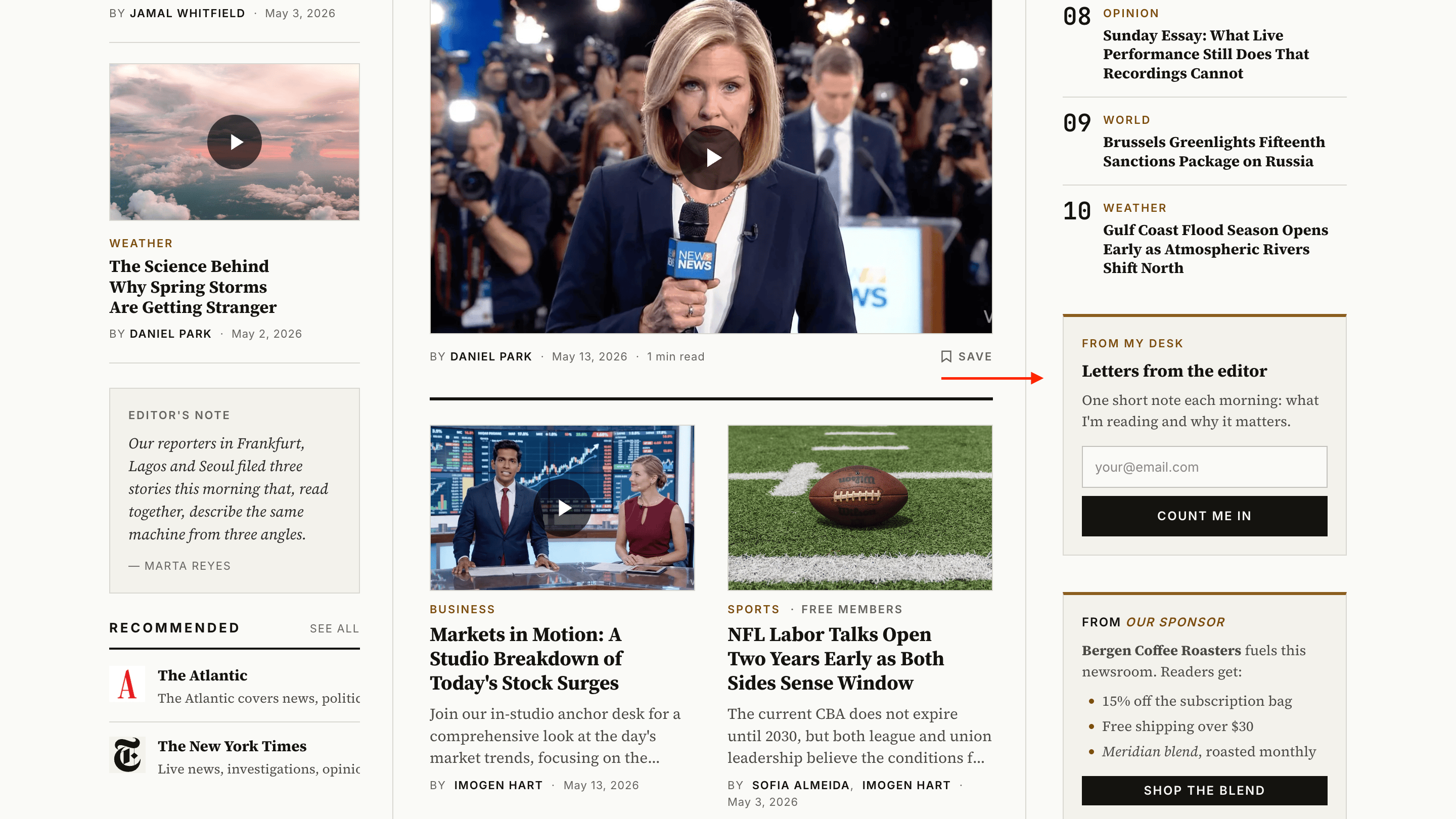
Your wording lives on a Ghost page
The box reads its text from a Ghost page (not a post) with the slug newsletter-box. Each part of the box has its own field, and a field you leave blank keeps the theme's wording for that part.
| Page field | Part of the box | When blank |
|---|---|---|
| Excerpt | Eyebrow (the small label at the top) | Sign up |
| Body | Headline and text: a Heading 2, then a paragraph | Stay informed and the daily-briefing line |
| Meta title | Button label | Subscribe |
| Title | Not shown. Name it whatever helps you find the page. |
The page's meta description isn't used. The email field's placeholder, and the messages readers see after pressing the button (Subscribing…, Check your inbox, Try again), stay in your site's language.
Create the page
In Ghost Admin, go to Pages → New page. Title it whatever you like, for example Homepage newsletter box; the title isn't shown.
Write the headline and text
In the editor, type the headline as a Heading 2, then the text as a paragraph underneath. Keep it short: the box sits in a narrow column.
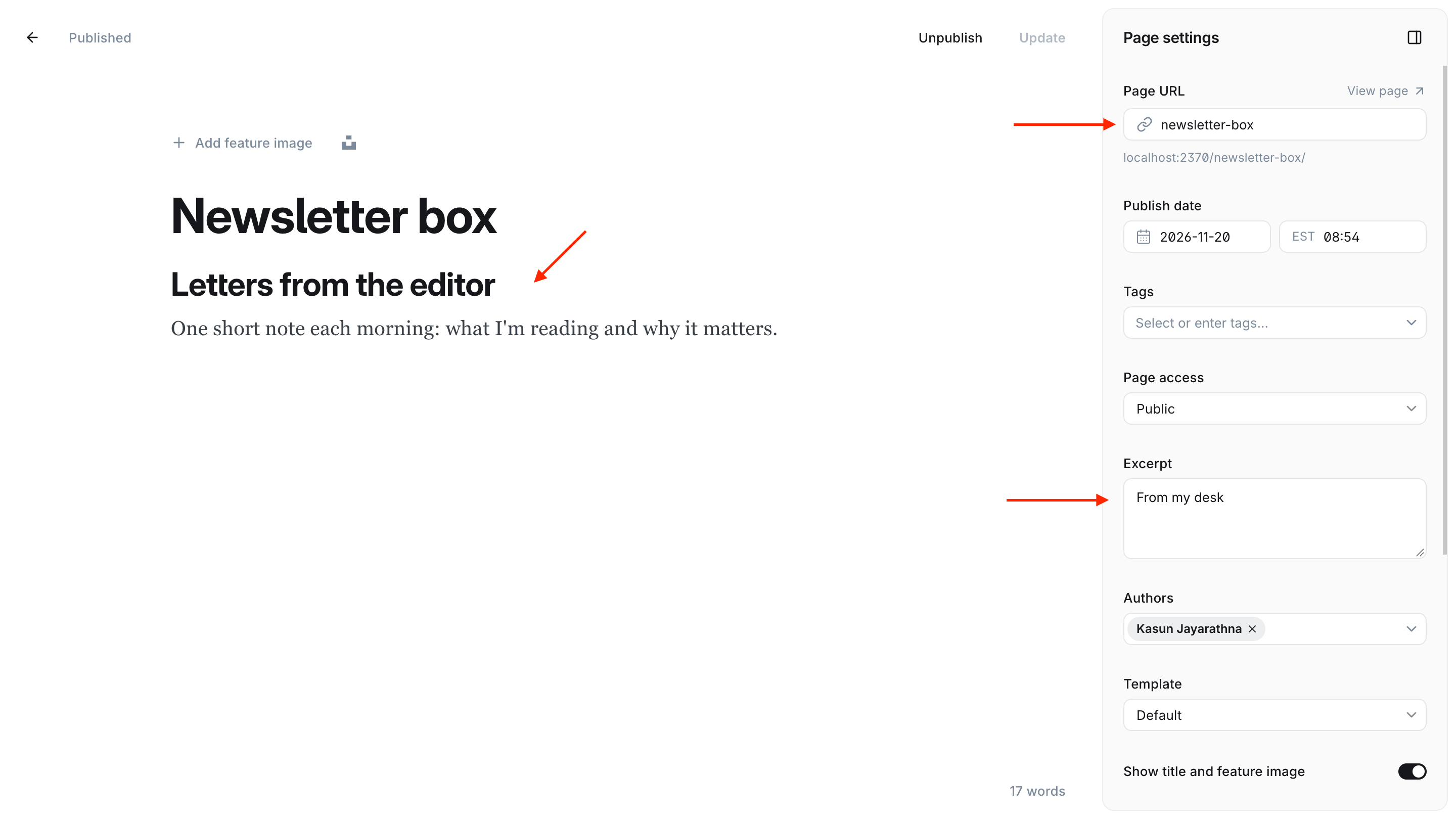
Fill in Page settings
Open Page settings (the sidebar icon at the top right of the editor) and set:
- Page URL to
newsletter-box. It must match exactly. The page is a source of wording, not a destination, so it doesn't need a place in your navigation. - Page access to Public, the default.
- Excerpt to the small label above the headline, for example
From my desk. Optional: leave it blank to keepSign up.
Set the button label (optional)
Still in Page settings, open Meta data and set Meta title to the button label, for example Count me in. Leave it blank to keep Subscribe.
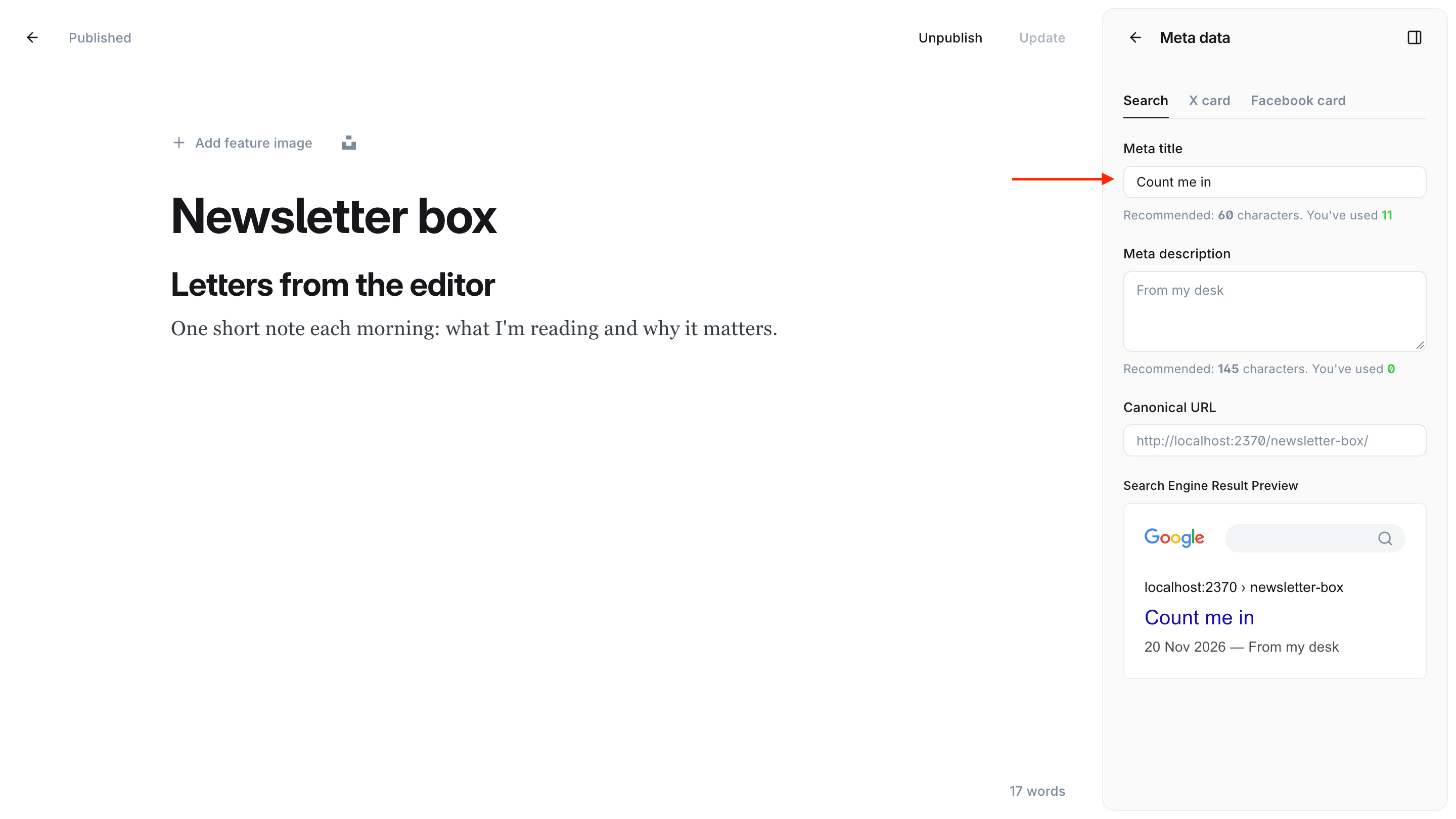
Publish
Click Publish. The homepage box shows your wording on the next page load.
Keep the page's access on Public
Leave Page access on Public. On a Members only, Paid-members only or Specific tier(s) page, Ghost hides the body from readers outside that audience, so visitors would see the theme's headline and text next to your eyebrow and button.
To go back, unpublish the page
Unpublish or delete the newsletter-box page and the box returns to the theme's wording. The box itself stays: it shows whenever memberships are on.
Translated sites
Your page's wording shows exactly as you typed it, whatever your site's language. Only the parts you leave blank are translated.
The form needs members enabled
The subscribe form uses Ghost Portal, so the box only renders when memberships are on (Ghost Admin → Settings → Membership). It subscribes readers to your default newsletter(s).
Good to know
- Two widgets hide the box. With two or more home hero widgets showing, the newsletter box steps aside to give them room, whatever its wording.
- The end-of-article card is separate. The newsletter signup card at the end of posts takes its wording from its own page (
newsletter-cta), so you can word the two differently. - Styling it. The box is
[data-component="newsletter-cta"]:not([data-variant]), and the wording from your page sits inside[data-part="body"]. See Code injection.
Newsletter signup
An end-of-article newsletter signup card in an editorial "sign-off" style. Editorial copy lives on a Ghost page; when published it replaces the membership prompt for logged-out readers, and the prompt returns if you remove it.
Signup forms
Meridian's signup forms follow your Ghost signup settings, just like Ghost's own signup popup. They show your signup notice, can require agreement before anyone joins, and ask for a name when Ghost does.