

Hero
Choose one of Signal's six homepage hero layouts and drive the five non-default heroes from a single home-hero page.
The hero is the large banner at the very top of your homepage. Signal gives you six layouts to choose from — you pick one in the theme settings, and it fills itself in from your content.
Choose a layout
Set the hero layout with the Home hero setting under Settings → Design & branding → Customize → Theme → Homepage. See Homepage settings for a preview of each option.
- Latest episode (default) features your newest episode automatically — no setup needed.
- The other five — Centered statement, Split portrait, Newsletter signup, Cinematic (framed), and Cinematic (full-width) — all read their words and images from one Ghost page, described next.
The home-hero page
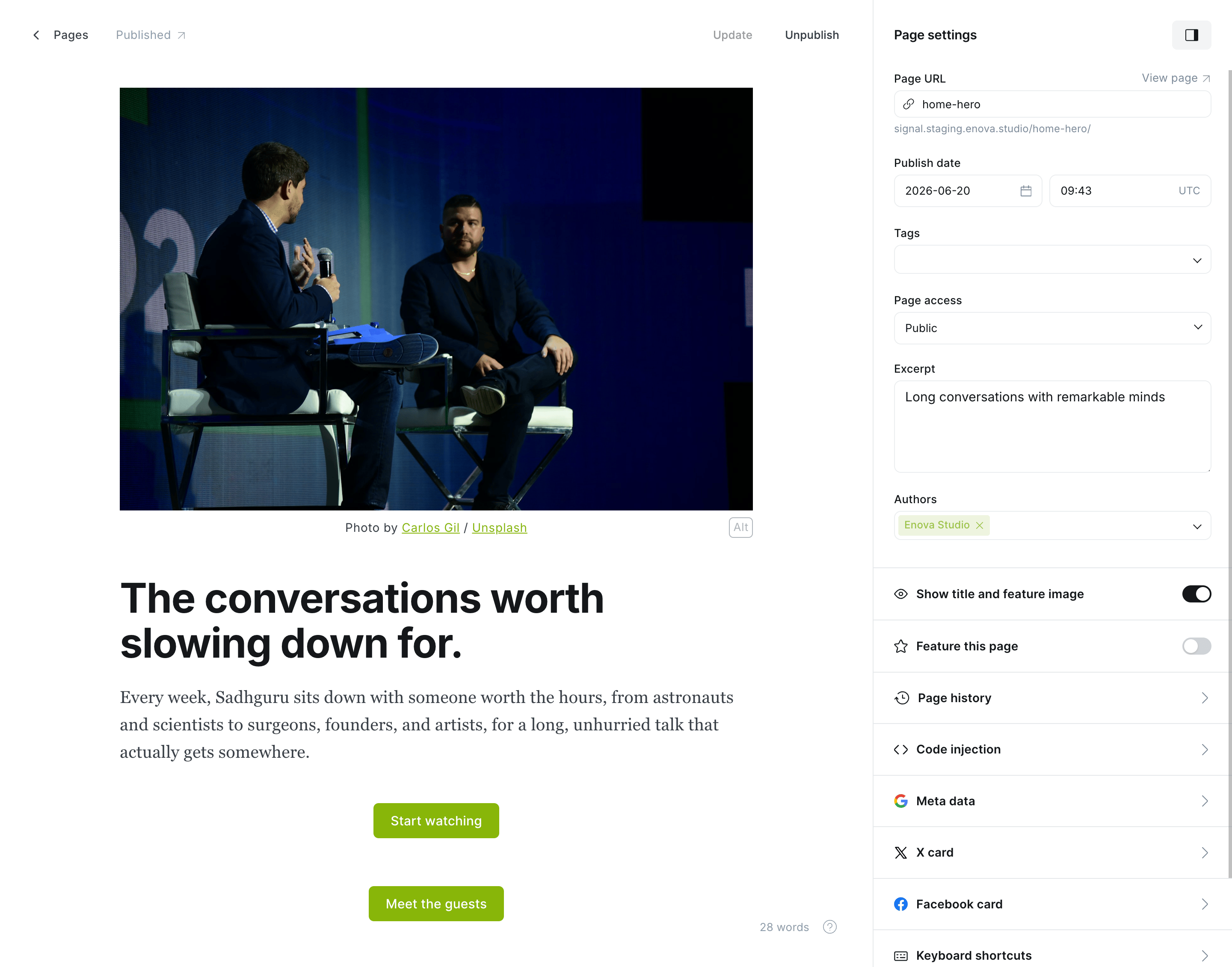
Every hero except "Latest episode" pulls from a single Ghost page with the slug home-hero. Create it once and your chosen layout fills itself in:
| Hero element | Comes from |
|---|---|
| Kicker (small label above the headline) | The page's excerpt |
| Headline | The page title |
| Image | The page feature image |
| Intro line + buttons | The page body |
In Ghost Admin, create a new Page and set its URL slug to home-hero (open the page settings and edit Page URL).
Add a title (your headline) and an excerpt (the small kicker label). If your layout uses an image, add a feature image.
In the page body, write a short intro line, then add one or two Button cards (type /button in the editor) for your calls to action.
Publish the page. Then pick your hero layout under Settings → Design & branding → Customize → Theme → Homepage.
Add buttons with the Button card
The hero's buttons come from Button cards in the page body, not from any code. In the editor, type /button on a new line, set the label and link, and it appears as a hero button.
Safe fallback
If the home-hero page doesn't exist yet, Signal quietly shows the Latest episode hero instead, so your homepage never looks empty while you set things up.
Related
- Homepage settings — pick the hero layout, with a preview of each.
- Homepage overview — all the sections beneath the hero.