

Transcripts & chapters
Add a tappable chapter list and a searchable, click-to-seek transcript to any episode using two code blocks in the post body — by hand or generated with Signal Tools.
Episodes can carry a chapter list and a transcript. Both are added as fenced code blocks in the post body, and each appears as its own tab on the episode page. The blocks themselves never show to readers — Signal parses them into the Chapters and Transcript tabs.
Generate both automatically
The Signal Tools extension (included with Signal) produces a ready-to-paste transcript and chapters from a YouTube video, an audio file, or a podcast feed — so you usually won't write these by hand.
Add a code block
Both the chapter list and the transcript live in the post body as a Code card. Ghost's code block isn't listed in the visible + card menu, so it's easy to miss — you add it with a quick keyboard shortcut:
- In the editor body, put your cursor on an empty line.
- Type three backticks (
```) and press Enter. Ghost turns the line into a Code card. - Type or paste your content into the card.
- In the bottom-right corner of the card, click the language field and type the label exactly —
chaptersorvtt.
The language label must match exactly
Type the label as plain lowercase — chapters or vtt. A capitalised or misspelled label, or a single-backtick inline code instead of a Code card, won't be recognised, and the tab will stay empty.
Reuse it every episode
Building the same empty block each time gets old fast. Once you've made one, select the Code card and choose Save as snippet from its toolbar — a future episode is then one click away in the editor's Snippets menu.
Chapters
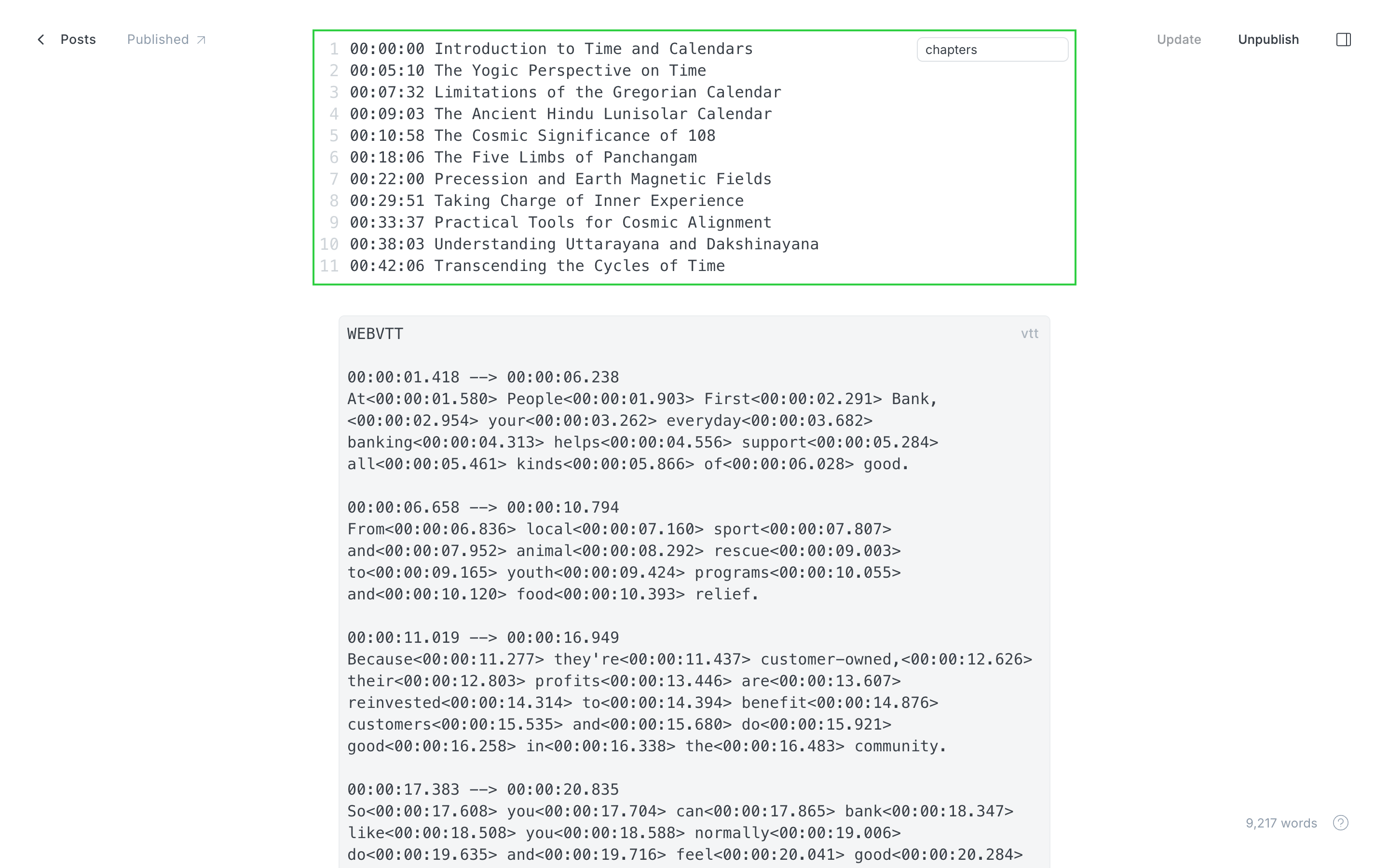
Add a code block (see Add a code block) and set its language to chapters. Put one chapter per line as a timestamp and a title:
00:00 Cold open
01:32 Meet the guest
14:05 The big idea
38:40 Lightning round
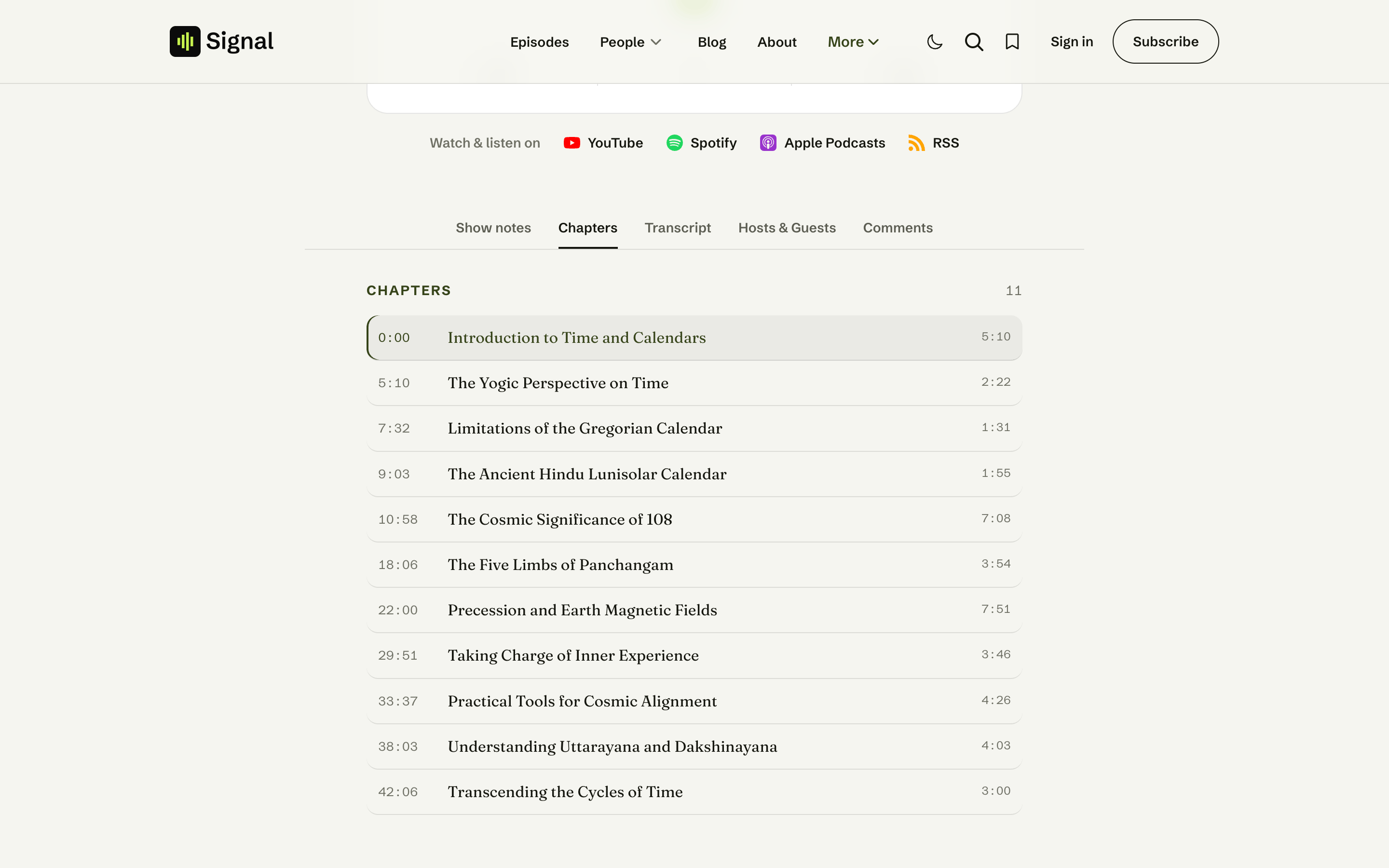
Timestamps are MM:SS or HH:MM:SS. Signal turns each line into a tappable row in the Chapters tab; tapping one jumps the player to that moment.
Chapters - Editor
Chapters Tab
Transcript
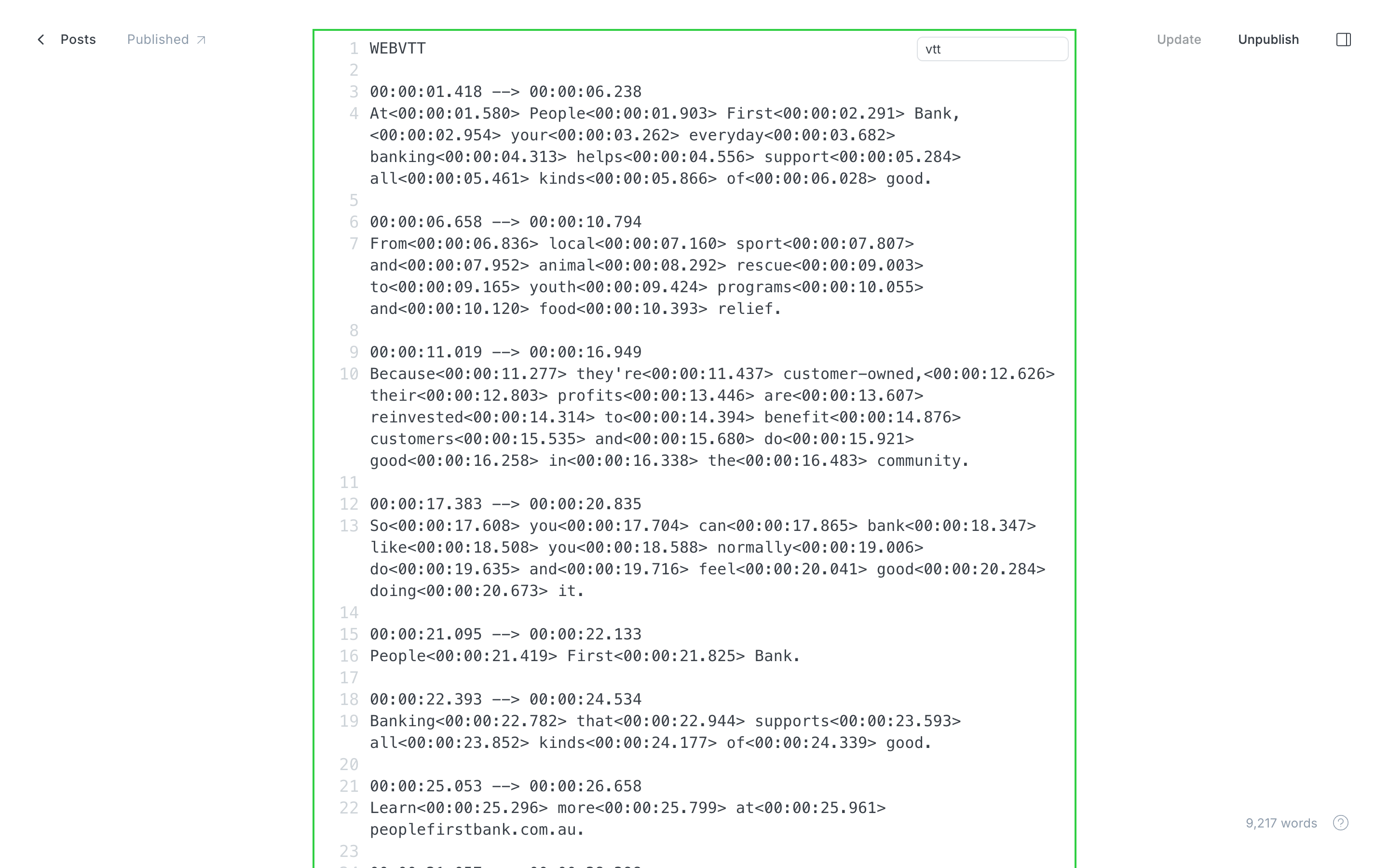
Add a code block and set its language to vtt, then paste a WebVTT transcript:
WEBVTT

00:00:00.000 --> 00:00:04.000
Welcome back to the show.

00:00:04.000 --> 00:00:08.500
Today we're talking about why this matters.
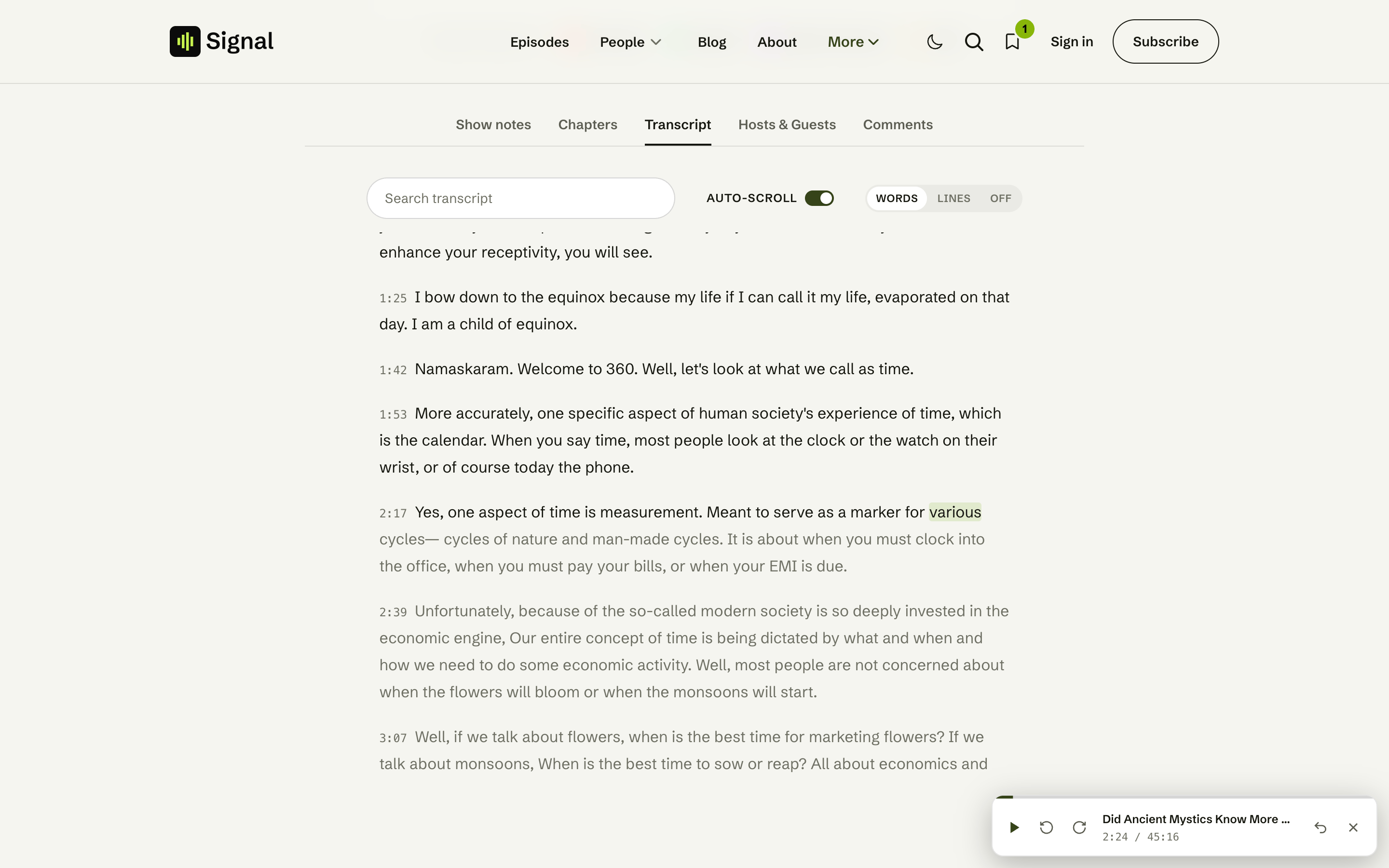
The Transcript tab then offers:
- Click-to-seek — click any line to jump the player there.
- Search — filter the transcript to matching lines.
- Auto-scroll — the transcript follows along as the episode plays (toggle it off any time).
- Highlight — choose Words (karaoke-style word-by-word, when the WebVTT has word timings), Lines (highlight the current line), or Off.
Transcript - Editor
Transcript Tab
Empty and members-only states
If an episode has no chapters or no transcript, that tab simply shows a short "none for this episode" note. For a members-only episode, the tabs invite non-members to subscribe instead — the blocks live in the locked post body, so non-members don't receive them (the same rule, and the same public-preview caveat, as the media itself: see Members-only privacy).
Related
- Signal Tools — generate transcripts and chapters automatically.
- Episode page — where the tabs live.
- Media player — the player that click-to-seek drives.
Media player
How Signal plays episodes — inline playback, the floating persistent mini-player and its dock corner, the supported sources, OS media controls, and members-only privacy.
Search
How visitors find things in Signal — Ghost's native site search, in-transcript search on an episode, and the A–Z guest filter on the Guests page.