

Media player
How Signal plays episodes — inline playback, the floating persistent mini-player and its dock corner, the supported sources, OS media controls, and members-only privacy.
Signal's player keeps an episode going while your audience keeps browsing. This page explains how it behaves, what it can play, and the two settings that control it.
Inline and persistent playback
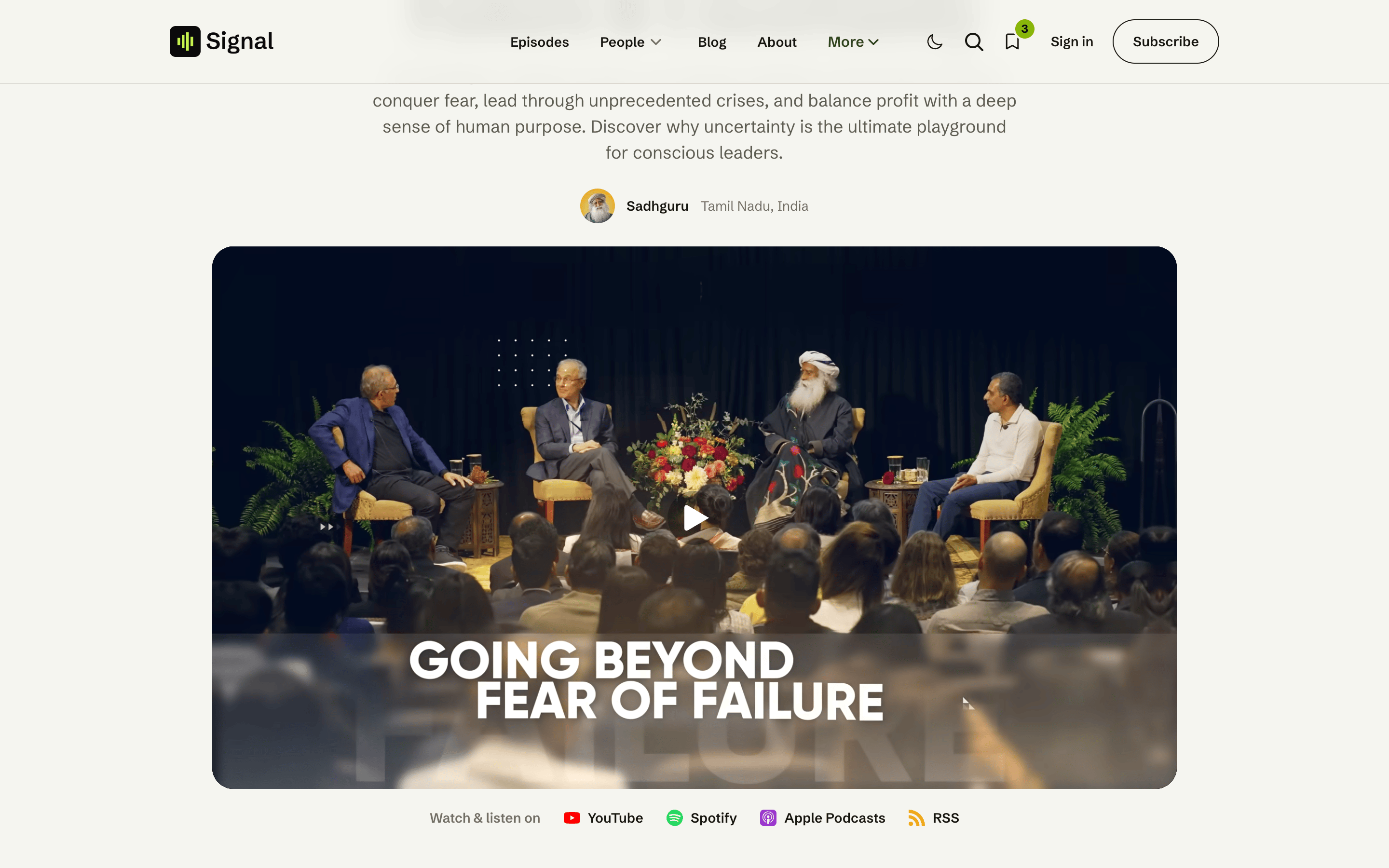
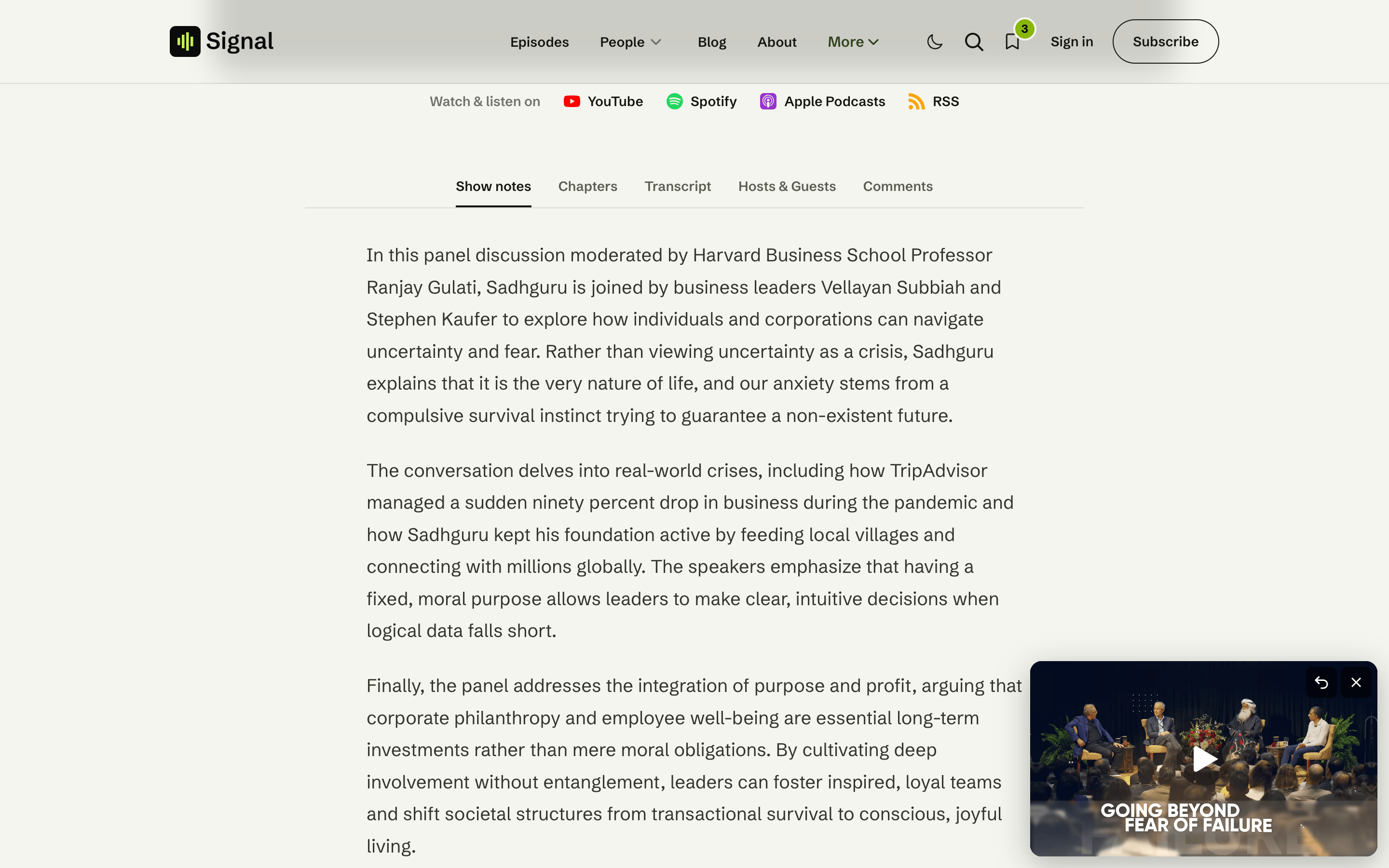
Press play and the episode starts inline, in the hero. As the visitor scrolls the player out of view — or navigates to another page — it tucks into a small floating mini-player in the corner and keeps playing. Scroll back and it returns to the hero. Nothing restarts.
This is possible because the player lives in one fixed spot on the page that survives navigation, so moving between episodes and pages never interrupts playback.
Settings
Two theme settings control it (under Settings → Design & branding → Customize → Theme):
- Enable persistent player — turn the floating mini-player on or off. Off keeps playback inline only.
- Mini player position — which corner it docks to: Bottom right (default) or Bottom left.
See Site-wide settings.
Supported sources
Signal plays whatever you put in the episode body — you don't paste a URL into a setting. It reads the first media in the post and plays it:
| Source | How to add it | Player |
|---|---|---|
| YouTube / Vimeo | Paste the video URL in the post (a Ghost embed) | A fast facade that loads the real player on play |
| Uploaded video | Use Ghost's video card | An accessible video player (Media Chrome) |
| Audio | Use Ghost's audio card, and tag the post #audio | A waveform audio player |
| Third-party embed | Paste the platform's embed and tag the post #embed | The platform's own player, fixed in the hero |
Embed episodes are static
An #embed episode plays in the third-party platform's own iframe. Because that's a cross-origin player, it can't drive transcript click-to-seek or chapter jumps, and it doesn't dock into the mini-player. Use a YouTube/Vimeo embed or an uploaded video/audio for the full experience.
OS media controls
While an episode plays, Signal feeds its title and artwork to your device's media controls, so the episode shows up — with working play/pause and seek — on the lock screen, notification shade, smartwatch, or keyboard media keys.
Members-only privacy
Set an episode's Access to members (or a tier) and the whole post body is locked — the media card lives inside it, so the media source isn't part of the page non-members receive. Signal reads the source from the body at play time. Non-members see the cover image and a prompt to subscribe instead of the player. See Membership.
Don't use a public-preview divider on gated episodes
Ghost's public preview divider shares everything above it with everyone — including the media card, which sits at the top of an episode — so the episode still plays for non-members. To gate an episode, set the post's Access level instead, and leave the preview divider out. See Troubleshooting.
Accessibility & interaction
- The uploaded-video and audio players are keyboard-operable (play/pause, seek, volume) with labelled controls.
- Playback respects the visitor's system media controls (above).
- The mini-player can be dismissed; dismissing it stops playback.
Related
- Episode page — where the player sits among the tabs.
- Transcripts & chapters — click-to-seek that drives the player.
- Content model — the
#audioand#embedepisode types.
Episode page
The anatomy of a Signal episode — the media hero (video, audio, or embed), the show notes / chapters / transcript / hosts & guests / comments tabs, the up-next list, and the share menu.
Transcripts & chapters
Add a tappable chapter list and a searchable, click-to-seek transcript to any episode using two code blocks in the post body — by hand or generated with Signal Tools.