

Listen links
Show where to follow your podcast — Apple Podcasts, Spotify, YouTube, RSS and 20+ more — across the homepage, episodes, the subscribe page and footer, set once in Code Injection.
Listen links are the "follow / subscribe" buttons for your show — Apple Podcasts, Spotify, YouTube, RSS and more. Once you set them, Signal shows them in several places automatically:
- the "Watch & listen on" band on your homepage,
- under the player on every episode,
- as large platform tiles on your Subscribe page,
- and in the footer.
Unlike social links, listen links have no native Ghost field — you add them all in one place, Code Injection, and Signal renders them everywhere.
Hidden until you add one
Each listen-links area stays completely hidden until you've added at least one platform — so a brand-new site shows no empty "Watch & listen on" chrome. Add your platforms below and the sections appear.
Add your platforms
No theme editing required
Listen links are added through Ghost's built-in Code Injection feature. You don't edit theme files or rebuild anything — just paste the snippet and replace the URLs with your own.
Step 1 — Open Code Injection
Log in to Ghost Admin.
Go to Settings → Code injection.
You'll see two boxes: Site Header and Site Footer. We'll be using the Site Header box.
Code Injection field
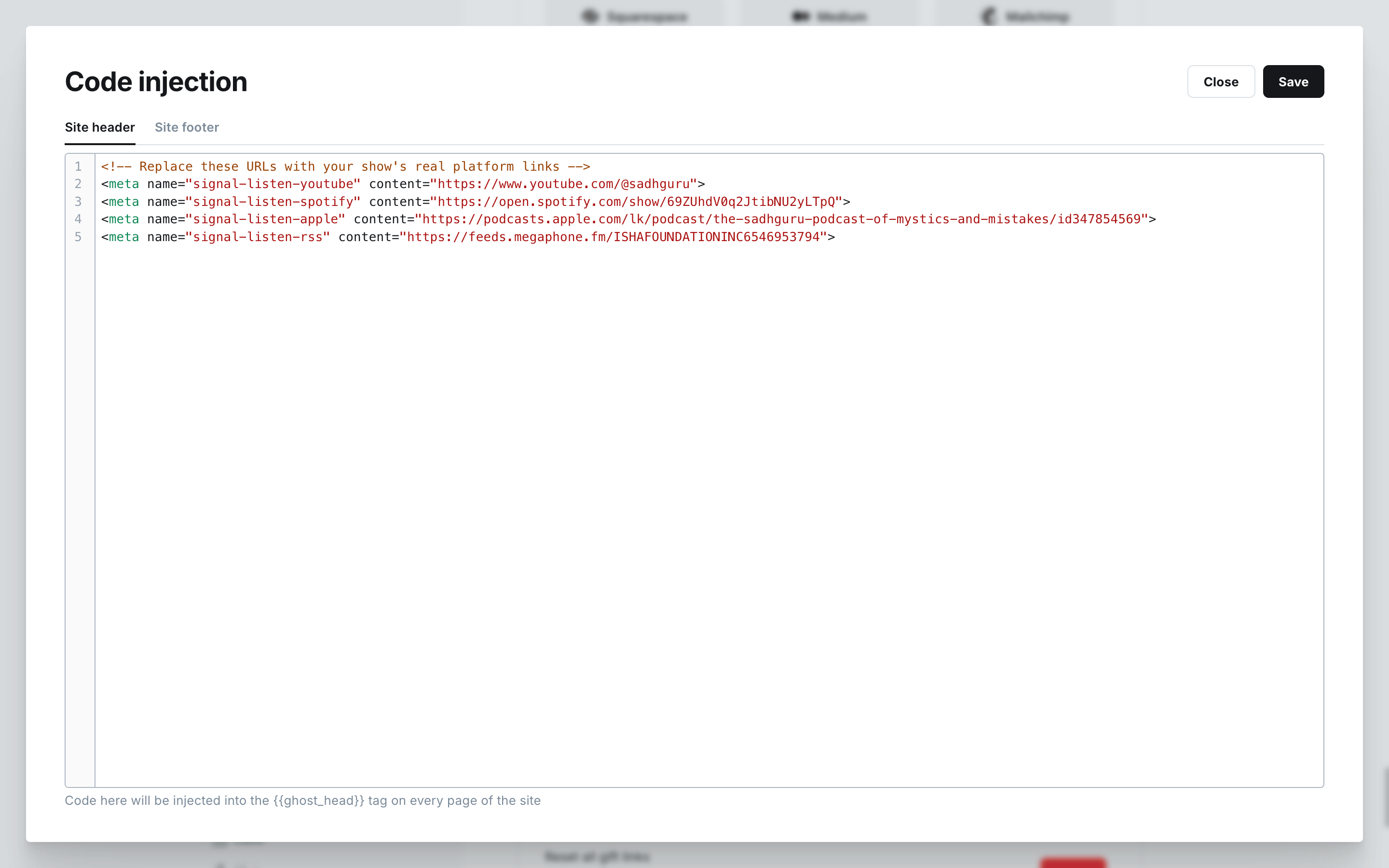
Step 2 — Paste your listen links
Copy the block below into the Site Header box. Each line is one platform — change the platform name and the URL on each line, delete the lines you don't need, and save.
<meta name="signal-listen-apple"   content="https://podcasts.apple.com/podcast/your-show">
<meta name="signal-listen-spotify" content="https://open.spotify.com/show/your-show">
<meta name="signal-listen-youtube" content="https://youtube.com/@your-channel">
That's it. Click Save and reload your site — the platforms appear in the homepage band, on episodes, and on the Subscribe page.
One link per line
If a line has a typo or a wrong URL, it only affects that line. Your other platforms still appear correctly. To remove a platform later, just delete its line.
Supported platforms
Use one of these slugs in name="signal-listen-<slug>":
apple | spotify | youtube |
youtube-music | amazon-music | pocket-casts |
overcast | iheartradio | castbox |
pandora | deezer | tunein |
audible | player-fm | podcast-addict |
castro | soundcloud | spreaker |
antennapod | podcast-index | audioboom |
rss |
Each platform shows its own brand icon and color. For anything not in this list, use the advanced form below.
Where they appear
Signal renders your platforms in two styles, depending on the surface:
Compact (homepage, episodes, footer)
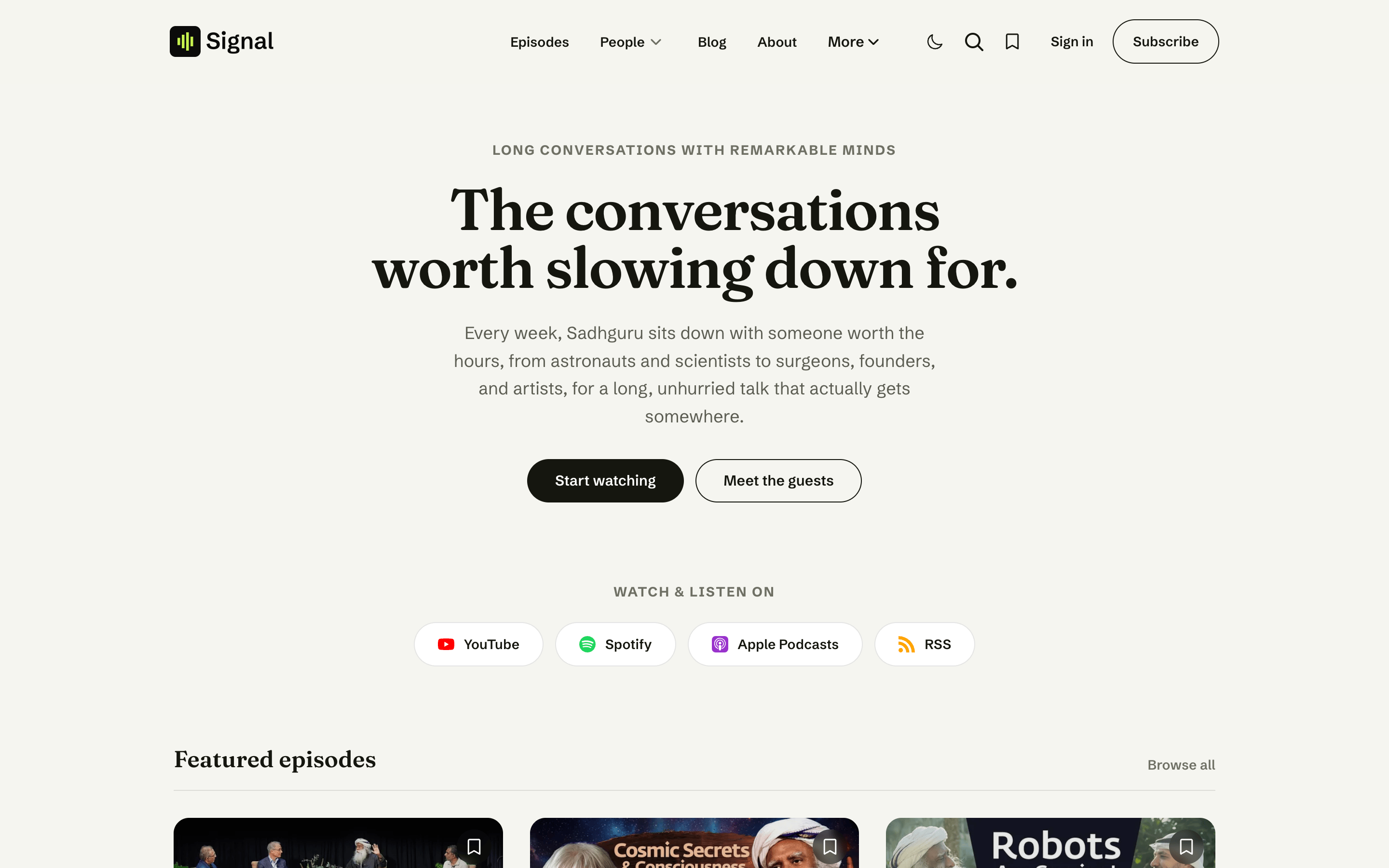
A tidy row of icon-and-label pills, shown in the homepage "Watch & listen on" band, under every episode player, and in the footer.
Rows (Subscribe page)
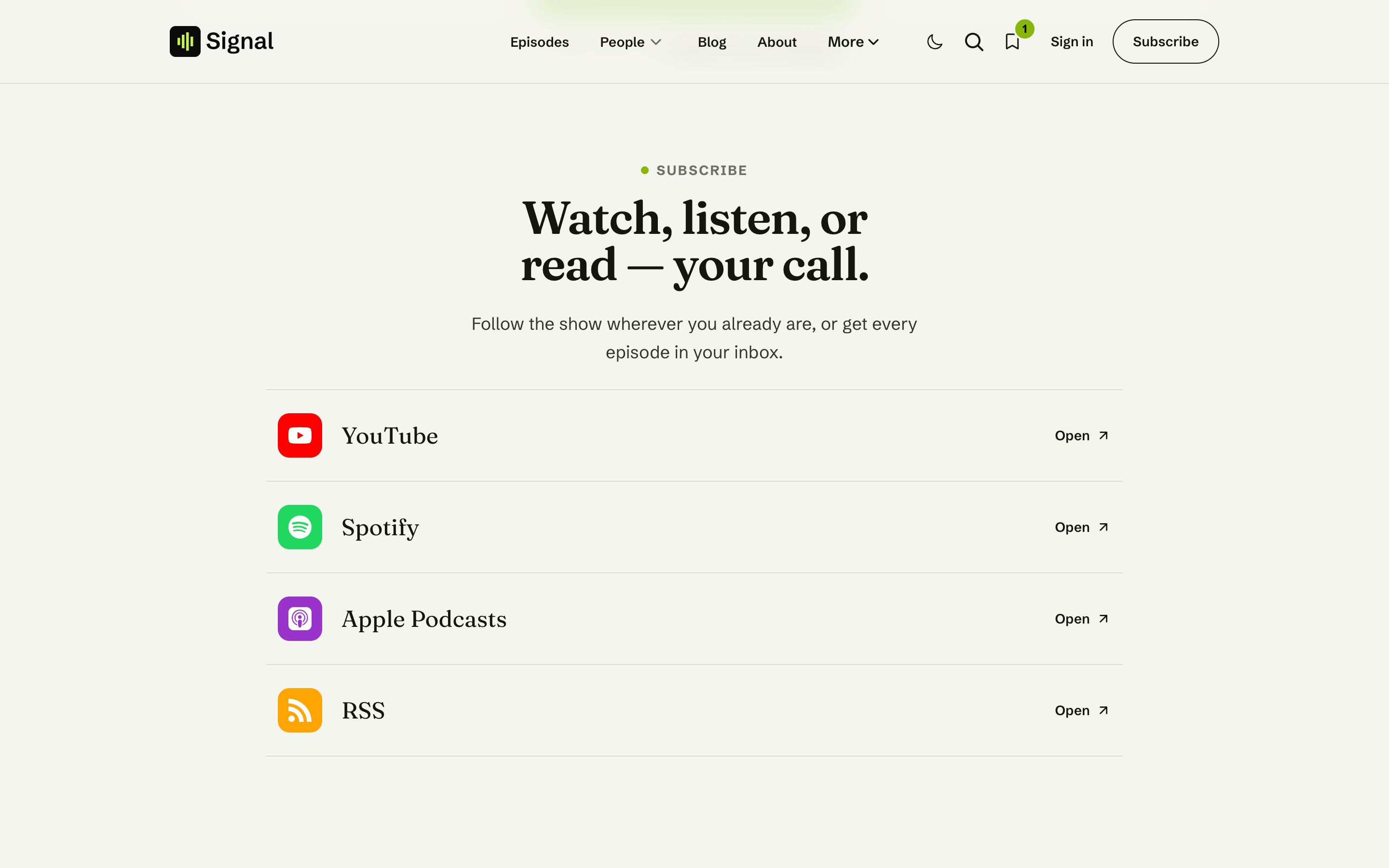
Large tappable tiles in each platform's brand color, with an Open button — used on the Subscribe page.
You set your platforms once; every surface updates together.
Add your RSS feed
Your podcast's RSS feed is opt-in — add it explicitly and Signal shows an RSS link last in the list:
<meta name="signal-listen-rss" content="https://feeds.your-host.com/your-show">This always renders with the RSS icon, even if your feed lives on a host like Transistor or Buzzsprout.
Advanced: custom platforms, labels & colors
The simple meta-tag form is enough for almost everyone. Switch to the <a> block form if you need to:
- add a platform that isn't in the list above,
- give a platform a custom label or brand color,
- or supply your own icon.
Paste this block into the Site Header box (you can use it together with the meta-tag form):
<div data-signal-listen-links hidden>
    <!-- A built-in platform, by slug -->
    <a data-platform="player-fm" href="https://player.fm/series/your-show"></a>

    <!-- A platform that's not in the list — supply an SVG icon and a color -->
    <a data-name="My Network" href="https://network.example.com"
       data-svg='<svg viewBox="0 0 24 24"><path d="…"/></svg>' data-color="#444444"></a>
</div>
Attribute reference
| Attribute | Required | What it does |
|---|---|---|
href | Yes | The URL the platform links to. |
data-platform | No | One of the supported slugs above. Leave it out and Signal detects the platform from the URL where it can. |
data-name | No | The visible label (and screen-reader text). Defaults to the platform's name, or the link's domain. |
data-svg | No | A custom SVG icon, for platforms not in the list. |
data-color | No | A brand color as #RGB or #RRGGBB — fills the icon (compact) or the tile (rows). |
Where to find SVG icons
Need an icon for a platform we don't include? Start with Simple Icons — Signal's built-in platform icons come from that set, so anything you pick there matches. Copy the SVG and paste it into data-svg='...' (keep the single quotes exact). More libraries and tips: Social links.
Troubleshooting
Related
- Social links — the "follow us" icons for your brand and your guests and hosts.
- Membership — the Subscribe page where the platform rows appear.
- Homepage — the "Watch & listen on" band under your hero.
Search
How visitors find things in Signal — Ghost's native site search, in-transcript search on an episode, and the A–Z guest filter on the Guests page.
Membership
Signal's membership features — the Subscribe page with your Ghost tiers and a donate button, Portal sign-in, the newsletter signup, and members-only episodes.