

Social links
Show where to follow your show — nine native Ghost accounts in a site-wide footer row, plus 20+ extra platforms via Code Injection.
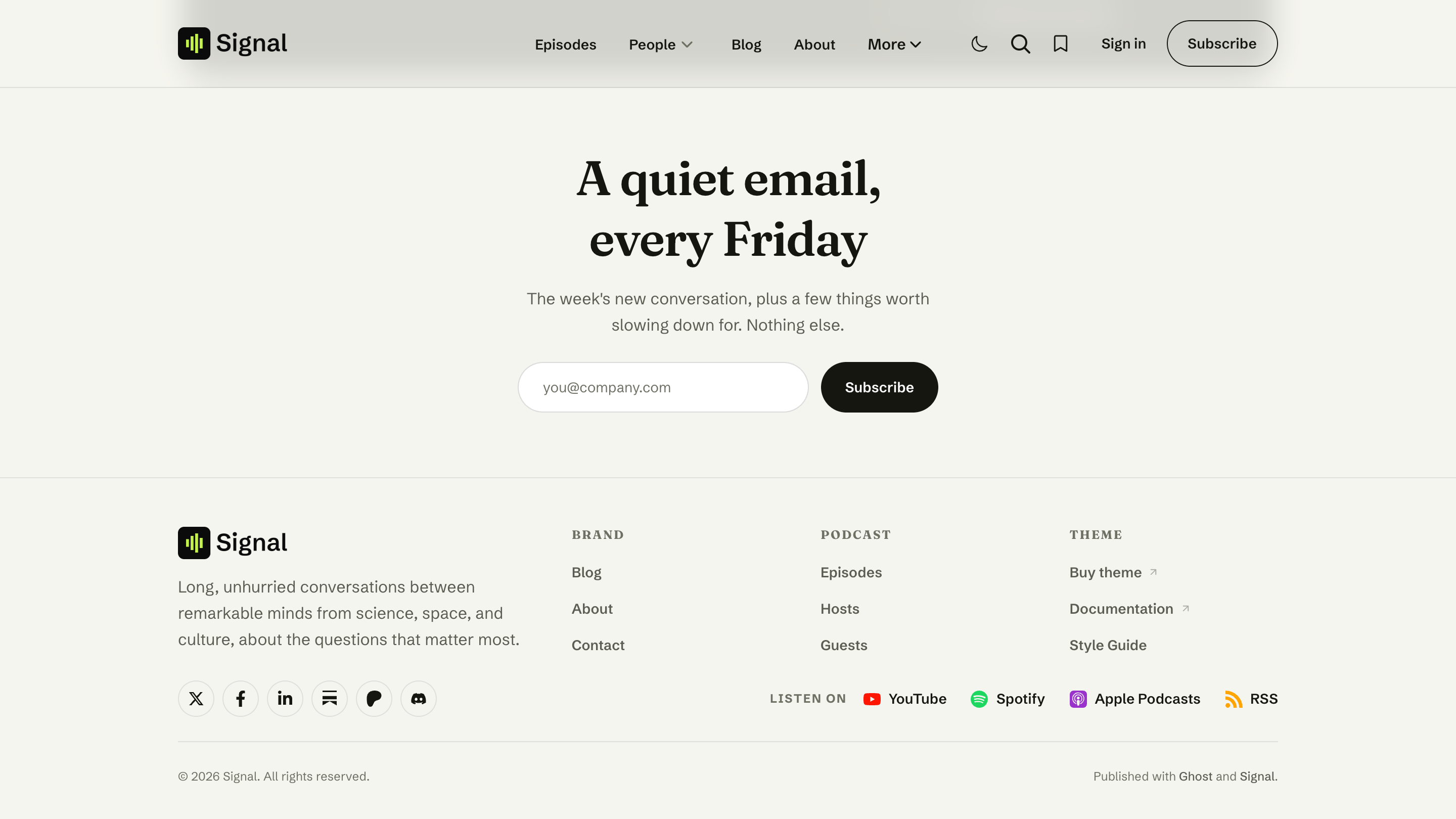
The social accounts for your show appear as a row of icons in the footer and the mobile menu. Ghost natively supports nine platforms — X (formerly Twitter), Facebook, LinkedIn, Bluesky, Threads, Mastodon, TikTok, YouTube and Instagram — and Signal shows them automatically. You can add 20+ more platforms through Code Injection.
Site-wide social links
Ghost lets you set all nine native platforms in one panel — no code needed, and Signal picks them up automatically.
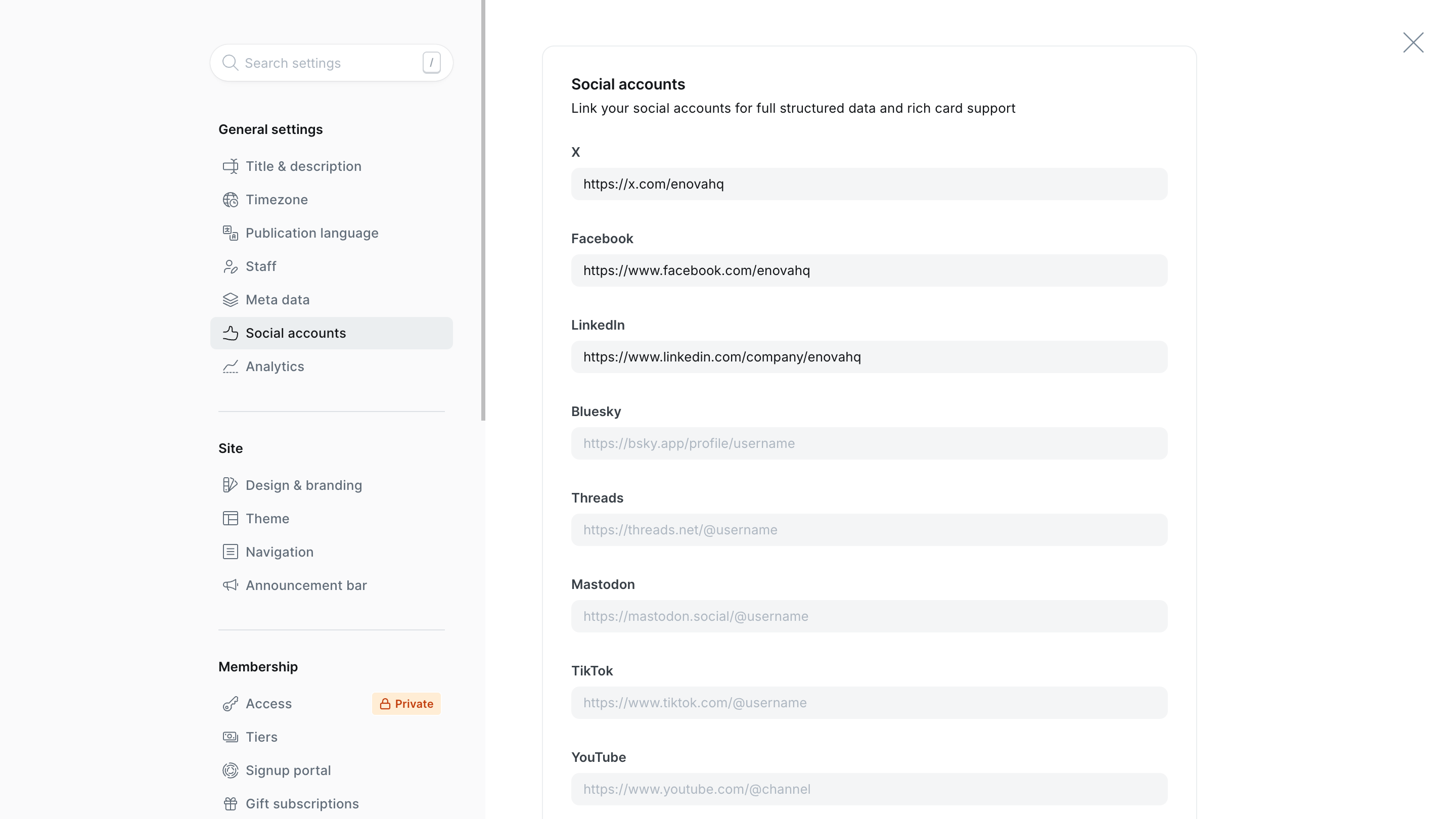
Log in to Ghost Admin.
Go to Settings → General → Social accounts.
Click Edit and add each platform you use — X (formerly Twitter), Facebook, LinkedIn, Bluesky, Threads, Mastodon, TikTok, YouTube and Instagram. Leave the rest blank.
Click Save — the icons appear in your footer and mobile menu straight away, in the same order as the panel.
In Ghost Admin
On your site
On Ghost older than 6.37
Ghost expanded the Social accounts panel beyond Facebook and X in Ghost 6.37. On an older Ghost, the panel only offers those two — add the remaining platforms with the Code Injection method below until you update, and Signal renders them the same way.
Custom social links
Need a platform Ghost doesn't offer natively? Signal adds Substack, Patreon, Discord, GitHub, Telegram, Pinterest, Reddit, Medium and more to the site-wide row through a small snippet you paste once into Ghost's Code Injection field.
Code Injection is required
Custom social links are added through Ghost's built-in Code Injection feature. You don't need to edit theme files or know how to code — just paste the snippet and replace the URLs with your own. They appear in the footer and mobile menu, alongside your native icons.
Step 1 — Open Code Injection
Log in to Ghost Admin.
Go to Settings → Code injection.
You'll see two boxes: Site Header and Site Footer. We'll be using the Site Header box.
Code Injection field
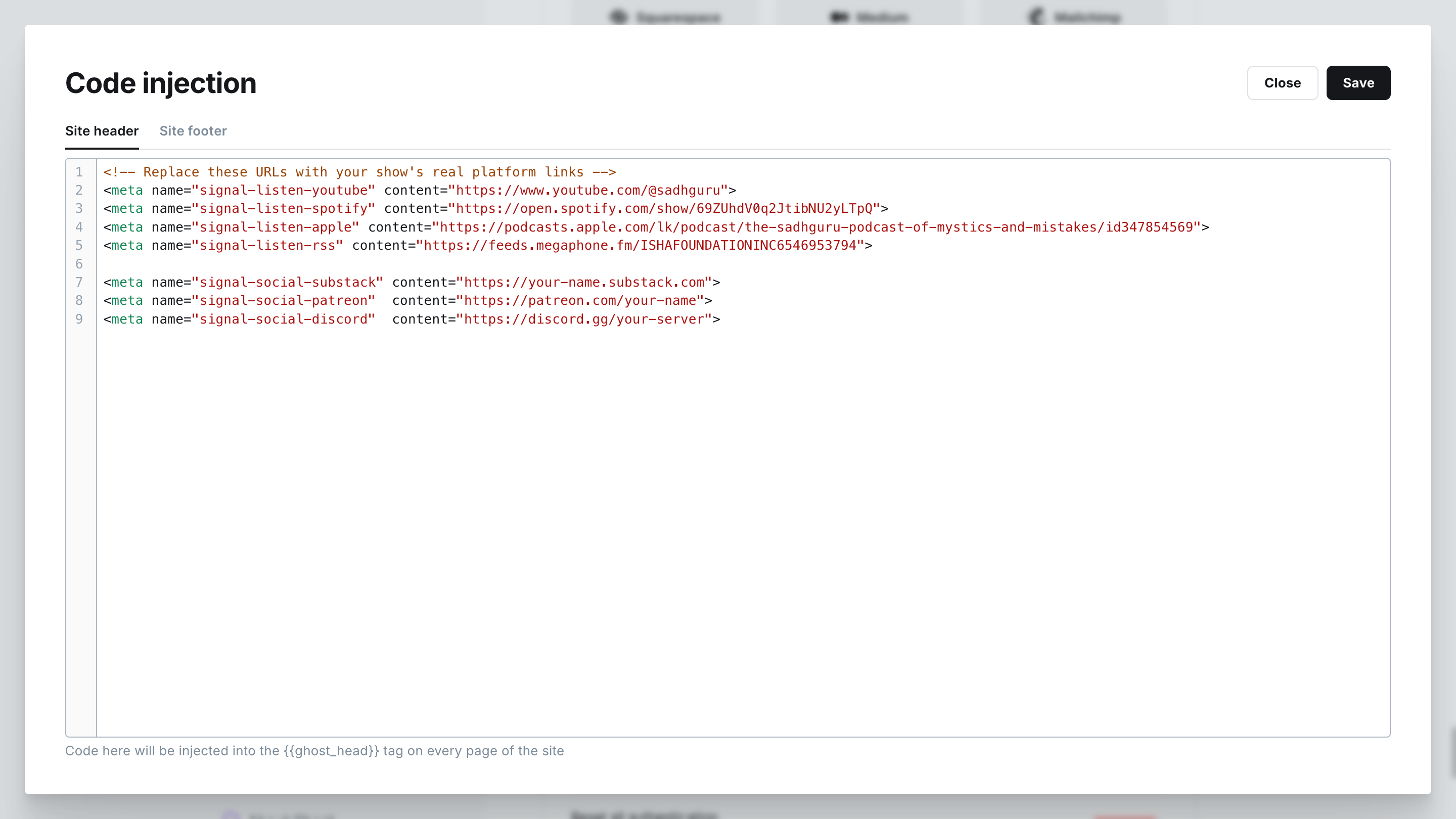
Step 2 — Paste your social links
Copy the block below into the Site Header box. Each line is one social link — change the platform name and the URL on each line, delete the lines you don't need, and save.
<meta name="signal-social-substack" content="https://your-name.substack.com">
<meta name="signal-social-patreon"  content="https://patreon.com/your-name">
<meta name="signal-social-discord"  content="https://discord.gg/your-server">
<meta name="signal-social-github"   content="https://github.com/your-name">
That's it. Click Save and reload your site — the new icons appear right next to your native social icons.
One link per line
If a line has a typo or a wrong URL, it only affects that line. Your other links still appear correctly. To remove a link later, just delete the line.
Supported platforms
Use one of these slugs in name="signal-social-<slug>":
facebook | twitter (or x) | instagram |
youtube | linkedin | tiktok |
threads | bluesky | mastodon |
pinterest | reddit | github |
discord | telegram | whatsapp |
substack | patreon | medium |
rss | email (or mail) |
For email links, use a mailto: URL — for example content="mailto:[email protected]".
Native platforms win
The first nine slugs in the table are Ghost-native — set those in Settings → General → Social accounts instead. If a platform is configured there, Signal skips any Code Injection link for the same platform, so you never get duplicate icons. A Code Injection link for a native platform only renders when the native field is empty (useful on Ghost older than 6.37).
Advanced: per-link options & custom platforms
The simple meta-tag form above is enough for almost everyone. If you need any of the following, switch to the <a> block form:
- The platform isn't in the list above (e.g. Goodreads, Twitch, a forum)
- You want a link to appear in only the footer or only the mobile menu
- You want a different visible label (e.g. "Read the newsletter" instead of "Substack")
One thing this form can't change: a platform you've filled in under Settings → General → Social accounts always keeps its native icon and label, and Signal skips any Code Injection link for it. Custom labels and placements work on the other platforms.
Paste this block into the Site Header box (you can use it together with the meta-tag form):
<div data-signal-social-links hidden>
    <!-- A platform that's not in the supported list — paste an SVG icon -->
    <a data-name="My Forum" href="https://forum.example.com"
       data-svg='<svg viewBox="0 0 24 24" fill="currentColor">...</svg>'></a>

    <!-- Show a link only in the footer (or only in the mobile menu) -->
    <a data-platform="discord" href="https://discord.gg/your-server" data-placements="footer"></a>

    <!-- Use a custom visible label -->
    <a data-platform="substack" data-name="Read the newsletter" href="https://your-show.substack.com"></a>
</div>
Attribute reference
| Attribute | Required | What it does |
|---|---|---|
href | Yes | The URL the icon links to. |
data-platform | No | One of the supported platform slugs (see the table above). If you leave this out, Signal tries to detect the platform from the URL. |
data-name | No | The visible label (used by screen readers and as the tooltip). Defaults to the platform's name, e.g. "YouTube". |
data-placements | No | Where the link appears. Use footer, mobile, or footer, mobile. Defaults to both. |
data-svg | No | A custom SVG icon. Use this for platforms that aren't in the supported list. |
Where to find SVG icons
Need an SVG icon for a platform we don't support yet? These libraries all let you copy an SVG with one click. The first two cover most brand-mark needs and match the Signal style best:
- Font Awesome Brands — official brand marks; Signal's own social icons are drawn from this set, so anything you pick here will look right at home.
- Simple Icons — single-color brand marks for thousands of services (the set Signal's listen-platform icons come from).
- Lucide, Tabler Icons, Phosphor Icons — line-style icon sets, useful when no brand mark exists.
Open the icon in your library of choice, click "Copy SVG", and paste it into data-svg='...' (note the single quotes around the SVG — keep those exact).
Troubleshooting
Related
- Content model — how guests and hosts map to Ghost authors.
- Navigation — the footer and mobile menu that hold the site-wide social row.
Navigation
Set up Signal's menus in Ghost — dash-prefixed sub-items for dropdowns, external-link arrows, the inline "More" overflow, the hamburger-menu drawer, and hash-prefixed footer columns.
Content model
How Signal maps your show onto Ghost — episodes and blog posts are both posts, hosts and guests are authors, shows are tags, and internal tags set each post's content type.