

What listeners say
Show your reviews, listener quotes, and press mentions on Signal's homepage by publishing a Ghost page slugged testimonials with one Product card per quote.
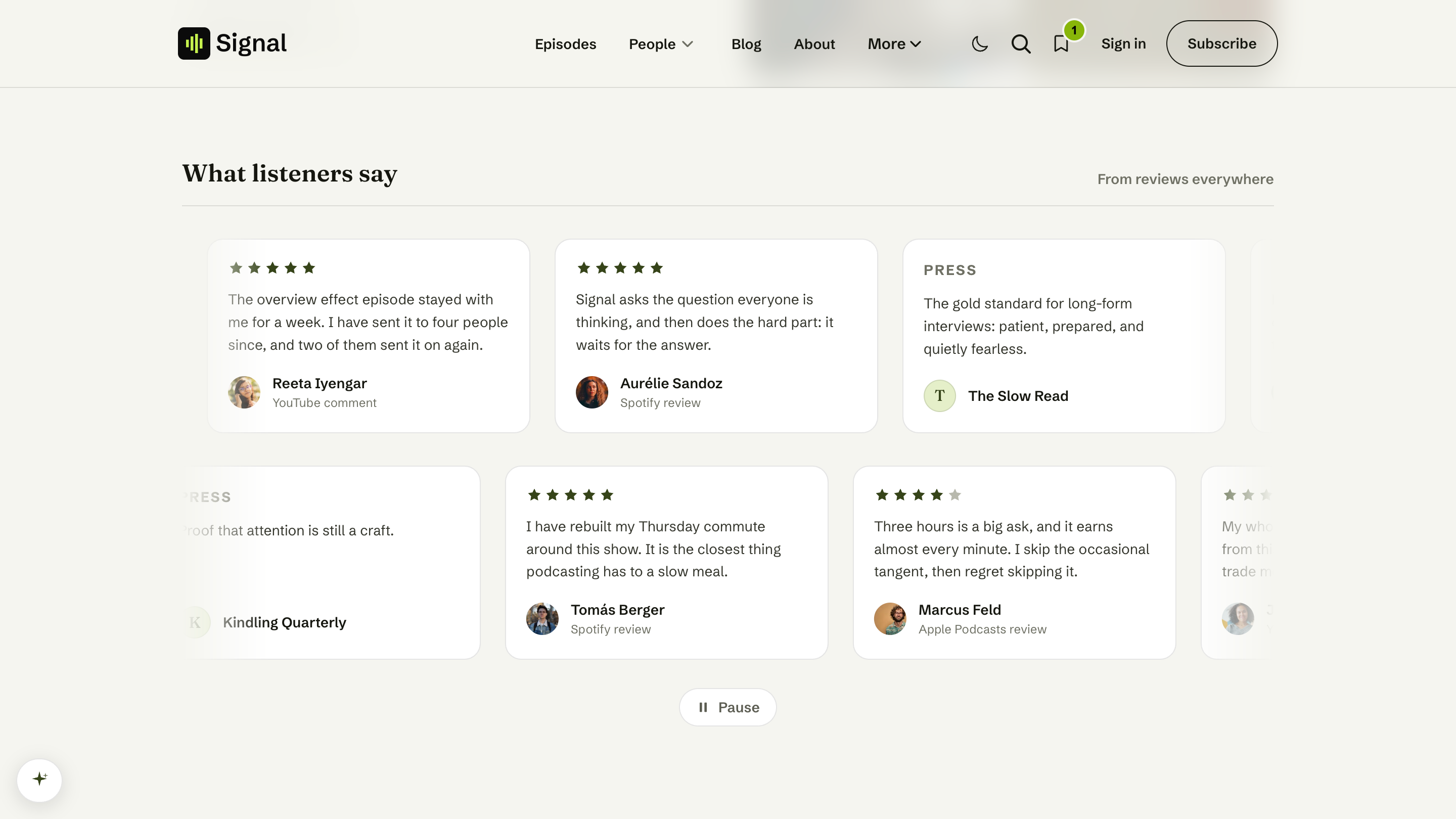
The What listeners say section is a slow-moving wall of quotes: app-store reviews, listener notes, press mentions, anything kind that has been said about your show. Each quote can carry a star rating, a photo, and a link out to where it was published.
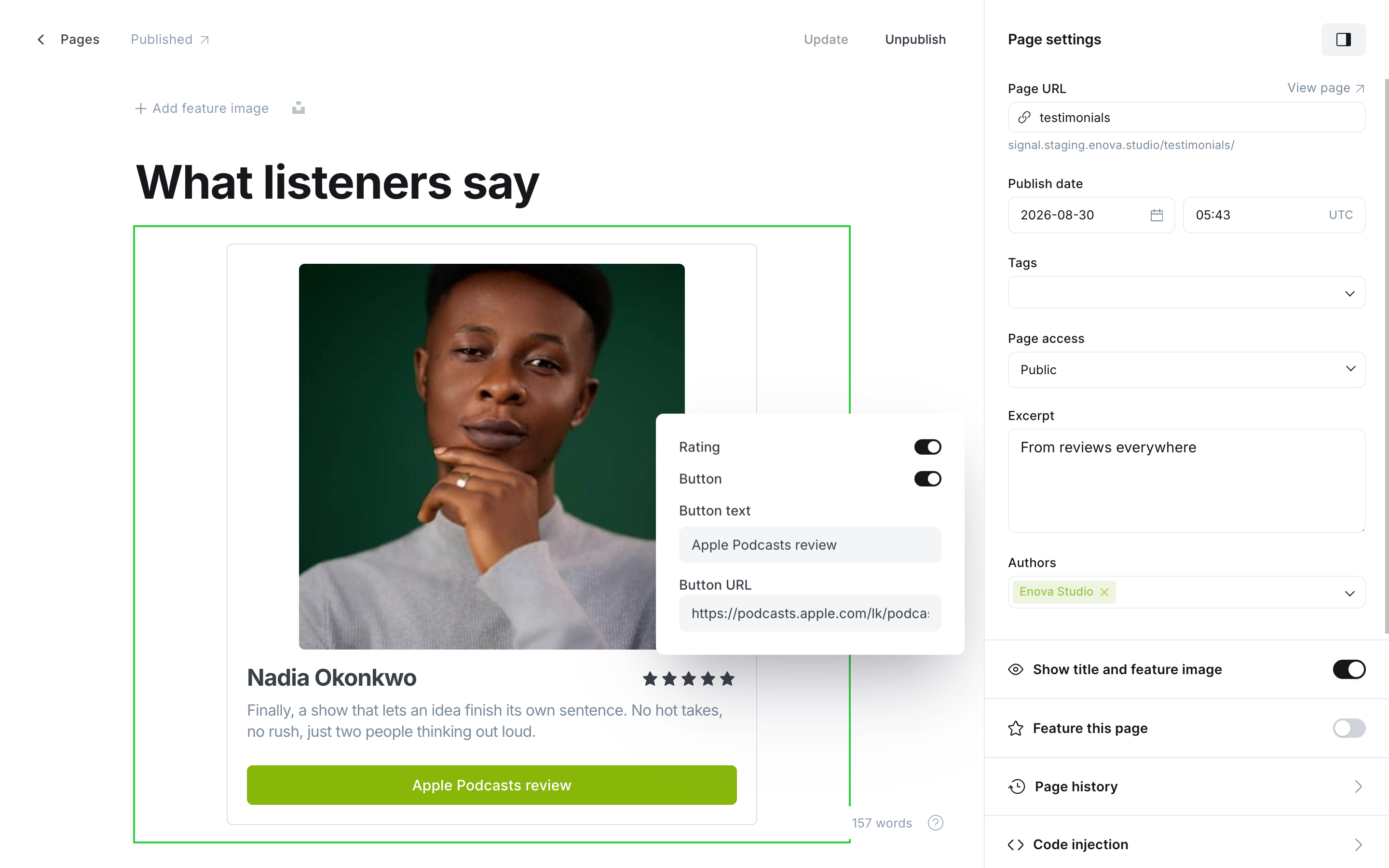
You build it by publishing a page slugged testimonials and adding one Product card per quote. That card already has every field a testimonial needs (a photo, a name, a star rating, the quote, and a labelled button), so there is nothing special to learn.
Set it up
In Ghost Admin, create a new Page and set its URL slug to testimonials (open the page settings and edit Page URL).
Give it a title. This becomes the section's heading (for example, "What listeners say").
Add an excerpt of a few words. It becomes the small grey label on the right of the heading, such as "From reviews everywhere". (Open page settings → Excerpt.) Leave it empty and the label is simply left off.
In the page body, type /product and pick the Product card. Fill it in using the table below.
Repeat for each quote, one Product card each, then publish the page.
In Ghost Admin
One Product card
What each field becomes
| In the Product card | On your homepage |
|---|---|
| The image | A small round photo beside the name. Optional. |
| Product title | The name of the person or publication being quoted. |
| Rating (toggle) | A row of five stars, filled to the score you pick. |
| Description | The quote itself. |
| Button text | The source line, such as "Apple Podcasts review" or "Press". |
| Button URL | Makes the whole card clickable, opening in a new tab. |
Write the quote in the description, not the title
The title is who said it. The description is what they said. Getting these the other way round puts the whole quote where the name should be.
Two kinds of card
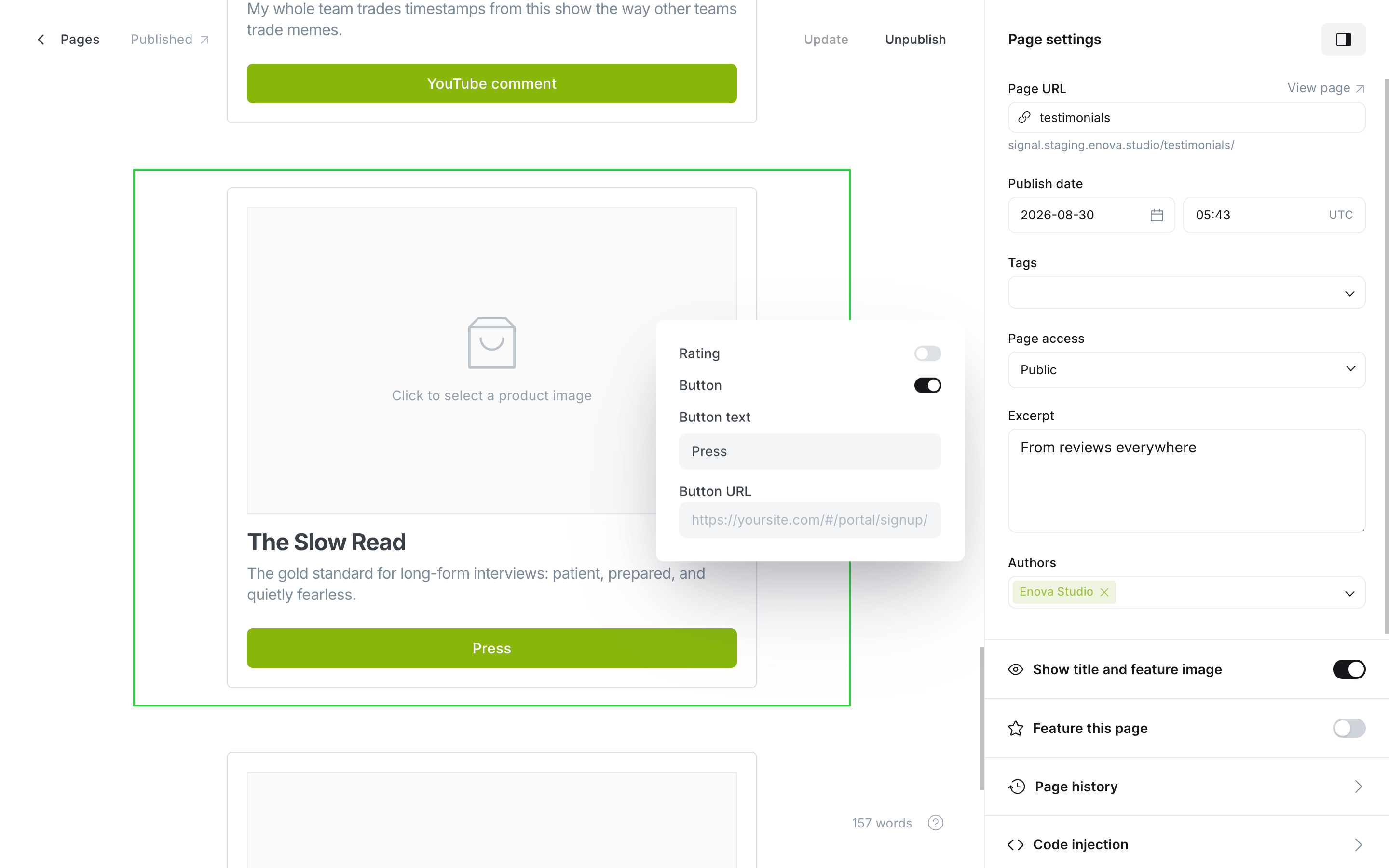
Which style a card gets depends on one thing: whether you switch Rating on.
With a rating you get stars across the top, and the button text becomes a quiet source line under the name. This suits app-store and platform reviews, where the score is the point.
Without a rating the button text moves up to the top of the card instead, as a small heading like PRESS or GUEST, and the caption is just the photo and the name. This suits a press pull-quote or something a guest said, where there is no score to show.
Nothing is ever printed twice
A card shows your button text once, either as the top heading or as the source line, never both. So you only need to write it in one place.
How many quotes to add
The section changes shape with the number of quotes, so it never looks thin:
| Quotes | What the section does |
|---|---|
| 1 to 3 | Sits still, centred, with no movement at all. |
| 4 to 7 | One row that drifts slowly across the page. |
| 8 or more | Two rows, drifting in opposite directions. |
Eight or more looks best. Whatever the number, the quotes repeat seamlessly, so a visitor never sees the row run out.
Good to know
Type your own quotation marks
Signal doesn't add quote marks around your text, so you can use whichever marks your language uses. Type them as part of the description.
Every card needs a name and a quote
A Product card with an empty title, or an empty description, is skipped. This is deliberate, so a half-filled card never reaches your homepage. Anything else in the page body (a heading, a paragraph, an image) is ignored too.
Photos are optional
Leave the image out and the card shows a neat circle with the first initial of the name instead. That often looks better for a publication than a logo squeezed into a small circle.
Anyone can stop the movement
A Pause button sits under the quotes, and the row also stops on its own while a visitor hovers over it or tabs into a card. Visitors whose device is set to reduce motion never see it move at all: they get the same quotes as a still grid.
Keep the page public
If you set the testimonials page to members-only, its quotes are held back from the homepage along with everything else on it. Leave the page Public so the section can show.
No testimonials page, no section
If the testimonials page is missing, still a draft, or has no Product cards in it, the section doesn't appear at all. It shows up the moment you publish the page with at least one filled-in card.
Related
- Pages: other special pages you can create.
- Homepage overview: the full section stack.
- Brought to you by: the sponsor logo row that sits just below this section.