

Brought to you by
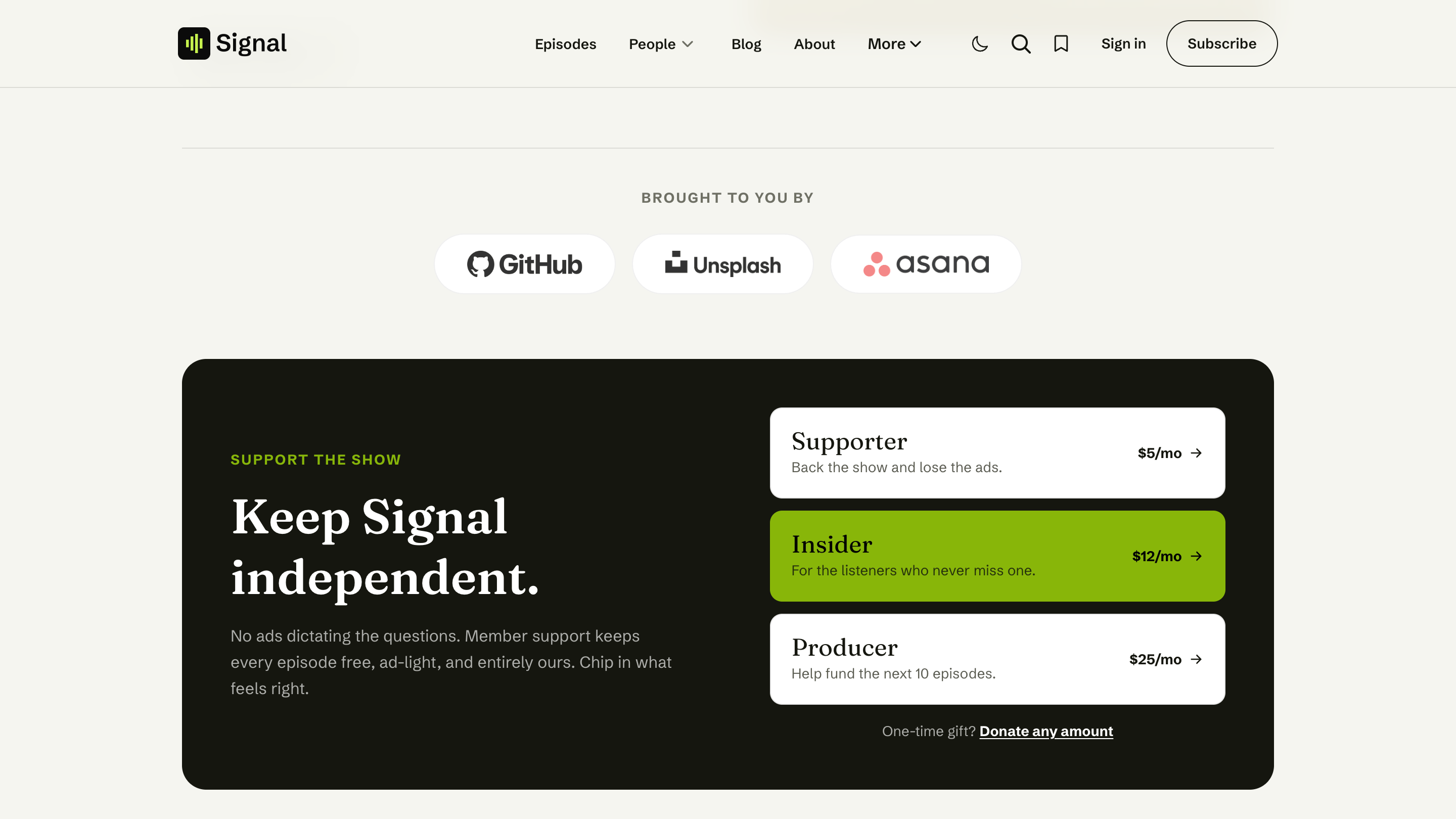
Show your sponsors' logos on Signal's homepage by publishing a Ghost page slugged sponsors with linked image cards.
The Brought to you by section is a tidy row of your sponsors' logos, each one clickable through to the sponsor's site. You build it by publishing a page slugged sponsors and adding each logo as an image.
Set it up
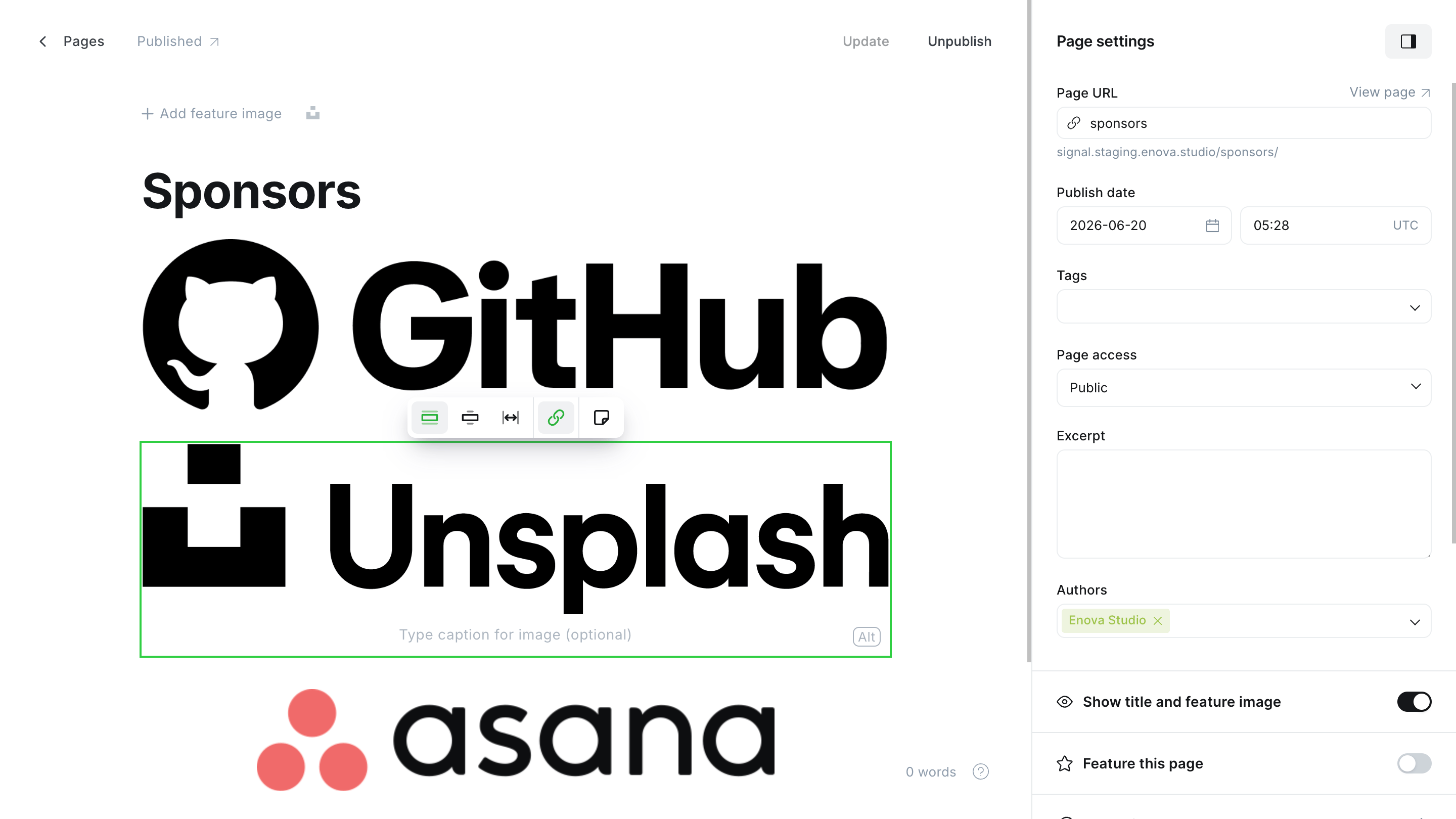
In Ghost Admin, create a new Page and set its URL slug to sponsors (open the page settings and edit Page URL).
In the page body, add an Image card for your first sponsor (type /image and upload their logo).
Give the image alt text set to the sponsor's name (click the image, then Alt). This is the label screen readers announce.
Add a link on the image pointing to the sponsor's website (select the image and use the link button, or press Ctrl/Cmd+K).
Repeat for each sponsor — one Image card per logo — then publish the page.
In Ghost Admin
On your homepage
Good to know
Use separate image cards, not a gallery
Add each logo as its own Image card so you can give it its own link and alt text. A single gallery card can't link each logo separately.
Logos are tinted to match the design
Signal displays sponsor logos in a soft, single-tone style so they sit calmly in the page. A transparent PNG or SVG logo works best.
No sponsors page, no section
If the sponsors page is missing, still a draft, or empty, the section doesn't appear. It shows up the moment you publish the page with at least one logo.
Related
- Pages — other special pages you can create.
- Homepage overview — the full section stack.
What listeners say
Show your reviews, listener quotes, and press mentions on Signal's homepage by publishing a Ghost page slugged testimonials with one Product card per quote.
Support the show
Add Signal's membership call-to-action to the homepage by publishing a page slugged support — it lists your paid tiers and a donation link.