

Navigation Icons
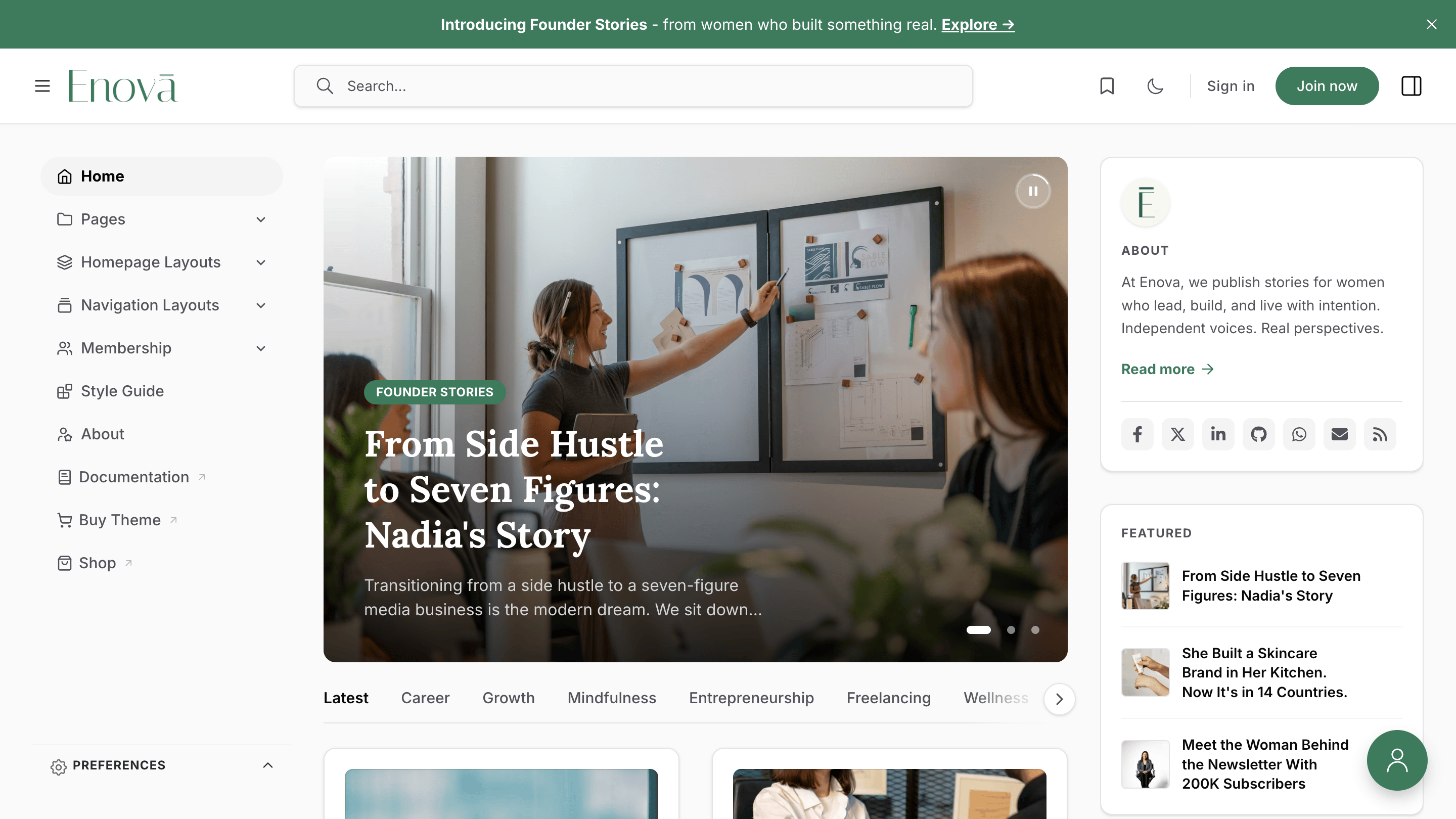
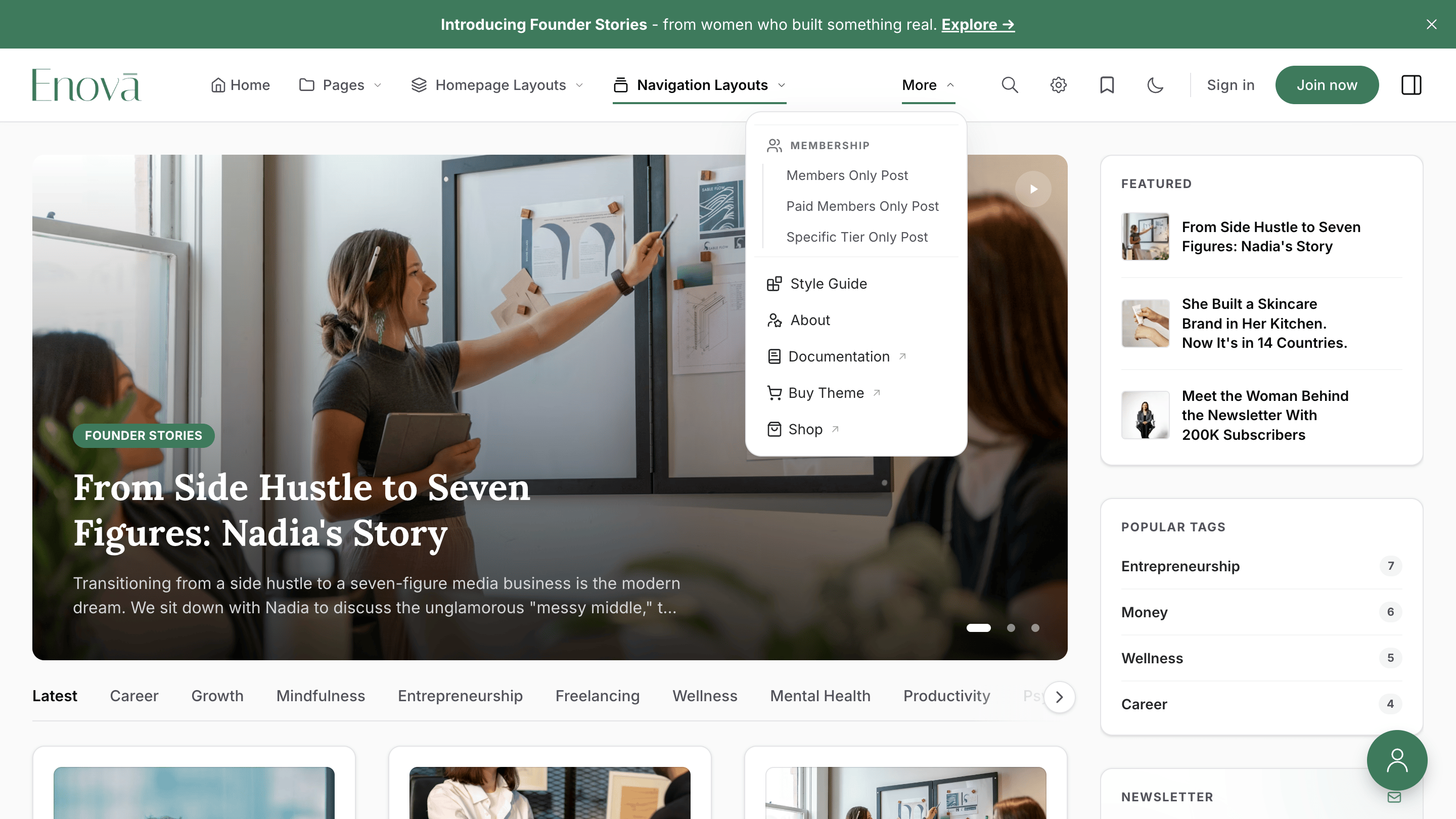
Put an icon beside any Enova menu item — sidebar, top bar, or mobile drawer — with one meta tag per item in Code Injection.
Out of the box, Ghost's navigation only stores a label and a URL for each menu item — there's no icon field. Enova adds an opt-in way to attach an icon to any nav item by pasting a short snippet into Ghost's Code Injection. No theme files to edit.
Icons are off by default
Your navigation looks exactly the same as today until you paste a snippet below. Items you don't configure stay icon-free, with no spacing change.
Left sidebar
Top bar
How matching works
Enova matches each rule to a nav item by slugifying the label — lowercase, with spaces and punctuation turned into single hyphens. So:
| Nav label | Slug to use |
|---|---|
Home | home |
About Us | about-us |
FAQ | faq |
Testimonials & Reviews | testimonials-reviews |
الرئيسية | الرييسية (non-Latin labels work; accent marks are stripped) |
Non-Latin labels (Arabic, Persian, Hebrew, Urdu, Chinese, Cyrillic, ...) slugify the same way since v1.17.0. For those, the data-match form below is the easiest: write the label itself as the data-match value and Enova slugifies both sides identically.
Enova never guesses. If you don't write a rule for an item, it gets no icon.
Step 1 — Open Code Injection
Log in to Ghost Admin.
Go to Settings → Code injection.
You'll be working in the Site Header box.
Step 2 — Pick the option that fits
There are two ways to declare nav icons. They can coexist — use whichever is easier per rule.
Option A — meta tags (simplest)
One line per item. Use this when you just want a built-in icon by name.
<meta name="enova-nav-icon-home"     content="home">
<meta name="enova-nav-icon-blog"     content="blog">
<meta name="enova-nav-icon-about-us" content="user">
<meta name="enova-nav-icon-contact"  content="mail">
Format: name="enova-nav-icon-{label-slug}" and content="{icon-name-or-alias}". See the icon catalog below for the names you can use.
Option B — anchor block (advanced)
Use this when you need any of the following:
- Paste your own SVG for a custom glyph
- Limit an icon to certain surfaces (e.g. only the sidebar)
- Match a label that contains a hyphen or unusual characters
<div data-enova-nav-icons hidden>
    <!-- Built-in icon, same effect as the meta-tag form -->
    <a data-match="home" data-icon="home"></a>

    <!-- Custom SVG (paste any 24×24 SVG, currentColor stroke recommended) -->
    <a data-match="docs"
       data-svg='<svg xmlns="http://www.w3.org/2000/svg" viewBox="0 0 24 24" fill="none" stroke="currentColor" stroke-width="2" stroke-linecap="round" stroke-linejoin="round"><path d="M14.5 2H6a2 2 0 0 0-2 2v16a2 2 0 0 0 2 2h12a2 2 0 0 0 2-2V7.5L14.5 2z"/></svg>'></a>

    <!-- Sidebar only -->
    <a data-match="newsletter" data-icon="newsletters" data-placements="sidebar"></a>
</div>
Attribute reference
| Attribute | Required | What it does |
|---|---|---|
data-match | Yes | The label-slug of the nav item to target. |
data-icon | If data-svg is missing | Name of a built-in icon (or alias). See the catalog below. |
data-svg | If data-icon is missing | A complete <svg>...</svg> element. Wins over data-icon if both are set. |
data-placements | No | Where the icon shows. Comma-separated list of sidebar, top, mobile. Defaults to all three. |
Built-in icon catalog
These names work with both Option A (content="...") and Option B (data-icon="..."). Aliases resolve to the same icon — pick whichever feels most natural for your label. The catalog below is drawn from the theme itself, so it always shows exactly the icons your installed version ships.
The brand marks are the same icons Custom Social Links uses in the footer and sidebar.
Surface scoping
By default an icon shows everywhere — left sidebar, top bar, and mobile drawer. To limit it, use data-placements:
<div data-enova-nav-icons hidden>
    <a data-match="home"    data-icon="home"     data-placements="sidebar,mobile"></a>
    <a data-match="contact" data-icon="mail"     data-placements="top"></a>
</div>
Valid placements: sidebar, top, mobile.
Troubleshooting
My icon isn't showing
Check three things:
- The slug matches the label. "Tools & Reviews" →
tools-reviews(the&becomes a hyphen, and consecutive hyphens collapse). - The icon name is in the catalog. Typos fail silently — open your browser's developer console (right-click → Inspect → Console) and look for warnings starting with
[enova nav icons]. - You saved Code Injection and reloaded. Ghost caches Code Injection; a hard refresh (Cmd/Ctrl + Shift + R) helps.
Detect slug collisions
If two nav items slugify to the same value (rare — usually happens with a top-level "Blog" plus a nested "blog" sub-item), both receive the same icon. Enova logs a warning to the console only when you set a debug flag:
<script>window.enovaDebug = true;</script>Add that line to your Site Header Code Injection while debugging, then remove it.
The whole snippet looks broken after pasting
Some text editors replace plain quotes (") with "smart quotes" (" and "). HTML doesn't understand smart quotes. Paste into a plain-text editor first (Notes app, Notepad, or directly into Ghost's Code Injection field) so the quotes stay straight.
For developers
These pieces are public API — Enova won't rename or break them in minor releases.
window.enovaNavIcons
Available after DOMContentLoaded. Useful when you want to register icons or refresh hydration from your own code-injection scripts.
window.enovaNavIcons.register('my-glyph', '<svg ...></svg>');
window.enovaNavIcons.refresh();          // re-collect rules and re-inject
const svg = window.enovaNavIcons.resolve('home');  // returns SVG string or null
console.log(window.enovaNavIcons.icons); // frozen merge of page + social icons
console.log(window.enovaNavIcons.aliases);
Events
Enova dispatches three events on document once the navigation is hydrated. Listen for them if you need to mutate the rebuilt nav DOM.
| Event | Fires when | event.detail |
|---|---|---|
enova:sidebar-nav-ready | Sidebar finished rebuilding (always fires once per page). | { surface: 'sidebar' } |
enova:header-nav-ready | Top bar finished hydrating. Only fires when the site is in Top bar mode and viewport ≥ 1024 px. | { surface: 'top' } |
enova:nav-ready | Convenience: fires once after both above are ready (or just after sidebar, when top-bar isn't expected on this load). | { surfaces: ['sidebar'] } or { surfaces: ['sidebar', 'top'] } |
document.addEventListener('enova:nav-ready', (e) => {
    console.log('nav ready, surfaces:', e.detail.surfaces);
});
Related
- Custom Social Links — a sister feature using the same code-injection pattern for footer + sidebar social icons.
- Navigation — set up your menu items in Ghost's Primary and Secondary navigation.
- Navigation Style — switch between sidebar and top bar layouts.