

Ads & Sponsors
Run a self-promotional house ad and a sponsor logo wall in your right sidebar — both driven by simple Ghost pages, with no theme settings to spend.
Enova gives you two lightweight ways to promote in the right sidebar: a house ad (your own banner or promo) and a sponsor logo wall (a tidy grid of supporters' logos linking to their sites). Both are driven entirely by ordinary Ghost pages — there's nothing to configure in the theme, and each one stays completely hidden until you create its page.
No theme settings used
Both widgets are powered by pages you create in Ghost, so they cost you zero theme settings and appear automatically once published. Delete or unpublish the page and the widget disappears — no empty boxes left behind.
The House Ad
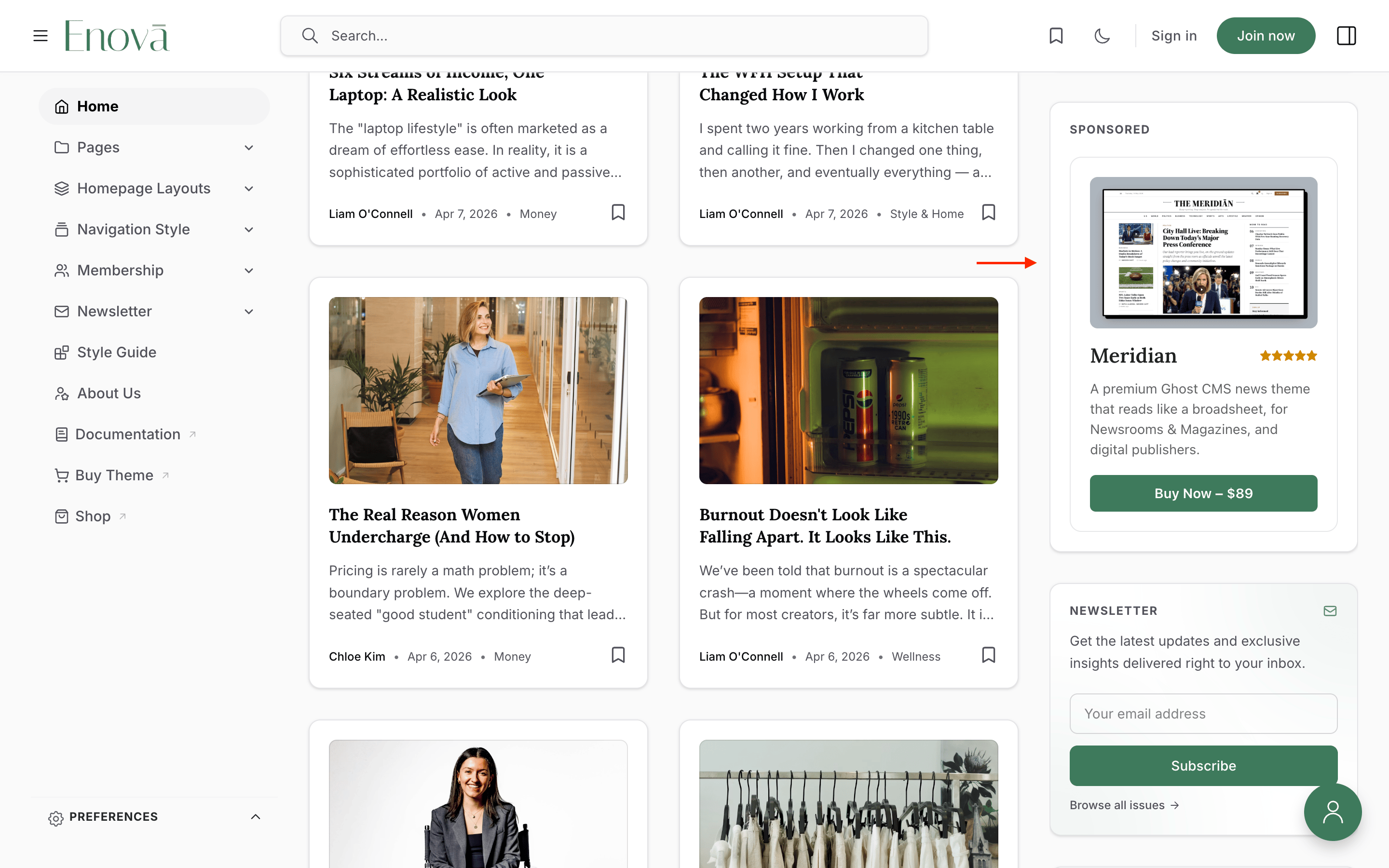
The house ad is a promotional card that appears in the right sidebar, just above the Newsletter widget. Use it to promote anything — a product, your premium tier, an event, or a partner.
Where it shows
The house ad appears in the right sidebar across your whole site — your home page, posts, Ghost pages, and tag/author archives — just above the Newsletter widget. To hide it on a specific post or page, add the internal tag #no-ads to that post or page.
Set it up
In Ghost Admin, create a new page (Pages → New page).
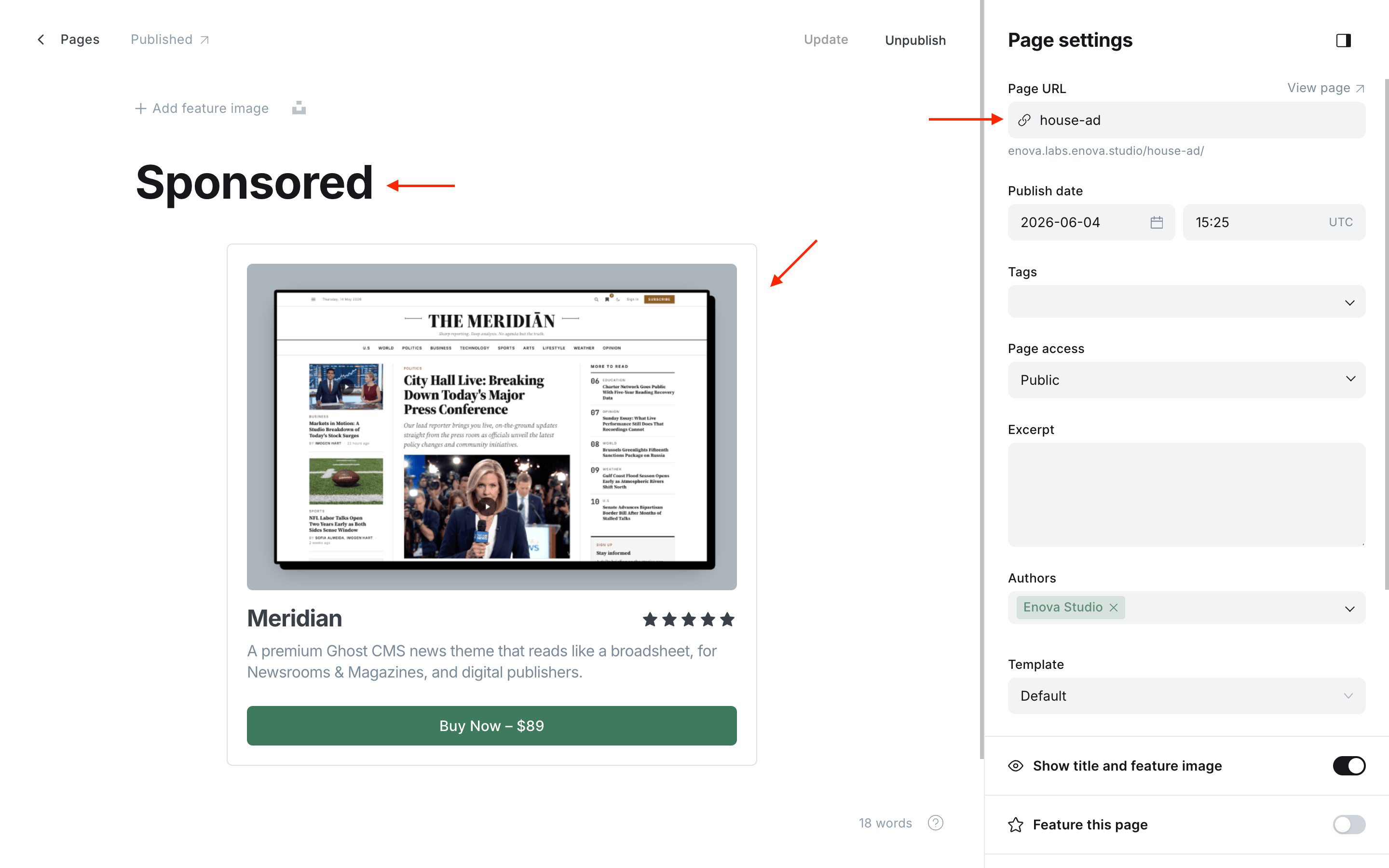
In the page settings (the gear icon), set the Page URL to house-ad.
Name it — the title becomes the label. The page title shows as a small uppercase label above the ad (for example "Sponsored", "Promoted", or "Partner"). Choose wording that clearly tells readers this is promotional — it's also what screen readers announce.
Build your creative in the body. Add your ad to the page body like any other content: an image, a button, a product card, or a mix. To make an image clickable, select it and use the image card's link button.
Publish the page. The ad appears in your right sidebar straight away.
You can stack multiple items
The house-ad slot renders everything in the page body, in order — it's a full creative canvas, not a single-image slot. Mix and match most Ghost editor cards: images, buttons, product cards, bookmark cards, file cards, YouTube and uploaded-video embeds, callouts, and more. Enova spaces them evenly and keeps each one within the sidebar's width.
House ad page in Ghost
House ad in the sidebar
Good to know
- External links open in a new tab. Any link to another site opens in a new tab and is tagged
rel="sponsored nofollow"(andnoopener) — the right signals for a paid placement. Links to your own site stay in the same tab. This is applied with JavaScript, so with scripts off the links still work and open in the same tab. - Hide it on a specific post or page. Add the internal tag
#no-adsto any post or page where the house ad shouldn't appear — a sponsored article, a checkout page, and so on. It keeps showing everywhere else. - Hidden until ready. If the
house-adpage doesn't exist, is a draft, or has an empty body, nothing renders.
The Sponsor Logo Wall
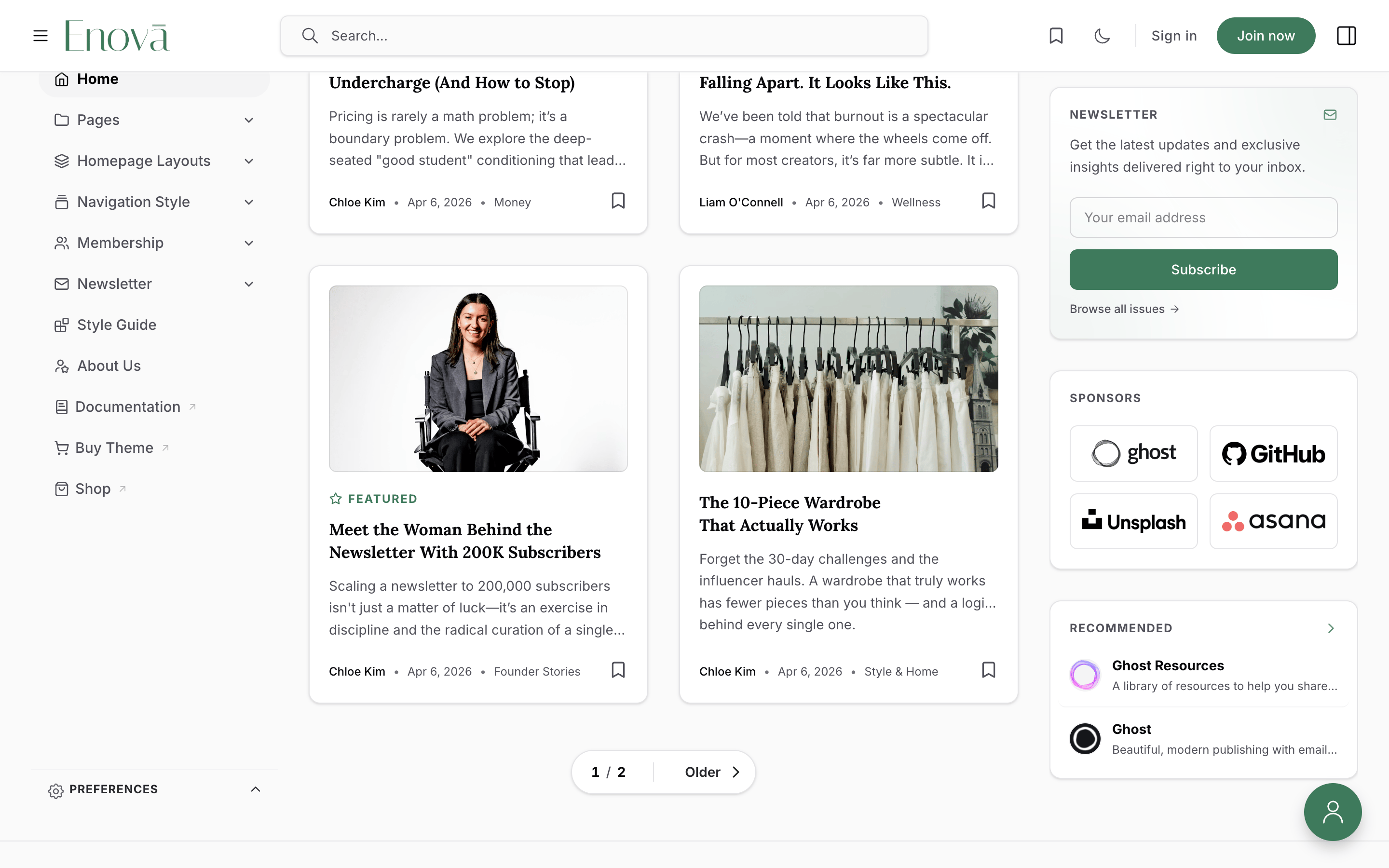
The sponsors widget shows a grid of supporter logos near the bottom of the right sidebar. Each logo links to the sponsor's website and sits on a clean tile that reads well in both light and dark mode.
Where it shows
The sponsor wall appears on your home page automatically. You can also show it on an individual post or page by tagging that post or page #display-sponsors-widget.
Set it up
Create another page in Ghost Admin.
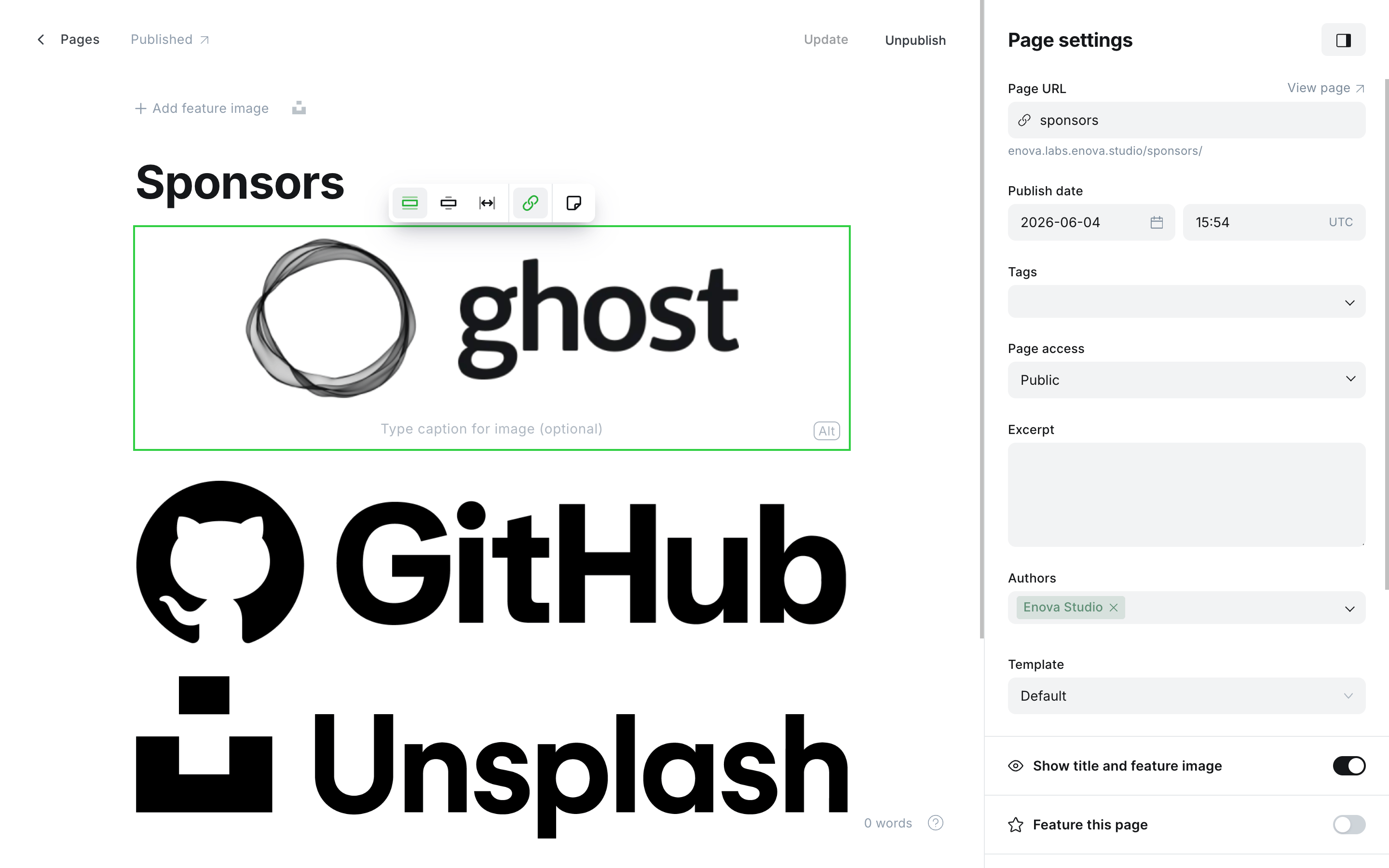
Set the Page URL to sponsors. (This doubles as a real "Our sponsors" page you can link to if you want.)
Name it — the title becomes the heading. The page title is shown as the widget heading — for example "Our Sponsors" or "Supported by".
Add each logo as a linked image. For every sponsor, add an image card, upload the logo, and use the image card's link button to point it at the sponsor's website.
Use image cards, not a gallery
Add each logo as its own image card so you can link it individually. Ghost's gallery card can't link images one-by-one, so logos placed in a gallery won't be clickable — and Enova hides any non-image content from the grid, so a gallery will simply show nothing.
Set alt text on every logo. In each image's alt text field, type the sponsor's name. This is the logo's accessible name — screen readers read it aloud, and it helps SEO. (If you forget, Enova falls back to the link's web address, but the sponsor's name is far better.)
Publish the page and the logo wall appears near the bottom of your sidebar.
Linking a logo (image card)
Sponsor logo wall
Change the logo shape and columns
By default the logos sit in square tiles, two per row. You can change the tile shape and how many fit per row with two CSS variables, pasted once into Settings → Code injection → Site Header. There are no theme files to edit, and this survives theme updates.
Wider 4:3 tiles:
<style>
  [data-component="sidebar-widget"][data-variant="sponsors"] {
    --enova-sponsor-ratio: 4 / 3;
  }
</style>
Widescreen 16:9 logos, one per row (good for long wordmark-style logos):
<style>
  [data-component="sidebar-widget"][data-variant="sponsors"] {
    --enova-sponsor-ratio: 16 / 9;
    --enova-sponsor-cols: 1;
  }
</style>
Three small logos per row:
<style>
  [data-component="sidebar-widget"][data-variant="sponsors"] {
    --enova-sponsor-cols: 3;
  }
</style>| Variable | Default | What it does |
|---|---|---|
--enova-sponsor-ratio | 1 (square) | The shape of each logo tile. Use any CSS ratio — 1 (square), 4 / 3, 16 / 9, 3 / 2, and so on. |
--enova-sponsor-cols | 2 | How many logos per row. |
Logos always fit
However the tiles are shaped, each logo is centered and scaled to fit — never cropped or stretched — so mixed logo shapes still line up neatly.
Good to know
- Who sees them. House ads and sponsor logos are shown to everyone, including signed-in members.
- Where they appear. The house ad shows across your whole site — home, posts, Ghost pages, and archives — just above the Newsletter widget, unless a post or page is tagged
#no-ads. The sponsor wall shows on the home page, plus any post or page tagged#display-sponsors-widget, near the bottom of the sidebar. - The pages are public. Because they're real Ghost pages,
yoursite.com/house-ad/andyoursite.com/sponsors/are reachable. The sponsors page makes a nice public page; if you'd rather keep the house-ad page out of search, turn on "Exclude from search" (or set a meta noindex) in that page's settings. - Styling hooks. Both widgets expose stable styling handles —
[data-component="sidebar-widget"][data-variant="house-ad"]and[data-variant="sponsors"]— that you can target from Code injection. See the Code injection guide.
Troubleshooting
My sponsor logos aren't clickable, or nothing shows
Make sure each logo is its own image card with a link set (not a gallery), and that the sponsors page is published. Enova deliberately hides anything in the page body that isn't a linked image, so a gallery or stray text will leave the grid empty.
The widget isn't appearing at all
Check that the page exists with the exact slug (house-ad or sponsors), is published (not draft or scheduled), and has content in the body. Empty or unpublished pages render nothing by design. Mind the visibility rules too: the sponsor wall only shows on a post or page when it's tagged #display-sponsors-widget, and the house ad is hidden on any post or page tagged #no-ads.
A logo opens a lightbox instead of its link
Make sure the logo is a linked image card (with a link set). Enova's image lightbox only applies to images inside your posts and pages — never to linked sidebar logos.
Membership Page
A dedicated membership page built from your native Ghost tiers — live prices, benefits, free trials, and one-click Portal checkout, with two layouts and no theme settings to wire up.
Donate / Reader Funding
Add a reader-funded support card to your home sidebar — author avatars, a checklist of what tips pay for, and donate buttons, all from a single Ghost page.