

Table of Contents
Enova's adaptive table of contents — inline at the top of the article, sticky in the sidebar — and the internal tags that disable each mode.
Enova's Table of Contents (ToC) is designed to work everywhere your readers are. It adapts automatically to the layout and screen size — showing up exactly where it's most useful, without any extra setup required.
There are two ToC modes that work together:
| Mode | Where it appears |
|---|---|
| Inline TOC | At the top of the article content, visible immediately when the post loads |
| Sidebar TOC | In the right sidebar, as a sticky widget that stays visible as you read |
Inline TOC
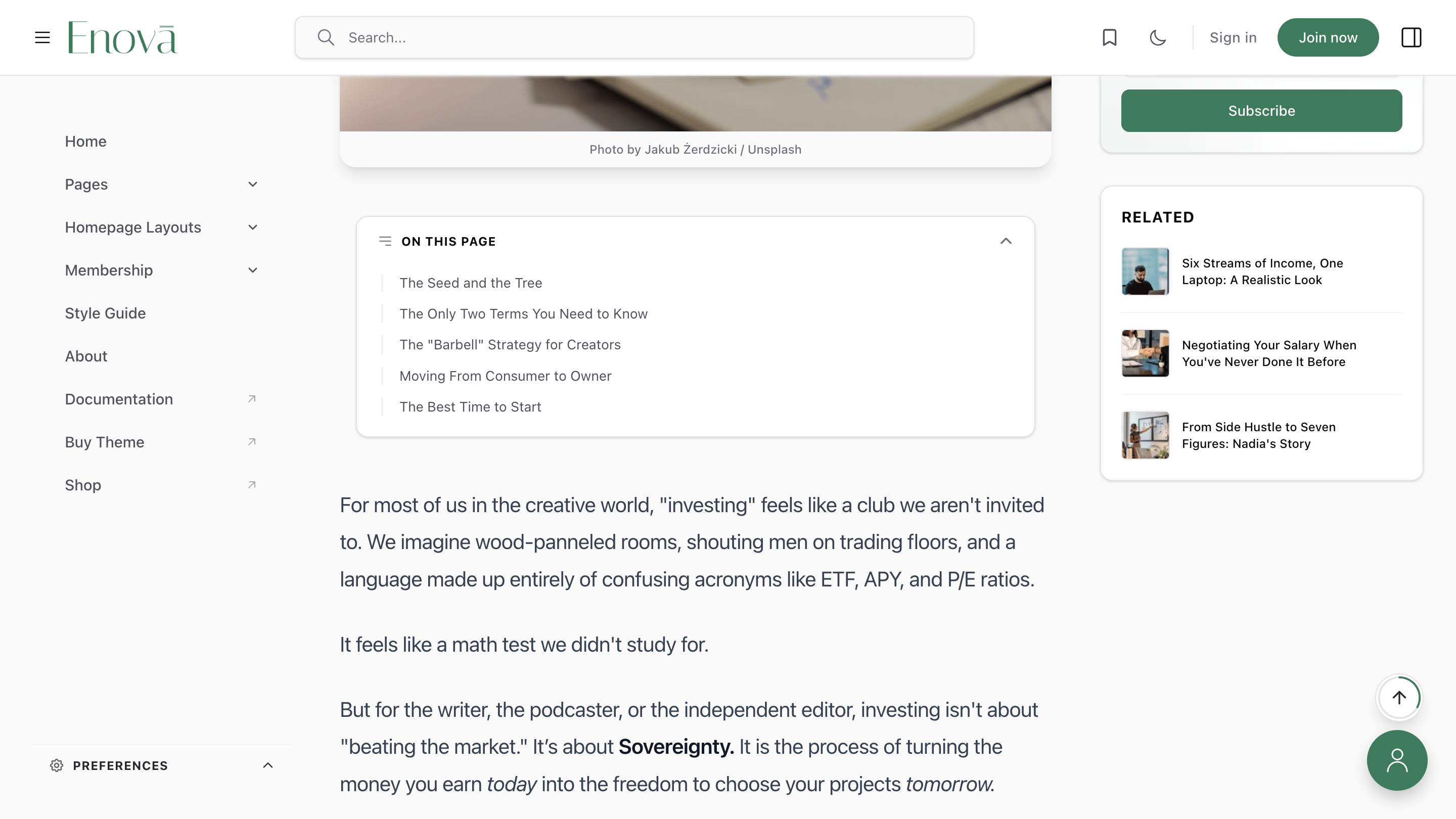
The Inline TOC sits at the very top of the article body, giving readers an instant overview of the content before they start reading — no scrolling required.
On Desktop
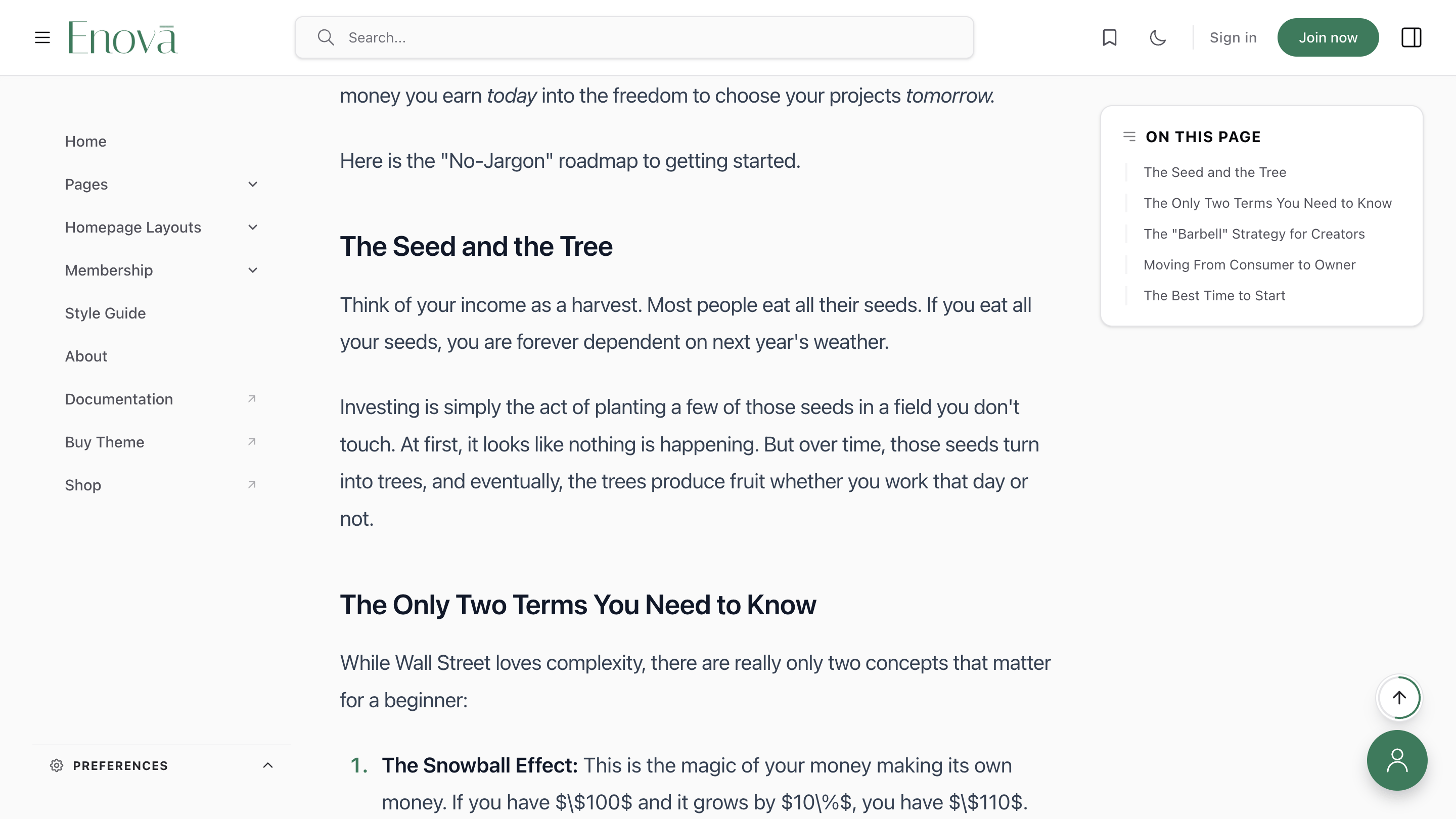
On desktop, the Inline TOC is visible when the page first loads. As the reader scrolls past it, it smoothly transitions and the Sidebar TOC takes over in the right sidebar, keeping navigation always within reach.
Inline TOC — Visible at Top of Article
Sidebar TOC — Active After Scrolling
On Mobile, Full Width & Left Sidebar Layouts
On smaller screens, and on any layout where the right sidebar is hidden — including Mobile, Full Width, and Left Sidebar Only page templates — the right sidebar is not shown.
In these cases, the Inline TOC stays in place and scrolls naturally with the rest of the content, so readers always have access to article navigation regardless of their device or the template in use.
Inline TOC on Mobile / Full Width / Left Sidebar

Layout-aware behavior
The Inline TOC automatically detects whether the right sidebar is available. You don't need to configure anything differently per layout — it just works.
Sidebar TOC
The Sidebar TOC is a sticky widget in the right sidebar that remains visible as the reader scrolls through the article. On desktop, it activates once the reader has scrolled past the Inline TOC at the top of the content.
Sidebar TOC Widget

Desktop only
The Sidebar TOC is only visible on desktop when the right sidebar is present. On mobile and sidebar-less layouts, the Inline TOC handles navigation instead.
Related
The Sidebar TOC is one of several widgets available in the right sidebar. View all Right Sidebar widgets →
Controlling the Table of Contents
By default, the Table of Contents is enabled everywhere it applies — the Inline TOC on posts, and the Sidebar TOC on posts and pages. You can turn either off using internal tags in Ghost, without needing to touch any code. These tags are part of Enova's wider tag vocabulary — see Editorial conventions for the full set.
Quick Reference
| Tag | Inline TOC | Sidebar TOC |
|---|---|---|
#disable-toc | ✗ Hidden | ✗ Hidden |
#disable-inline-toc | ✗ Hidden | ✓ Visible |
#disable-sidebar-toc | ✓ Visible | ✗ Hidden |
Priority rule
#disable-toc takes priority. If it is present on a post, both the Inline TOC and Sidebar TOC will be hidden — regardless of any other TOC tags.
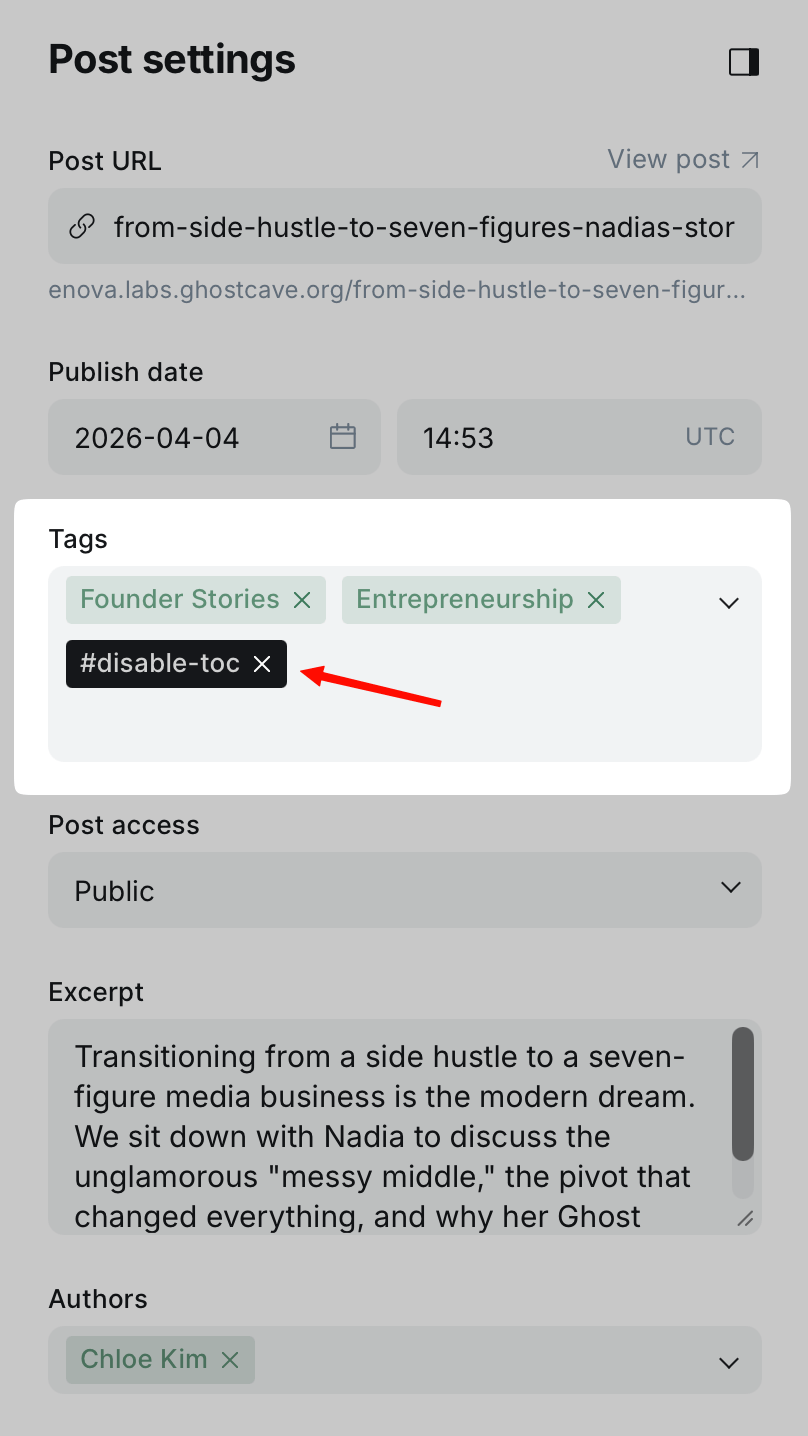
Adding an Internal Tag in Ghost Admin
Disable All TOC
Use #disable-toc to hide both the Inline TOC and the Sidebar TOC widget on a specific post or page.
Open the post or page in Ghost Admin.
Click the Settings icon (top-right corner) to open the post settings panel.
In the Tags field, type and add the internal tag #disable-toc.
Save or Update the post. Both TOC modes will be hidden for this post.
Post settings with #disable-toc added

Disable Only the Inline TOC
Use #disable-inline-toc to keep the Sidebar TOC widget visible while hiding only the in-content Inline TOC at the top of the article.
This is useful for short posts where the top-of-content preview isn't needed, but you still want sidebar navigation for readers on desktop.
Open the post or page in Ghost Admin.
Click the Settings icon to open the post settings panel.
In the Tags field, add the internal tag #disable-inline-toc.
Save or Update the post.
Disable Only the Sidebar TOC
Use #disable-sidebar-toc to hide the Sidebar TOC widget while keeping the Inline TOC visible at the top of the content.
Open the post or page in Ghost Admin.
Click the Settings icon to open the post settings panel.
In the Tags field, add the internal tag #disable-sidebar-toc.
Save or Update the post.
Internal tags stay private
Tags starting with # are internal tags in Ghost — they are never shown to readers on your site. You can safely add them without affecting your public tag listings.