

Donate / Reader Funding
Add a reader-funded support card to your home sidebar — author avatars, a checklist of what tips pay for, and donate buttons, all from a single Ghost page.
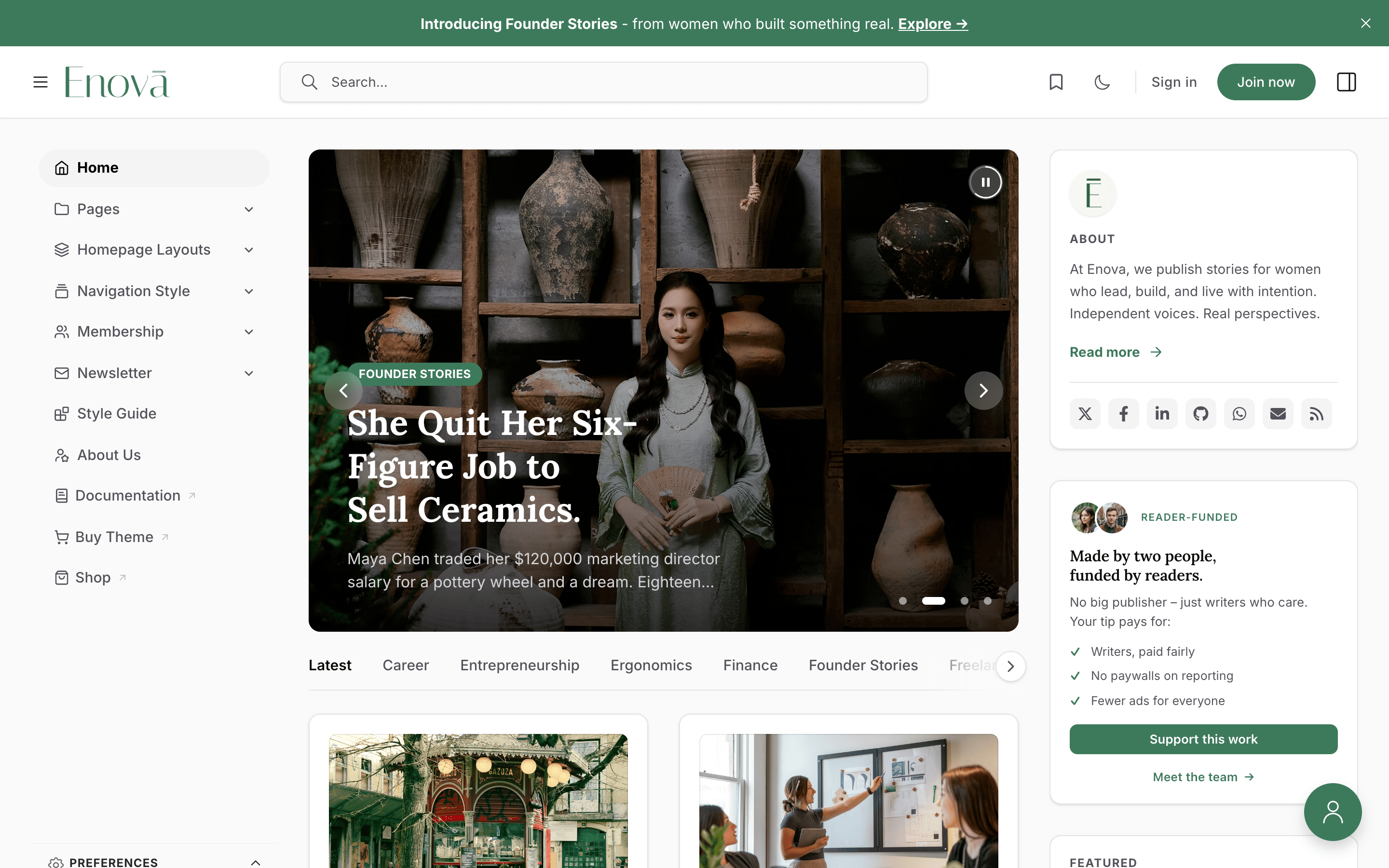
The Donate widget is a reader-funding pitch for the top of your home sidebar: an overlapping row of author avatars, a "Reader-funded" eyebrow, a bold heading, a checklist of what tips pay for, and two buttons — a filled "Support this work" and a "Meet the team →" link. Like the other sidebar widgets, it's driven entirely by a Ghost page (no theme settings) and stays hidden until you create it.
Where it shows
The Donate widget appears automatically on your home page, near the top of the right sidebar (just below the About card). You can also surface it on any individual post or page by tagging that post or page #display-donate-widget — see Show it on specific posts or pages. Either way, it stays hidden until the donate page exists with content.
Set it up
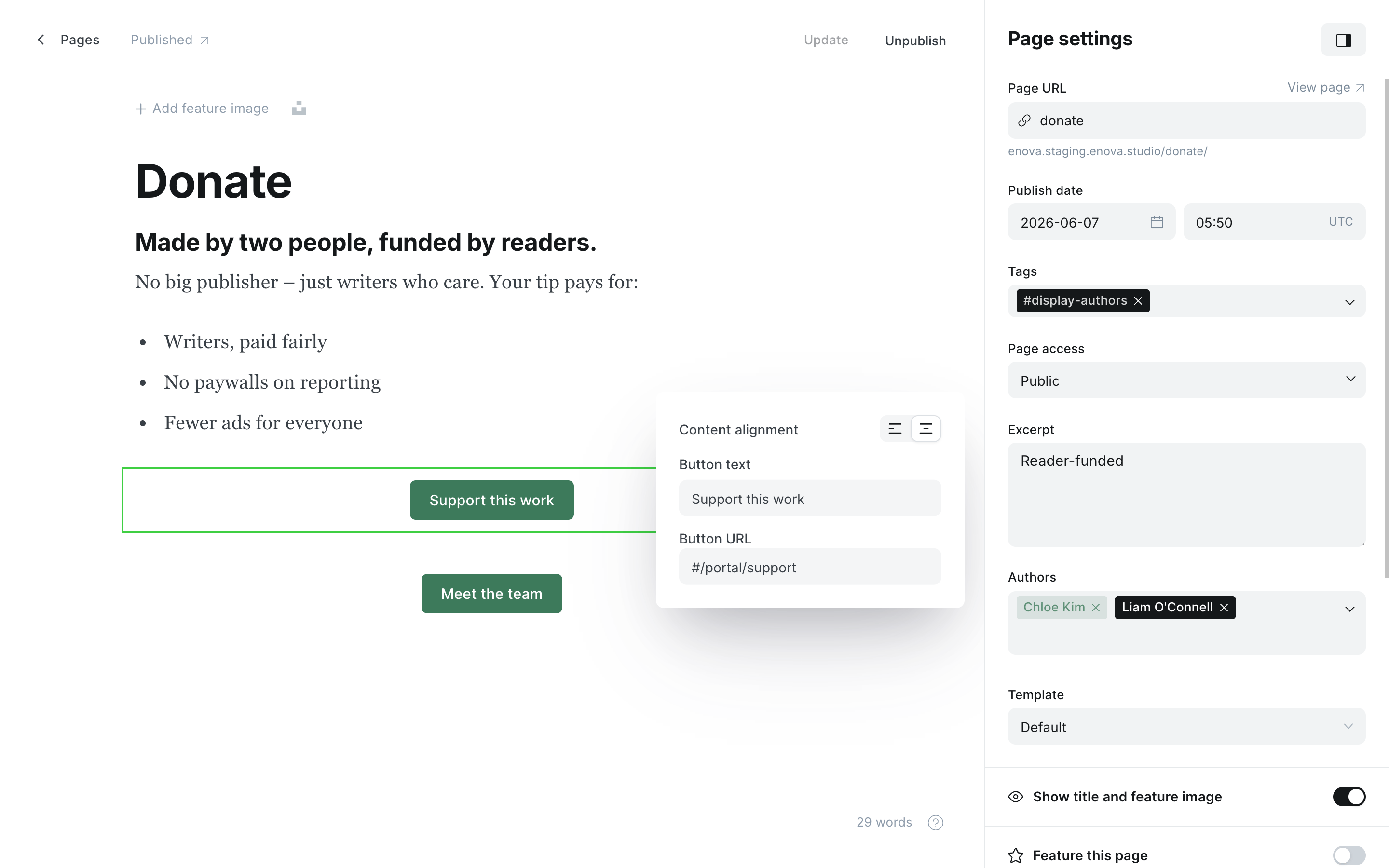
In Ghost Admin, create a new page and set its Page URL (in the settings panel) to donate. The page title is only for your own reference — it is never shown.
Add the people (optional). Assign the page's authors (one or more) in the page settings, then add the internal tag #display-authors. The widget shows each author's profile photo as an overlapping avatar stack, falling back to their initial when there's no photo. Leave the tag off and the avatars simply don't appear.
Set the eyebrow label. Type a short label into the page's Excerpt field — for example "Reader-funded" or "Member-funded". It renders as the small uppercase label in your brand colour. Leave the Excerpt empty and the label is omitted.
Write the body. Add to the page body, in order:
- a Heading (e.g. "Made by three people, funded by readers.") — rendered in your heading serif;
- a short paragraph of context;
- a bulleted or numbered list of what support pays for — each item gets a brand checkmark automatically;
- two Button cards. The first is the primary, filled button (e.g. "Support this work" → your donation link); the second is the secondary text link (e.g. "Meet the team" → your team or about page).
Buttons: order decides the style
Ghost button cards have no colour option, so the theme styles them by order — the first button card is the filled primary, and every button after it is a secondary text link. Put your main "Support" action first. The theme adds the → arrow to the secondary button, so don't type it yourself.
Publish the page and the widget appears on your home sidebar.
Donate page in Ghost
Donate widget in the sidebar
Use Ghost's built-in donations (Stripe)
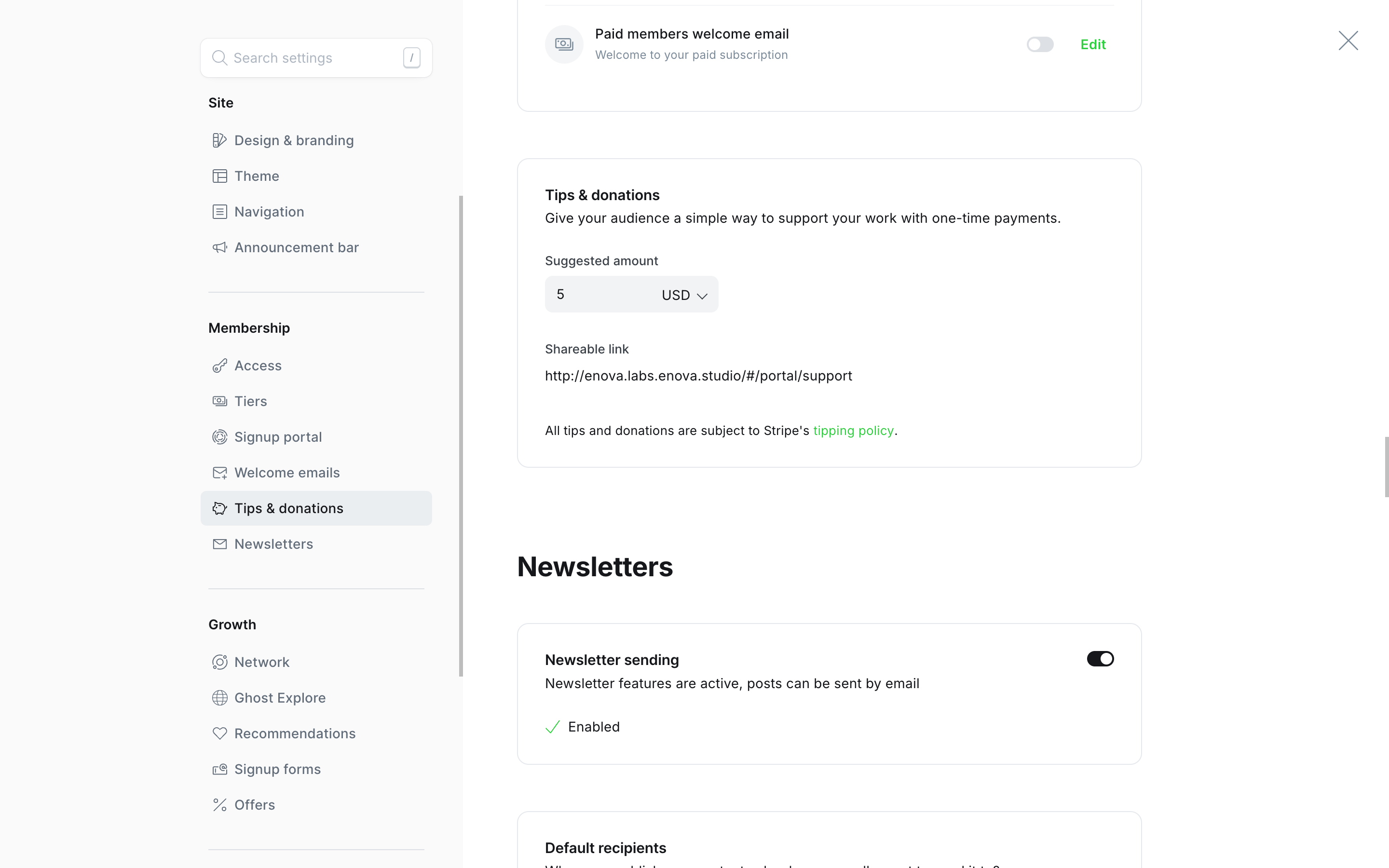
If you've connected Stripe to Ghost, you don't need a third-party donation service — point the primary button at Ghost's native one-time donation checkout by setting its URL to #/portal/support. The reader pays by card in a window that opens right on the page (it stays in the same tab — Ghost's Portal handles it, so it isn't affected by the new-tab behaviour below). Connect Stripe and set your suggested amount and currency under Settings → Membership → Tips & donations.
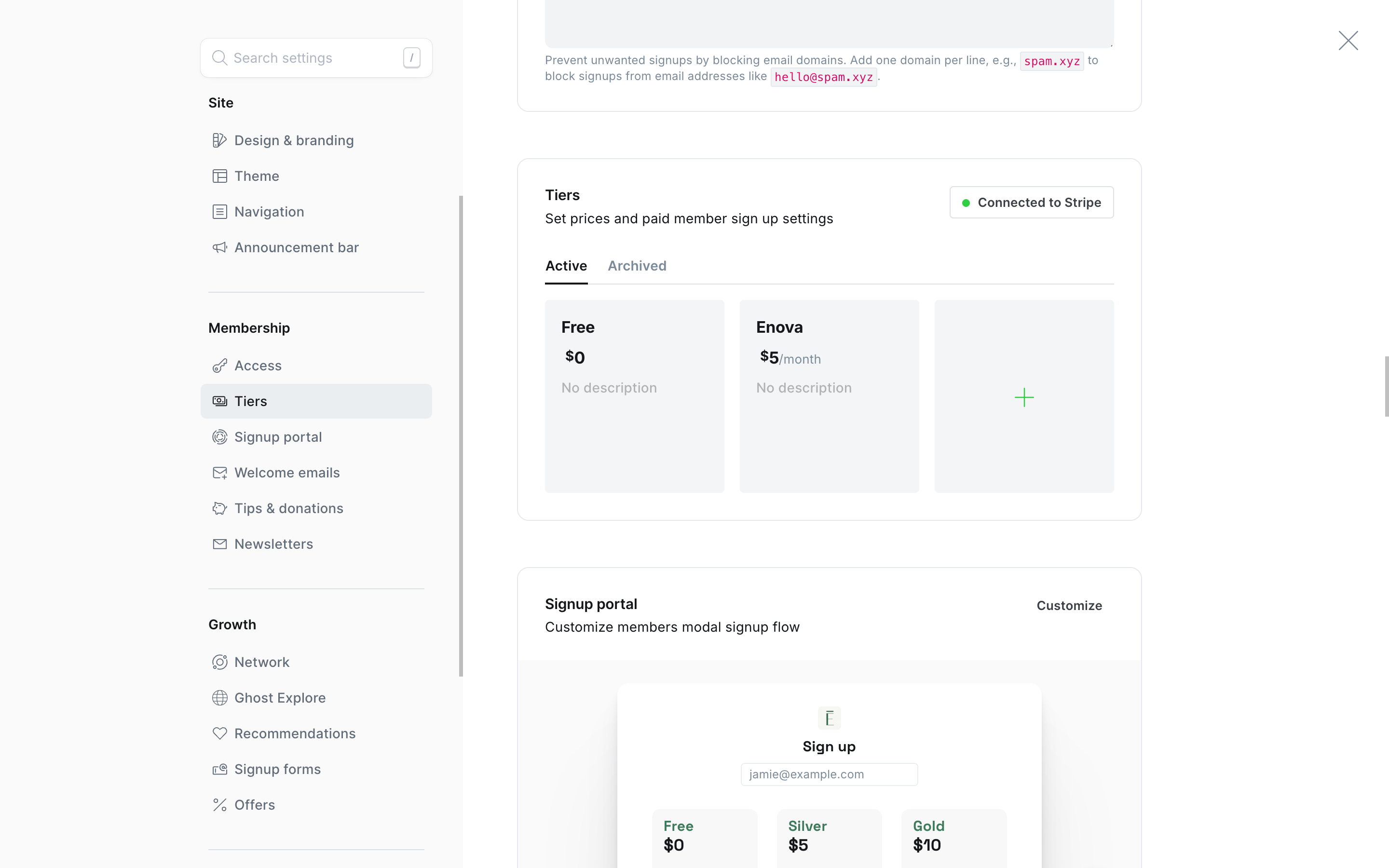
Stripe connection settings
Tips & donations settings
Show it on specific posts or pages
The widget shows on your home page automatically. To also show it on a particular post or page, add the internal tag #display-donate-widget to that post or page (type #display-donate-widget in the tag field — the leading # makes it internal, so it never shows publicly).
The widget still pulls everything from your single donate page, so you maintain the pitch in one place — the tag only controls where it appears. Tag as many posts or pages as you like (long-form features are a natural fit); anything without the tag simply doesn't show it.
Good to know
- External donation links open in a new tab and carry
rel="noopener"— but they are not taggedsponsored/nofollow, because a donation is your own cause, not a paid placement. Links to your own site (like a "Meet the team" page) stay in the same tab. This new-tab behaviour is a progressive enhancement applied with JavaScript; with it off, the links still work and simply open in the same tab. - Hidden until ready. No
donatepage, a draft, or an empty body → nothing renders. - Avatars are decorative for screen readers (the count is in your heading and the people are reachable via the "Meet the team" link), so add real authors and write a heading that conveys the message.
- Styling hook. Target the widget from Code injection with
[data-component="sidebar-widget"][data-variant="donate"]. See the Code injection guide.
Troubleshooting
The widget isn't appearing
Check that the page exists with the exact slug donate, is published (not draft or scheduled), and has content in the body. It shows on the home page, and on any post or page tagged #display-donate-widget — everywhere else it stays hidden by design.
Both buttons look the same / the wrong one is filled
The theme styles buttons by order: the first button card is the filled primary, the rest are secondary text links. Re-order the button cards in the editor so your main action is first.
The avatars aren't showing
Add one or more authors to the page, and make sure the page carries the internal tag #display-authors (type #display-authors in the tag field — the # makes it internal, so it won't show publicly).
Ads & Sponsors
Run a self-promotional house ad and a sponsor logo wall in your right sidebar — both driven by simple Ghost pages, with no theme settings to spend.
Publication Language
Enova ships 62 languages with full RTL support. Set your publication language in Ghost Admin and the theme translates itself.