

Membership Page
A dedicated membership page built from your native Ghost tiers — live prices, benefits, free trials, and one-click Portal checkout, with two layouts and no theme settings to wire up.
The Membership page is a full pricing-and-signup page built entirely from your native Ghost tiers. It reads each tier's name, description, monthly and yearly price, benefits, and free-trial length straight from Settings → Tiers, formats the prices in your currency, and wires every button to Ghost's Portal checkout. There are no theme settings to fill in — set your tiers up in Ghost and the page builds itself, staying in sync as you change prices or plans.
It ships in two layouts (a comparison grid and a conversion-focused "Join" card), supports free trials, and lets you add your own FAQ and supporting copy in the page body.
Where it lives
The page is a Ghost page with the URL join (so it lives at /join/). The theme's template binds to that slug automatically — there's nothing to select in the editor. Until you create the page, it simply doesn't exist, and your "Join now" buttons fall back to the Portal popup (see The "Join now" button across your site).
Set it up
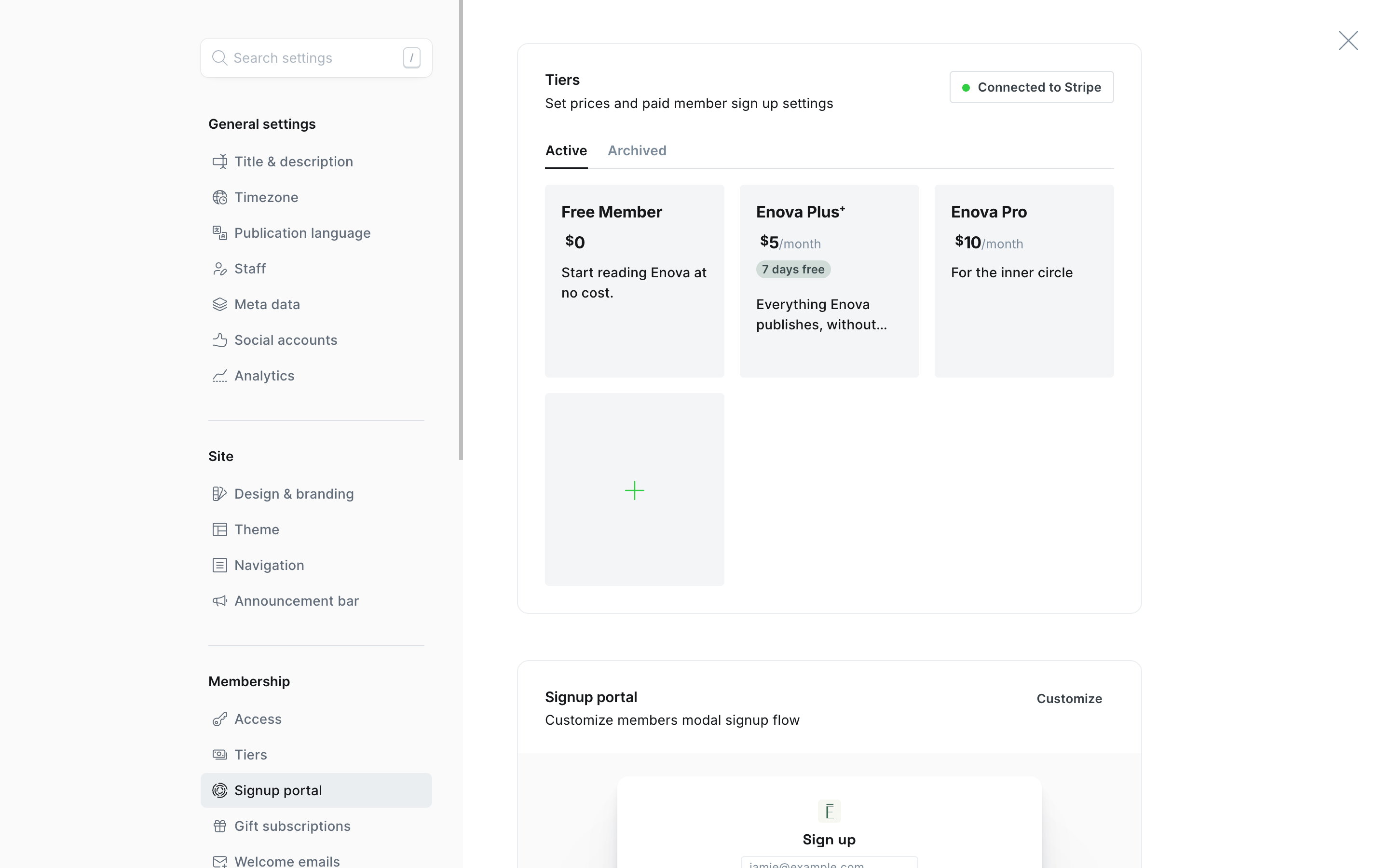
Set up your tiers first. In Ghost Admin, open Settings → Tiers and configure your plans — for each paid tier set a name, a short description, the monthly and yearly price, a list of benefits, and (optionally) a free-trial length. The page renders whatever you have here, so this is where you control the plans, prices, and feature lists. Connect Stripe (Settings → Membership) so paid plans are purchasable.
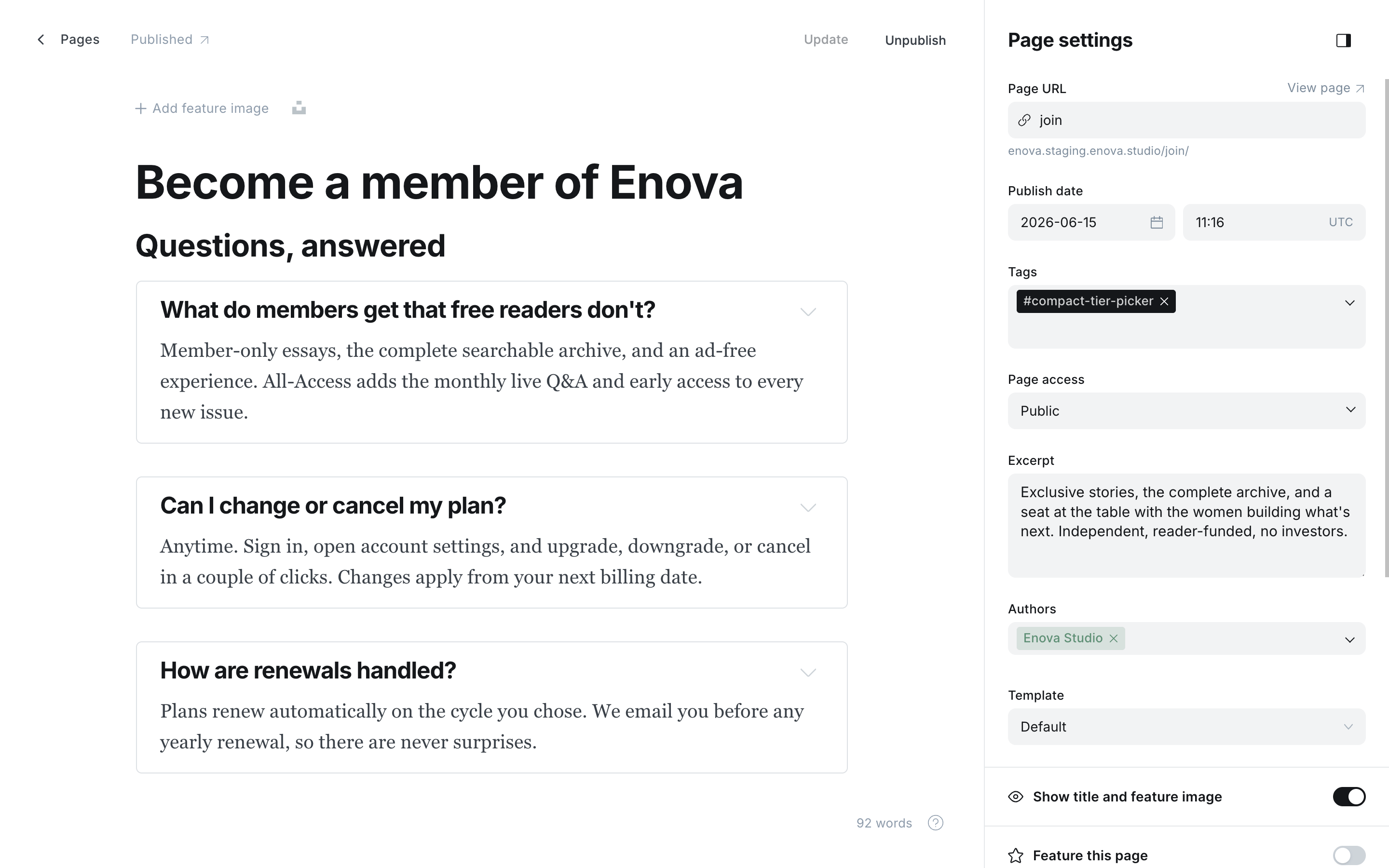
Create the page. Add a new page and set its Page URL (in the settings panel) to join. The page title becomes the heading at the top of the page, and the Excerpt becomes the subheading beneath it — so write them for your readers.
Add supporting content (optional). In the page body you can add an FAQ, a testimonial, and "where your membership goes" cards using native Ghost cards — see The page body. Leave it empty and the page is just the plans.
Publish. The page goes live at /join/ with your tiers, and every "Join now" button across the site starts pointing at it.
Tiers in Ghost Admin
Set the page URL to join
Your tiers drive everything
Everything on the page comes from your Ghost tiers — change a tier in Settings → Tiers and the page updates on the next load. No copy lives in the theme.
- Prices are formatted in your tier's currency, and the Monthly / Yearly toggle switches every price (and the checkout link) at once. Tiers without a yearly price simply show the monthly one. Which prices appear at all is up to your Portal settings: see Monthly, yearly or both.
- Benefits are the bullet list under each plan — they come from each tier's Benefits field in Ghost.
- "Most popular" is highlighted on your lowest-priced paid tier automatically.
- The Free tier always appears with a "Create free account" button; set its benefits in Ghost too so the card isn't empty.
- Checkout opens Ghost's Portal for the chosen plan and billing period — Ghost handles the card payment and the free trial.
Paid plans need Stripe connected
Paid tiers only appear when paid memberships are purchasable — that is, members are enabled and Stripe is connected. If Stripe is disconnected, the page shows just your Free plan (and the billing toggle hides), rather than a plan no one can actually buy. Connect Stripe under Settings → Membership to show your paid tiers.
Monthly, yearly or both
The page offers exactly the prices Ghost's own signup popup offers. In Ghost Admin open Settings → Membership → Signup portal → Customize, then the Signup options tab, and look at Available prices:
- Monthly and Yearly both ticked: every paid plan shows both prices, with the Monthly / Yearly toggle. The page opens on whichever you choose under Default price at signup, just like the popup does.
- Only Monthly ticked: every paid plan shows its monthly price. There's no toggle and no "billed yearly" line.
- Only Yearly ticked: every paid plan shows its yearly price, as
$50 / year. Again there's no toggle. - Neither ticked: the popup sells no paid plans, so the page shows your Free plan on its own.
The checkout buttons follow the same rule in both layouts, so no reader can start a checkout for a price you've switched off. Tiers follow Available tiers on the same tab: untick a tier there and it leaves the page too.
Two layouts
The page has two presentations. The default is a comparison grid; switch to the compact "Join" card by adding one internal tag to the page.
Default — comparison grid
With no tag, the page is a centered hero followed by a responsive grid of tier cards (Free, your paid plans, with the most-popular one highlighted), a billing toggle, and your page content below. The grid reflows from three columns down to one based on the available width, so it looks right whether your sidebars are open or closed and on any screen.
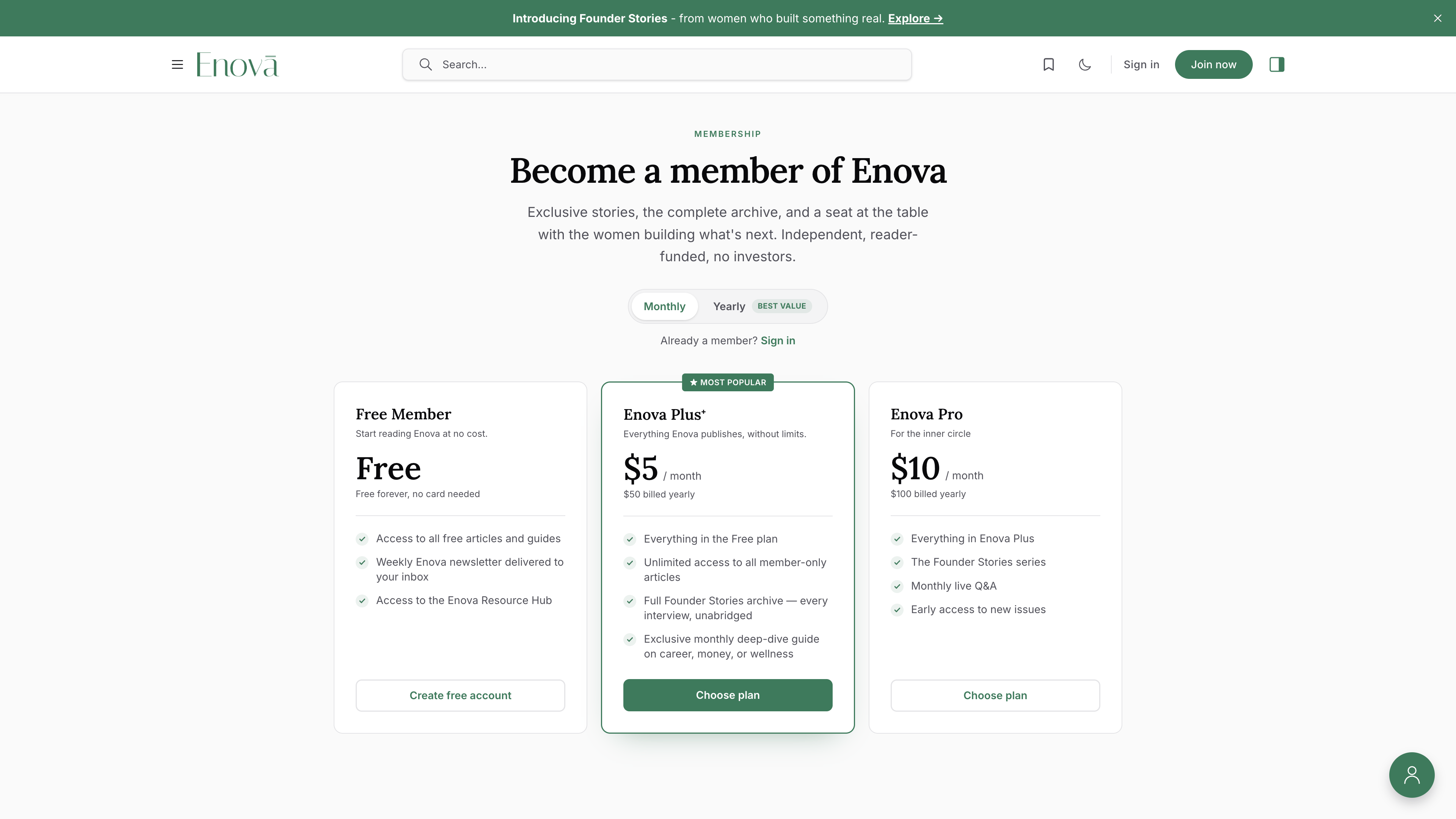
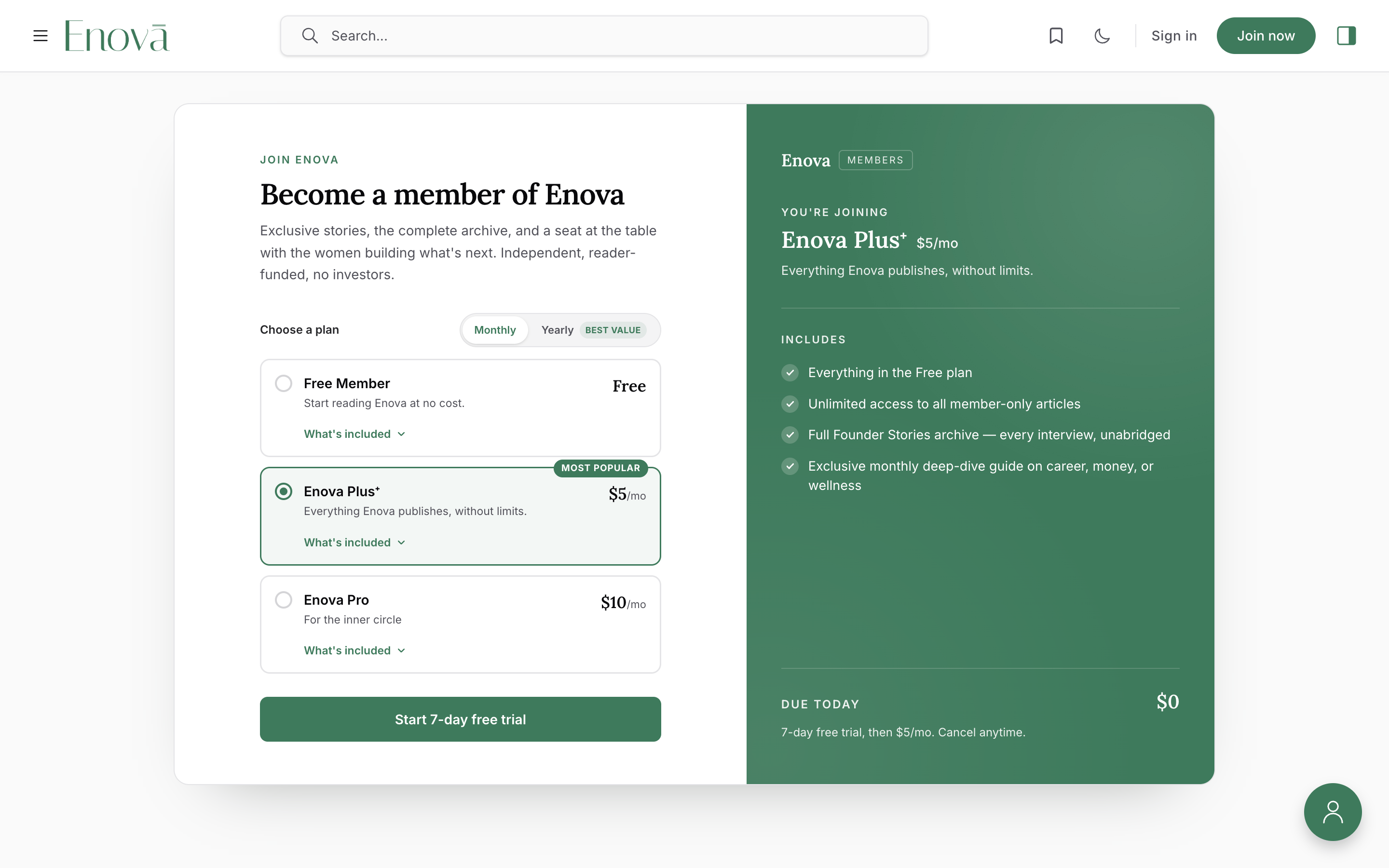
Compact — the "Join" card
#compact-tier-pickerAdd the internal tag #compact-tier-picker to the page (type #compact-tier-picker in the tag field — the leading # keeps it internal, so it never shows publicly) and the page becomes a conversion-focused "Join" card instead: a plan picker of selectable rows on the left (each with an expandable "What's included"), a live order summary on the right that updates as you switch plans and billing period, and — for the Free plan — an inline email signup right on the page. Paid plans hand off to Portal/Stripe checkout.
Both layouts read the same tiers — the tag only changes the presentation, so you can switch back and forth freely.
Both layouts adapt to your sidebars
The membership page works in every sidebar configuration and on any screen. The grid changes its column count, and the "Join" card drops its summary panel and stacks to a single column, based on the width of the content column — not just the browser width — so it stays correct when a sidebar is open.
Free trials
Ghost lets you offer a free trial on a paid tier (set the trial length on the tier in Settings → Tiers). When a tier has a trial, the membership page picks it up automatically:
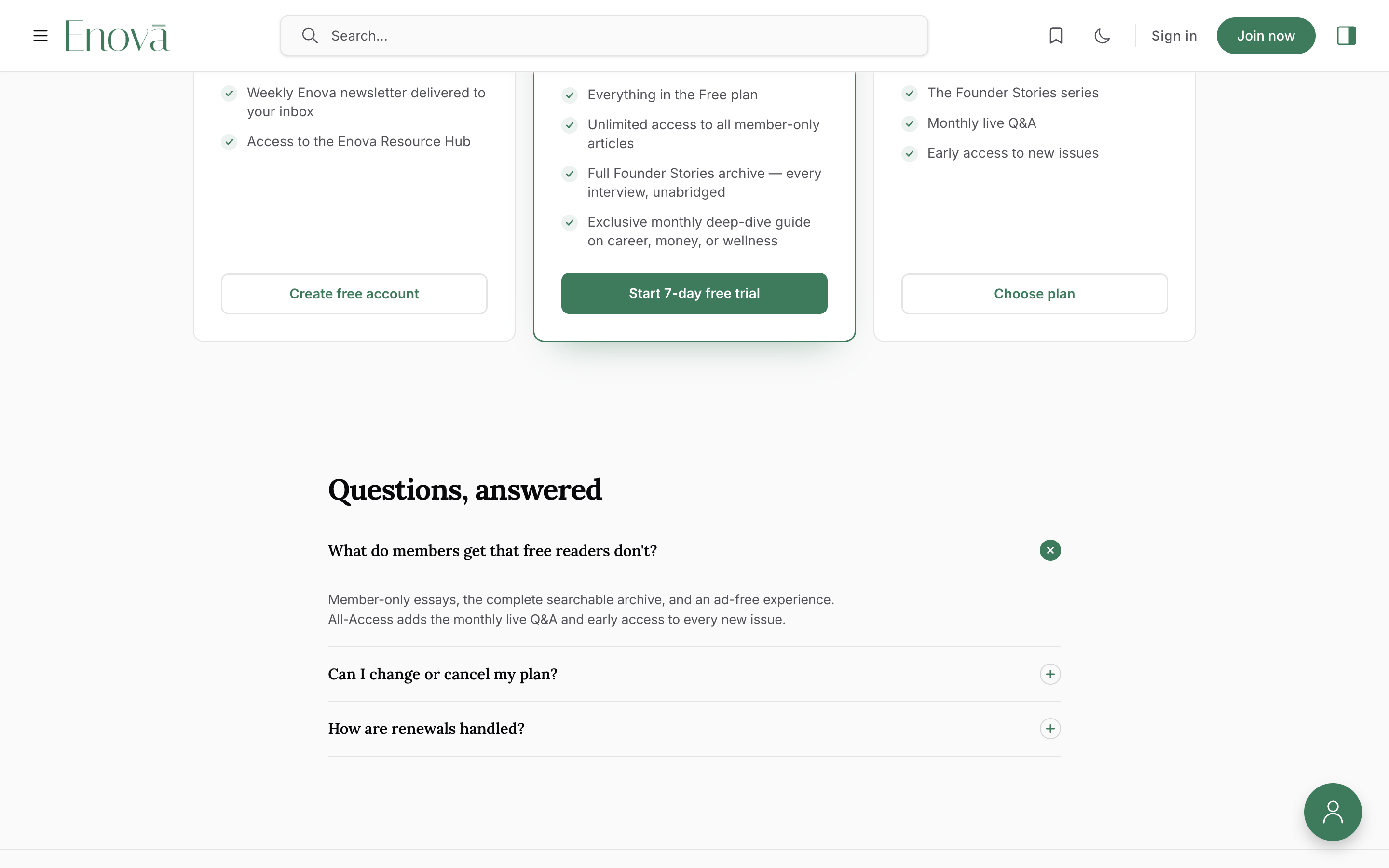
- the plan's button reads "Start N-day free trial" instead of "Choose plan";
- the plan shows a small "N-day free trial" badge;
- in the "Join" layout, the order summary reads "$0 due today — N-day free trial, then …".
Ghost's Portal applies the trial at checkout, so there's nothing else to configure.
The page body (FAQ, testimonial, and more)
Anything you add to the page body renders below the plans, styled to match. Author it with native Ghost cards in the editor:
- FAQ — add Toggle cards (one per question). The theme styles them as a clean accordion with a circular
+that opens to a×; they expand and collapse on their own. - Testimonial — a Quote card.
- "Where your membership goes" / value props — Callout cards or short headings and paragraphs.
Heading levels
The page already has a top-level heading (your page title). When you add sections in the body — like an FAQ — start their headings at Heading 2 so the page outline stays in order for readers and assistive tech.
The "Join now" button across your site
When the join page exists, the theme points the site's join actions at it instead of opening the Portal popup:
- the header "Join now" button links to
/join/; - the "Join now" button in the mobile menu links there too;
- the member call-to-action at the end of a members-only post links there too.
Delete or unpublish the page and those buttons quietly fall back to Ghost's Portal signup — so the site always has a working signup, with or without the page.
Good to know
- No theme settings. The whole page is built from your Ghost tiers and the page body — there's nothing to configure under Design & branding.
- Hidden until ready. No
joinpage, a draft, or members turned off → the page doesn't render and the join buttons use Portal. - Keep the slug
join. The template and the site-wide "Join now" routing both key off thejoinslug. - Member-aware. Signed-in readers see "Manage account" / "Change plan" instead of signup buttons, and the page greets them by email.
- Built for keyboards and screen readers. The plan picker is a proper radio group (arrow keys move between plans), the billing toggle announces its state, every control has a visible focus ring, and motion respects the reader's "reduce motion" setting.
- Styling hooks. Restyle any part from Code injection —
[data-region="membership"],[data-component="tier-card"],[data-component="join-card"],[data-component="plan-row"],[data-component="order-summary"], and more. See the Hook reference.
Troubleshooting
No plans are showing
Check that members are enabled (Settings → Membership) and that you've created tiers (Settings → Tiers). If only the Free plan shows, Stripe isn't connected — connect it under Settings → Membership to make paid plans purchasable, and they'll appear. If Stripe is connected, check that at least one price is ticked under Available prices in the Signup portal settings.
Only one price shows, or the page opens on yearly prices
The page follows your Signup portal settings (Settings → Membership → Signup portal → Customize → Signup options). Available prices decides whether monthly, yearly or both appear, and Default price at signup decides which one the page opens on when you offer both. See Monthly, yearly or both.
The page shows the default grid, not the Join card (or vice-versa)
The "Join" card only appears when the page carries the internal tag #compact-tier-picker. Add it for the card; remove it for the comparison grid. Type the tag exactly, including the leading #.
The 'Join now' button doesn't go to my page
Make sure the page exists with the exact slug join, is published (not draft or scheduled), and that members are enabled. Otherwise the button falls back to the Portal popup by design.
A plan card looks empty
The bullet list on each plan comes from that tier's Benefits field in Settings → Tiers — add benefits there (including on your Free tier) and they'll appear.
Post Newsletter CTA
Close every article with a designed newsletter signup band. One Ghost page supplies every word, and the band builds itself from what you write.
Ads & Sponsors
Run a self-promotional house ad and a sponsor logo wall in your right sidebar — both driven by simple Ghost pages, with no theme settings to spend.