

Signup forms
Enova's signup forms follow your Ghost signup settings, just like Ghost's own signup popup. They show your signup notice, can require agreement before anyone joins, ask for a name when Ghost does, and let readers choose their newsletters.
Enova has signup forms of its own all over your site: the Email subscription homepage hero, the Newsletter widget in the right sidebar, the newsletter band at the end of every post, the newsletter archive, the footer, and the free plan on the compact Join card. Since version 1.20.0 they all follow the same settings as Ghost's own signup popup, so readers join the same way wherever they sign up.
Three settings in Ghost Admin shape every one of these forms: your signup options, your newsletters and who can sign up. Every signup form shows each form with them at work.
Signup options
In Ghost Admin open Settings → Membership → Signup portal → Customize, then the Signup options tab. Three settings there change Enova's forms:
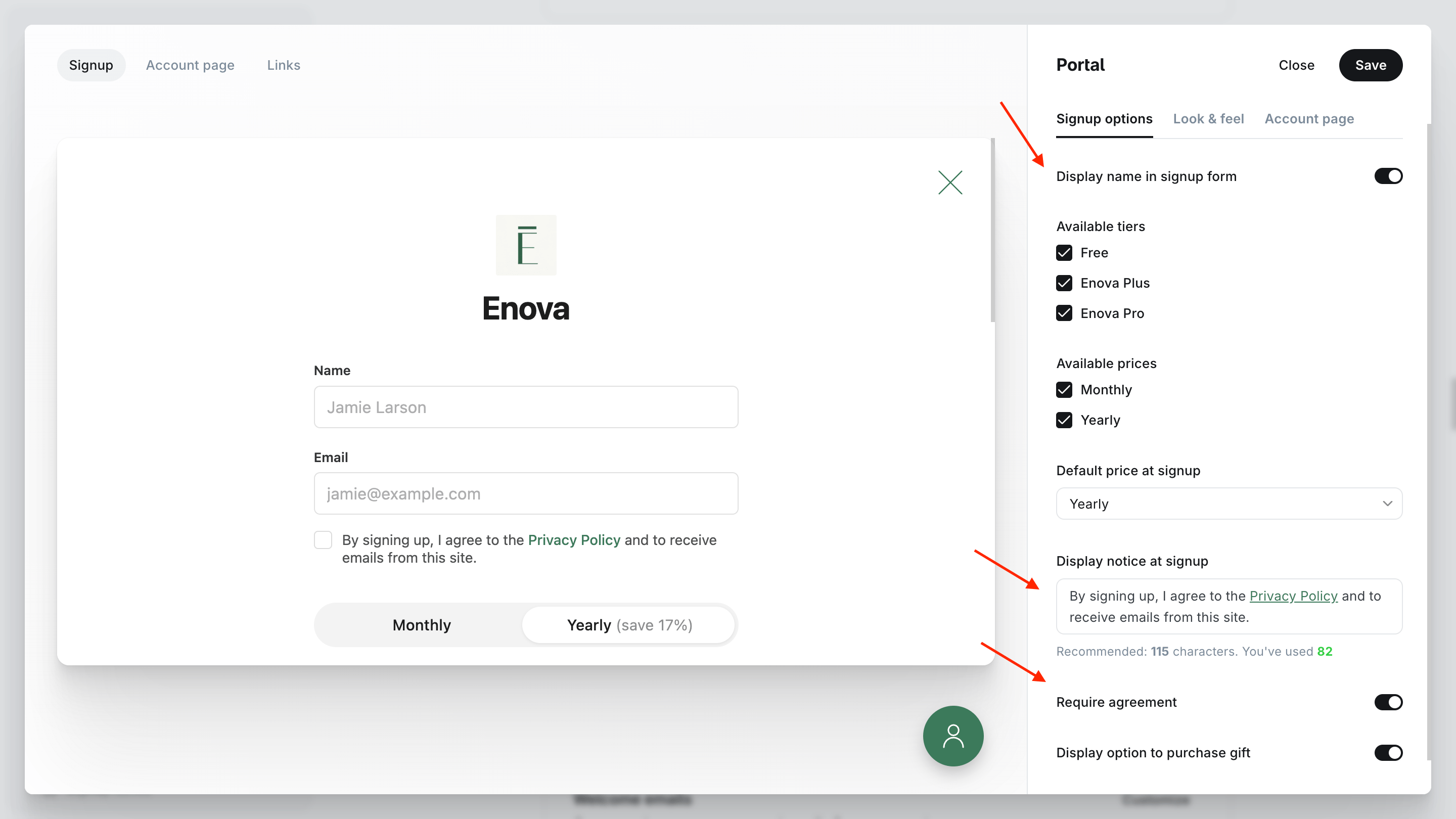
| Ghost setting | What Enova's signup forms do |
|---|---|
| Display name in signup form | A Name field appears before the email address, and readers must fill it in. |
| Display notice at signup | Your notice appears under the email address, links included. |
| Require agreement | The notice becomes a checkbox, and the form won't send until readers tick it. Ghost shows this switch once your notice has text. |
Here is the Email subscription hero with all three switched on, on a site with one newsletter:
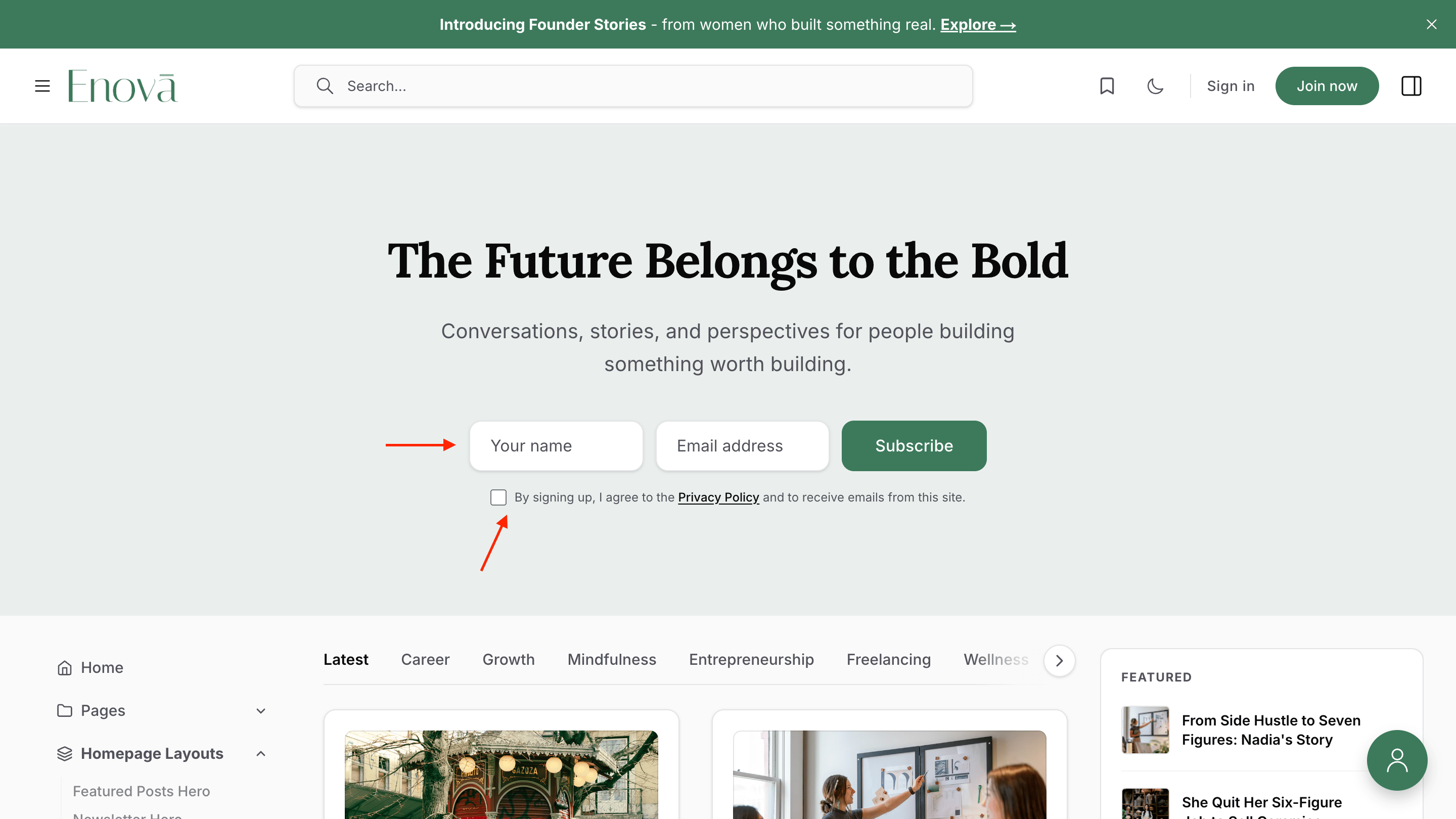
Asking for a name
Ghost switches Display name in signup form on for every new site, so after updating to 1.20.0 most sites see a Name field in every signup form. The name is saved on the member in Ghost, the same as a name typed into the popup, and the first word of it is what Ghost uses to greet readers by first name in your emails.
To keep email-only forms, switch the setting off. That also removes the name field from Ghost's own popup.
A notice and required agreement
Use the notice for anything readers should see before they join, such as a link to your privacy notice or your terms. With Require agreement on, no form sends until the box is ticked: not the popup, and not any of Enova's forms. A link in the notice opens in a new tab, so readers can read your policy without losing what they typed.
What Ghost keeps
Ghost doesn't save the tick itself. It creates the member only after they click the confirmation link in their inbox, and it keeps the date they joined. If you need a record of consent, write down the date you switched Require agreement on: from then on, everyone who joins through Enova's signup forms or Ghost's popup has to tick the box first.
That date doesn't cover every member, though. The paid plan buttons on your membership page and Join card open Stripe checkout directly, so readers who buy there never see the notice or the checkbox. Signup cards in your posts, members you import and members you add yourself skip it too.
Newsletters
You manage your newsletters in Settings → Newsletters:
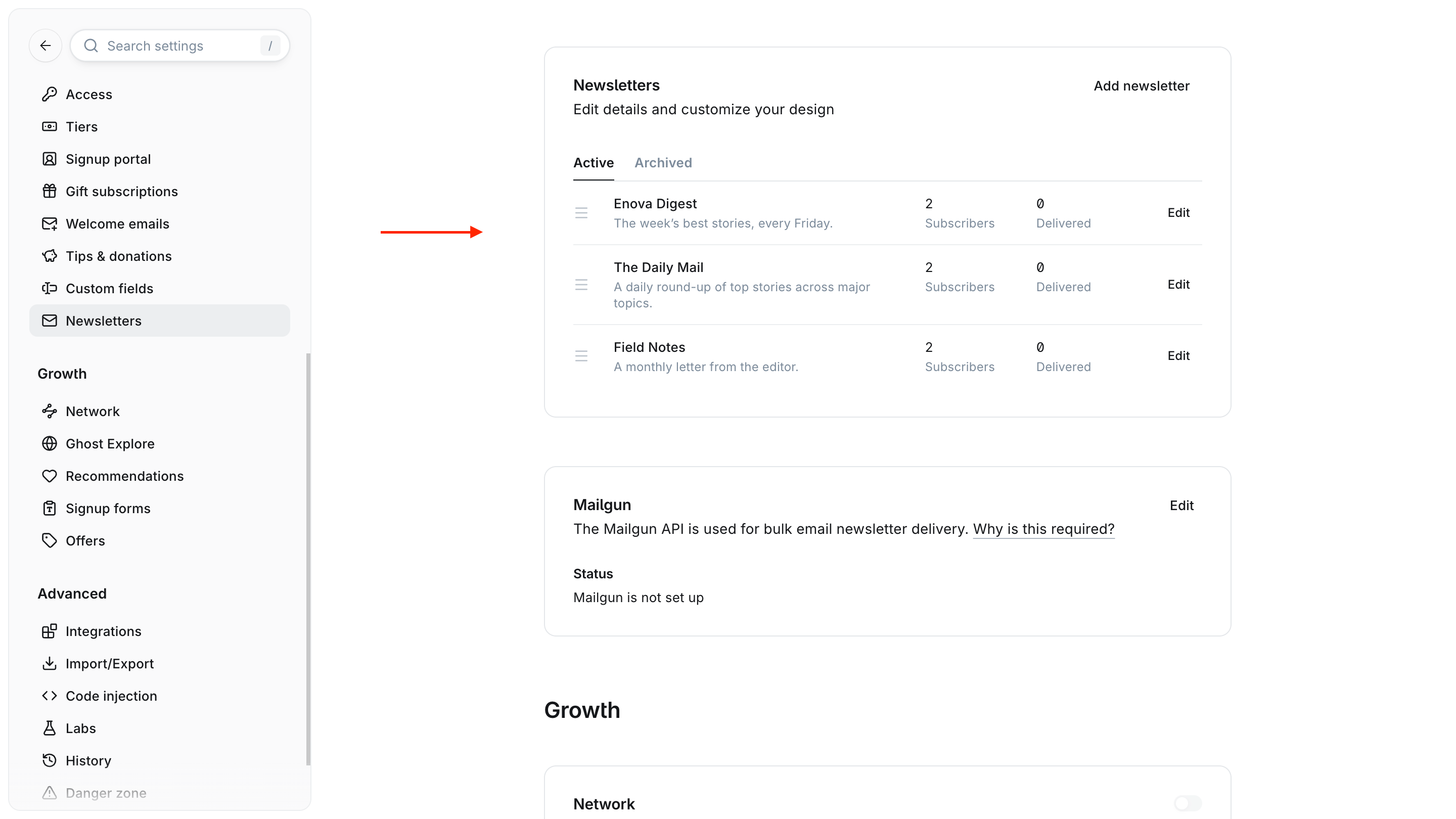
With two or more active newsletters, every signup form gets a small Newsletters panel under the email address. It starts closed, as one line naming the newsletters the reader will get, with Change beside it:
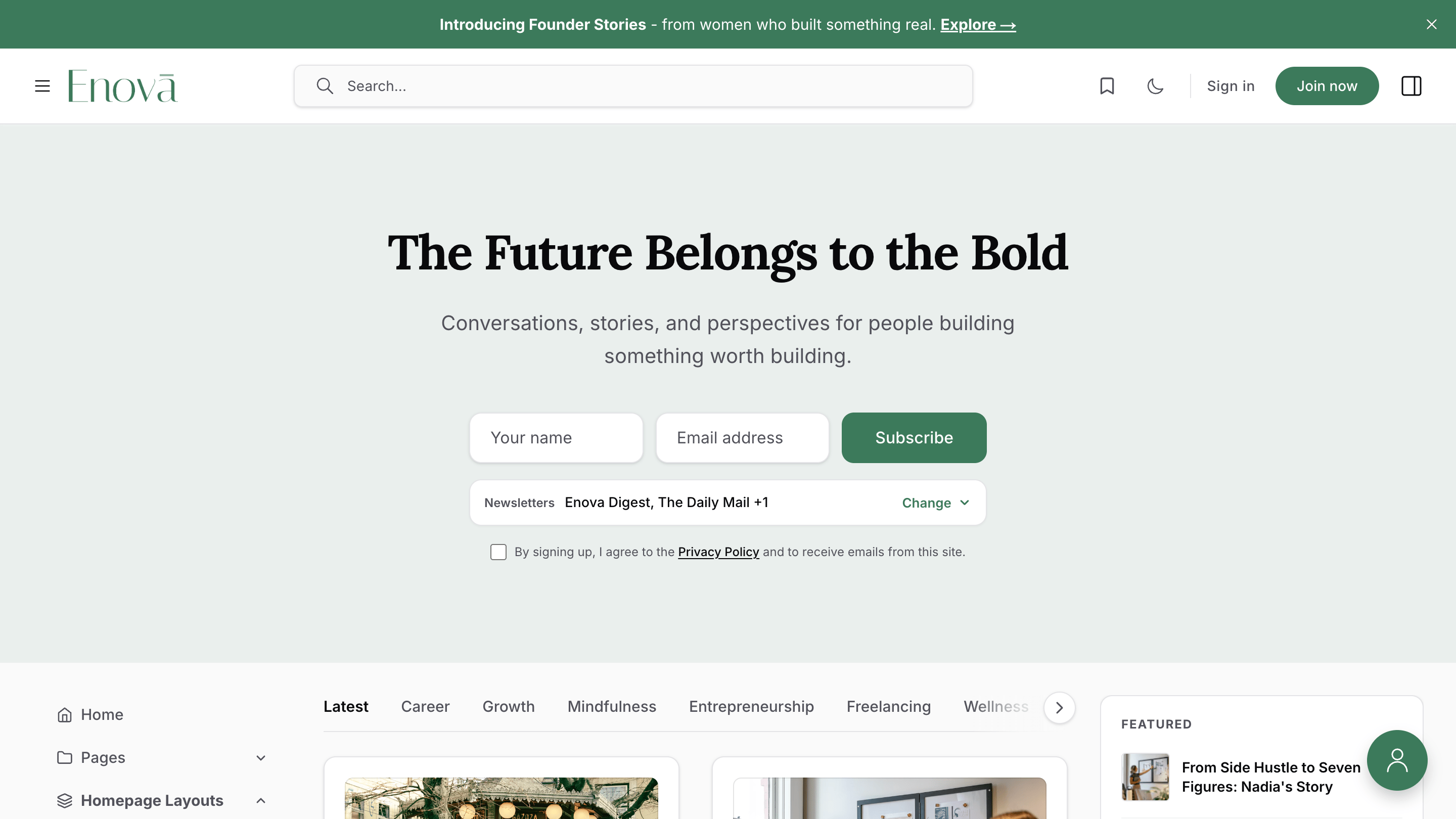
Change opens the panel:
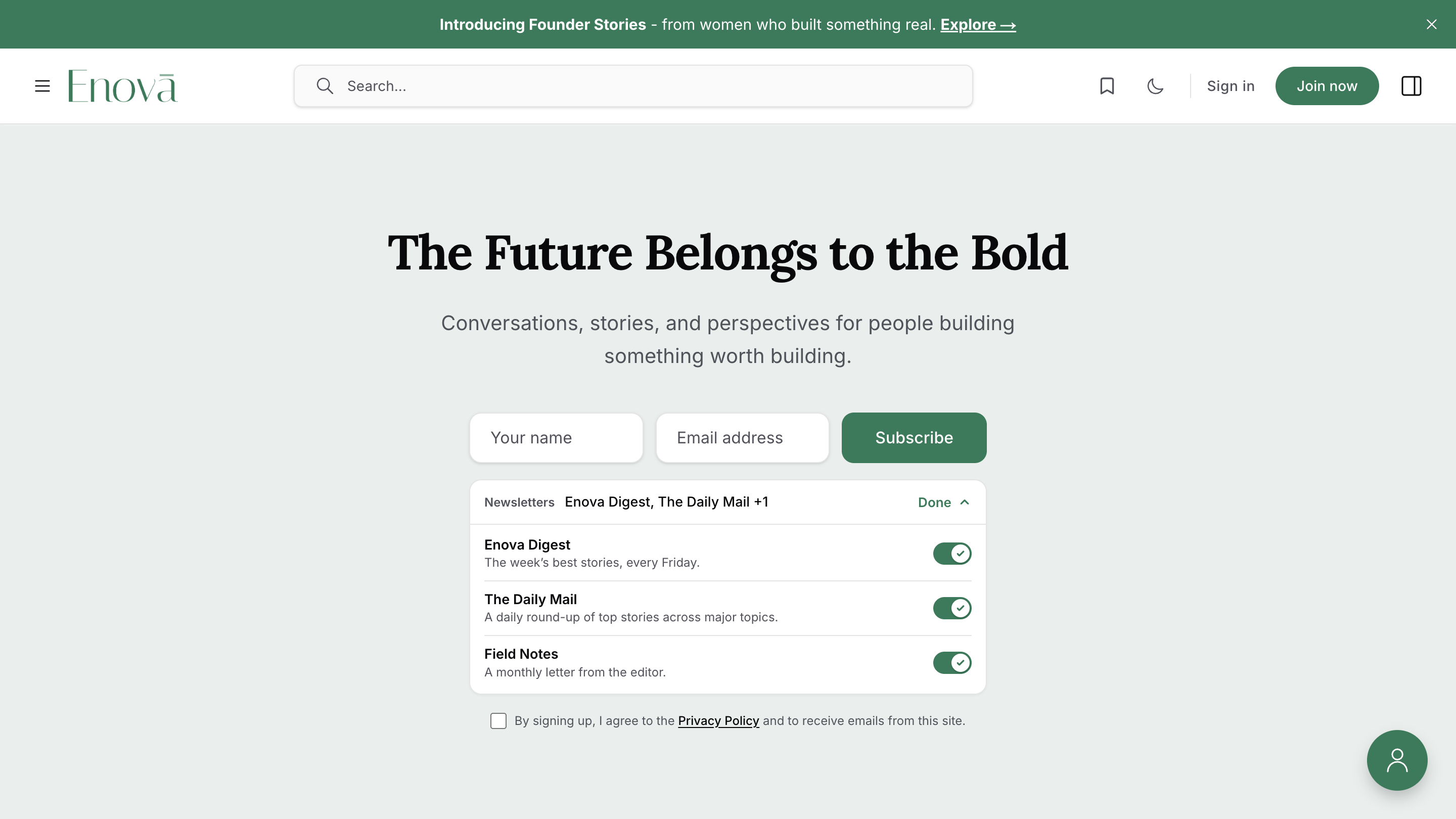
- Each row shows the newsletter's name, its description when it has one in Ghost, and a switch. Done closes the panel again, and the line follows what the reader switched. With three or more switched on, the line shortens, as in the pictures: Enova Digest, The Daily Mail +1.
- A newsletter starts switched on when its Subscribe new members on signup setting is on. A reader who never opens the panel gets exactly those, the same as before this choice existed. With every switch off, the line reads None and the reader joins without a newsletter.
- The rows follow the order you set in Ghost. Archived newsletters stay out, and with a single newsletter there is no panel at all.
Adding a newsletter for existing readers?
When you create a newsletter, Ghost's Opt-in existing subscribers switch is on by default and signs up everyone already on your list. Switch it off to let readers choose, then invite them to opt in by linking to /#/portal/account/newsletters on your site: readers land on their newsletter switches, and anyone not signed in gets a sign-in link that brings them straight back there. The signup forms can't add a newsletter for someone who is already a member.
Who can sign up
The forms also follow Settings → Membership → Access → Who should be able to subscribe to your site?, the same setting Ghost's own popup follows:
| Ghost setting | What Enova's signup forms show |
|---|---|
| Public | The signup forms on this page. This is Ghost's default. |
| Paid-members only | A Subscribe button that opens Ghost's signup popup on your paid plans, then Already a member? Sign in. Until you sell a paid plan (Stripe connected, with a monthly or yearly price offered), only the sign-in line. |
| Invite-only | Already a member? Sign in, since nobody new can sign up. |
| Nobody | No signup forms. The right sidebar's Newsletter widget and the footer's Subscribe column disappear as well. |
On the compact Join card, the Free plan only appears on Public sites: Ghost turns away free signups on the others, and its popup hides Free there too.
Every signup form
All of Enova's signup forms follow the settings above. Here is each one with a name field, a notice that requires agreement and two or more newsletters:
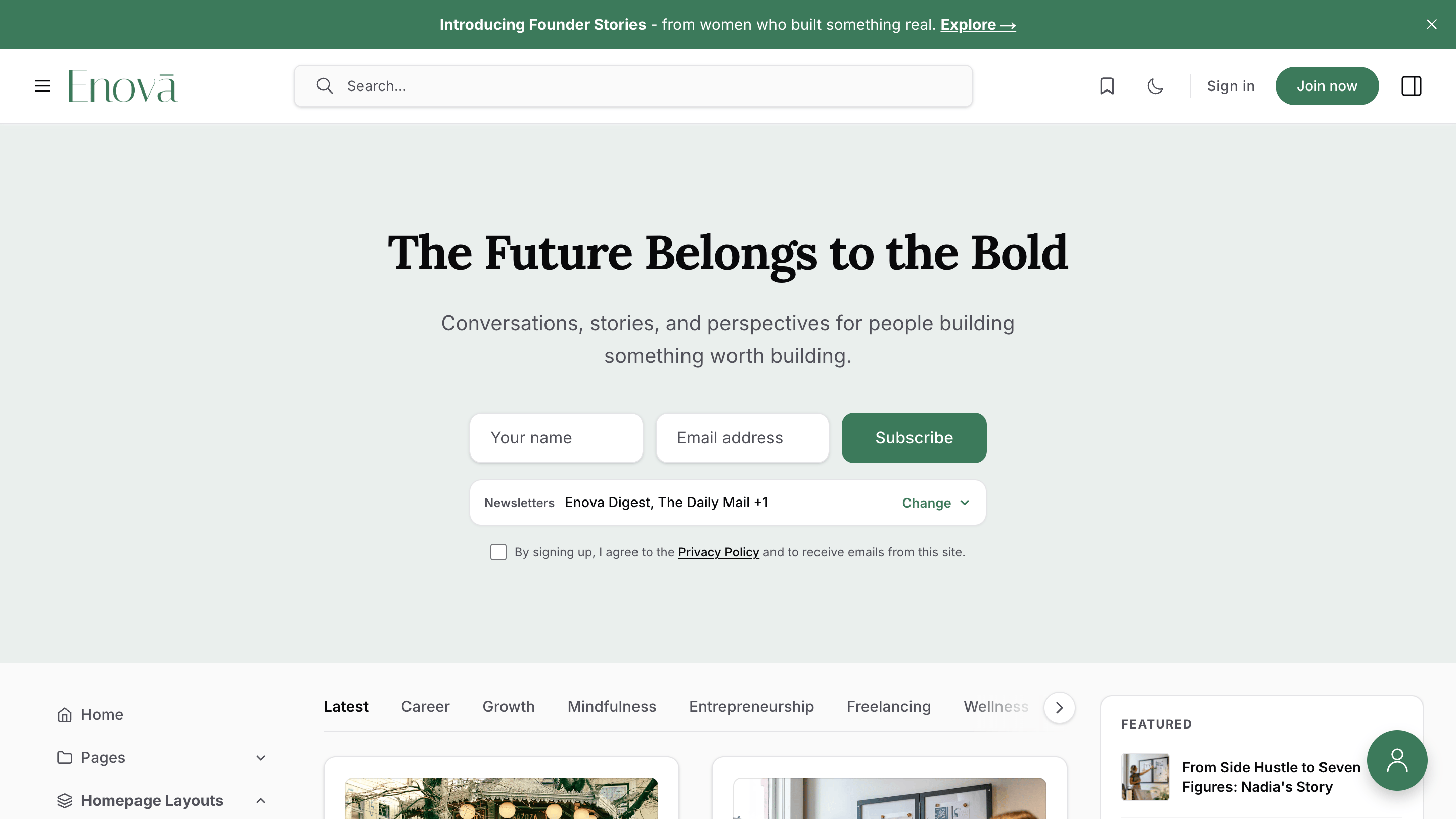
In Settings → Design & branding → Customize, open Homepage and set Hero layout to Email subscription or Email subscription (Immersive). Pictured is the immersive layout: it stretches across the full width above both sidebars, and your Publication cover, when you set one, becomes its background photo. The standard layout keeps the hero in the page column, between the sidebars. See Homepage.
Customise with Code injection
The notice and the newsletter panel each have a hook in every form, [data-part="terms"] and [data-part="newsletters"], and each newsletter's description has [data-part="description"]. An open panel matches [data-part="newsletters"] details[open]. On a paid-members only or invite-only site, what shows in place of a form is [data-part="signup-access"]. Restyle them from Settings → Code injection:
<style>
  [data-part="terms"] { font-size: 13px; }
  [data-part="newsletters"] { border-radius: 0; }
</style>
Two ready-made recipes, Always show the newsletter list and Hide newsletter descriptions, are in Common snippets. See the hook reference for every hook.
Post Newsletter CTA
Close every article with a designed newsletter signup band. One Ghost page supplies every word, and the band builds itself from what you write.
Membership Page
A dedicated membership page built from your native Ghost tiers — live prices, benefits, free trials, and one-click Portal checkout, with two layouts and no theme settings to wire up.