

Tags & Authors Archives
Two directory pages that list every topic you write about and everyone who writes for you, with a letter jump bar, instant search, sorting, and post counts.
Enova ships two directory pages you can add to your site whenever you like:
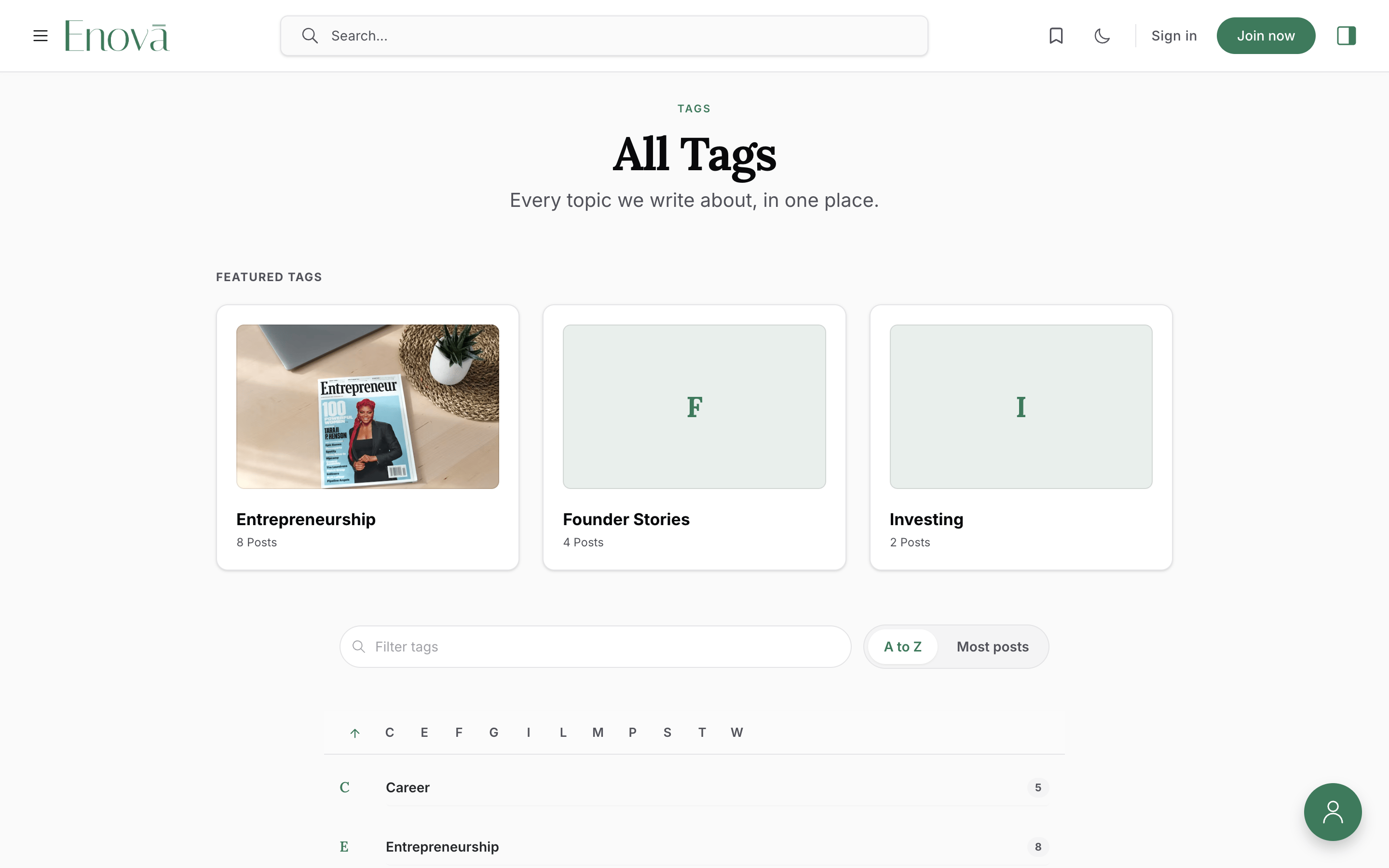
- Tags Archive, an A to Z index of every topic you write about, with a post count beside each one.
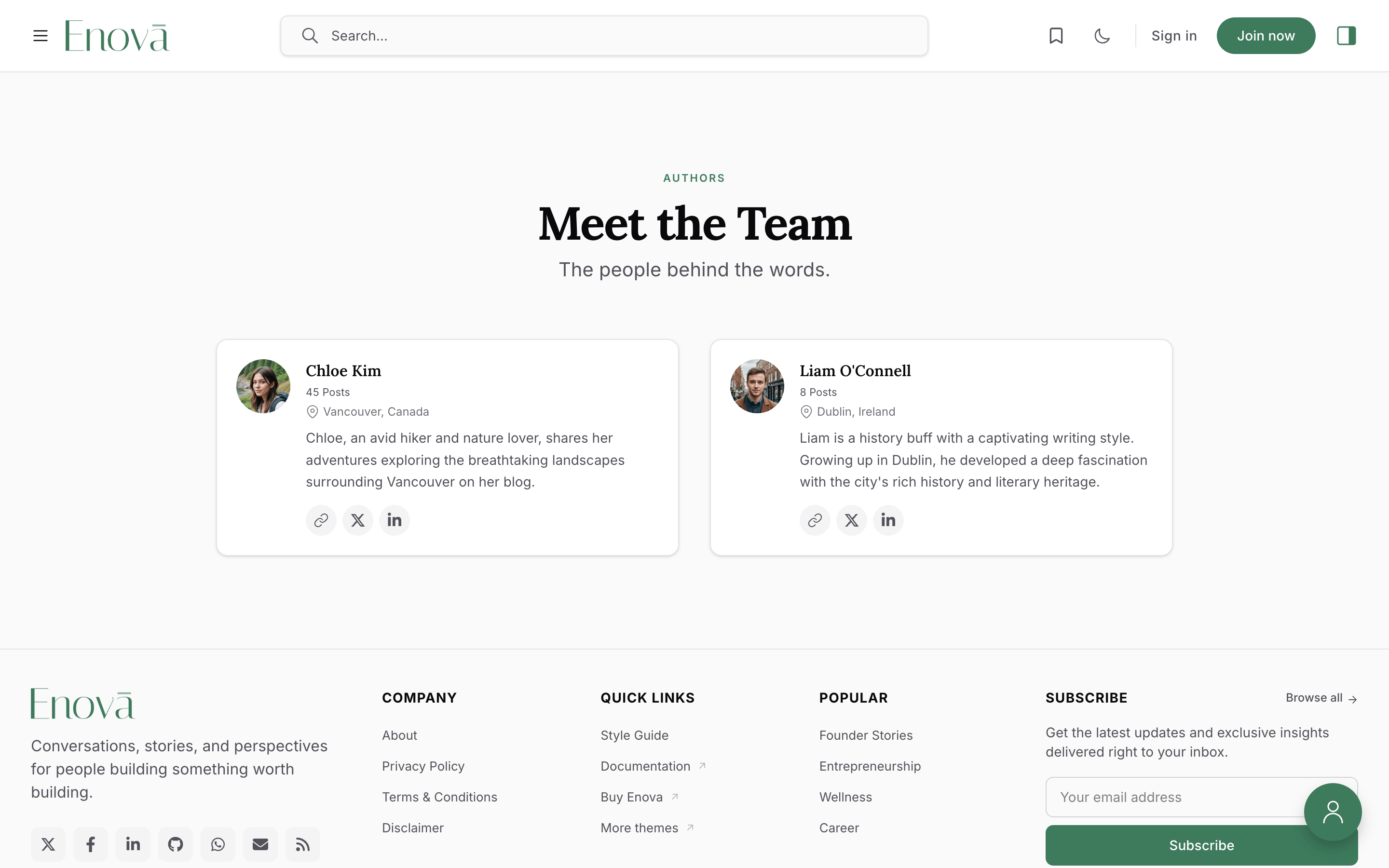
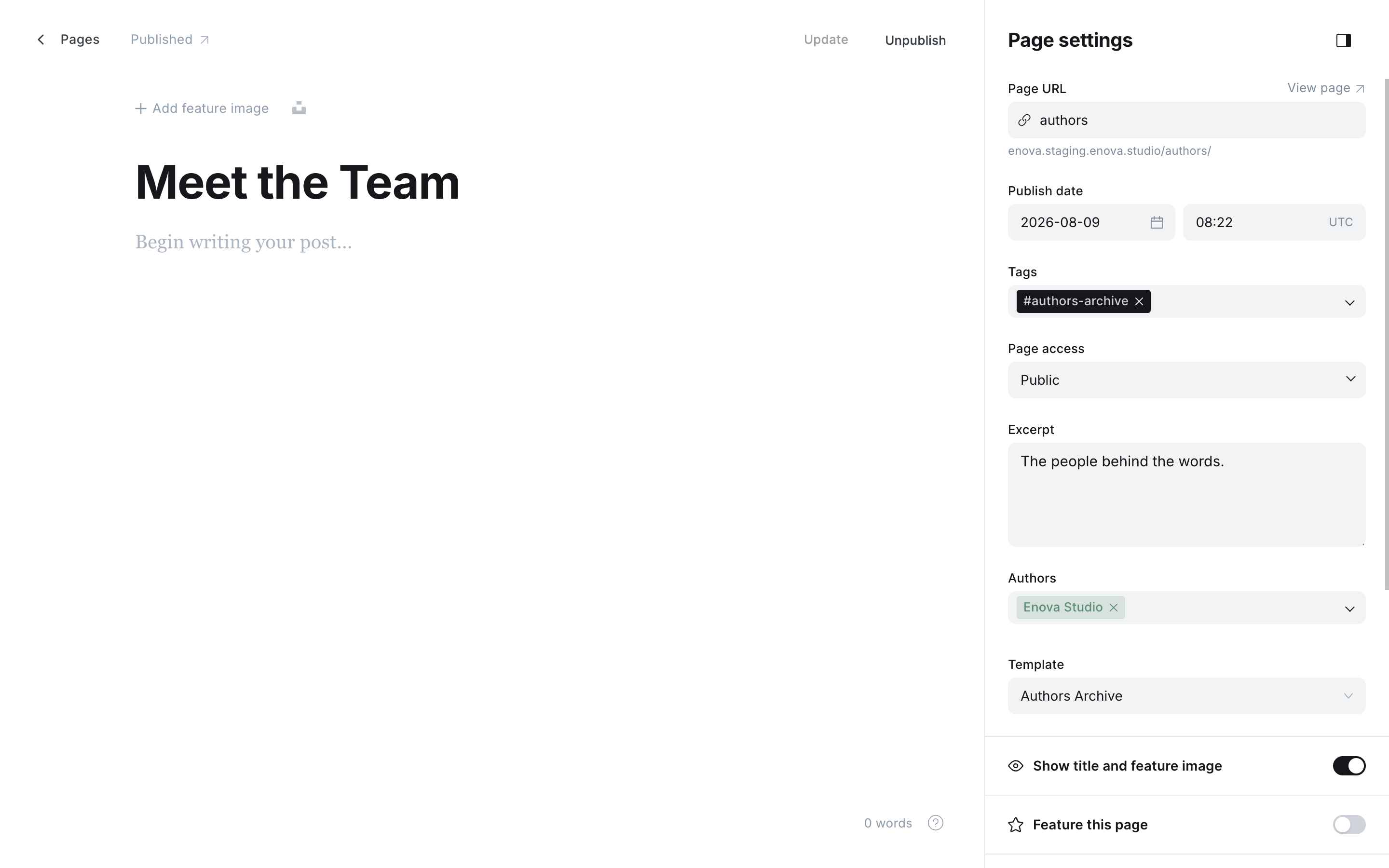
- Authors Archive, a directory of everyone who writes for you, with photos, bios, locations, and links.
Both are ordinary Ghost Pages. You pick the layout from the Template dropdown in the editor, which means the page can live at any address you want (/tags/, /topics/, /schlagworter/) and in any language.
The Tags Archive page
The Authors Archive page
Quick start
In Ghost Admin, go to Pages and create a new page. Give it a title such as All Tags or Browse topics. The title becomes the heading readers see.
Open the Settings panel (the gear icon, top right) and choose Tags Archive from the Template dropdown. For a contributors page, choose Authors Archive instead.
Do not see the dropdown? It only appears once the theme is uploaded and active. See Installation.
Optionally add an excerpt and a feature image in the same panel. The excerpt sits under the heading, and the feature image is washed softly behind it. Anything you write in the page body appears as an introduction above the directory.
Publish the page, then add it to your menu under Settings → Navigation so readers can find it.
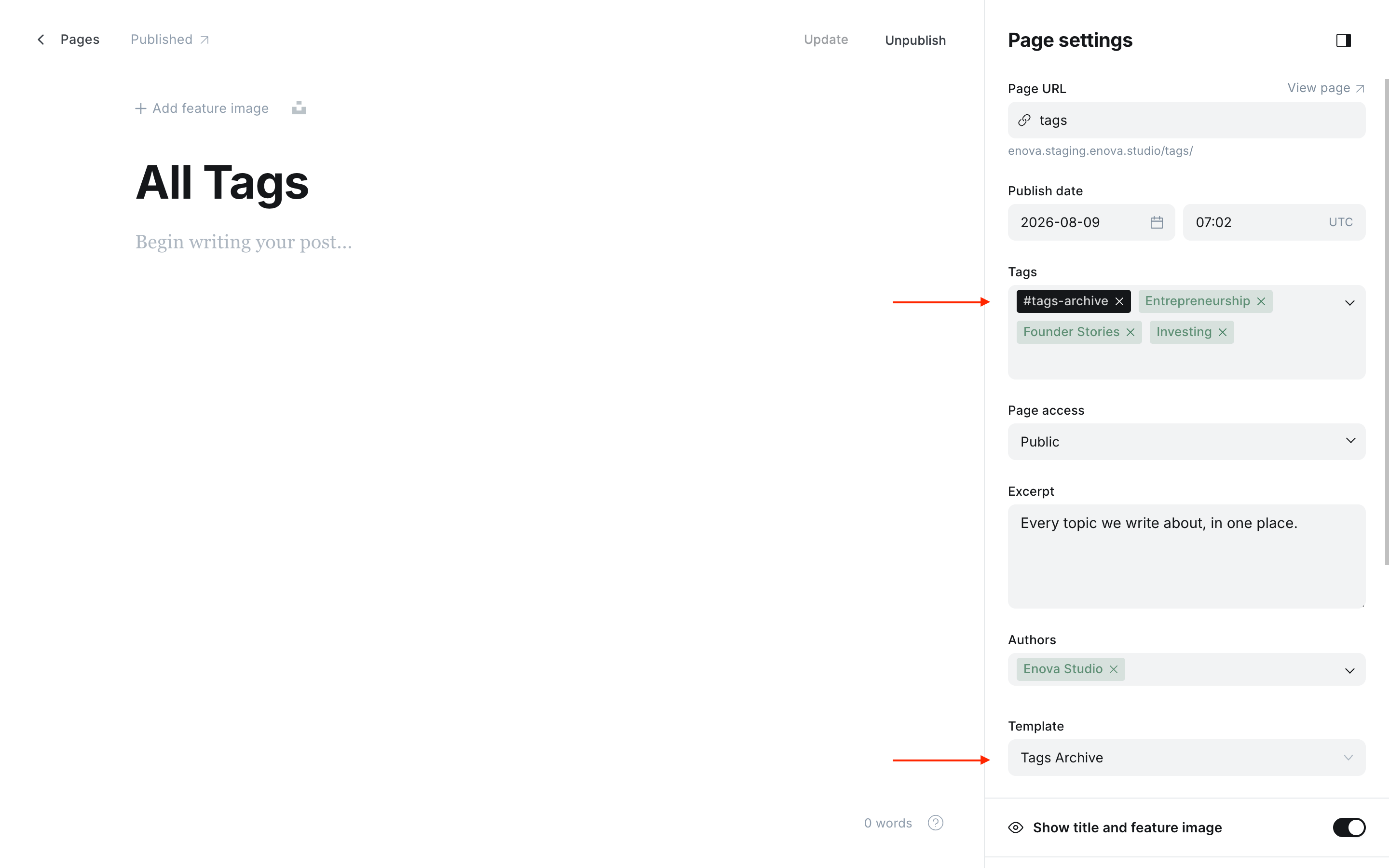
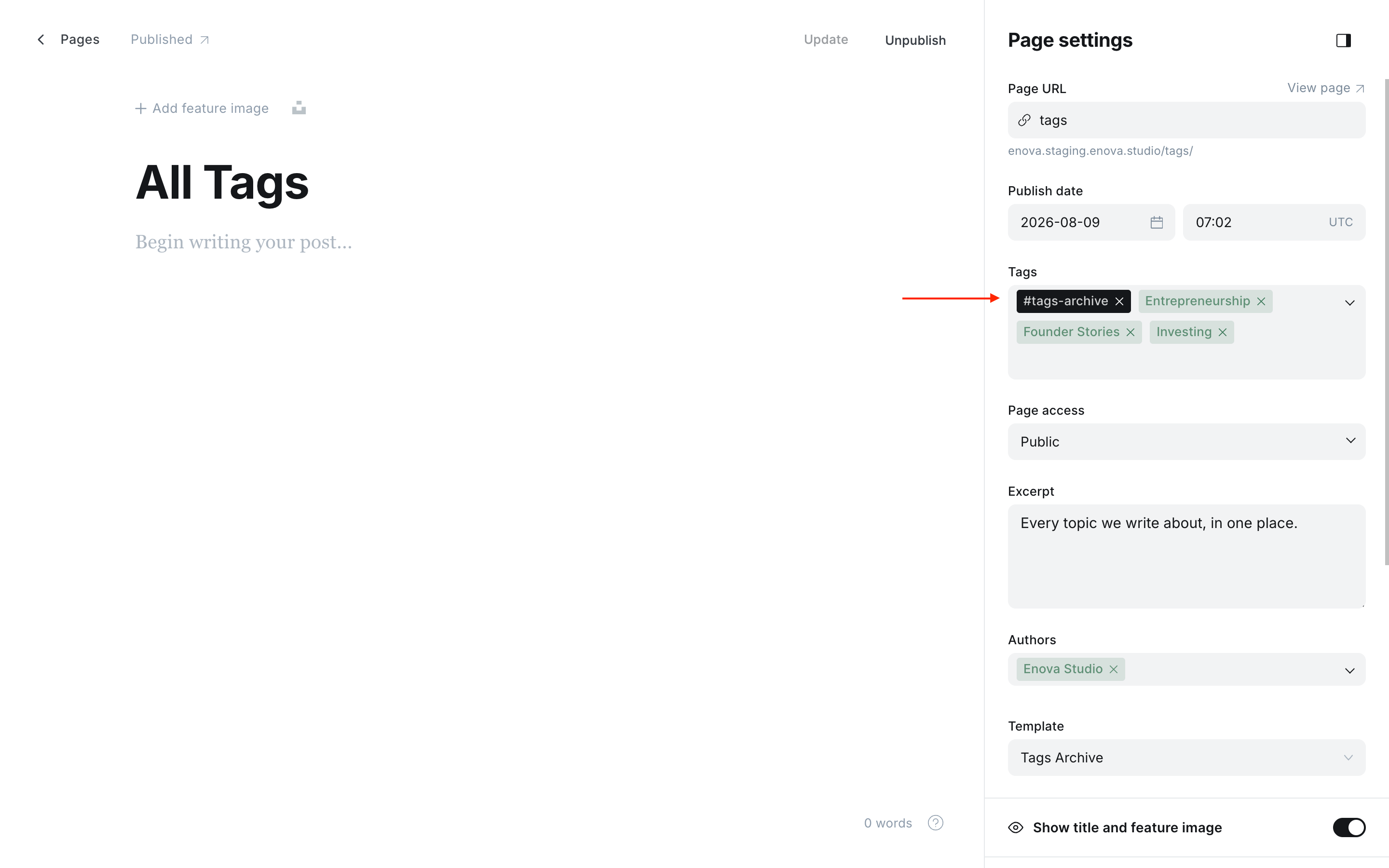
To have the theme link back to your new page from elsewhere on the site, add the internal tag #tags-archive (or #authors-archive for the contributors page). See Linking readers to your archives below.
Nothing to configure
Neither page has theme settings. Both fill themselves from your existing tags and authors, and both work the moment you publish them.
The Tags Archive
Creating the page in Ghost Admin
The Tags Archive page
Featured topics
A row of cards sits above the directory. By default it shows your six most-used tags, so a first-time reader has somewhere obvious to start.
Tags with a feature image show it. Tags without one get a tinted card carrying the tag's initial, so a mixed row still looks deliberate. If a tag has an accent colour set in Ghost, the theme uses it for that card's tint.
Choose your own featured topics
You are not stuck with the most-used six. Add tags to the archive page itself and the row shows exactly those, in exactly the order you arrange them.
Open your Tags Archive page in Ghost Admin and open the Settings panel.
In the Tags field, add the topics you want to feature. Drag them to set the order they appear in.
Update the page. The row heading changes from Popular Tags to Featured Tags, and your chosen topics appear in your order.
The row shows up to six. Remove all the tags from the page and it goes back to the most-used six automatically.
Tagging the page changes nothing else
Adding tags to the archive page does not add the page to those tag archives, and it does not change any post count. The page stays out of your tag pages entirely; the theme only reads the tags to decide what to feature.
To hide the row completely, add the internal tag #hide-tag-spotlight to the page. See Editorial conventions.
The letter jump bar
Once your directory is long enough to be worth skipping through, a letter bar appears and sticks below the site header as readers scroll.
- The letter you are currently reading stays highlighted.
- Tapping a letter jumps to that group.
- An arrow at the start of the bar returns to the top of the page.
- Letters with nothing under them dim and stop responding, which happens while a search narrows the list.
The bar appears when the page has at least 16 topics spread across at least five different starting letters. Below that it stays hidden, because a short list is faster to simply scroll.
It reads your alphabet, not the English one
The letters come from your own tag names, so a Greek, Cyrillic, Sinhala, or Arabic publication gets its own alphabet with no setup. Accents group with their base letter, so Élan files under E. Tags starting with a number or symbol collect under #. On sites written in Chinese, Japanese, or Korean, where nearly every tag would start its own group, the bar hides itself and search takes over.
Search and sorting
Above the directory sit a search box and a sort toggle.
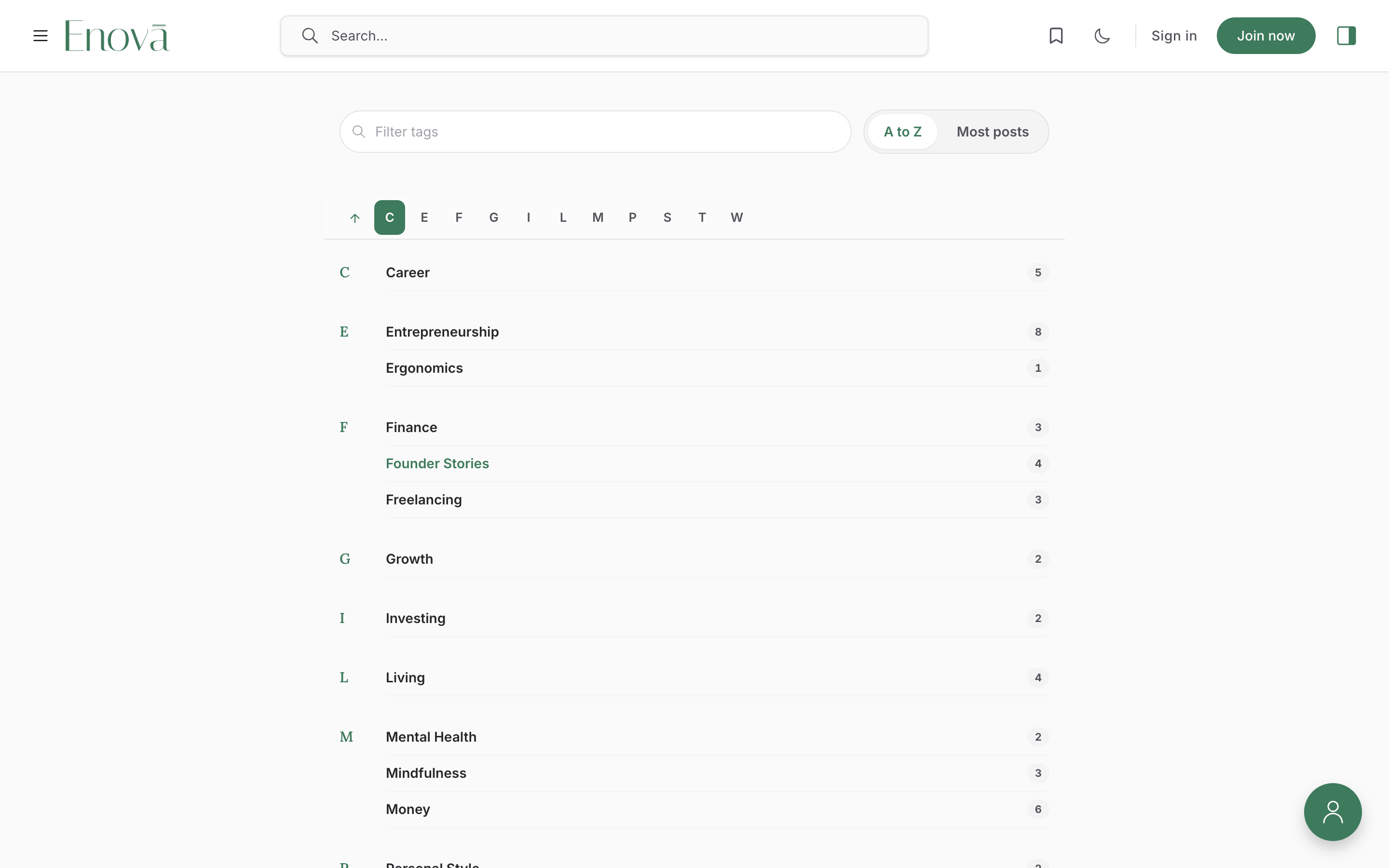
Results narrow as the reader types, with no page reload. Search ignores accents and capitals, so typing elan finds Élan and typing ozgur finds Özgür. It matches anywhere in the name, not just the beginning.
A count of matches is announced for screen-reader users, and a Clear filter button appears when nothing matches.
The default. Topics are grouped by first letter with the letter shown in the margin, and the jump bar is available.
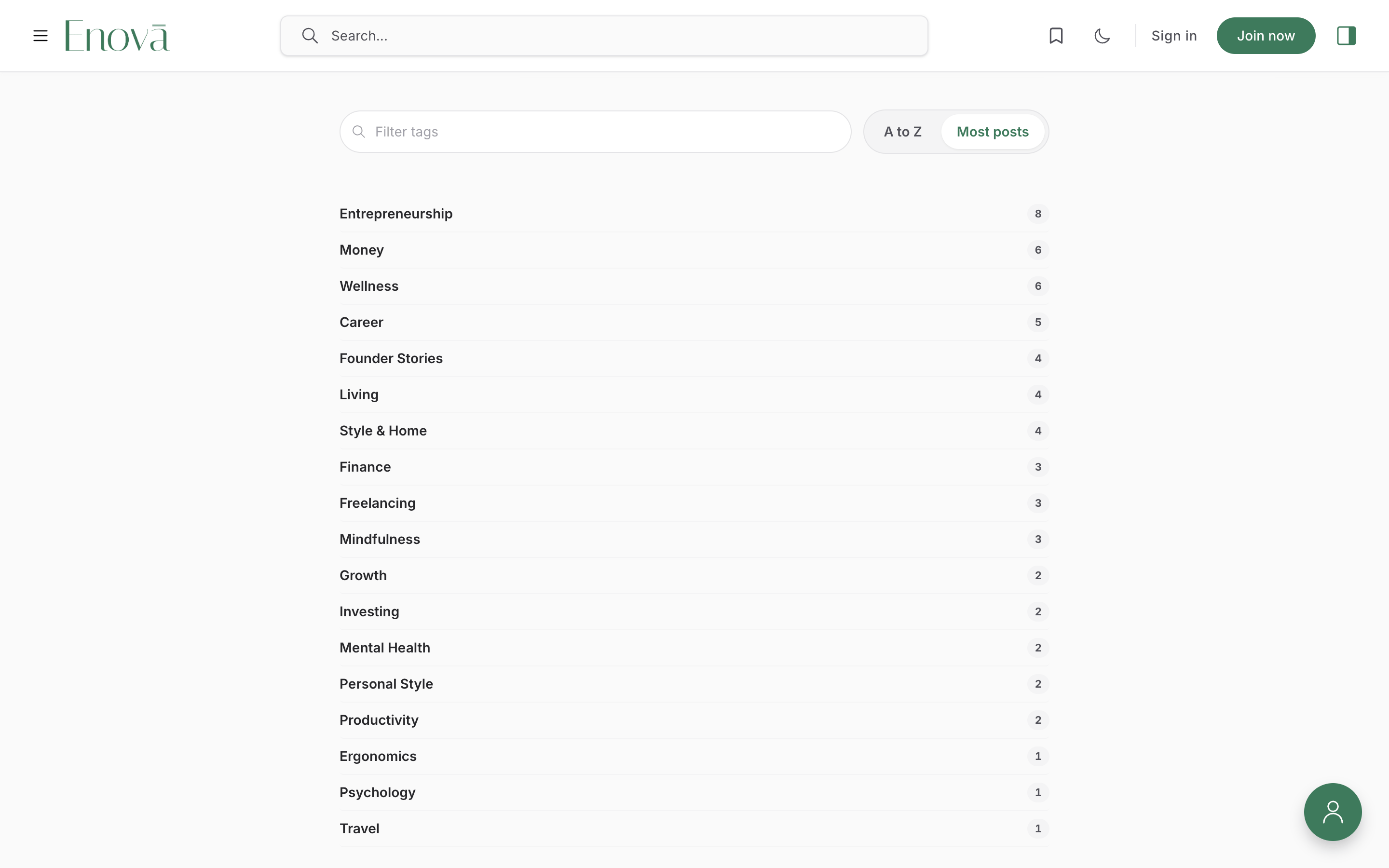
Topics are ranked by how much you have published under each, most first. Letter groups and the jump bar step aside, since they carry no meaning in this order.
The theme remembers a reader's sort choice for their next visit, and keeps it in step across open tabs.
The search box and sort toggle appear once a page has at least 12 topics (or 8 authors). On smaller sites they stay hidden, since the whole list already fits on screen.
What appears in the directory
- Every public tag with at least one published post, newest counts included.
- Internal tags (anything starting with
#) never appear. - The
newslettertag is left out, since the Newsletter Archive is its home. - Very large sites are capped at 400 topics, with a short note at the end of the list.
The Authors Archive
The Authors Archive introduces the people behind your publication.
Creating the page in Ghost Admin
The Authors Archive page
Each card shows the author's photo, name, post count, location, bio, and links to their website and social profiles. Everything comes from that person's Ghost staff profile under Settings → Staff, so there is nothing to fill in twice. Authors without a photo get a card carrying their initials (the first letters of their first and last names, so "Jane Doe" shows JD). Cards link to that author's own page.
Every social network Ghost supports on a staff profile gets an icon: X, Facebook, Instagram, LinkedIn, YouTube, TikTok, Threads, Bluesky, and Mastodon, plus the website link. Only the fields that person has filled in appear, so a writer with one link shows one icon and a card with none simply leaves the row out.
The same search box and sort toggle appear here once you have eight or more authors. There is no letter bar, because the cards sit in a grid where jumping to a letter would land somewhere unpredictable.
Who shows up
Only staff with at least one published post appear. That is how Ghost publishes author data, not a theme choice, so a newly invited writer joins the page automatically with their first published piece.
Linking readers to your archives
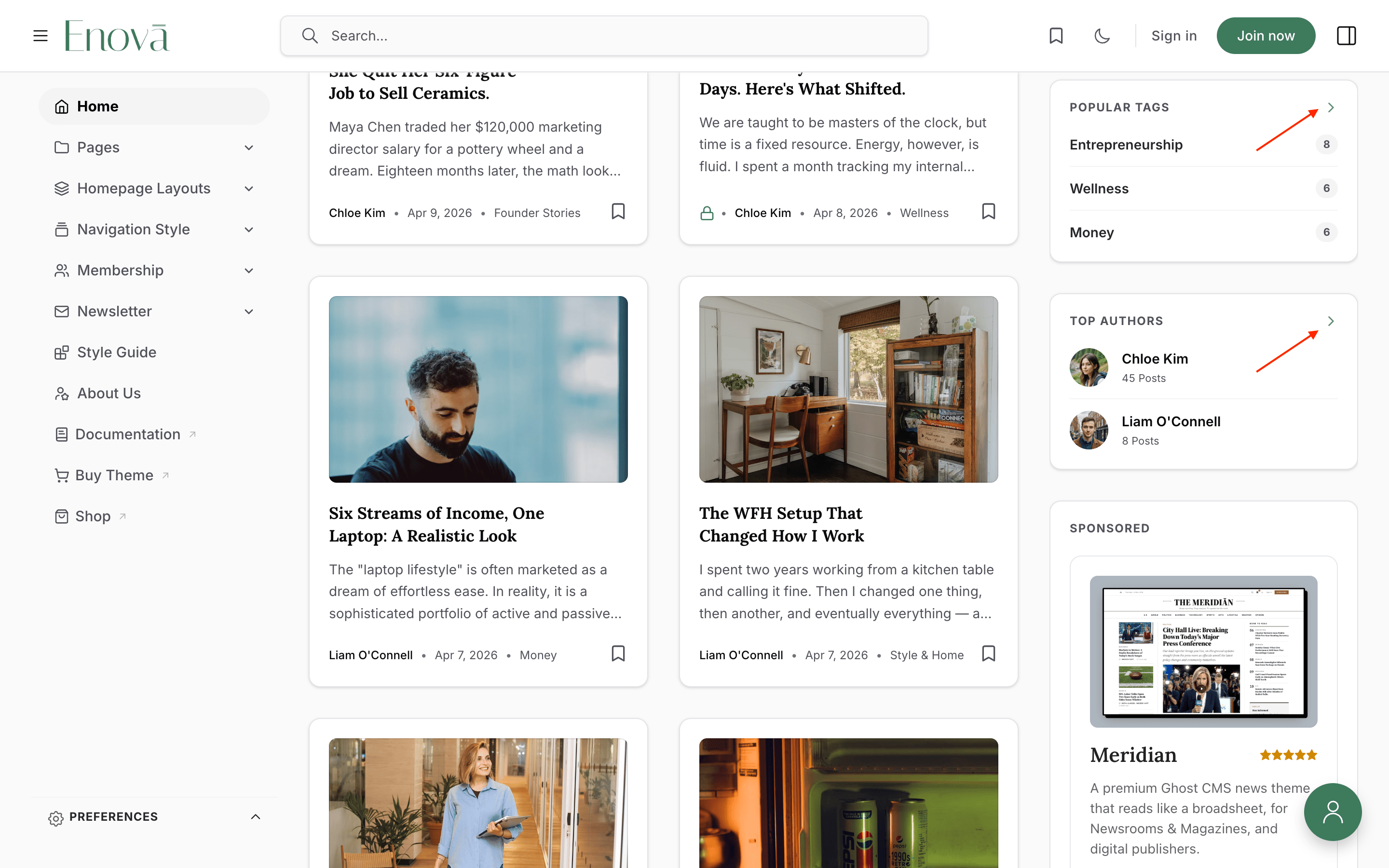
Author page cross-link
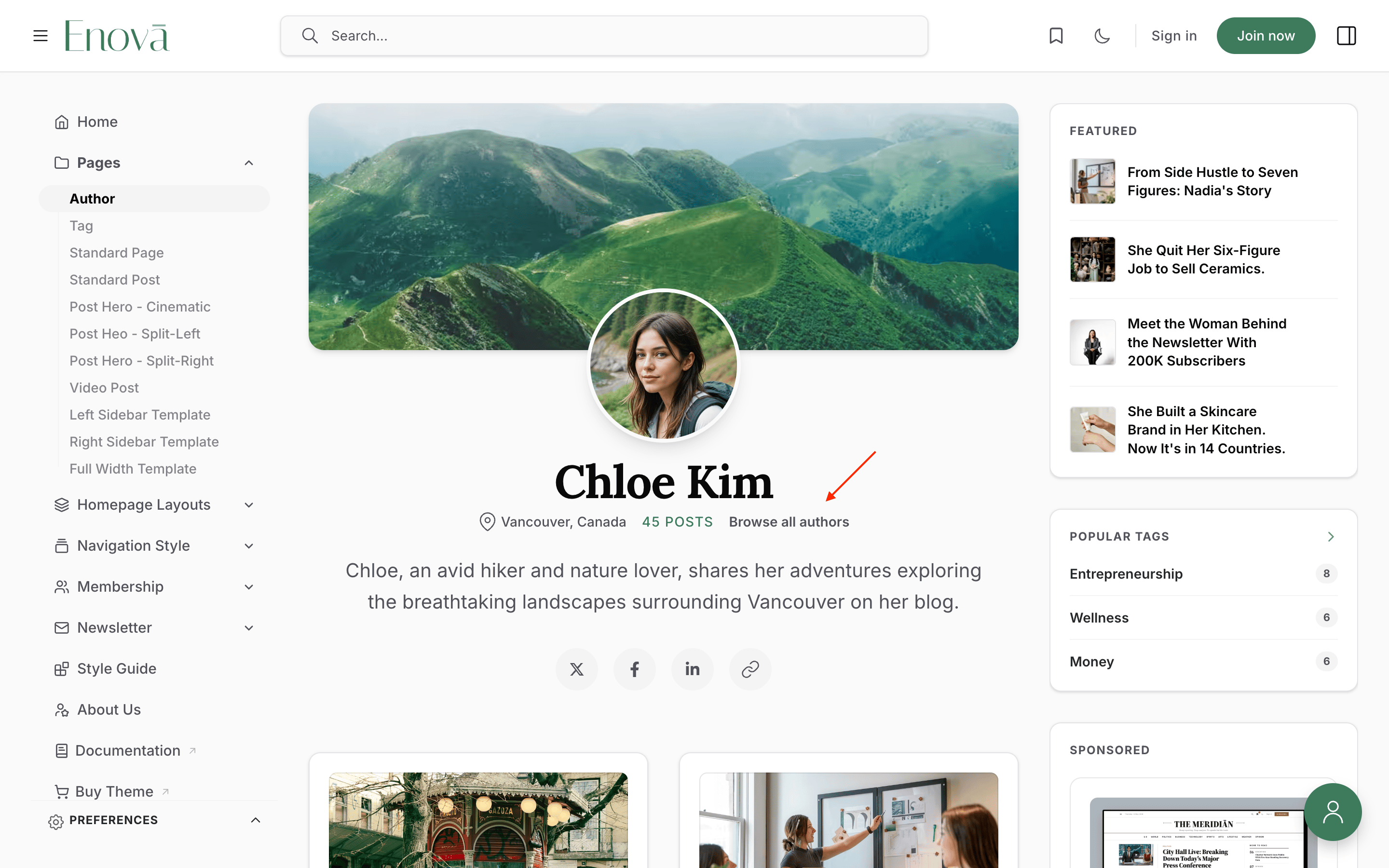
Tag page cross-link

Once an archive page exists, tell the theme about it and it will link to it from the places where readers most want it.
Open your Tags Archive page in Ghost Admin, open the Settings panel, and add the internal tag #tags-archive. For the contributors page, use #authors-archive.
Update the page. Two links switch on straight away.
Creating the page in Ghost Admin
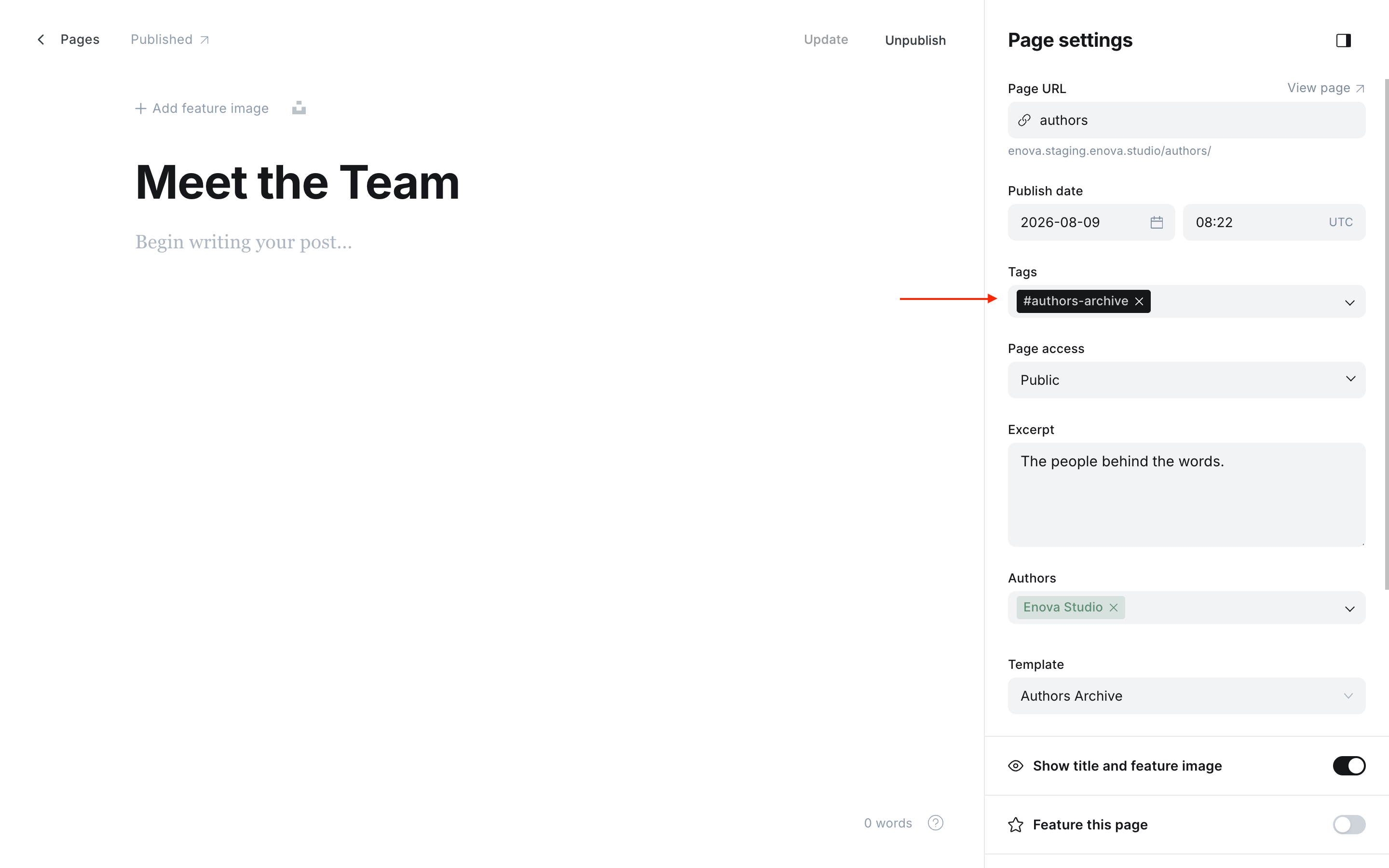
Creating the page in Ghost Admin
| Where | What appears |
|---|---|
| Any tag page | A Browse all tags link beside the post count |
| Any author page | A Browse all authors link beside the post count |
| The Popular Tags sidebar widget | A small arrow in the widget heading |
| The Top Authors sidebar widget | A small arrow in the widget heading |
Skip the internal tag and nothing changes anywhere on your site. The links only ever appear once the destination exists.
Under the hood
Both pages are built to perform and stay accessible with no tuning from you:
- Accessibility. Letter groups are announced as headings, the active letter is marked for screen readers, the jump bar is one stop on the keyboard with arrow keys moving between letters, jumping moves focus so keyboard readers land where they expect, and the whole feature respects the reduced-motion system setting.
- Performance. A typical site loads its entire directory in a single request. Images serve modern formats first and load as needed. Nothing on the page shifts as it finishes loading.
- Without JavaScript. Both pages fall back to a complete alphabetical list of working links. The search box, sort toggle, and letter bar simply stay hidden, so nothing looks broken.
- Translations. Every word on both pages runs through Ghost's language files. See Publication language.
Troubleshooting
Newsletter Archive
A premium archive at /newsletters/ with five layouts, a year jump-rail, progressive load-more, sticky month chips, and native RSS.
Post Newsletter CTA
Close every article with a designed newsletter signup band. One Ghost page supplies every word, and the band builds itself from what you write.