

Custom Sidebar Widgets
Put a map, a chart, a booking form, or a countdown in the right sidebar. Build it once from a Ghost page, or give a single post its own.
Enova's right sidebar ships with a fixed set of cards: featured posts, recent posts, newsletter signup, and so on. Custom widgets are the escape hatch. They let you put anything at all in that column (an interactive map, a chart, a booking widget, a countdown, an affiliate panel), styled to match the rest of the sidebar automatically.
There are two ways to add one, and you can use both together:
| Built from | Best for |
|---|---|
| A Ghost page | The same widget on many posts. Written in the editor, no code needed. |
| A post's Code injection | A widget unique to one post: a map of this hike, a chart for this article. |
A widget everyone sees
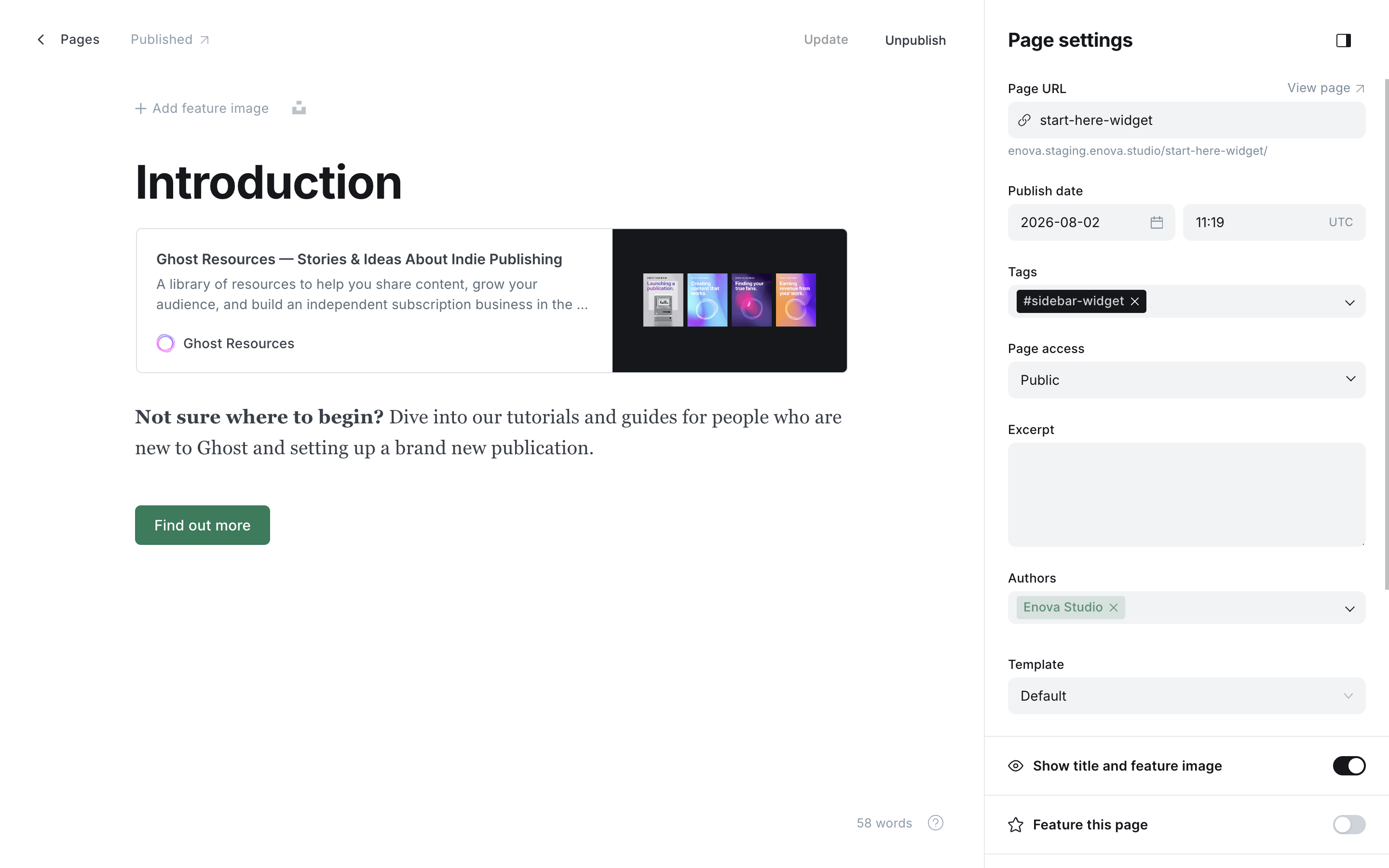
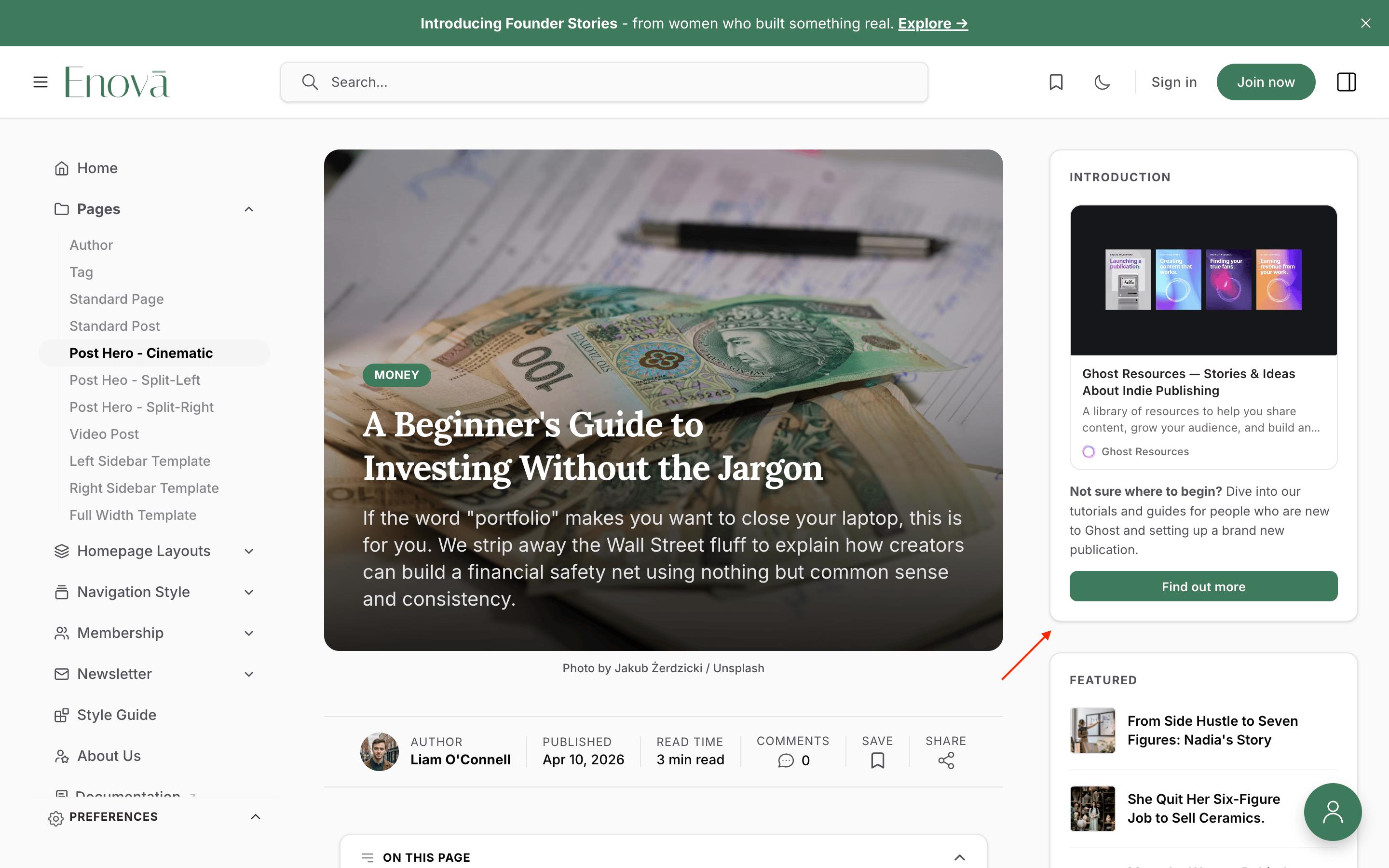
Any published page tagged #sidebar-widget becomes a card in the sidebar. The page title becomes the card's heading, and the page body becomes its content.
Create a page. In Ghost Admin, add a new page and give it any title you like. That title is the heading readers see on the card, so make it short: Our Shop, This Week, Support Us.
Tag it #sidebar-widget. Open Page settings and add the tag. The # keeps it internal, so it never shows up on your tag archives.
Write the body. Anything you can put in the Ghost editor works: text, images, buttons, embeds, and HTML cards. Keep it compact: the column is about 280 pixels wide.
Publish. The card appears in the sidebar of your posts and pages straight away.
Widget page in Ghost
Widget in the sidebar
Leave it out of your navigation
A widget page is still a normal Ghost page, reachable at its own URL. Give it a slug you don't mind being public, and don't add it to your navigation menu.
Choosing where it appears
By default a widget page shows on posts and pages. Add one more tag to change that:
| Tag on the widget page | Where the card appears |
|---|---|
| (no scope tag) | Posts and pages |
#widget-posts-only | Posts only |
#widget-pages-only | Pages only |
#widget-site-wide | Everywhere, including the homepage, tag pages, and author pages |
Each widget page carries its own scope, so a map can be posts-only while a shop promo runs site-wide.
Several widgets, and their order
You can have up to three widget pages showing at once. Any beyond three are ignored, so keep the set small and deliberate.
They stack in this order:
- Pages you have featured (the star in Page settings) come first. This is your pin-to-top.
- Everything else follows by publish date, oldest first.
Publishing a new widget adds it to the bottom without shuffling what's already there. To move one up or down, change its publish date. To pin one to the top, feature it.
Hiding widgets on one post
Tag a post or page #hide-sidebar-widgets and none of the page-driven widgets appear on it. Widgets that post defines for itself still do.
A widget for one post
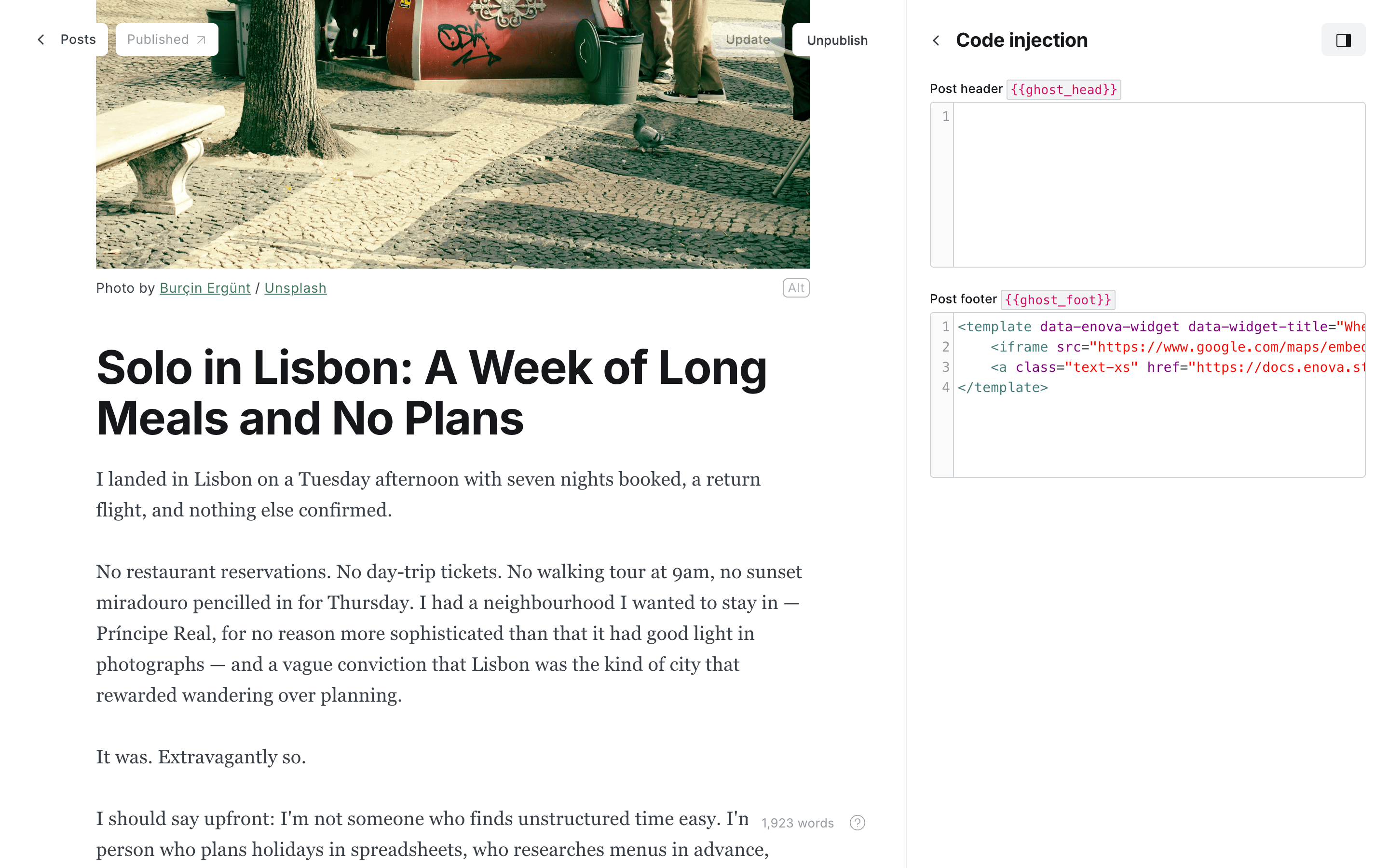
To give a single post its own widget, put a marker in that post's Code injection. This keeps the code out of your article body, so it's never sent out with your email newsletter.
Open the post, then Post settings → Code injection.
Paste your widget into the Post footer field, wrapped in the marker below.
Update the post. The card appears in the sidebar.
<template data-enova-widget data-widget-title="Where this happened">
  <!-- anything you like goes here -->
</template>
data-widget-title is the card's heading. Leave it out and the card has no heading, which suits a widget that's purely visual.
data-widget-height is optional and sets the card's placeholder height while the embed loads, so the sidebar doesn't move when it arrives. Use the embed's real height with a unit: data-widget-height="300px" for the map above. Plain lengths only (px, rem, em); anything else is ignored and the card falls back to a standard placeholder.
You can add more than one marker. Each becomes its own card, in the order you wrote them, below any page-driven widgets.
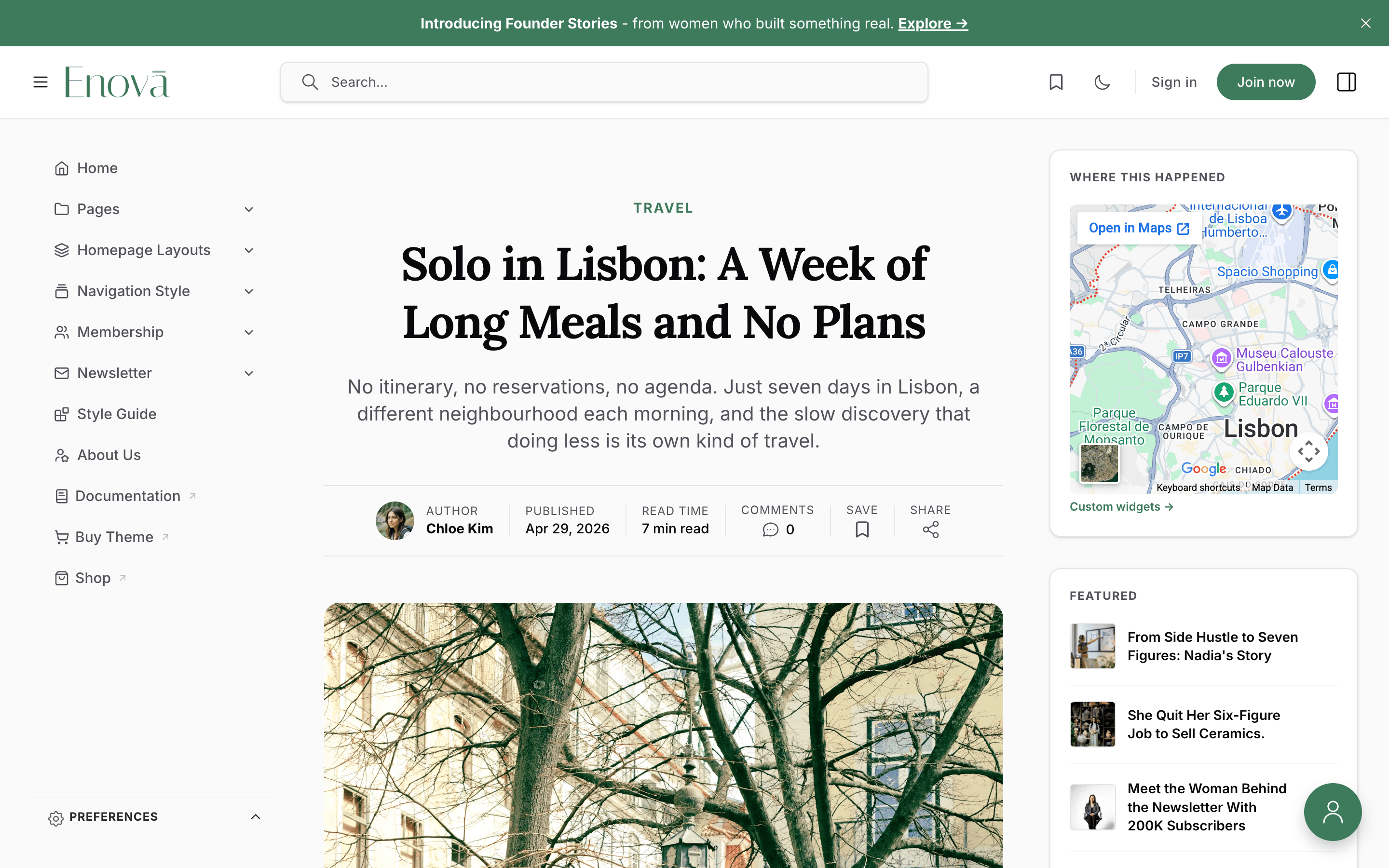
A worked example: a map of this post's location
In Google Maps, find the place, choose Share → Embed a map, and copy the HTML. Wrap it in the marker and paste the result into Post settings → Code injection → Post footer:
<template data-enova-widget data-widget-title="Where this happened">
    <iframe
    src="https://www.google.com/maps/embed?pb=!1m18!1m12!1m3!1d49789.69204448611!2d-9.20093522194235!3d38.744072219617834!2m3!1f0!2f0!3f0!3m2!1i1024!2i768!4f13.1!3m3!1m2!1s0xd19331a61e4f33b%3A0x400ebbde49036d0!2sLisbon%2C%20Portugal!5e0!3m2!1sen!2sau!4v1785664955945!5m2!1sen!2sau"
    width="400"
    height="300"
    style="border:0;"
    title="Map of Lisbon, Portugal"
    allowfullscreen=""
    loading="lazy"
    referrerpolicy="strict-origin-when-cross-origin"></iframe>
</template>
That's the entire widget. No account, no API key, and no JavaScript of your own.
Leave the width="400" exactly as Google gives it to you. Enova resizes embeds to fit the column, so the number doesn't matter. The height is yours to choose: 300 is a good starting point, and 200 keeps the card compact.
One line worth adding to whatever embed code you paste: a title on the <iframe> (like the "Map of Lisbon, Portugal" above). It's what a screen reader announces for the frame, and accessibility checkers flag embeds without one.
Marker in Code injection
Map in the sidebar
Paste embed code exactly as you were given it
The same wrapper works for any embed you're handed: a YouTube video, a Spotify player, an Airtable form, a booking calendar. Snippets that come with their own <script> tags, such as a Mapbox map or a charting library, work the same way. Write the snippet as you would for any web page: if it works pasted into an ordinary page, it works here.
When the widget loads
Custom widgets are built for heavy content, so they're loaded carefully:
- A per-post widget loads only when the reader scrolls near it. On phones and small laptops, where the sidebar is a panel the reader opens, it doesn't load at all until they open that panel. A map costs nothing to a reader who never looks at it.
- A page-driven widget is part of the page from the start, so its text is visible to search engines. If that widget is heavy (a map, a chart, a live feed), tag its page
#widget-lazyand it will wait for the reader too.
What `#widget-lazy` trades away
A lazy widget isn't in the page's initial HTML, so its content isn't indexed by search engines and doesn't appear for readers with JavaScript turned off (the card is hidden entirely rather than showing an empty box). Use it for embeds and interactive tools, not for text you want found.
Sizing and styling
The sidebar column is roughly 280 pixels wide inside the card padding, and narrower still inside the mobile panel. Enova handles the common problems for you:
- Embeds and
<iframe>elements are resized to fit the card, whatever width the snippet asks for. - Images, video, and canvas elements never overflow.
- Text, headings, lists, and links pick up the same type styles as the other sidebar cards.
Height is yours to set. An <iframe> keeps its height attribute, so leave Google's 300 or change it to taste. Anything that draws itself, like a map or chart, needs a height on the element it's given (style="height:260px" is a good starting point), because a container with no height is invisible.
To style a widget further, use the selector hooks in the hook reference: [data-component="sidebar-widget"][data-variant="custom"] for the card, and [data-part="body"] for its content.
Turning widgets off
| What you want | How |
|---|---|
| Remove one widget everywhere | Unpublish its page, or remove the #sidebar-widget tag |
| Hide page-driven widgets on one post | Tag that post #hide-sidebar-widgets |
| Remove a post's own widget | Delete the <template> from that post's Code injection |
Good to know
- Widget pages are ordinary pages. They keep their own URL and appear in your sitemap, the same as the
house-ad,sponsors, anddonatepages. Keep them out of your navigation. - The card heading comes from the page title, so a page called Untitled gets an odd-looking card. Per-post widgets have no heading at all unless you set
data-widget-title. - Nothing renders when there's nothing to show. An unpublished page, an empty body, or a post with no marker produces no card and no empty box.
- Widgets stack below the donate card and above the featured posts, so a post-specific widget sits high in the column where readers see it.
- Start headings inside a widget body at heading 3 or lower. The card's own heading is a level-3 heading, so a level-2 in the body puts the page's heading outline out of order, which accessibility checkers flag.
- Give heavy content its height up front — the
heightattribute on an iframe, or an inline height on a map's container. A widget that loads late and then grows pushes the cards below it down mid-read; a declared height means the space is simply there waiting. - If you need code elsewhere on the page to run once a widget appears, listen for the
enova:widget-mountedevent. It fires on the card and bubbles, with the card inevent.detail.card.
Troubleshooting
The card isn't appearing at all
Check that the page is published (not draft or scheduled), that its tag is exactly #sidebar-widget, and that the body isn't empty. Then check the scope: a page tagged #widget-pages-only will never show on a post. Empty or unpublished pages render nothing by design.
One of my widget pages is missing
Only three show at once. Unpublish one you no longer need, or feature the page you want to promote so it sorts to the top of the three.
My per-post widget isn't showing
It must live in Post settings → Code injection, not in the article body, and be wrapped in <template data-enova-widget>…</template>. Also check the right sidebar is switched on for posts in Design → Site wide.
My embed is the wrong height, or has no height at all
Height is yours to set; only width is handled for you. An <iframe> takes its height from the height attribute, and anything that draws itself needs a height on the element it's given. With no height it collapses to nothing.
I see an empty box where the embed should be
The frame is there but the content never arrived. Open your browser's developer console on that post and read the errors. For an <iframe>, the usual cause is that the other site refuses to be embedded. You'll see a message mentioning X-Frame-Options or frame-ancestors, and the only fix is to use that service's official embed code. For a widget with its own scripts, look instead for a rejected API key, or a data file that's missing or blocked. Files you uploaded to Ghost live under /content/files/.
My script runs before the library it needs
Scripts inside a widget run top to bottom, and a <script src="…"> finishes loading before the next line runs, so the usual order works. If you load a library yourself with document.createElement('script'), use that script's onload to start your setup.
Publication Language
Enova ships 62 languages with full RTL support. Set your publication language in Ghost Admin and the theme translates itself.
Code injection
Restyle any part of Enova with a few lines of CSS in Ghost's Code injection. Learn the stable data-* hooks, what's safe to target, and how to scope rules.