

Site wide
Enova's site-wide settings — color scheme, dark-mode logo, navigation style, sidebar visibility, feed layouts, local bookmarks, and widget toggles.
This section details how to customize the site-wide settings of your publication through the Ghost Admin Site wide tab. Here, you choose how your site looks everywhere — the color scheme, the post feed layout, the sidebars, and a few global features.
Appearance
Control the fundamental visual identity of your website across all devices.
Navigate to the Design & branding settings in Ghost Admin and click Customize.
Expand the Site wide tab on the left-hand column.
Color Scheme
Enforce a specific theme color scheme or give your visitors the freedom to choose.
Important
Selecting Light or Dark enforces the chosen mode globally, overriding the visitor's system preferences. This also removes the theme toggle from the interface, preventing visitors from manually switching between color schemes.
Where the toggle sits on phones
On System, the header's moon / sun button appears from 640px up. On narrower screens it moves into the menu, under Preferences, alongside reading size and the bookmark toggle, so your site name keeps the space it needs in the header. Visitors can still switch modes on a phone, in two taps rather than one. To put the button back in the phone header, see Bring the dark mode button back to the phone header.
Dark Mode Logo
If your primary logo has dark text or graphics, it might be difficult to see when Dark Mode is active. You can upload an alternative logo strictly for dark mode use.
Layout & Organization
Decide how your content is structured and presented in the main feeds.
Post Feed Layout
Determine the look of your main content lists (like on the Homepage, Authors and Tag pages).
Grid (Default)
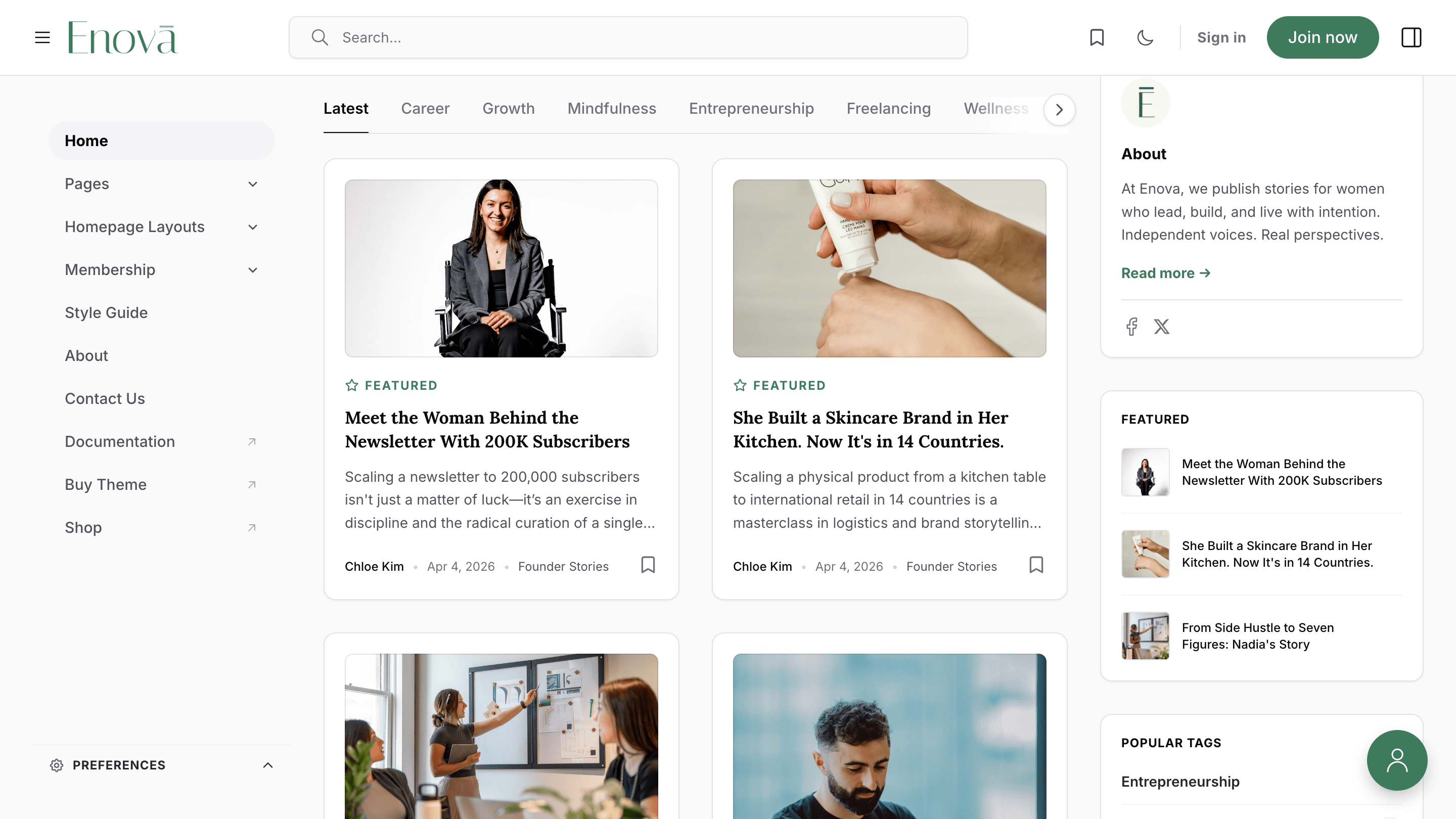
Displays multiple posts side-by-side in a responsive, visually appealing grid format.
List
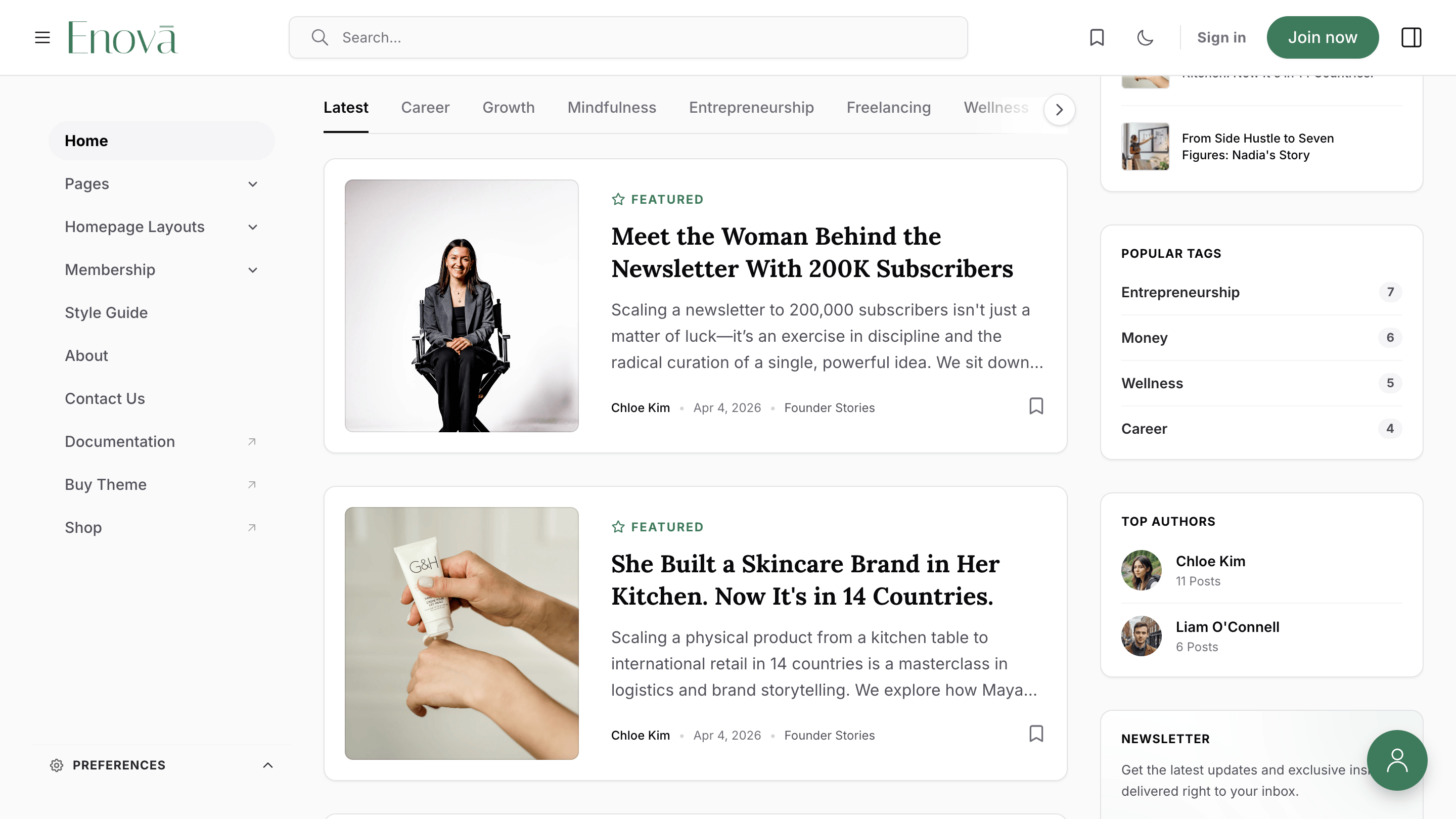
Shows posts sequentially in a clean, vertical list layout.
Newsletter Archive Layout
Choose how issues are presented on your Newsletter Archive page at /newsletters/.
Newsletter Archive setup
Switching layouts never changes content. See the Newsletter Archive guide for the full feature, including the year jump-rail, sticky month chips, and native RSS.
Sidebar Visibility
The Enova theme features two powerful sidebars (Left and Right). You can choose exactly where you want these bars to appear to maximize your reading space and focus.
Important
Any of the above options will not disable the sidebar completely, making it inaccessible. It will only hide the sidebar by default. The user can toggle the respective sidebar on or off by clicking the sidebar toggle button in the header.
In Top bar mode (see Navigation Style), the desktop left sidebar is fully replaced by a horizontal top navigation, and this setting governs which page types still show the mobile hamburger drawer.
Global Features
Local Bookmarks
Enova allows your visitors to "Save" or bookmark their favorite posts directly in their browser for later reading. This feature does not require a user account!
The bookmark toggle appears on regular post cards across the site and on every card in the Newsletter Archive. Saved items from both sources show up together in the bookmarks menu in the header.
What turning it off does
Disabling this toggle hides the bookmark buttons and the saved-items menu — visitors can no longer save posts or open their list. It does not erase anything: saved bookmarks stay in each visitor's browser and reappear if you turn the setting back on.
Widgets & Sidebar Modules
You can toggle individual widgets on or off to clean up your sidebars.
Subscribe text
Customize the short pitch text that appears on all newsletter modules across your site.
Sidebar widget

Footer widget

Brand
Set your accent color, logo, icon, cover, and fonts in Ghost's Brand settings — and see exactly where Enova uses each one across your site.
Homepage
Configure Enova's homepage: pick one of seven hero layouts (featured, email, CTA, bio, and full-width Immersive versions of the last three) and add tag-based tabs to the main post feed.