

Homepage
Configure Enova's homepage: pick one of seven hero layouts (featured, email, CTA, bio, and full-width Immersive versions of the last three) and add tag-based tabs to the main post feed.
The Enova theme offers a highly flexible homepage with several built-in layout modes. This guide explains how to toggle these configurations and precisely control the main entrance to your Ghost publication.
The Hero Section
The Hero is the topmost portion of your homepage. Its layout determines the first impression your visitors receive.
Navigate to the Design & branding settings in Ghost Admin and click Customize.
Expand the Homepage tab on the left-hand column.
Identify the Hero Layout dropdown to choose your primary layout mode.
Hero Layout Options
The selection you make in the Hero Layout dropdown determines which subsequent fields (like headlines or buttons) will become visible in your settings panel.
Featured Posts (Default)
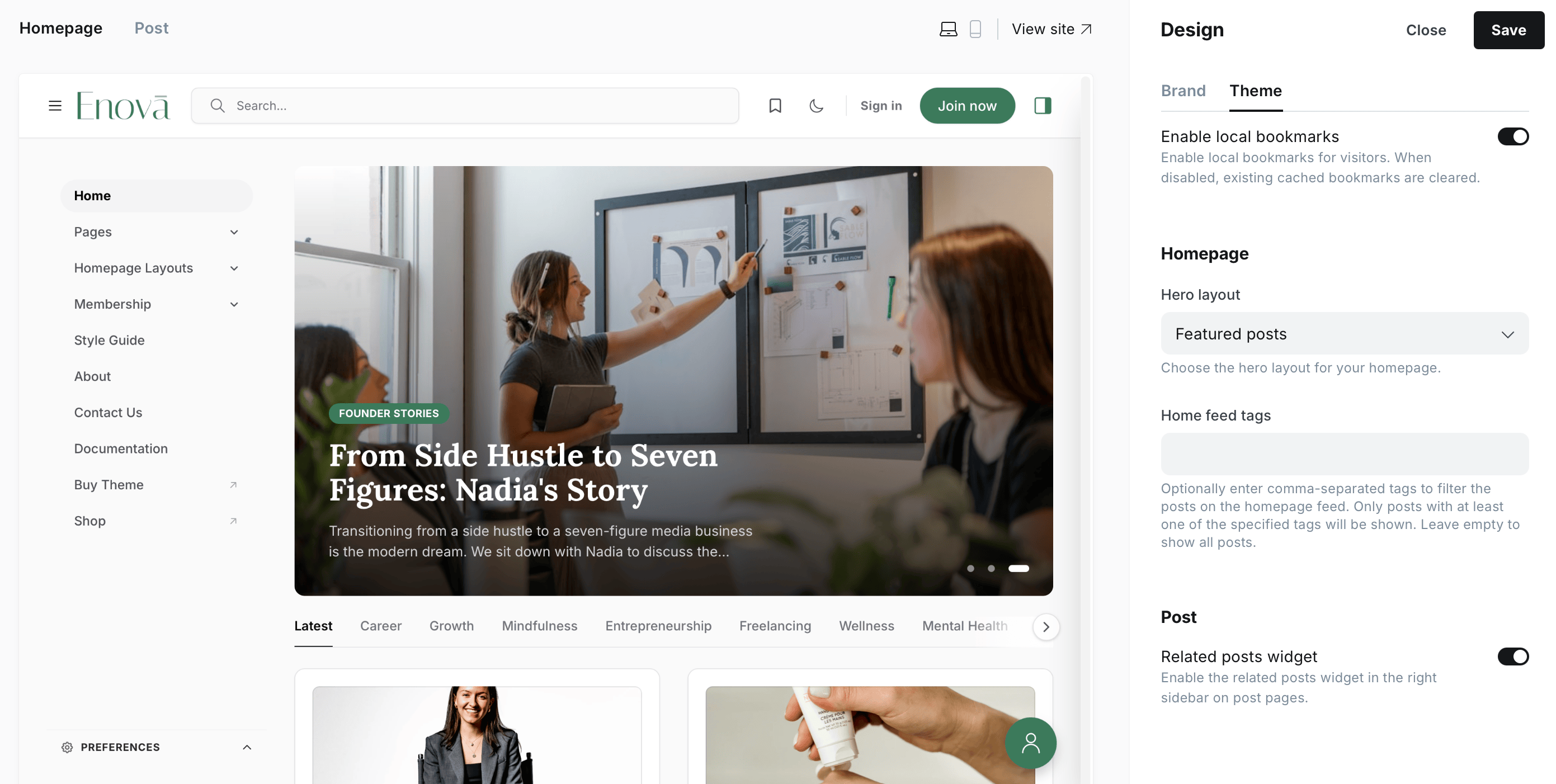
Automatically displays a curated selection of your most important content in a high-impact grid or slider format.
Email Subscription
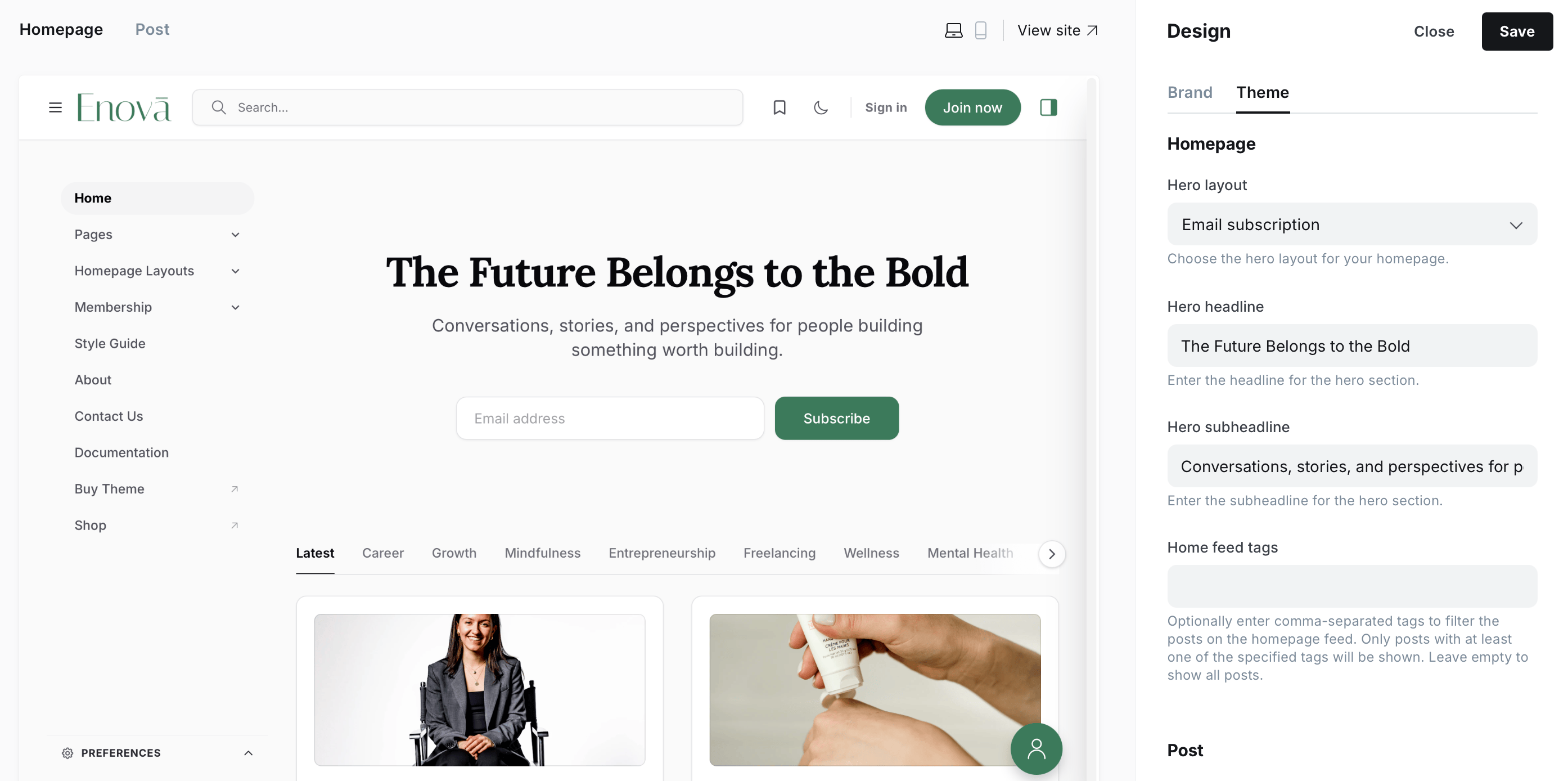
Focuses on audience growth by placing a prominent newsletter signup prompt at the top of your page.
- Requires: Hero Headline & Hero Subheadline.
Call to Action (CTA)
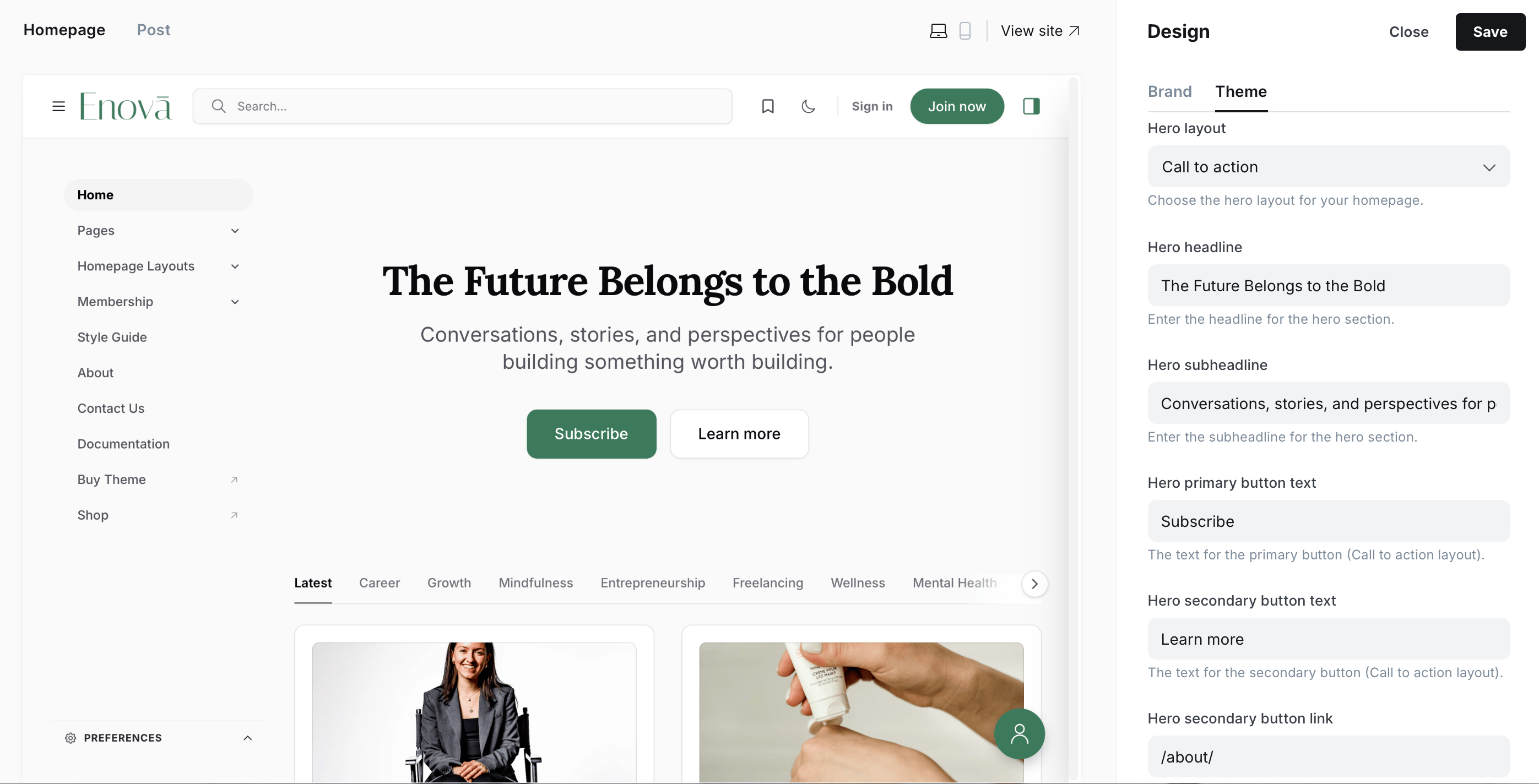
Perfect for landing pages or specific promotions. This mode adds two interactive buttons to the hero area.
- Requires: Hero Headline, Subheadline, Primary/Secondary Button Text, and the Secondary Button Link.
Personal Bio
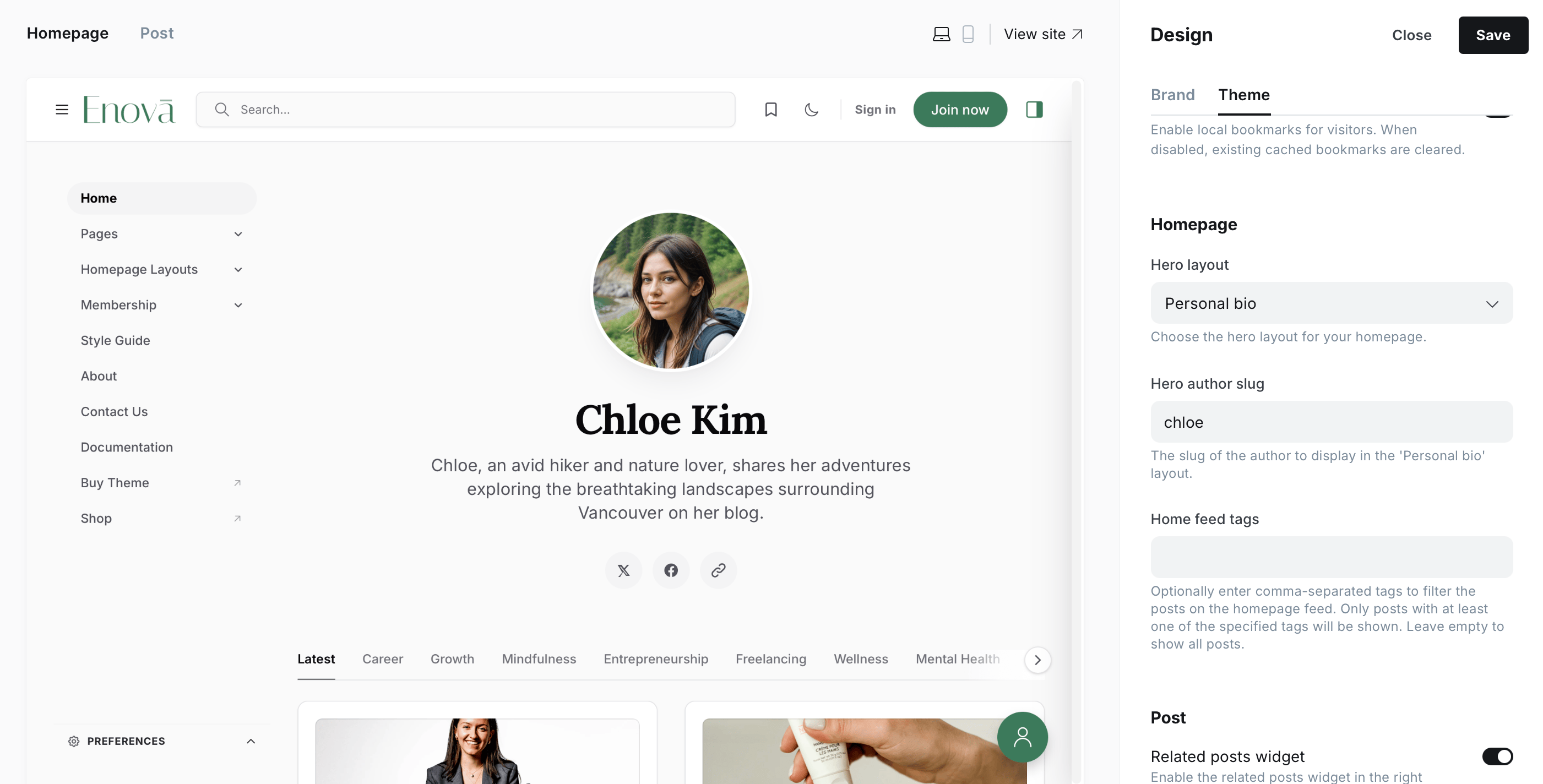
Ideally suited for newsletters and personal blogs. This pulls details directly from a Ghost Author's profile.
- Requires: The exact Author Slug of the team member you wish to highlight.
Immersive hero layouts
Email subscription (Immersive), Call to action (Immersive) and Personal bio (Immersive) show the same content as their standard versions, laid out as a full-width banner. The banner stretches edge to edge across the top of the homepage, and both sidebars start below it.
Your Publication cover becomes the banner's background photo. Enova darkens it and sets the text in white, so it stays readable in light and dark mode alike.
Email Subscription (Immersive)
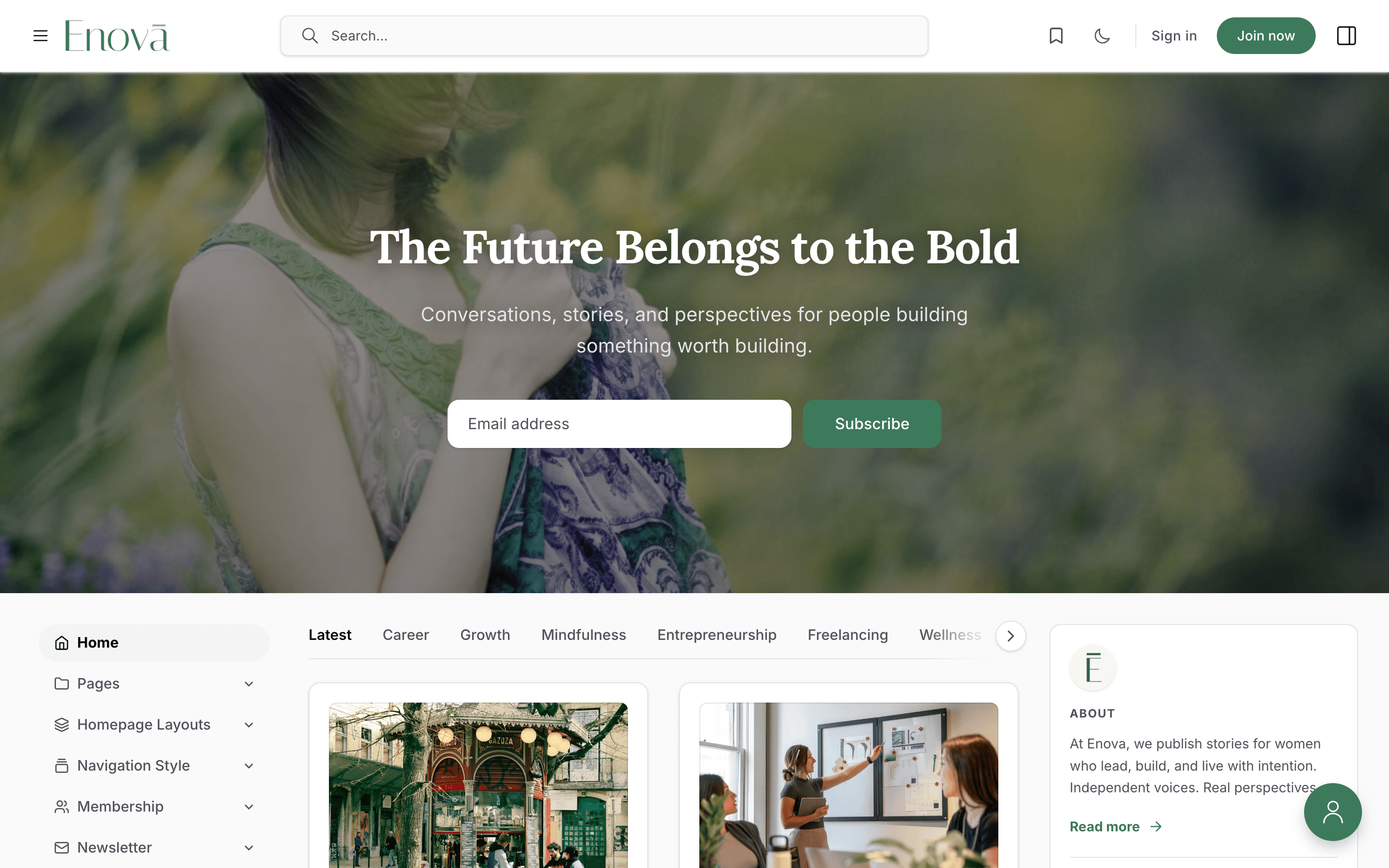
The newsletter signup prompt as a full-width banner over your cover photo.
- Requires: Hero Headline & Hero Subheadline.
Call to Action (Immersive)
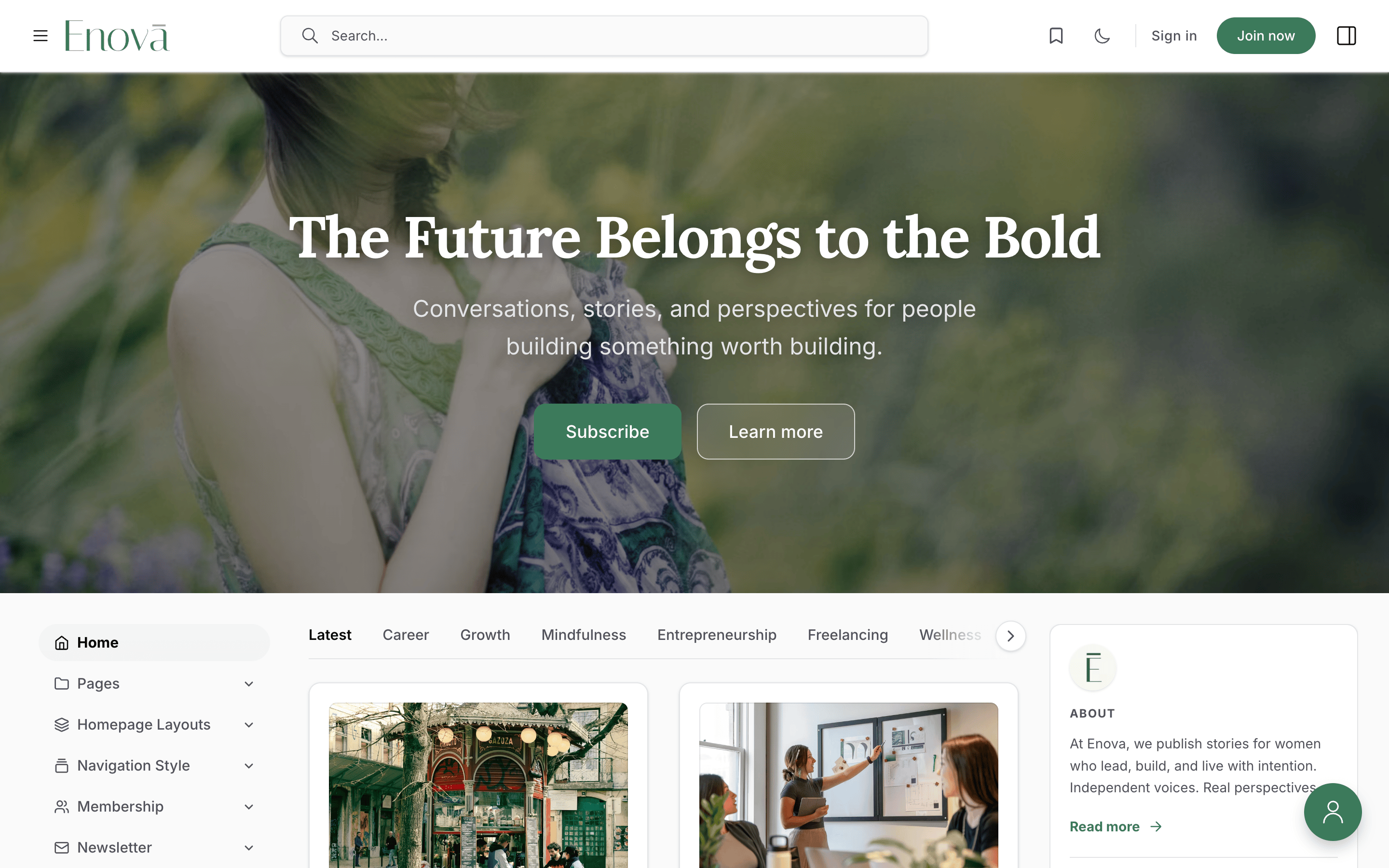
Your headline and two buttons across the full width, with the secondary button restyled to sit on the photo.
- Requires: Hero Headline, Subheadline, Primary/Secondary Button Text, and the Secondary Button Link.
Personal Bio (Immersive)
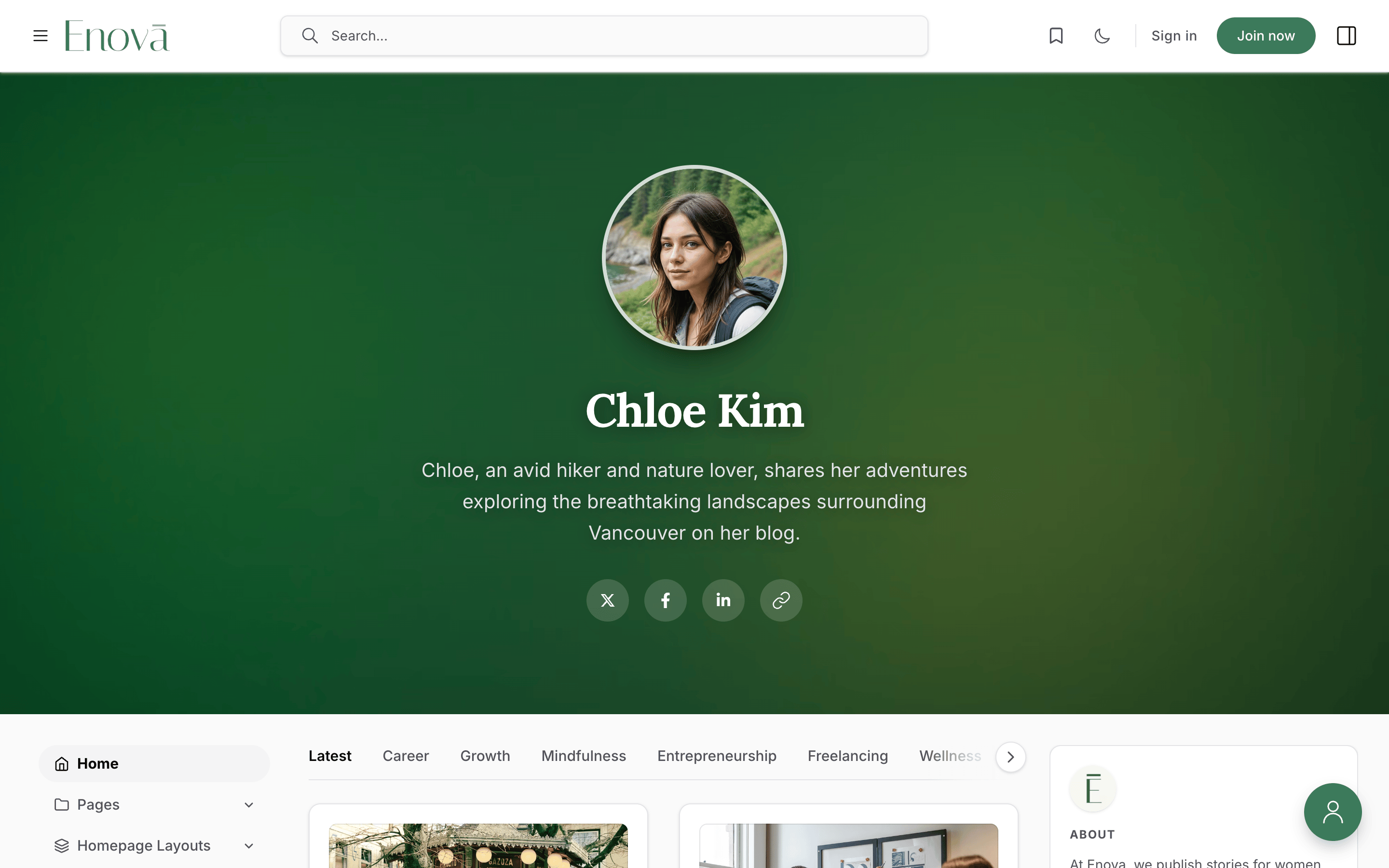
An author's photo, name, bio and social links, set over your cover photo.
- Requires: The exact Author Slug of the team member you wish to highlight.
Without a Cover Image
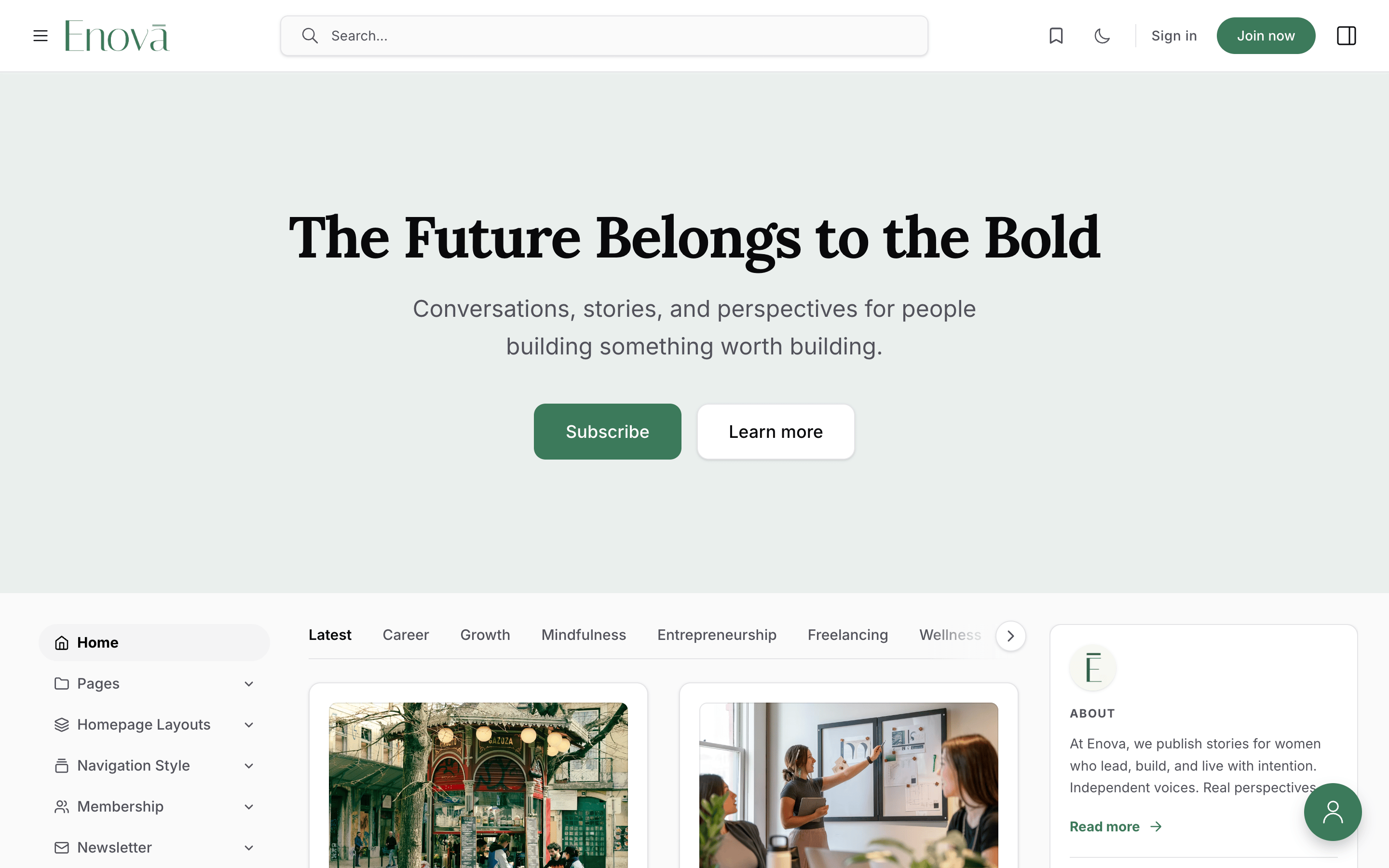
No Publication cover yet? The banner still spans the page, on a soft tint of your accent colour.
In Design & branding → Customize → Brand, upload a Publication cover. A landscape photo at least 2000 pixels wide works best. Upload it rather than linking an image from another site, so Ghost can serve a right-sized copy to every screen.
Open the Homepage tab and set Hero Layout to one of the three Immersive options.
Fill in the same fields as the standard version: the headline and subheadline, the button labels, or the author slug. Then click Save.
Good to know
- First page only. The full-width banner appears on your homepage. Older pages of the feed (
/page/2/and on) show the standard version in the column instead, so readers reach the posts sooner. - Personal bio, author not found? If the Author Slug matches nobody, the banner shows your site title and description instead of disappearing. Leave the field empty and it shows your first staff user, the same as the standard Personal bio.
- Very bright photo? Text over a near-white image can lose contrast. Pick a photo with some depth, or use one of the hero snippets to darken it further or switch to dark text.
Dynamic Hero Text
If you've selected Email Subscription or Call to Action (standard or Immersive), you can precisely control the text that appears.
- Hero Headline: The primary, large-scale title (H1) for your homepage.
- Hero Subheadline: Supporting text that provides more depth to your headline.
- Button Controls: For CTA layouts, you can set the label of both buttons. The primary button always opens Ghost's signup window (the Portal), so it converts visitors into subscribers with no link to configure. Only the secondary button takes a destination URL of your choice (e.g.,
/about/) — leave its text empty to show the primary button alone.
Tag-based Feed Filtering
You can dynamically filter the main stream of posts that appear on your homepage below the hero section.

The Home Feed Tags field allows you to add tag-based navigation tabs to your primary post feed, appearing alongside the "Latest" posts tab.
- How it works: Enter a list of tag slugs (e.g.,
lifestyle, travel, tech) separated by commas. The first 10 slugs become tabs; anything beyond that is ignored, so list your most important tags first. - Result: These tags will appear as tabs on the homepage feed. When a visitor clicks a tag tab, the feed will dynamically update to display the latest posts for that specific tag.
Pro Tip
Leave this field blank to show only the "Latest" feed in standard chronological order without any additional tabs.