

Publish your first episode
Go from a blank editor to a live episode page — add the title and cover, drop in your video or audio, write the show notes, and publish.
An episode is an ordinary Ghost post — no special editor, no custom fields. This page walks you through your first one, start to finish. It takes about five minutes.
Before you begin, make sure:
- Signal is installed and activated, and
routes.yamlis uploaded — see Installation. - You have your episode's video link (YouTube or Vimeo), an uploaded video file, or an audio file.
Create the post
In Ghost Admin, open Posts and click New post. Type your episode's title — it becomes the episode page heading and the name shown on every listing.
Add the cover image
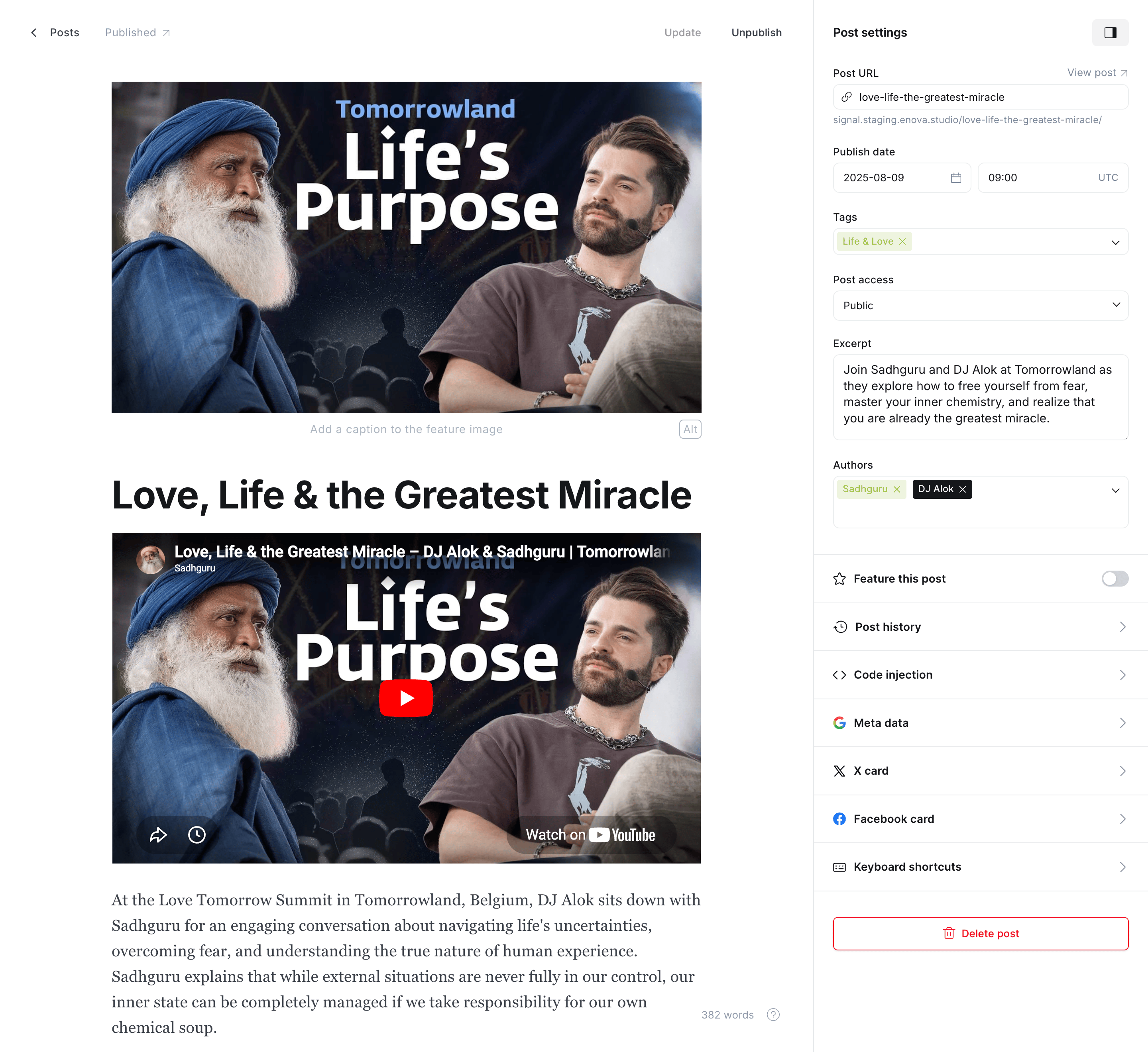
Click Add feature image and upload your episode artwork. Signal uses it as the episode's cover everywhere: the player poster, the homepage, listings, and social share cards. A 16:9 image works best.
Add the media
Put the episode's media at the top of the post body. Pick the tab that matches your show:
Paste your YouTube or Vimeo URL on an empty line and press Enter — Ghost embeds it, and Signal plays it in the episode hero. For a self-hosted file, type /video and choose Ghost's Video card, then upload it. No tag needed — video is the default episode type.
Type /audio and choose Ghost's Audio card, then upload your file. Then open the post settings (the panel icon, top right) and under Tags, add the internal tag #audio — type the # and audio, then press Enter. That tag tells Signal to use its waveform audio player.
Hosting the episode on a third-party platform like Spotify? Paste the platform's embed into the body, then add the internal tag #embed in the post settings (under Tags, type the # and embed, then press Enter). Signal lifts the platform's own player into the hero. An embed episode is static — it can't drive transcript click-to-seek, chapter jumps, or the mini-player — see Media player.
Readers never see the tag
Internal tags (names starting with #) are invisible to your audience — they only tell Signal how to present the post. All three episode types are covered in more depth in Content model.
Write the show notes
Below the media, write your episode description like any post — headings, links, images, whatever you like. This becomes the Show notes tab on the episode page. Optionally, add a public topic tag (for example "Interviews") in the post settings so the episode joins that topic's archive and filter chips.
Publish and check your episode
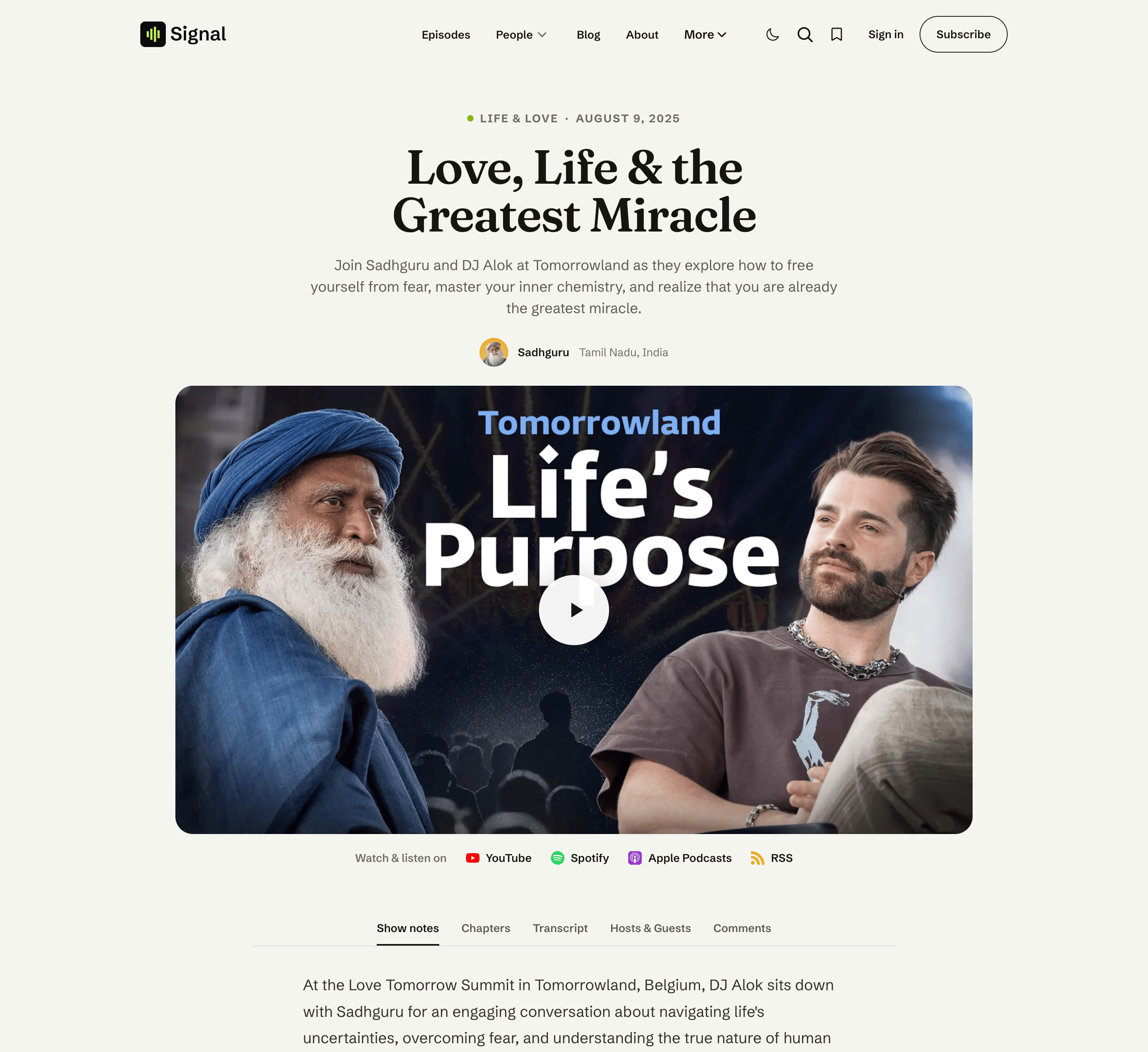
Click Publish. Your episode is now live at /episodes/your-episode-title/ — open it and press play. It also appears on your homepage and in the /episodes/ listing automatically.
Level up
Your first episode is live — here's what to add next:
- Transcripts & chapters — give the episode a click-to-seek transcript and a tappable chapter list. Both go in a code block, which Ghost hides behind a keyboard shortcut.
- Signal Tools — let the included browser extension build the draft for you: transcript, chapters, show notes, and cover in one go.
- Homepage sections — compose the rest of your homepage around your episodes.
Installation
Install Signal in five steps — upload signal.zip in Ghost Admin, activate it, and add the routes.yaml file that powers the episodes and blog listings and the topic and people archives.
Overview & install
Signal Tools is the companion browser extension included with the Signal theme — turn a YouTube video, audio file, or podcast feed into a ready-to-publish episode, and add guests to your Ghost staff.