

Import episodes
Turn a YouTube video, an audio file, or a podcast link into a ready-to-publish Signal episode — transcript, chapters, show notes, and cover — then send it to Ghost as a draft.
The Episode Importer turns a source into a ready-to-publish episode. Open the side panel, choose Episode Importer, pick a source, and click Generate. Imports run in the background, so you can queue several and keep working.
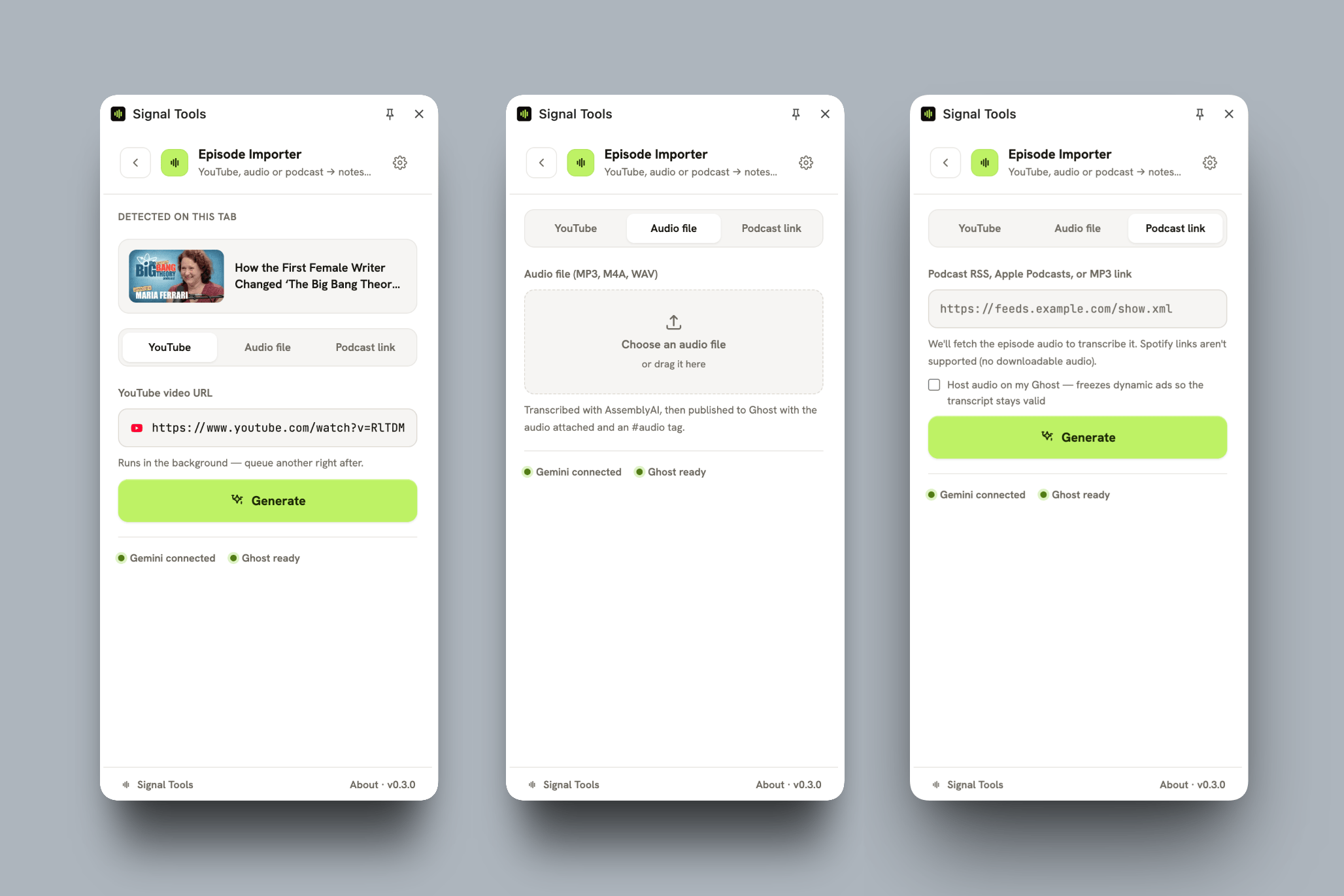
Choose a source
Pick one of the three tabs:
YouTube
Paste a watch URL — or just open the panel while you're on a YouTube video and Signal Tools detects it automatically. Click Generate.
Keep the video playing
YouTube only serves a video's captions while it's playing with CC on. For the fast, free caption path, start the video (with captions) before you generate. If captions can't be read, Signal Tools offers to transcribe the video with Gemini instead — that's billed per second of video and costs noticeably more, so it asks you to confirm first.
Audio file
Upload an MP3, M4A, or WAV. Signal Tools transcribes it with AssemblyAI, and when you send it to Ghost it attaches the audio and tags the post #audio so it plays in Signal's audio player.
Ghost Pro's 100 MB limit
Ghost Pro caps uploaded media at 100 MB per file (self-hosted Ghost has no limit). If your file is larger, Signal Tools warns you — you can continue, or use the podcast link option instead so the audio plays from its existing URL.
Podcast link
Paste an RSS feed, an Apple Podcasts link, or a direct MP3 URL. By default the episode plays from its existing URL (no re-hosting). Tick Host audio on my Ghost to download and re-host it instead — this "freezes" the audio so dynamic ads can't shift it out of sync with your transcript.
Spotify links aren't supported, because Spotify has no downloadable audio. Audio files and podcasts both need an AssemblyAI key.
Track progress in the Queue
After you click Generate, the episode joins the Queue, where you can watch it move through three steps — preparing, transcribing, then writing chapters and show notes. You can close the panel; it keeps processing.
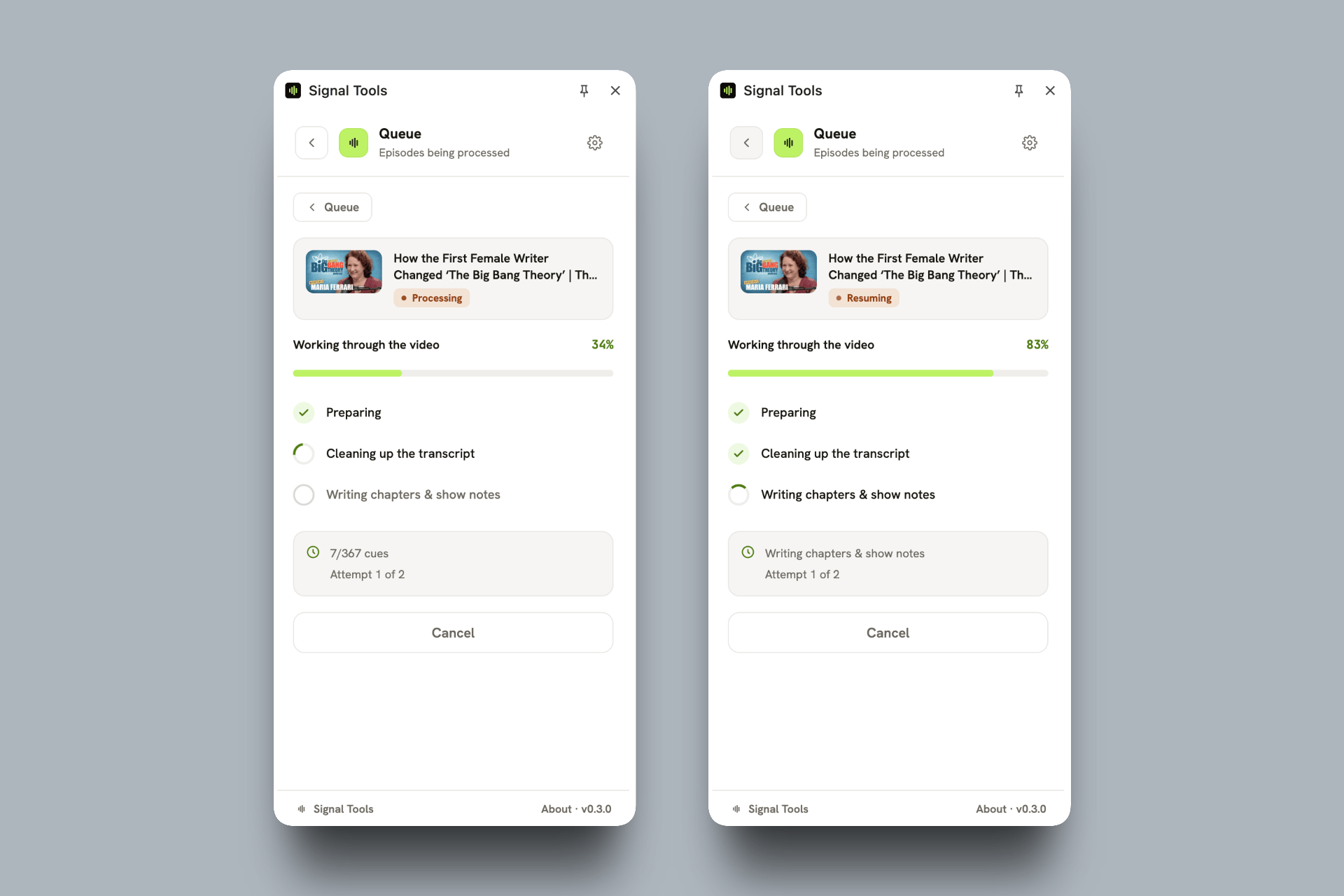
Automatic retries
If an AI provider is briefly overloaded, Signal Tools waits and retries automatically — your progress is saved, so it picks up where it left off. If you added a Claude backup key, it can fail over to Claude instead of waiting.
Review and send to Ghost
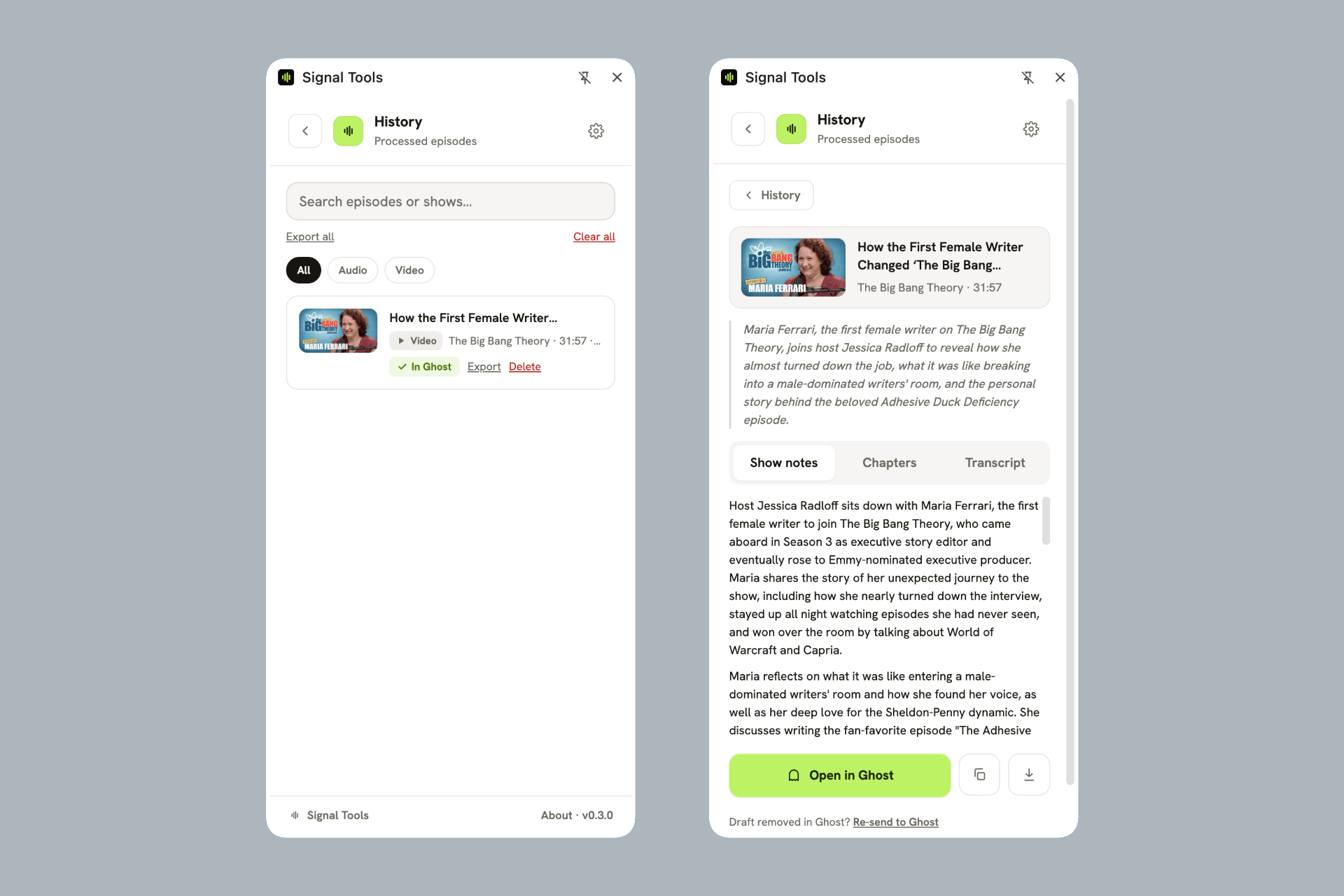
Finished episodes appear in History. Open one to see three tabs — Show notes, Chapters, and Transcript — each with a Copy button, plus Download for the transcript.
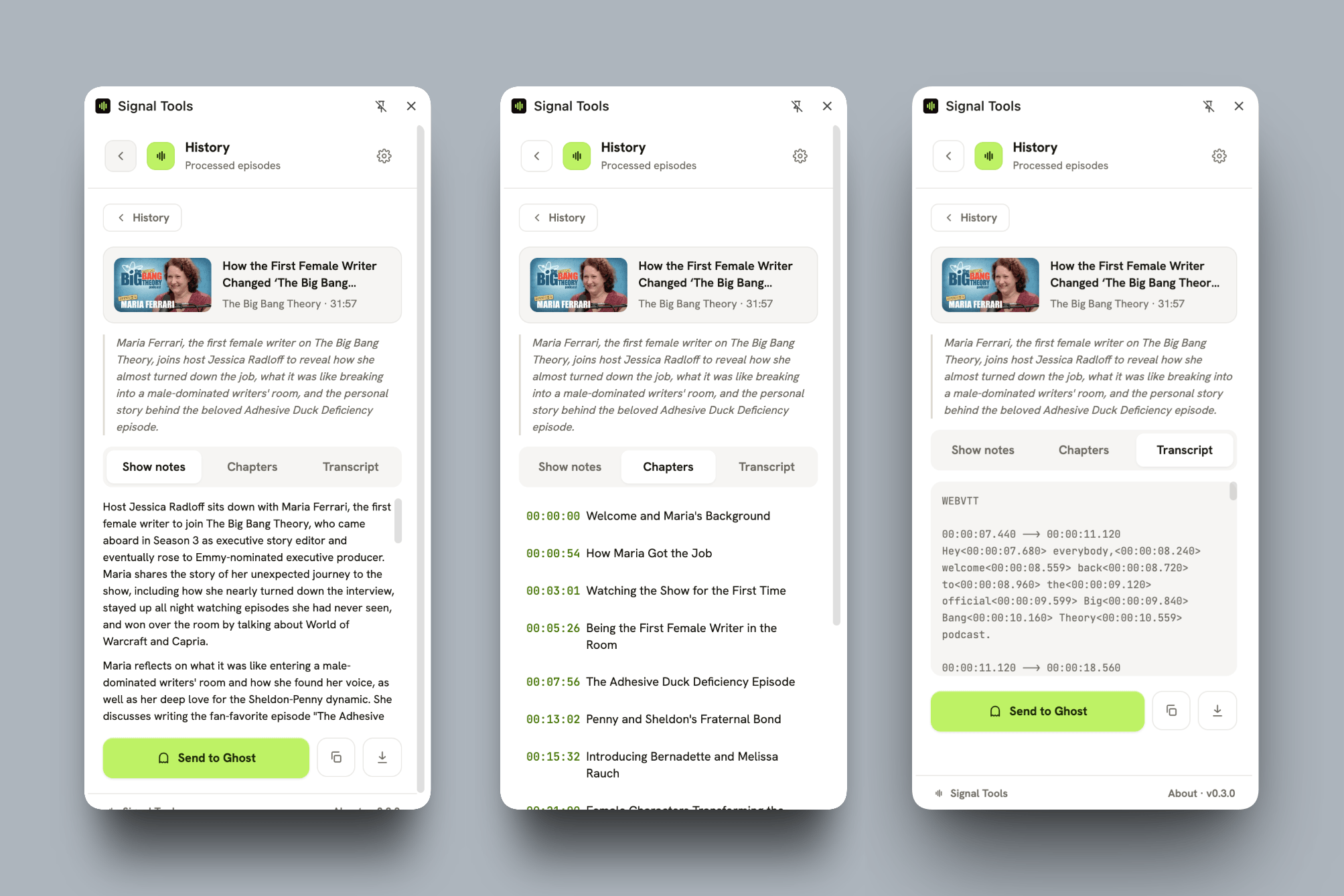
When you're ready, click Send to Ghost. Signal Tools creates a draft episode with the show notes in the body, the transcript and chapters as the right code cards, the cover image, and (for audio imports) the audio attached.
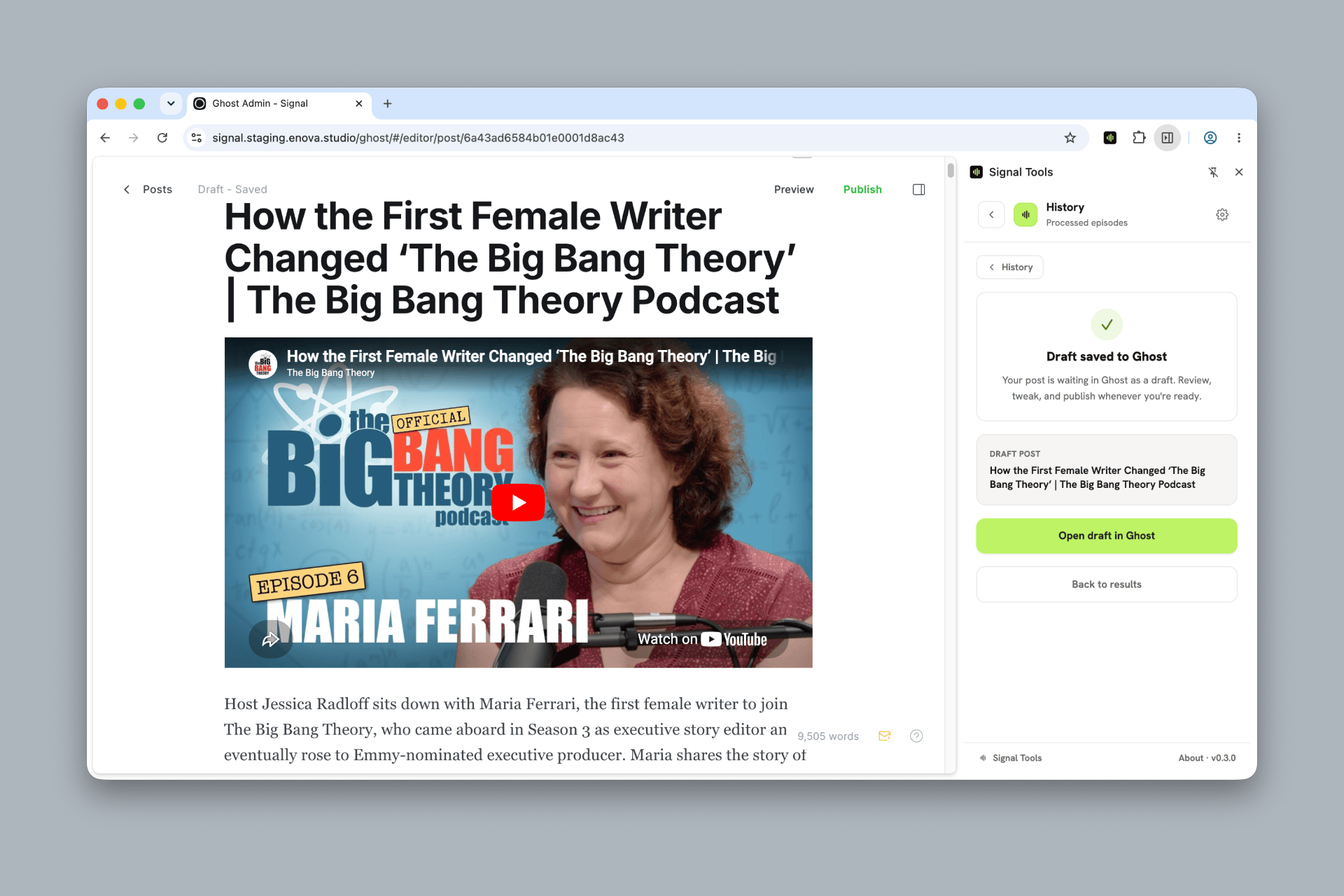
Always a draft
Signal Tools never publishes — it leaves a draft for you to review. Use Open draft in Ghost to jump straight to the editor, then publish when you're happy.
You can also skip the button and copy each piece into Ghost by hand: the transcript into a Code card set to vtt, the chapters into a Code card set to chapters, and the show notes into the body — the exact format Signal's Transcripts & chapters tabs read.
History
Every import is saved to History — search it, filter by Audio/Video, re-copy or re-send to Ghost, export a record as JSON (content only, never your keys), or delete it. A ✓ In Ghost badge links to the draft you created.
Advanced: models & cost
Power users can open Settings → Advanced — models & cost to choose the Gemini models used for cleanup and for chapters/notes, adjust the cleanup batch size, or skip transcript cleanup on caption-bearing videos — useful for tuning quality versus cost on long shows.
Related
- Podcasts — batch-import from a saved feed.
- Transcripts & chapters — how the output renders in the theme.
- Media player — how imported audio and video play.
Setup & connect
Activate Signal Tools with your Signal license key, add your Gemini (and AssemblyAI) API keys, optionally add a Claude backup, and connect your Ghost site.
Add guests
Create a guest in your Ghost staff as a credited Contributor — with bio, photo, and social links — straight from Signal Tools, then edit them in Ghost like any author.