

Podcasts
Save a podcast feed in Signal Tools and batch-import new episodes as they're released, with an option to re-host audio on Ghost.
The Podcasts tool is for shows that publish on an ongoing basis. Save a feed once, and Signal Tools tracks it so you can import new episodes in batches instead of one at a time.
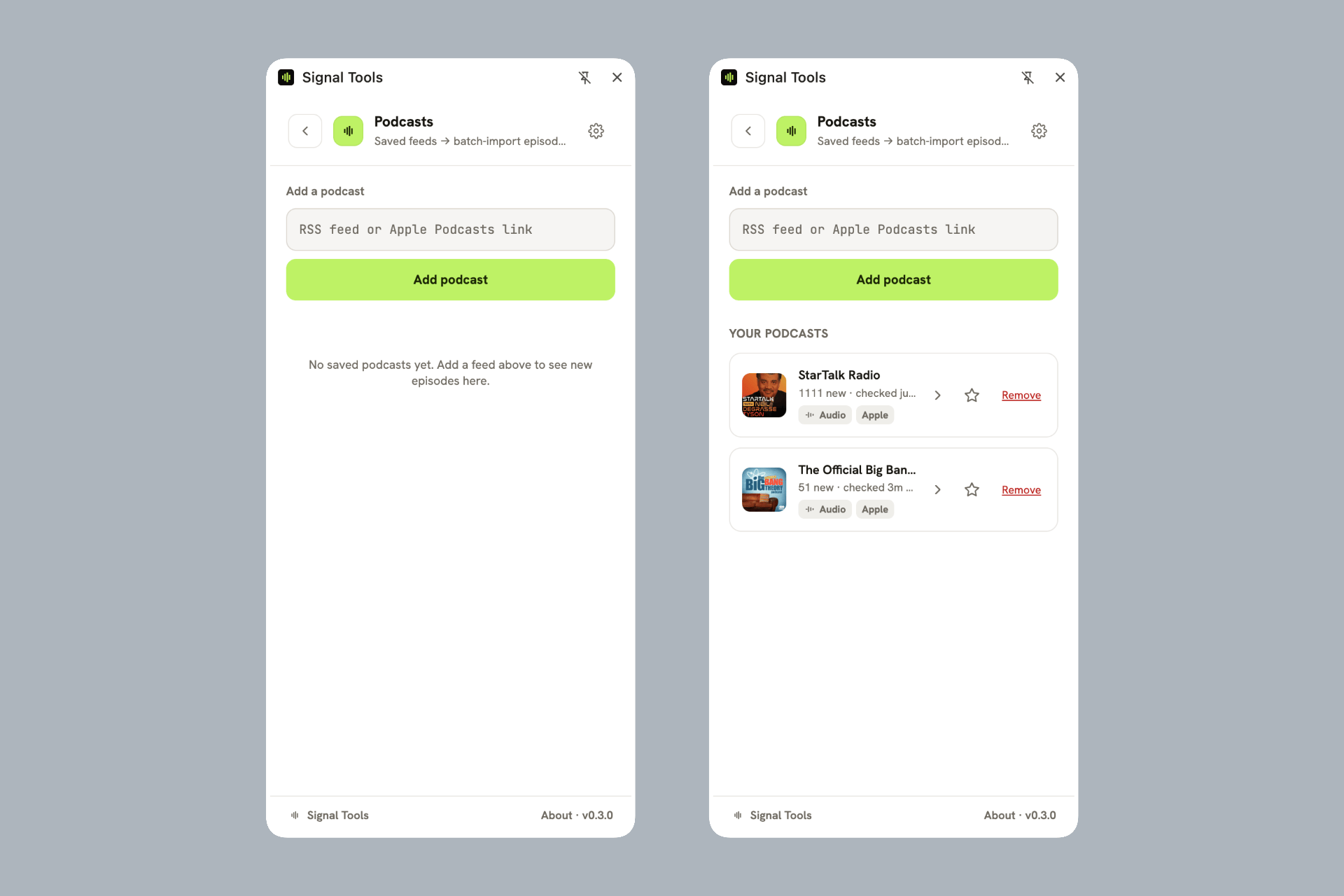
Save a feed
In the Podcasts tool, paste an RSS feed or Apple Podcasts link into Add a podcast and click Add podcast.
Signal Tools looks up the show and saves it, showing its artwork, title, and a badge when new episodes are available.
Tap the star on a saved feed to pin it to the home screen for quick access. Use Remove to drop a feed.
Batch-import episodes
Open a saved feed to see its episodes, each marked new, Added (already imported), or In queue.
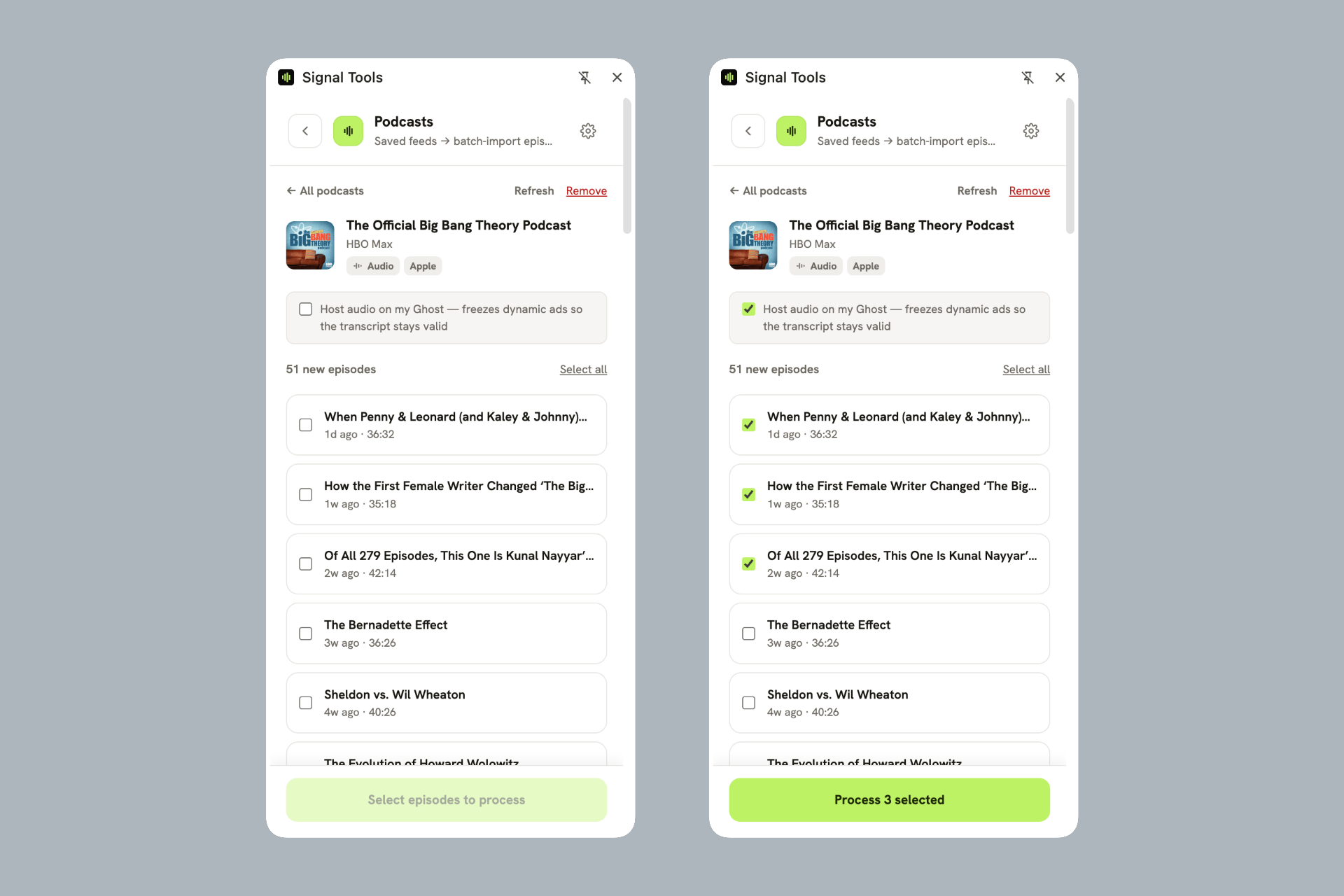
Tick the episodes you want — or use Select all to grab every new one.
Click Process. Each episode becomes a draft episode (transcript, chapters, show notes), just like a single import, and moves into the Queue.
Use Refresh any time to check the feed for new episodes. Importing more than ten at once asks for a quick confirmation, since each is transcribed with AssemblyAI.
Host audio on Ghost
By default a podcast episode plays from its original feed URL. Turn on Host audio on my Ghost (per show, on the feed's detail screen) to download each episode's audio and upload it to your Ghost media library instead.
Host audio on Ghost
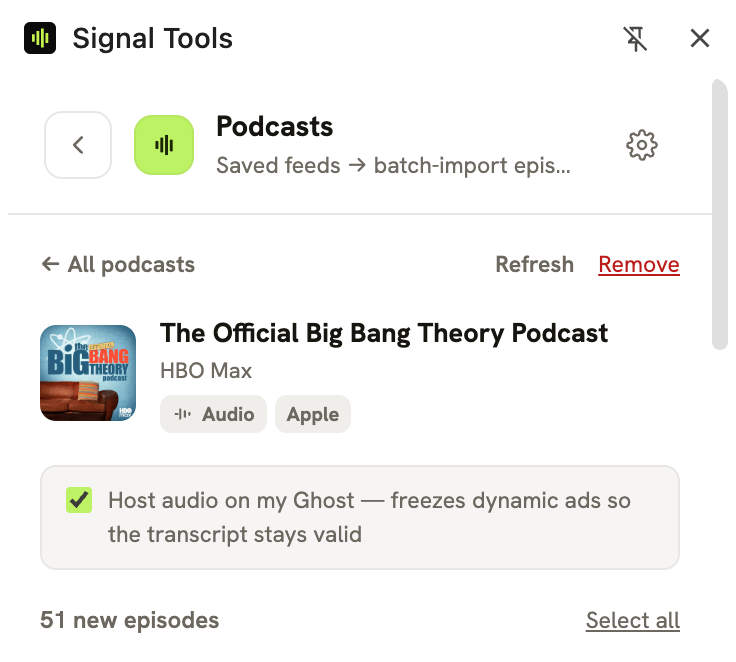
Why re-host?
Many podcast feeds insert dynamic ads, so the audio at a URL can change over time — which would drift out of sync with the transcript you generated. Re-hosting freezes the audio to match the transcript. Signal Tools warns you when it detects likely ad segments in an episode.
Related
- Import episodes — the per-episode flow, Queue, and results.
- Setup — the AssemblyAI key podcasts require.
Add guests
Create a guest in your Ghost staff as a credited Contributor — with bio, photo, and social links — straight from Signal Tools, then edit them in Ghost like any author.
Settings, privacy & troubleshooting
Signal Tools settings reference, what data it stores and where it's sent, and fixes for common problems.