

Portfolio
Build a portfolio from ordinary pages. Tag a page
A portfolio in Quiet is two things: an index page using the Projects template, and one page per project tagged #project. Each project is a full page, so a case study can be as long as it needs to be.
Create the index page
Go to Pages → New page and title it, for example Selected work.
In the editor's settings panel, set Template to Projects.
Set the Page URL to projects if you want the back-links described below. Any other slug works, minus those links.
Publish, and add it to your menu.
Projects page - Editor

Projects page

| Field on the index page | On the page |
|---|---|
| Primary tag | The small label above the heading. Falls back to the word Projects |
| Title | The heading |
| Excerpt | The line under it |
| Body | An optional introduction above the list |
Add a project
#projectGo to Pages → New page and write the project as you would any page.
Set a Feature image: it becomes the row's thumbnail and the picture at the top of the project.
Write a one-line summary in the Excerpt. This is the line in the index, so write it deliberately.
Under Tags, add the project's category first, then #project.
Publish.
Category first, #project second
The small label on each row is the page's first public tag. Ghost hides internal tags from readers but still counts their position, so a page tagged #project, Commission shows no label anywhere. Tag it Commission, #project, and drag the tags in the editor if they are the wrong way round.
Project page - Editor

Project page

| Field on a project page | In the index row | On the project page |
|---|---|---|
| First public tag | The category label | The label above the title |
| Title | The project name | The heading |
| Excerpt | The one-line summary | The line under the heading |
| Feature image | The thumbnail | The picture at the top |
| Body | not shown | The project itself, with full article formatting |
The excerpt is always the one you wrote
Quiet uses your Excerpt field for the index line and never falls back to the first words of the page. A row with no line reads better than a row with the wrong one, so write the excerpt if you want it.
Ordering
- Starred first. Ghost's Featured toggle pins a project to the top of the index and of the homepage band.
- Then newest first, by publish date. Changing a project's publish date is how you reorder the list.
- The index holds up to 100 projects. Beyond that, the oldest are not listed.
The numbers down the left are the list counting itself, 01, 02, 03, so they renumber when you add a project. They are not project numbers.
Walking between projects
Each project page ends with Previous and Next links to the projects either side of it by publish date. That stays strictly chronological even when a starred project leads the index, so a reader walking through your work never doubles back.
A single project has no neighbours, and the links are hidden rather than shown empty.
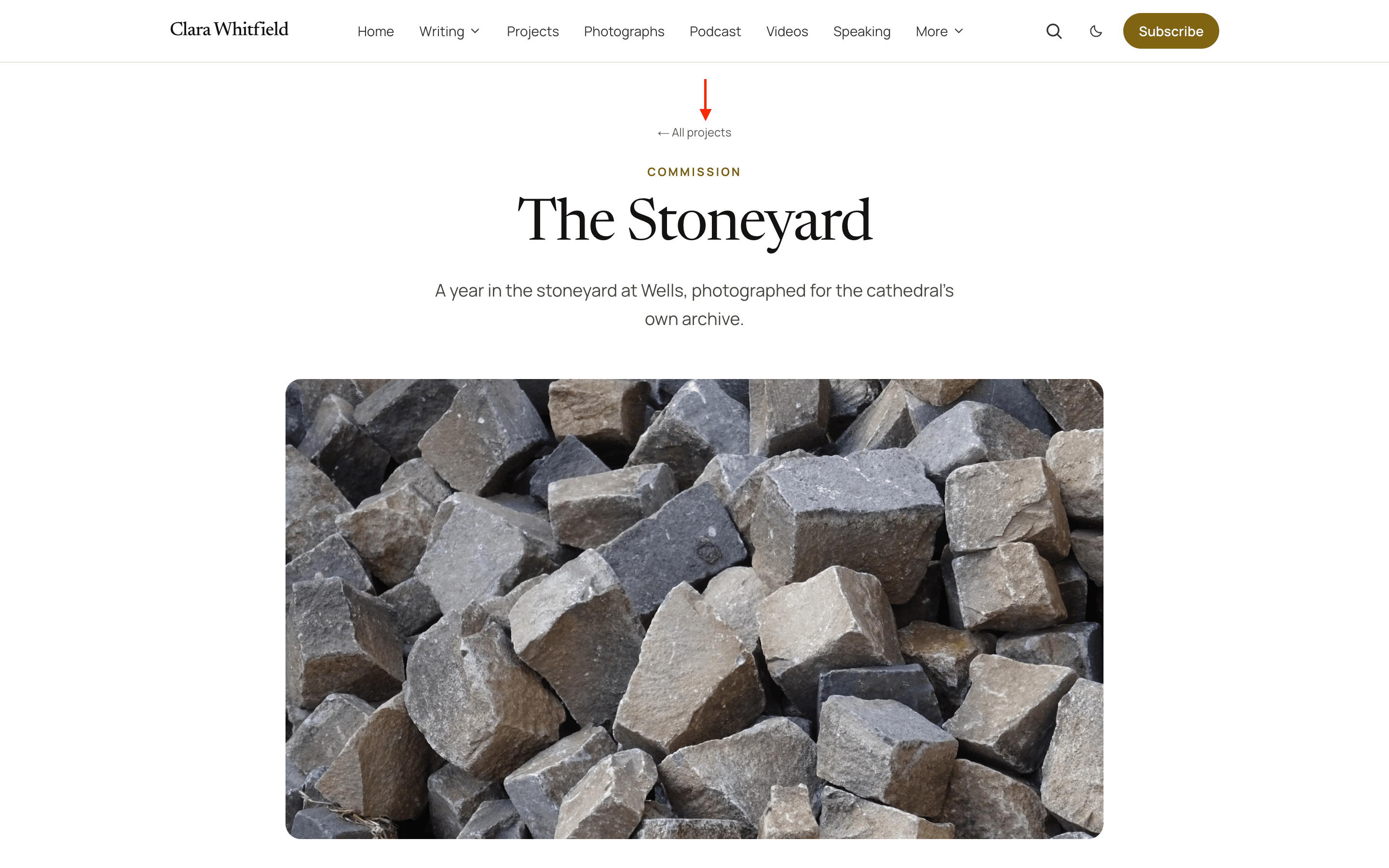
The back-link
Each project shows an All projects link above its heading, and the homepage band shows one too, once a page exists at /projects/. That is the only reason the slug matters, and neither link appears if you have called your index something else.
Members-only projects
Set a project page's Access to members or a paid tier and it behaves like a gated post: the row in the index shows a padlock, and the page shows your teaser followed by a signup card. See Membership.
Before your first project
The index page shows a calm "New projects will appear here as they are published" panel rather than an empty list, so it is safe to publish the index first.
Related
- Portfolio band, the four-project selection on the homepage.
Contact page
A working contact form in one setting: paste a form-service URL and readers can write to you, with the confirmation appearing in place. The sidebar is yours to write in the editor.
Team page
Introduce the people who write for you. Pick the Team template and every writer appears with their picture, bio, location, post count and links, as portrait cards or a compact directory.