

Post and page layouts
Four ways to open a post or page, each chosen with one internal tag: a portrait beside the title on either side, or the picture edge to edge or at text width. Plus the drop cap.
Every post and page opens the same way unless you say otherwise: a centred title block, then the feature image below it, a little wider than the text. That is the default, and it needs no tag.
To open one piece differently, add a single internal tag to it. There are four layouts, and they work on posts and on pages alike. Nothing is set site-wide, so a photo essay can lead with its picture while the essay next to it stays quiet.
One tag per piece, and a picture to go with it
If a post carries more than one layout tag, Quiet uses the first match in this order: #hero-split-left, #hero-split-right, then #hero-full and #hero-inline. Every layout needs a feature image; without one, the post quietly opens with the default title block, so a tag can never leave a broken hero. On a page, Ghost's own Show title and feature image switch (in the page's settings) has to be on, or nothing renders above the writing, tag or no tag.
Films keep their player
A post tagged #video opens with its film in the player, and ignores these layout tags. See The video channel.
Adding a tag is the same for all four: open the post or page, click the settings icon at the top right, find Tags, type the tag exactly as written here and press Enter. Ghost creates it the first time you use it. The general rules for internal tags are in Editorial conventions.
The four layouts
Split, picture left
#hero-split-leftThe feature image becomes a tall portrait on the left, cropped to 4:5, with the label, title, standfirst and byline beside it on the right. It reads like the opening spread of a magazine feature, and it suits a picture with a clear subject that can stand being cropped tall.
On a phone the two columns stack: words first, then the picture, the same order as every other post, so a site mixing layouts does not jump about.
Setup
Set a Feature image on the post or page. This becomes the portrait.
Open the settings panel, find Tags and add #hero-split-left.
Update, and open the post.
Editor: the tag in Post settings
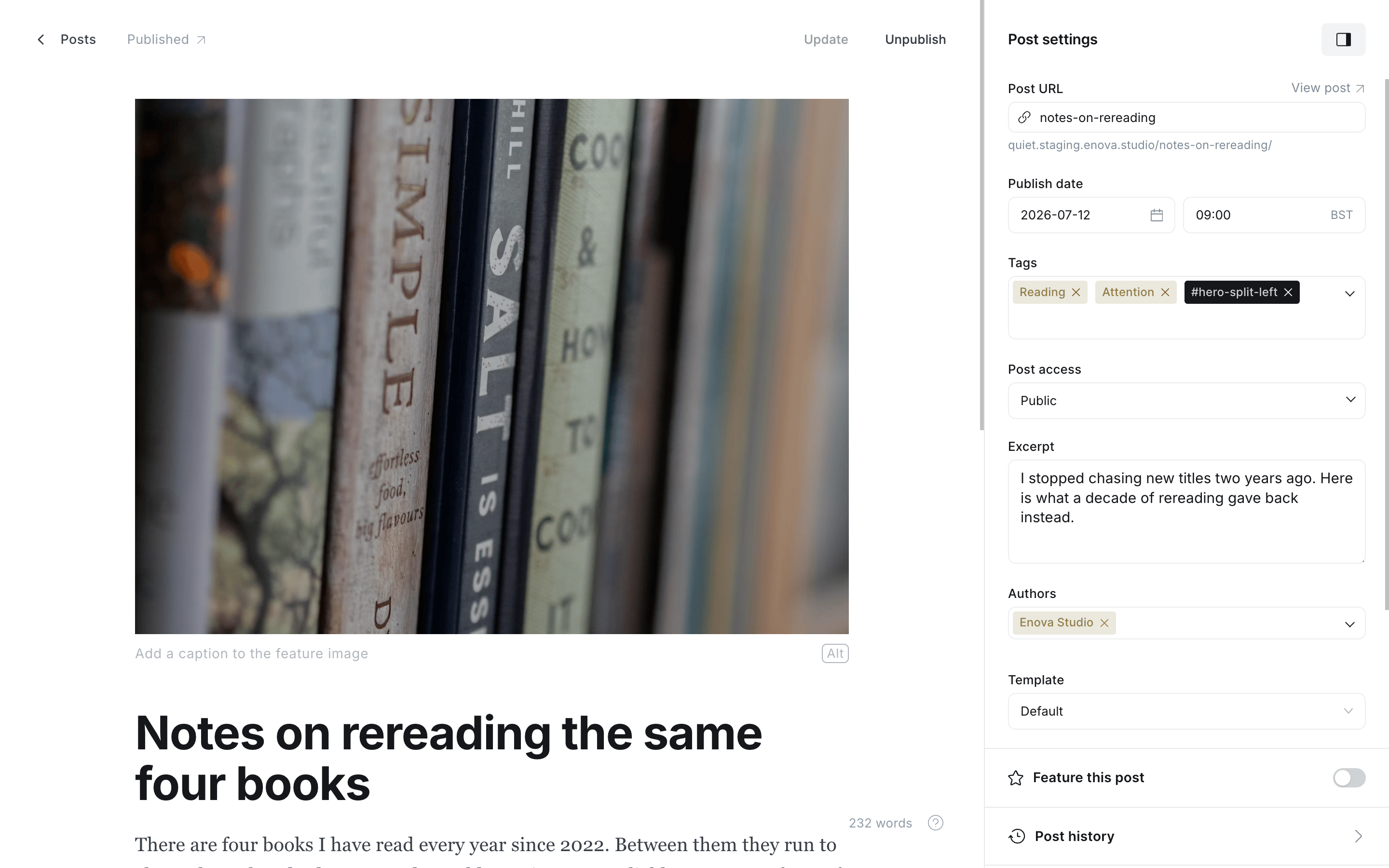
Split, picture left

Split, picture right
#hero-split-rightThe same split, mirrored: words on the left, the 4:5 portrait on the right. Setup is identical to the layout above; only the tag differs.
Editor: the tag in Post settings
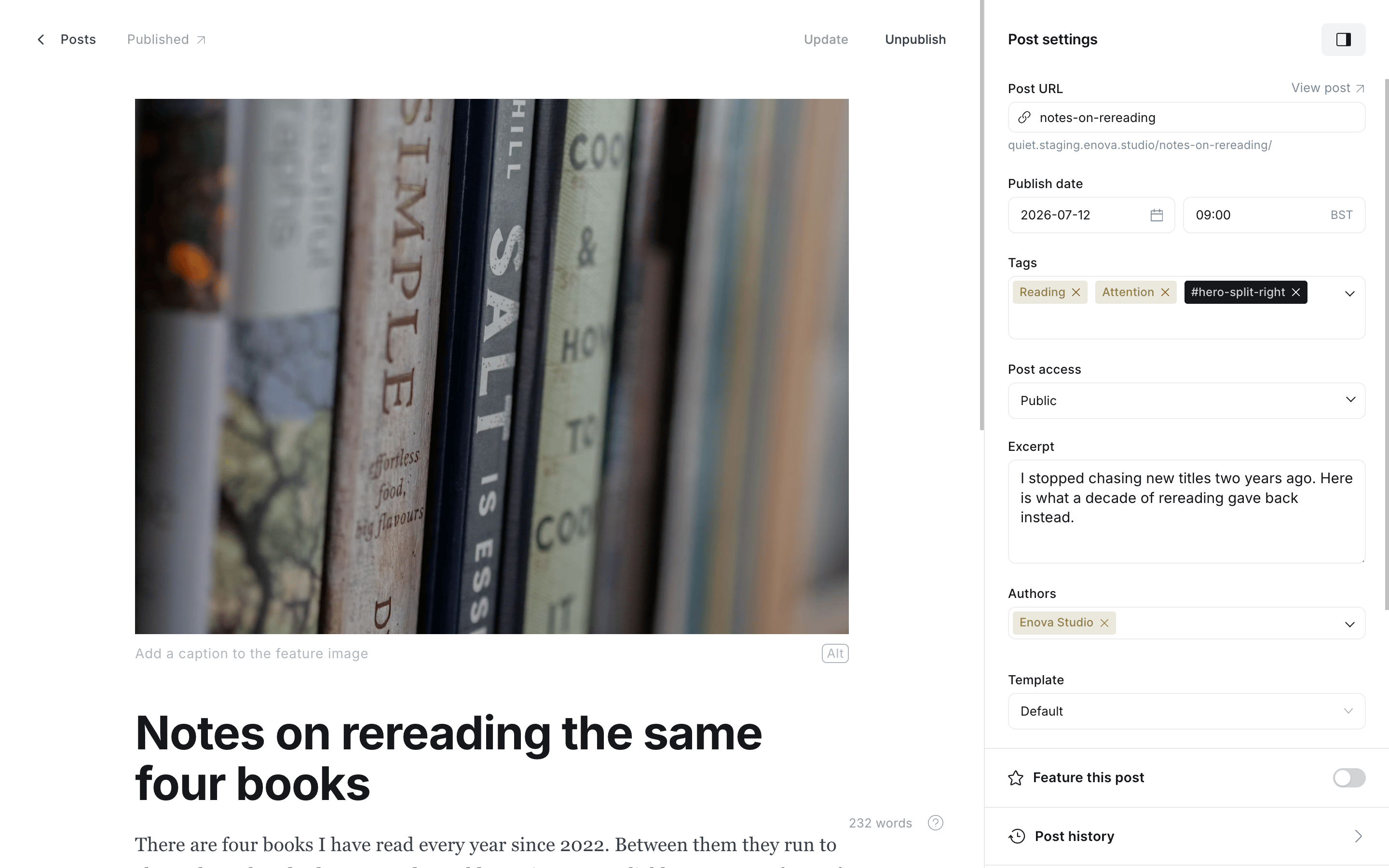
Split, picture right

Full width
#hero-fullThe default title block, then the feature image edge to edge across the whole screen with square corners, before the writing begins. Best for a site where images do the talking. Upload around 2000 pixels wide or more to keep it sharp on a large display.
Setup
Set a Feature image, as large as you have it.
Open the settings panel, find Tags and add #hero-full.
Update, and open the post.
Editor: the tag in Post settings

Full width

Inline
#hero-inlineThe default title block, then the feature image at exactly the width of the text, like an illustration inside the article rather than a header. The quietest of the four. Setup is the same as above, with #hero-inline as the tag.
Editor: the tag in Post settings

Inline
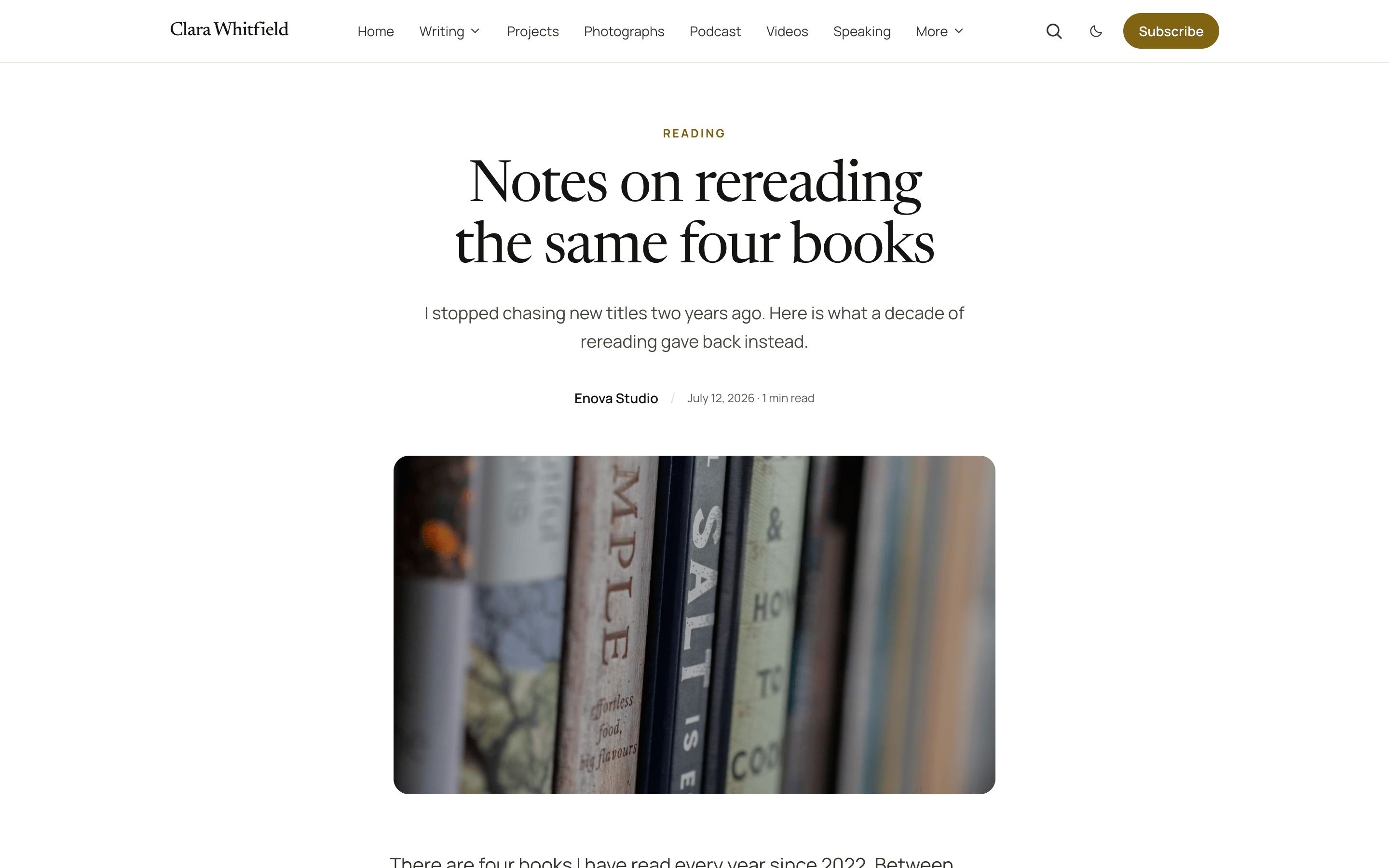
The default
No tag. The centred title block, then the feature image a little wider than the text, with softly rounded corners. The most forgiving option: it gives a photograph room without turning the top of every article into a poster, and it is what a post with no feature image falls back to under any tag.

Upload something large enough
Whichever layout you choose, Quiet asks the browser for the right size of the picture for each screen, and starts loading it before anything else on the page. Feature images around 2000 pixels wide cover every layout, including Full width on a large display.
Drop cap
#dropcapTag a post or page #dropcap and the first letter of its opening paragraph opens the article large, in the heading typeface, with the first three lines wrapping around it. It works on posts and pages alike, in any layout above, and it needs no feature image.
The cap appears only when the article begins with a paragraph. If the first thing in the editor is a picture, a heading or an embed, nothing changes, so a cap can never land in the middle of an article.
Editor: the tag in Post settings

Drop cap

The table of contents works with every layout
A post or page with three or more sections also gets a table of contents, just under whichever opening it uses. It needs no tag; #no-toc leaves it off. See Table of contents.
Styling them from Code injection
Each layout announces itself, so a rule in Settings → Code injection → Site header can address one layout without touching the others: the split layouts on the title block, the two picture widths on the picture itself. The handles are listed under Posts and pages in the hook reference.
The persistent player
How Quiet's floating video player works: it docks to a corner as readers scroll, follows them to the next page without restarting, and can be switched off in one setting.
Table of contents
Quiet builds a table of contents from your headings on every post and page with three or more sections: a Contents line above the article, a Contents button that follows the reader, and a link on every section. How it works, and how to turn it off.