

Table of contents
Quiet builds a table of contents from your headings on every post and page with three or more sections: a Contents line above the article, a Contents button that follows the reader, and a link on every section. How it works, and how to turn it off.
A long essay or guide gets a table of contents on its own. There is nothing to switch on: write your headings as you normally would, and once a post or page has three or more sections, Quiet lists them for the reader.
It comes in two parts that take turns. A Contents line sits above the article, closed until someone opens it. Once the reader scrolls past it, a small Contents button takes over in the corner of the screen, showing how far through the article they are and opening the full list whenever they want it.
Nothing about it needs a theme setting, and a post that does not want one says so with a single tag. See Turning it off.
What goes in it
Your two heading sizes, in the order they appear:
- Each Heading 2 starts a section, and becomes a numbered entry.
- Each Heading 3 becomes an entry nested under the Heading 2 before it: a part of that section, not a section of its own. A Heading 3 that comes before any Heading 2 has nothing to sit under, so it counts as a section by itself.
A piece written only in Heading 3s therefore gets a flat list, one section per heading.
In the editor, those are the two heading buttons in the formatting toolbar, or type ## or ### and a space at the start of a line.
Only headings in the article itself count. A heading inside a card (a callout, a toggle, a header card, a product card and so on) is part of that card, not a section of the article, so it is left out. Headings you write in a Markdown or HTML card do count, as long as they are not wrapped in anything. Other heading sizes are left out too.
Why three
With one or two sections, a reader can see the whole shape of the piece by scrolling a little, and a list would only get in the way. From three, it starts to save them time. It is sections that count, not headings: two Heading 2s with five Heading 3s between them is still two sections. A post with fewer than three shows no table of contents and no section links, and its page is exactly as it was before.
The Contents line
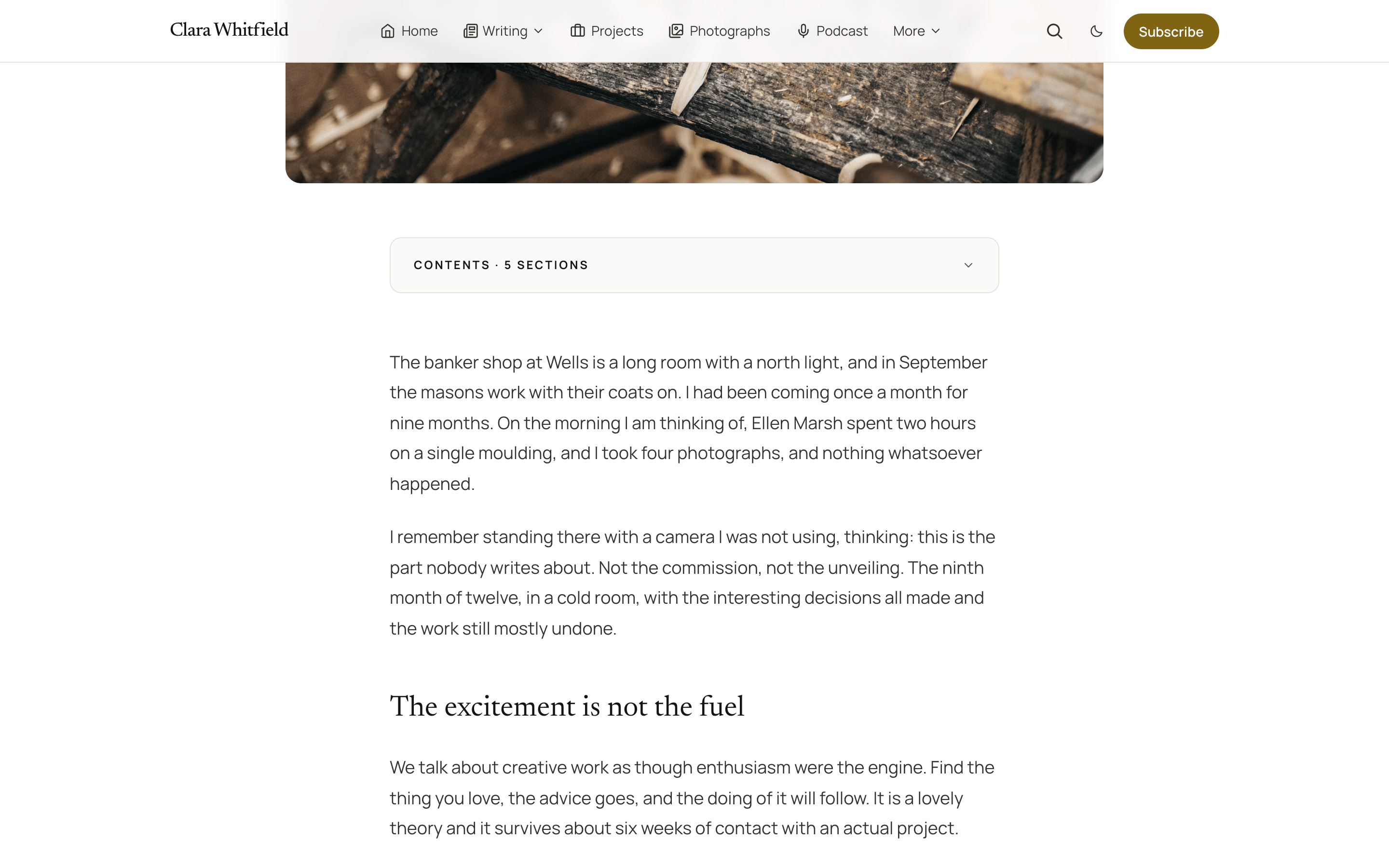
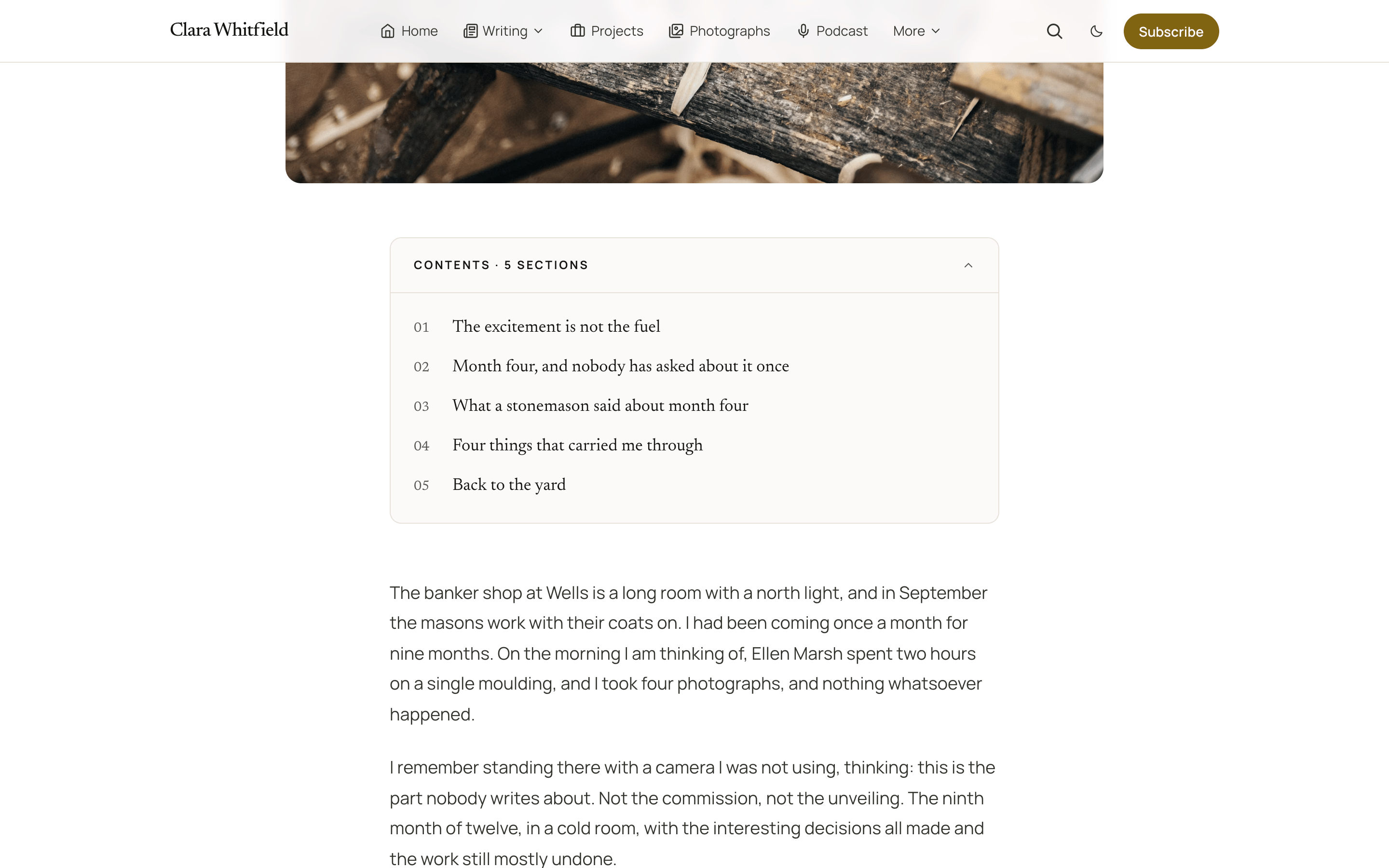
Between the title and the article, a single line reads Contents, with the number of sections beside it. It stays closed, so the article starts where the reader expects it to. Tap or click it to open the numbered list; tap or click an entry to jump to that section.
Because the line is closed, it is always the same height, so nothing on the page moves while it gets ready.
The Contents line, closed
Opened
The Contents button
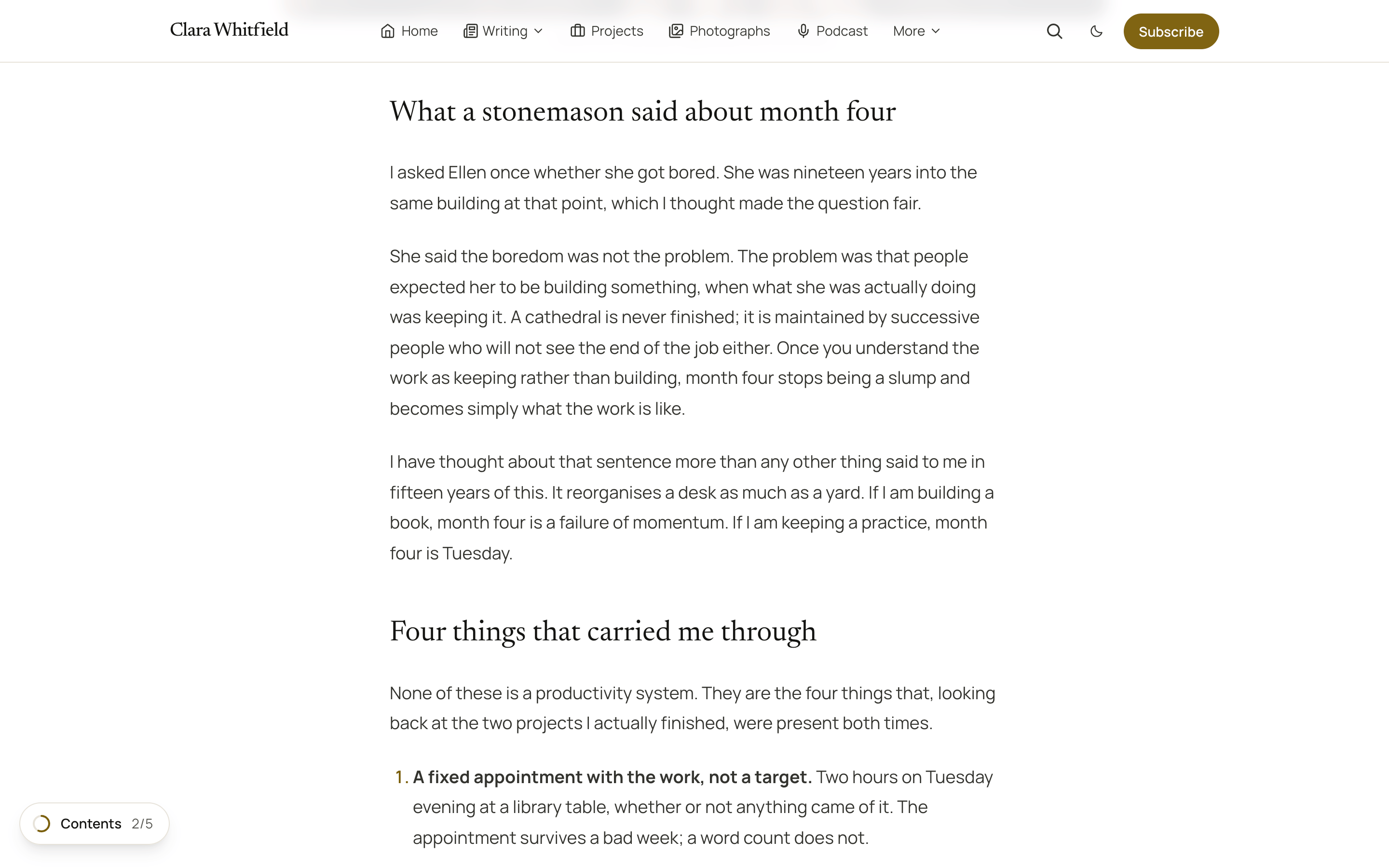
When the Contents line has scrolled off the top of the screen, a small button appears in the bottom-left corner. Its ring fills as the article is read, and beside it the button shows which section the reader is in, such as 3/6. On a phone it is a round button with just the ring and a list icon, to keep the corner small.
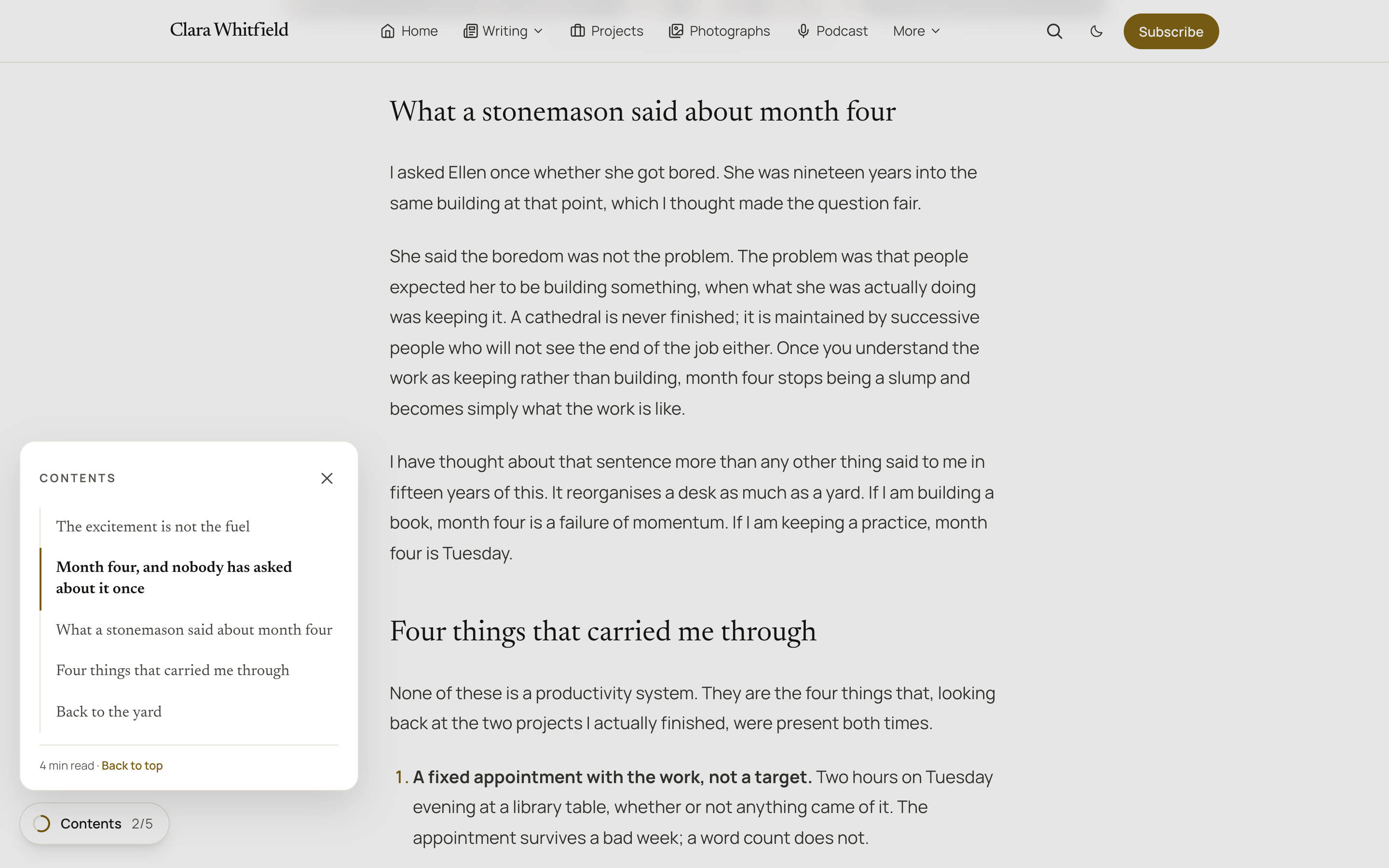
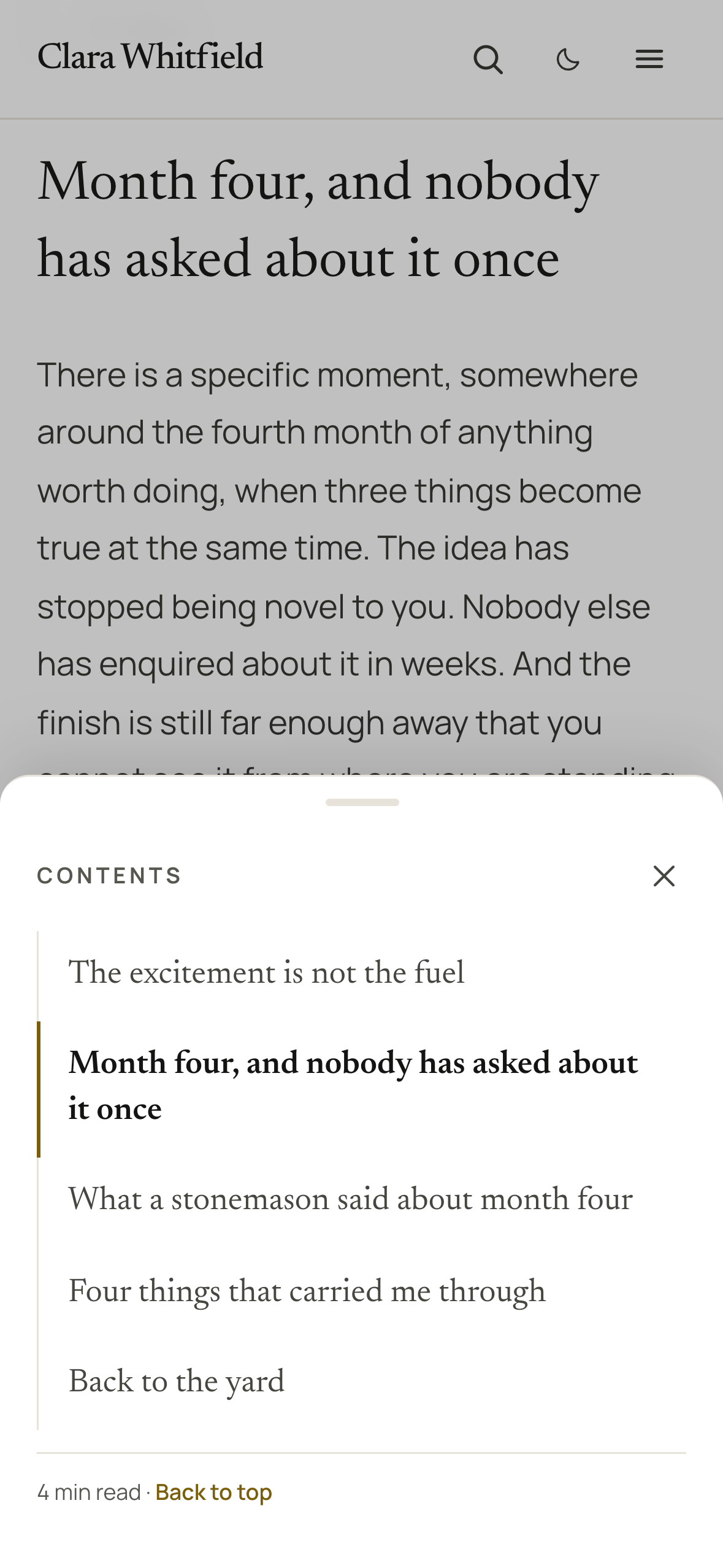
The button opens the whole list over the page, with the section the reader is in marked. Choose an entry to jump there, or Back to top at the foot of the list to return to the title; the reading time sits beside it when Show reading time is on. Close the list with the close button, the Escape key, or a tap outside it.
On a tablet or computer the list opens as a panel just above the button. On a phone it rises from the bottom of the screen as a sheet.
The button steps aside when the reader reaches the end of the article, where the share row and Read next take over, and comes back if they scroll up into it again.
The button on a computer
The panel it opens
The button on a phone
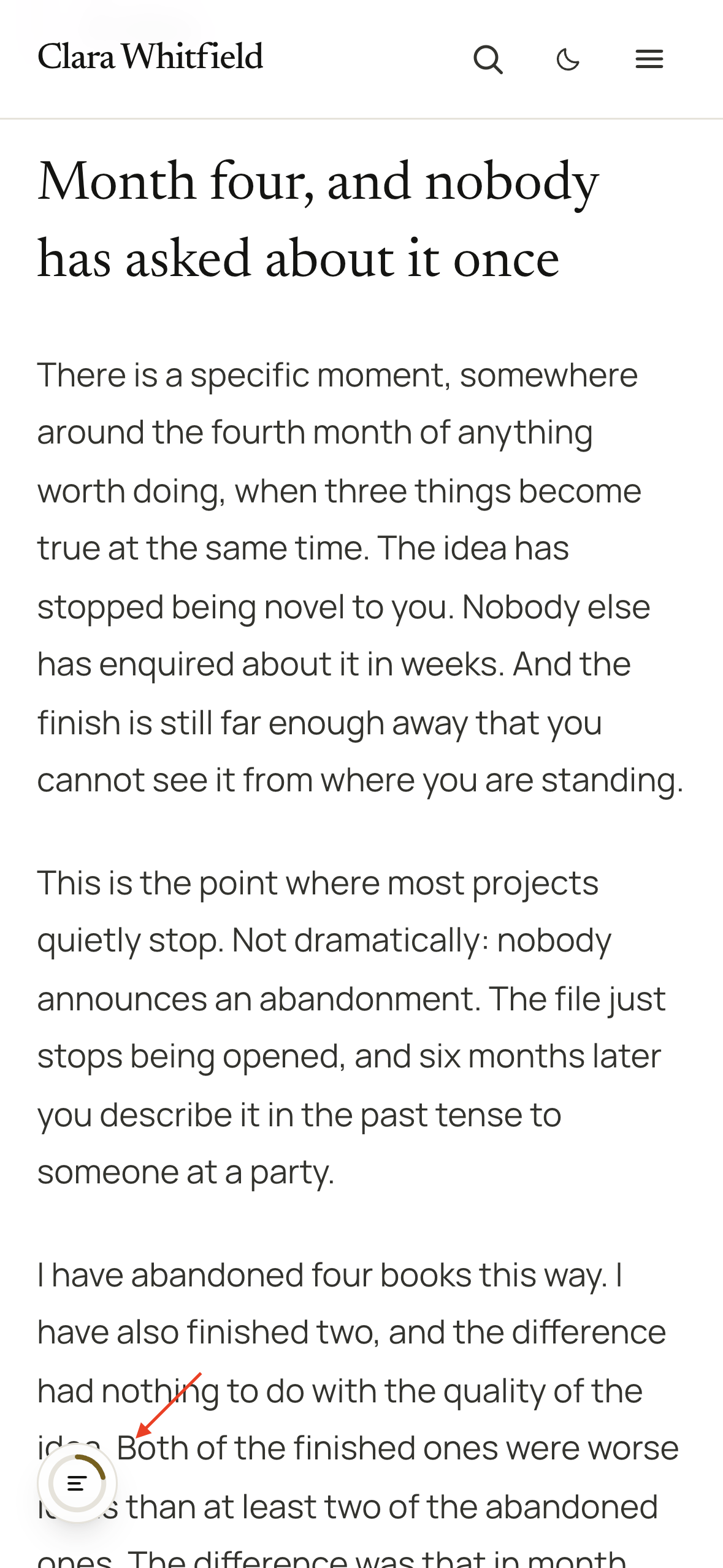
The sheet on a phone
Why the left corner
Ghost's own membership button sits in the bottom-right corner on every site that has one, so the left is the corner that is always free. If the floating video player ever shares that corner, the Contents button sits just above it.
Section links
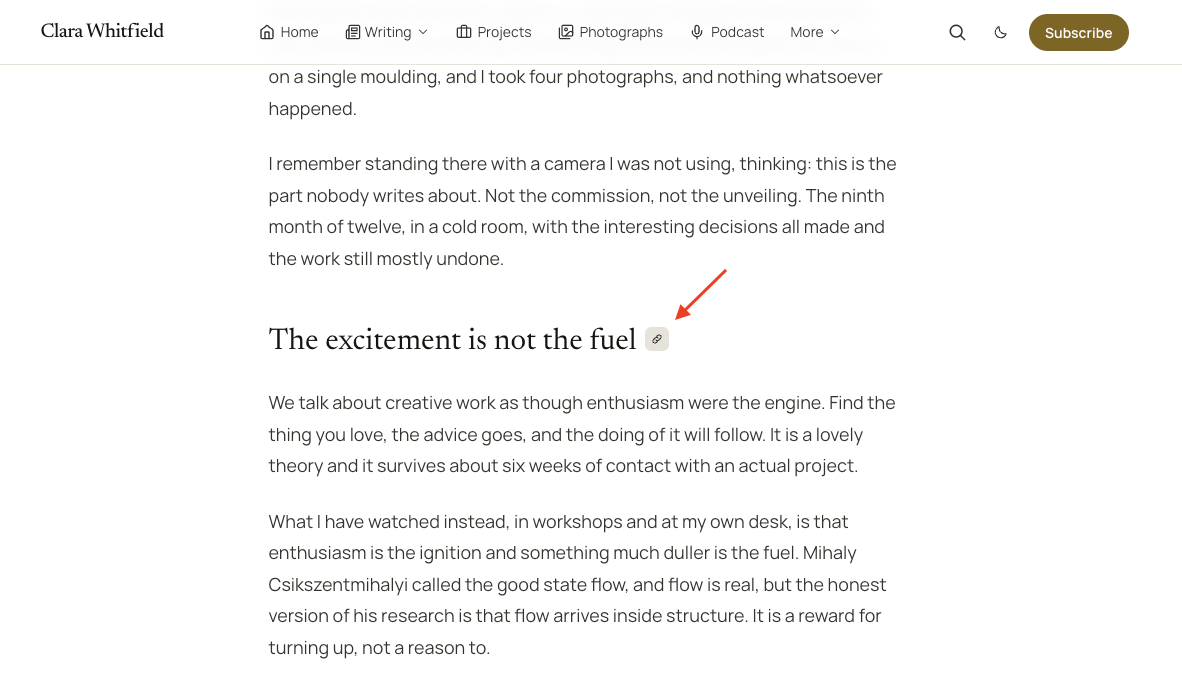
On a post or page with a table of contents, every listed heading also gets a link of its own. Hover a heading and a small link button appears at the end of it. Click it and the page jumps to that heading, and the address of that exact section is copied, ready to paste into a message or another post. The button's icon changes to a tick for a moment to show the copy worked, and a short "Link copied" note is read out to screen reader users.
The copied address is your post's canonical address plus the section, never whatever was in the reader's address bar, so no tracking parameters travel with it.
On a phone, where nothing can be hovered, the button stays out of the way; readers reach sections from the Contents button instead. Keyboard users reach every section link with the Tab key, and the button lights up at the end of the heading they are on.
A section link
A heading's words are its address
Ghost builds each heading's address from its words: "Why the sentence travels" lives at #why-the-sentence-travels. Reword the heading and its address changes with it, so any link someone copied before points at nothing. Quiet itself never changes an address Ghost has given a heading. It only adds one where a heading has none, and gives the second of two identically worded headings its own address ending in -1.
Copying needs a secure connection. On a site served over plain http, a section link still jumps to its heading but copies nothing. Any Ghost host serves your site over https, so this rarely comes up.
Where you land
A jump, from the list or from a section link, stops with the heading just under the header, and the heading is underlined for a moment so the eye finds it. Readers who have asked their device to reduce motion get the jump without the animation.
Members-only posts
A reader who cannot open a members-only post sees your excerpt and the signup card, and no table of contents: listing sections they cannot read would only frustrate them. Members with access see it as usual. See Membership.
Turning it off
For one post or page
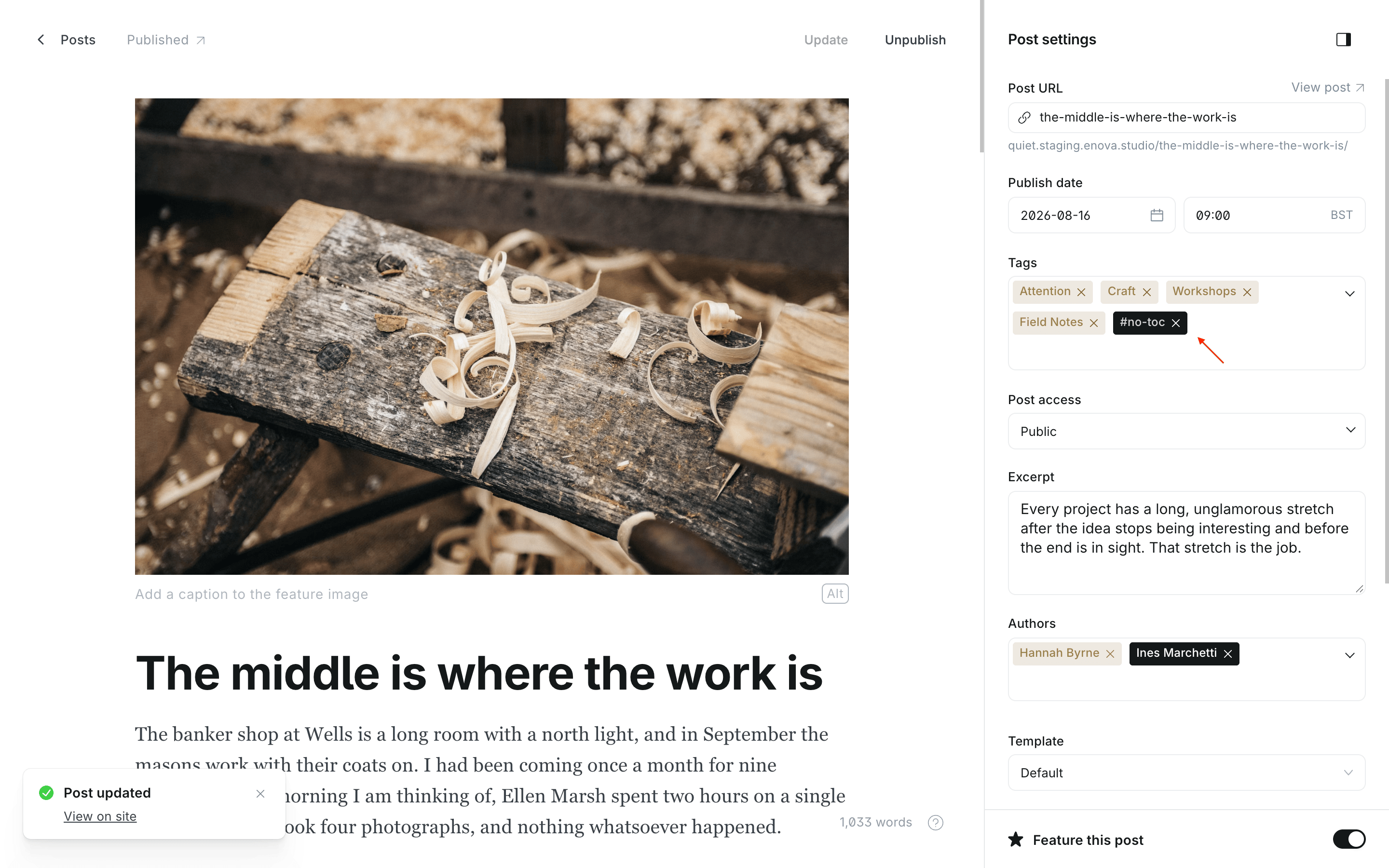
#no-tocOpen the post or page and click the settings icon at the top right.
Find Tags, type #no-toc and press Enter. Ghost creates the tag the first time you use it.
Update. The Contents line, the button and the section links are gone from that piece only.
The general rules for internal tags are in Editorial conventions.
Editor: the tag in Post settings
Across the whole site
There is no theme setting for it. One rule in Settings → Code injection → Site header turns the table of contents off everywhere:
<style>
  [data-component="table-of-contents"] { display: none; }
</style>
That removes the Contents line and the button. Section links are a separate feature and stay; to remove those as well, add a second rule:
<style>
  [data-component="table-of-contents"],
  [data-component="heading-link"] { display: none; }
</style>
Keeping only part of it
The same handles let you keep some of it and not the rest:
| To hide | Rule |
|---|---|
| Just the Contents button | [data-component="table-of-contents"][data-variant="button"] { display: none; } |
| Just the Contents line above the article | [data-component="table-of-contents"][data-variant="inline"] { display: none; } |
| Just the section links | [data-component="heading-link"] { display: none; } |
Every handle is listed in the Hook reference.
With JavaScript switched off
Quiet reads your headings in the reader's browser, so with JavaScript off there is no table of contents and no section links, and the page reads exactly as it would without them. Every heading still has its address, so a link someone shared to a section still lands on it.
Printing
A printed or saved-as-PDF article leaves out the Contents line, the button and the section links, like the rest of the page's controls.
Questions
Post and page layouts
Four ways to open a post or page, each chosen with one internal tag: a portrait beside the title on either side, or the picture edge to edge or at text width. Plus the drop cap.
Reading experience
What surrounds an article in Quiet: the byline, the table of contents, the share row and Copy link, Read next, the author card, previous and next posts, comments, printing, and what still works with JavaScript off.