

Navigation icons
Put an icon beside any menu item, two ways: upload one per item in Ghost's Navigation icons beta, or paste a line of Code injection. Same result in the header, dropdowns, drawer, footer and 404 page.
Quiet can show a small icon before any item in your menus. Icons appear everywhere the item does: the header bar, its dropdowns and the More menu, the phone drawer, the footer columns and the quick links on the 404 page.
There are two ways to add them, and they can be mixed.
- Ghost's built-in icons. Upload a picture per item in Settings → Navigation. It is a Ghost beta, switched on under Settings → Labs, and it works with JavaScript off.
- Icons from Code injection. Name a built-in icon per item in one line, or paste your own SVG. Nothing to switch on in Labs.
If an item has both, the uploaded one wins.
Icons are off by default
Your menus look exactly as they do today until you upload an icon or paste a snippet. Items you leave alone stay text-only, with no change in spacing.
Ghost's built-in icons
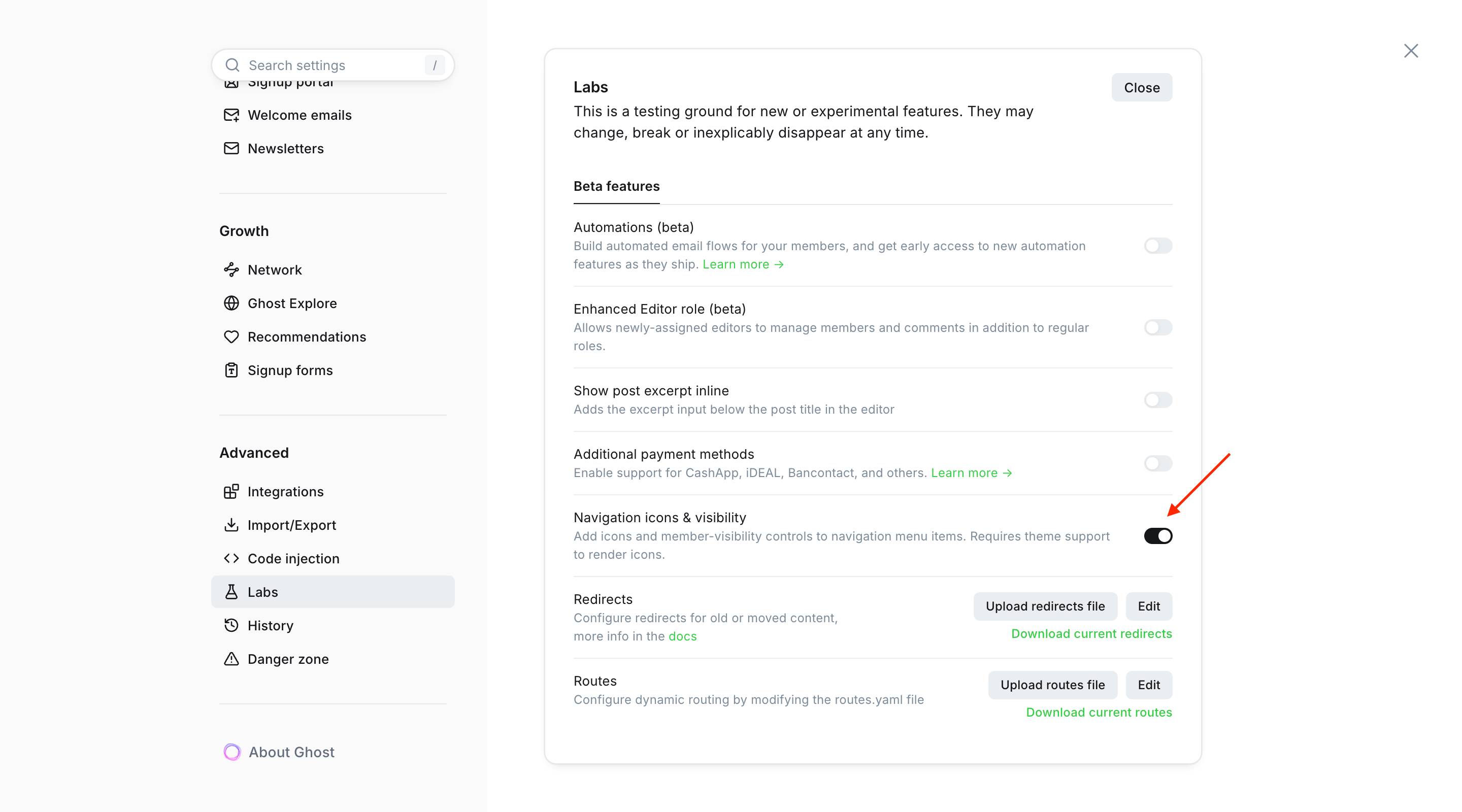
Go to Settings → Labs → Beta features and turn on Navigation icons.
Go to Settings → Navigation. Each item now has an icon slot next to its label.
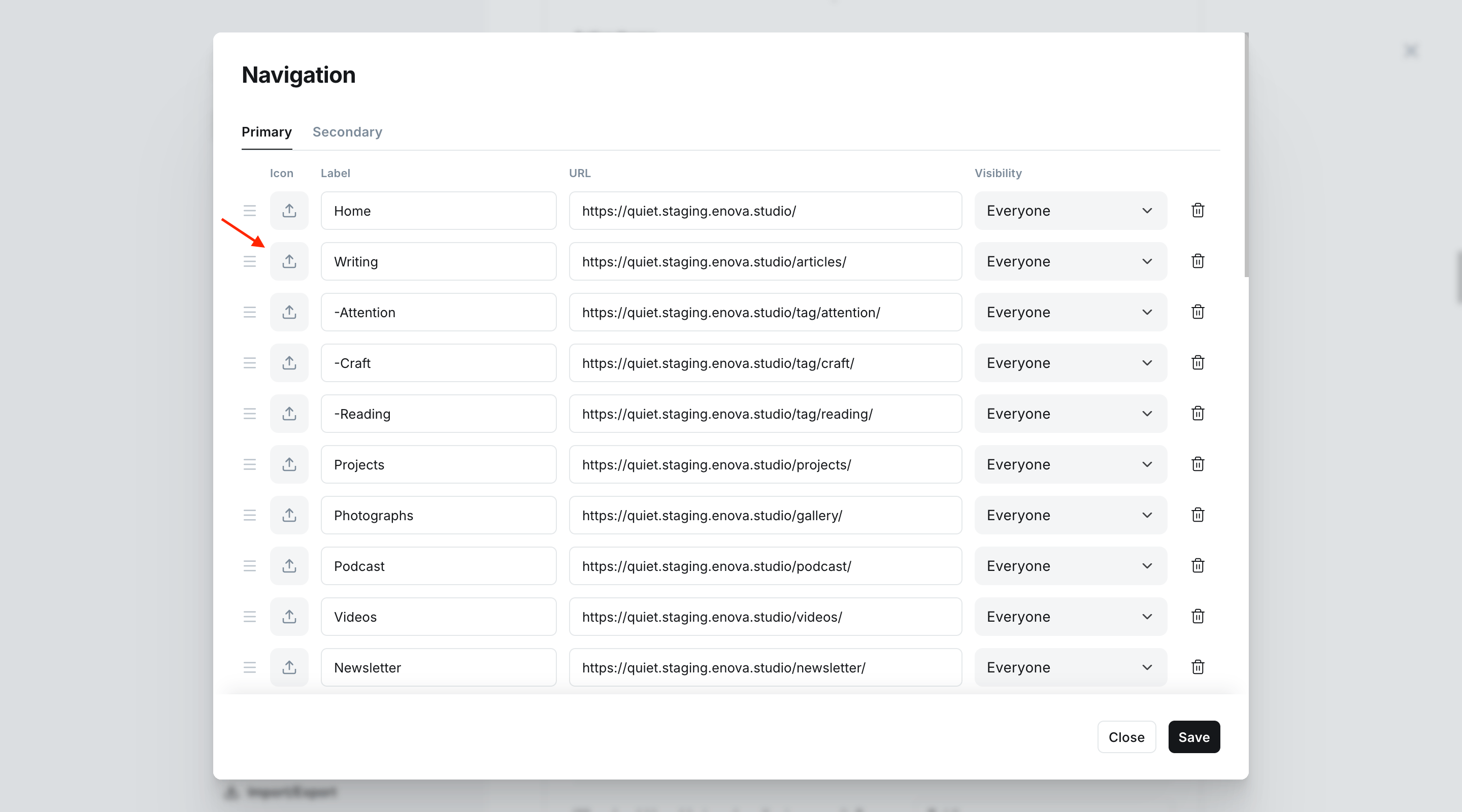
Upload an icon for any item you like. Items without one keep showing text only.
Save.

Choosing an icon file
- A square SVG is best: it stays crisp at any size and on any screen. A transparent PNG of at least 96 × 96 pixels also works.
- Use a single colour that reads on both a light and a dark page, such as a mid grey. Quiet does not recolour uploaded icons for dark mode. If your icons are black, the one-line snippet under Menu icons inverts them when the page is dark.
- Icons are drawn at 16 pixels beside the text. Fine detail will not survive; keep to simple shapes.
Where to get icons
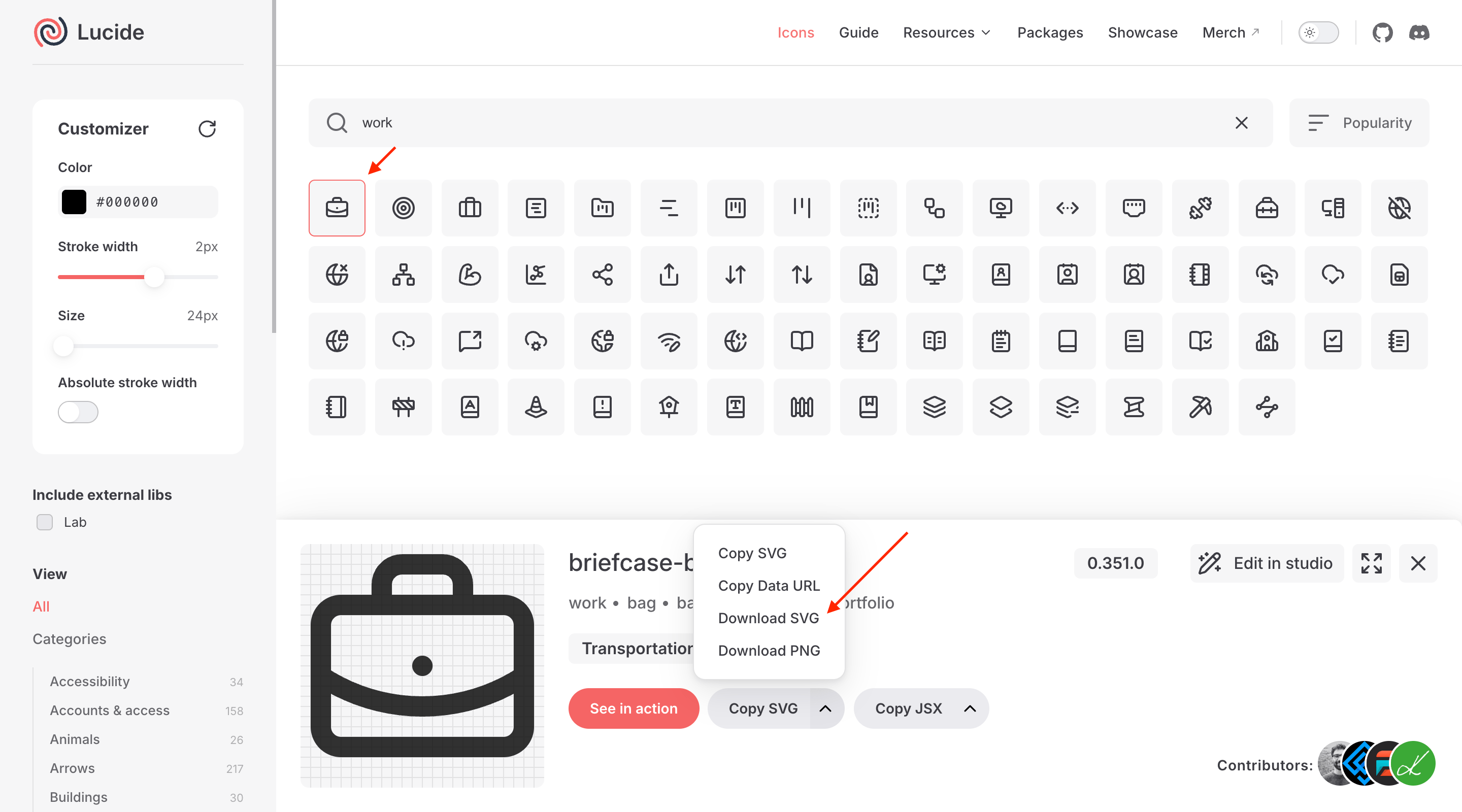
Lucide is a free set of over a thousand outline icons in the same style as Quiet's own, and every one can be downloaded as an SVG.
Search for the icon and click it to open its details.
In the Customizer on the left, set Color to a mid grey such as #6B6B6B, so the icon reads on both your light and dark page. Leave the stroke width at 2px.
Open the arrow beside Copy SVG and choose Download SVG. Rename the file to what the link is before uploading, if the item will have no label.
Tabler Icons works the same way. Both sets are free to use on any site.
Keep to one style
Icons from one set share a stroke weight and corner style, so a menu built from a single set reads as one design. Mixing Lucide with a filled logo or a hand-drawn glyph works, but the row will look assembled rather than designed.
Icon-only items
Leave the label empty and the icon becomes the whole link. Because there is no text, Quiet uses the file name as the name a screen reader announces and as the item's name in the header's dropdowns, so name the file what the link is: Search.svg is announced as "Search". Ghost swaps spaces and punctuation for hyphens (Sign in.svg becomes "Sign-in") and adds a number to a repeated file name (Search-1), so upload a fresh, cleanly named file rather than reusing one.
Keep icon-only for the obvious
Readers who use a mouse get no tooltip, so an icon on its own works for things everyone recognises, such as search, home or RSS. Anything else deserves a label. An icon-only item cannot be a dropdown child or a footer heading, because those are made by the label's first character.
Icons from Code injection
For a site that cannot or would rather not switch on the beta. Paste into Settings → Code injection → Site header.
How matching works
Quiet matches each rule to a menu item by slugifying the label: lowercase, with spaces and punctuation turned into single hyphens, and the dropdown dash or footer hash at the start dropped.
| Menu label | Slug to use |
|---|---|
Home | home |
About Us | about-us |
-Field Notes | field-notes |
Testimonials & Reviews | testimonials-reviews |
Café | cafe |
الرئيسية | الرئيسية |
Non-Latin labels (Arabic, Persian, Hebrew, Urdu, Chinese, Cyrillic) work as they are. For those, the anchor-block form below is easiest: write the label itself as the data-match value and Quiet slugifies both sides the same way.
Quiet never guesses. If you write no rule for an item, it gets no icon.
Option A: meta tags
One line per item, for a built-in icon by name. See the catalog for the names.
<meta name="quiet-nav-icon-home"     content="home">
<meta name="quiet-nav-icon-writing"  content="blog">
<meta name="quiet-nav-icon-about-us" content="user">
<meta name="quiet-nav-icon-contact"  content="mail">
Format: name="quiet-nav-icon-{label-slug}" and content="{icon-name-or-alias}".
Option B: anchor block
Use this when you want any of the following:
- Paste your own SVG for a custom glyph.
- Limit an icon to certain surfaces (header only, say).
- Match a label that contains a hyphen or unusual characters.
<div data-quiet-nav-icons hidden>
  <!-- Built-in icon, same effect as the meta-tag form -->
  <a data-match="home" data-icon="home"></a>

  <!-- Your own SVG: any 24×24 outline drawn in currentColor follows the text colour -->
  <a data-match="docs"
     data-svg='<svg xmlns="http://www.w3.org/2000/svg" viewBox="0 0 24 24" fill="none" stroke="currentColor" stroke-width="2" stroke-linecap="round" stroke-linejoin="round"><path d="M14.5 2H6a2 2 0 0 0-2 2v16a2 2 0 0 0 2 2h12a2 2 0 0 0 2-2V7.5L14.5 2z"/></svg>'></a>

  <!-- Header only -->
  <a data-match="newsletter" data-icon="newsletters" data-placements="header"></a>
</div>| Attribute | Required | What it does |
|---|---|---|
data-match | Yes | The label of the menu item to target, or its slug. |
data-icon | If data-svg is missing | Name of a built-in icon or alias. See the catalog. |
data-svg | If data-icon is missing | A complete <svg>…</svg>. Wins over data-icon when both are set. |
data-placements | No | Where the icon shows: a comma-separated list of header, drawer, footer. Defaults to all three. |
Keep the hidden attribute
hidden on the wrapping <div> is what stops the rule block appearing on the page before Quiet reads it. Both forms can coexist, and a block rule wins over a meta tag for the same item.
Built-in icon catalog
These names work with both forms. Aliases resolve to the same icon, so pick whichever matches your label. The catalog below is drawn from the theme itself, so it always shows exactly the icons your installed version ships.
The brand marks are the same icons the social links row uses in the footer.
Where icons show
By default a rule applies everywhere. data-placements limits it:
header: the header bar, its dropdowns, the More menu and the 404 page's quick links.drawer: the phone menu.footer: the footer columns.
Footer column headings (a label starting with #) never show an icon from either mechanism. They are headings, not links.
Troubleshooting
With JavaScript switched off
Uploaded icons are part of the page and still show. Code injection icons are added by Quiet's script, so they do not appear; every link still works, text-only.
For developers
These names are public API. Quiet does not rename or remove them in minor releases.
Hooks
[data-part="icon"] is the icon (an <img> when uploaded, a <span> wrapping an <svg> when injected) and [data-part="label"] is the text. Both are listed with examples in the hook reference.
window.quietNavIcons
Available once the page has loaded. Register your own glyphs or re-apply rules from your own snippets.
window.quietNavIcons.register('my-glyph', '<svg …></svg>');   // add a glyph a rule can name
window.quietNavIcons.refresh();                                // re-read the rules and re-apply them
window.quietNavIcons.resolve('home');                          // the SVG string for a name, or null
window.quietNavIcons.icons;                                    // read-only merge of page, brand and registered icons
window.quietNavIcons.aliases;                                  // read-only alias table
quiet:nav-relayout
Quiet dispatches this event on document after it changes what is inside the header's menu items, and the header listens for it to re-measure the row and re-fit the More menu. Dispatch it yourself if your own code changes the width of a menu item after the page has loaded.
Related
- Navigation, for dropdowns, the More menu and footer columns.
- Social links, a sister feature using the same Code injection pattern.
- Menu icons snippets, for sizing icons and inverting them in dark mode.
Navigation
Set up Quiet's menus: a dash makes a header dropdown, overflow tucks into a More menu, a hash in the secondary menu makes a footer column, and any item can carry an icon.
Social links
The icon row in Quiet's footer: nine accounts from Ghost's own settings, an RSS button, and any other platform through two lines in code injection.